
Adding Staff Members
Netbookings menu for the creation of user accounts. Adding staff user accounts to the Netbookings system has many functions:
- Allows notes and transactions to be recorded as being completed by the users logged in.
- Allows tour businesses to assign a tour to a staff member/user.
- Allows spa businesses to assign therapists to services, meaning the system to keep track of staff availability.
Click ‘Staff/Agents Setup’
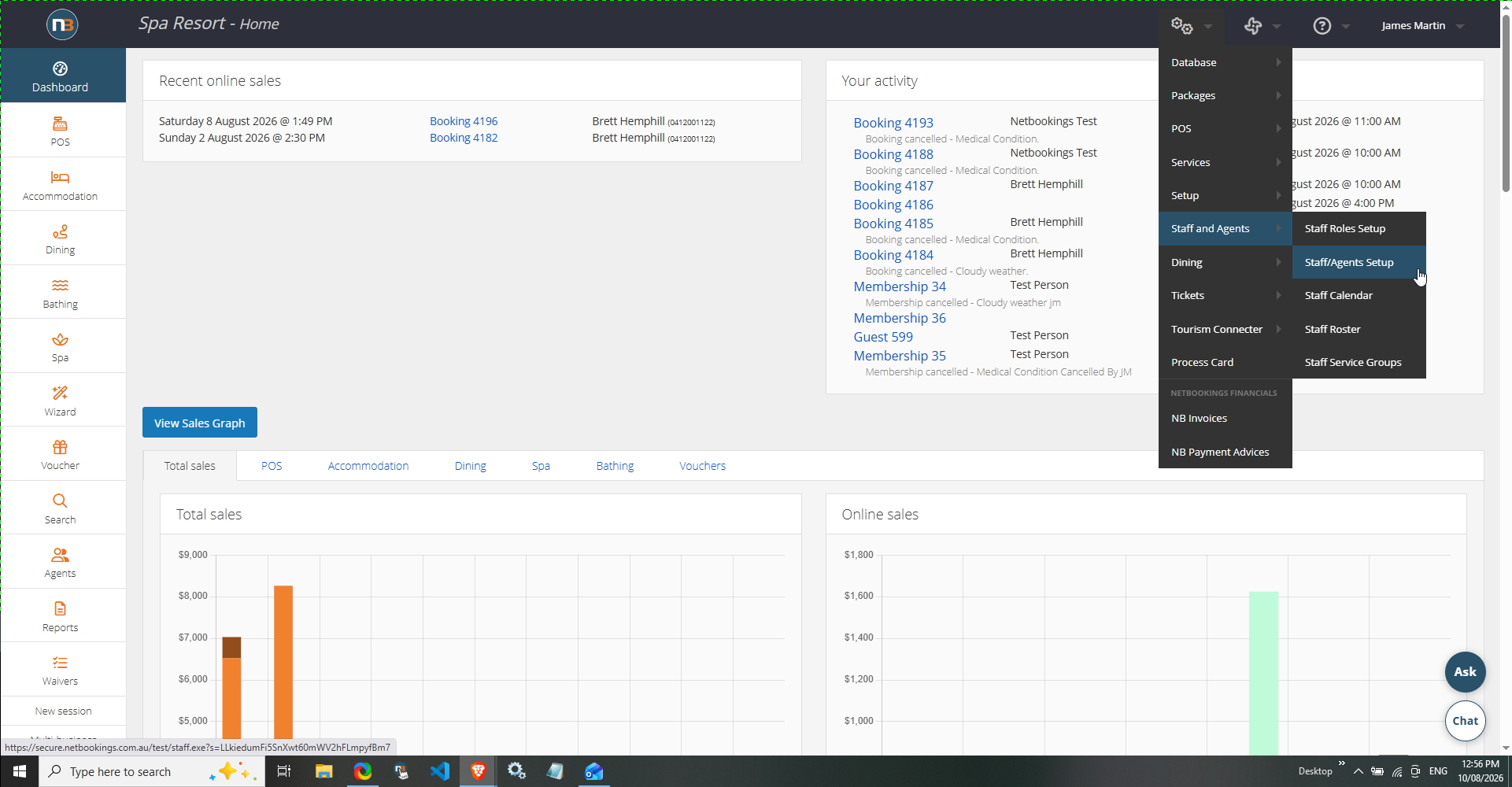
Navigate to System > Staff and Agents > Staff/Agents Setup.
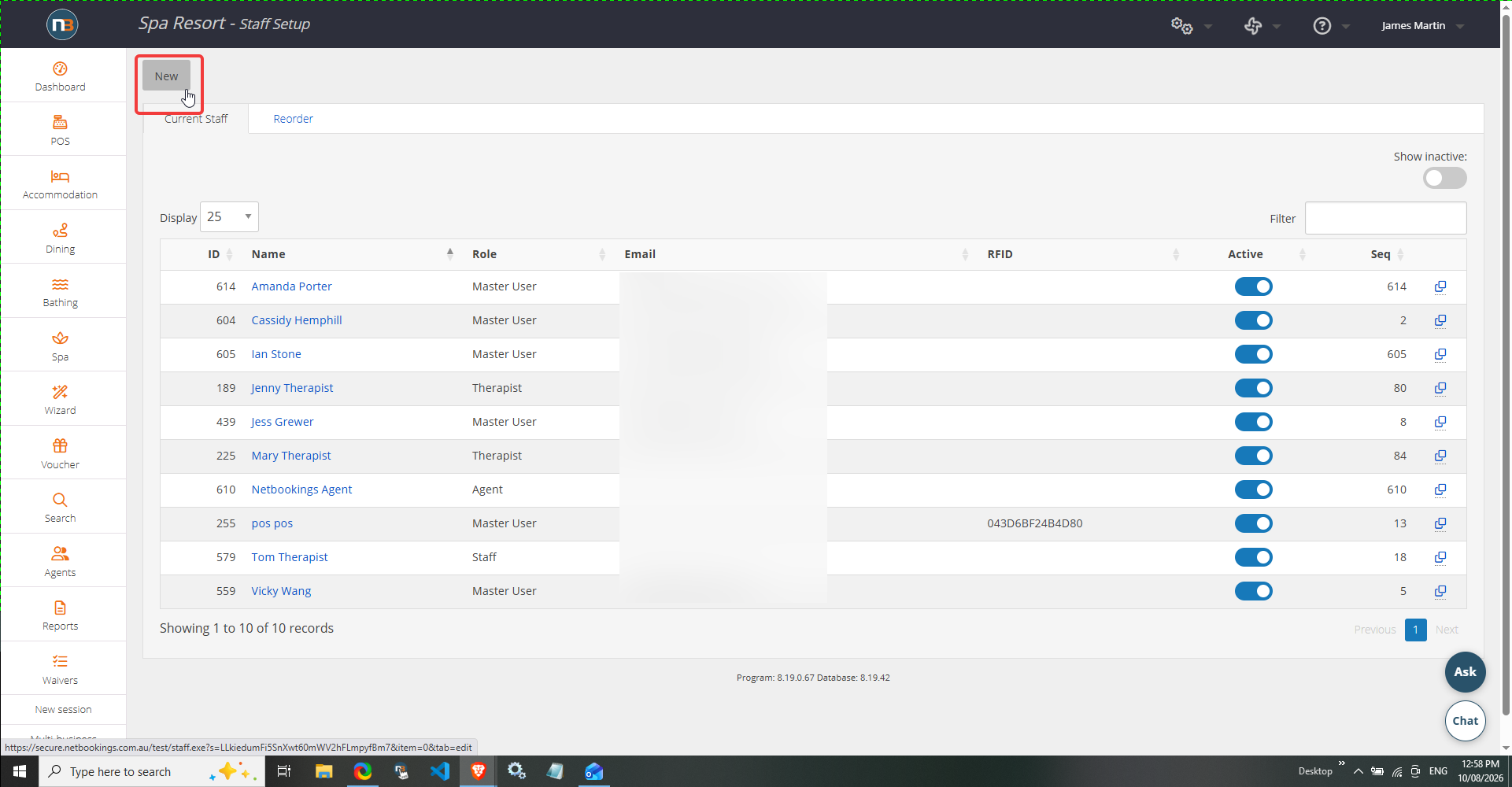
Click ‘New’
Enter Staff Details
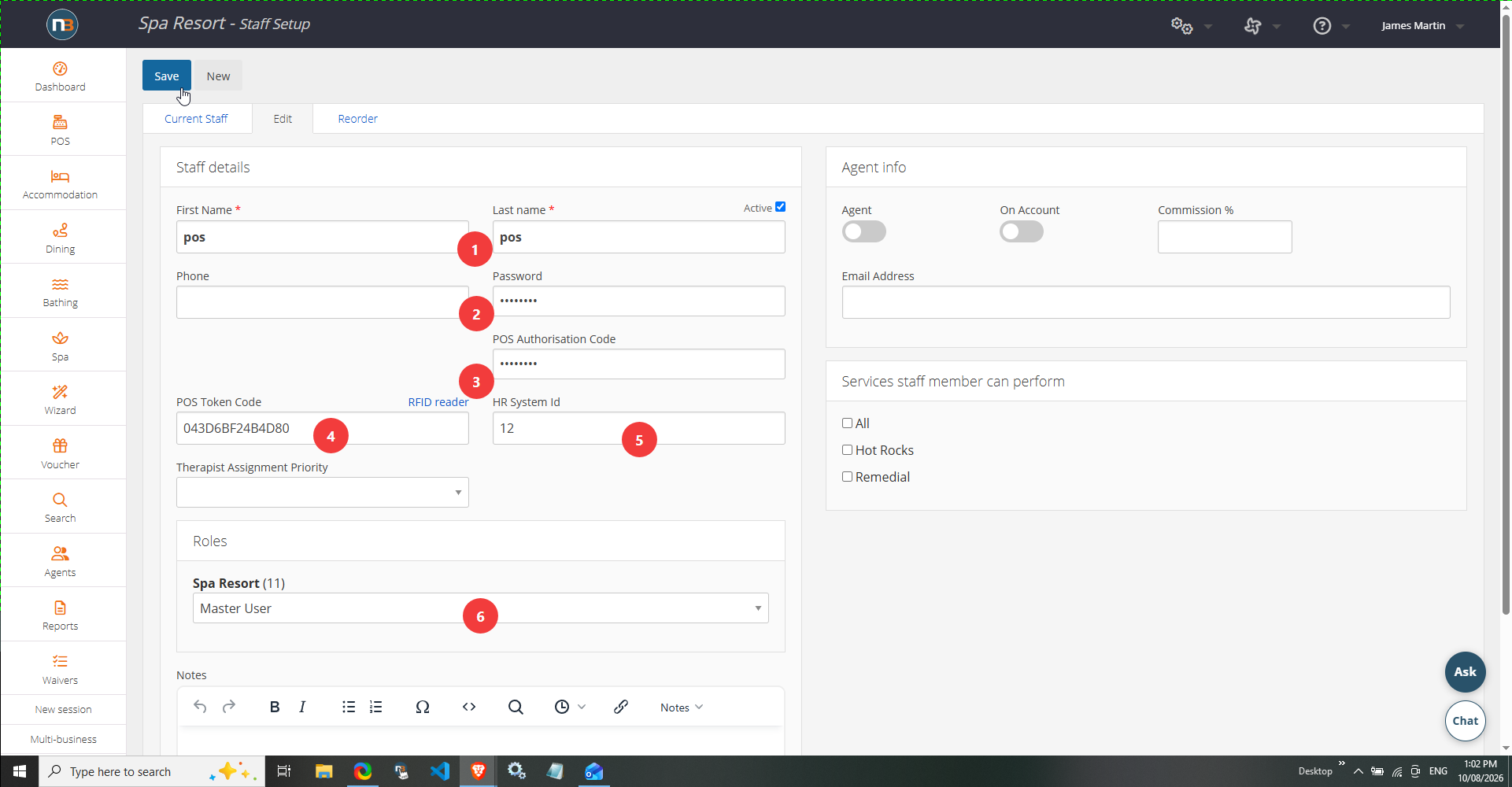
- Enter the name of the user/staff member,
- Enter password – usually something simple then user can change it later.
- POS Authorisation code refers to a code that allows user to access restricted content. Code can be used by any staff member – allowing supervisors to allow functions on the spot for operational staff.
- POS token code refers to the code of the RFID token that users can use to access POS stations rather than entering name and password. Timer on POS stations allow it to lock after set time frame, allowing RFID wristbands to be used by staff.
- HR System ID refers to the id of staff for import/export of roster using HumanForce – speak to Netbookings for more information.
- Selecting their role.
The user (staff member) can now access the Netbookings system using their name, your business ID and their password.
View Your Staff
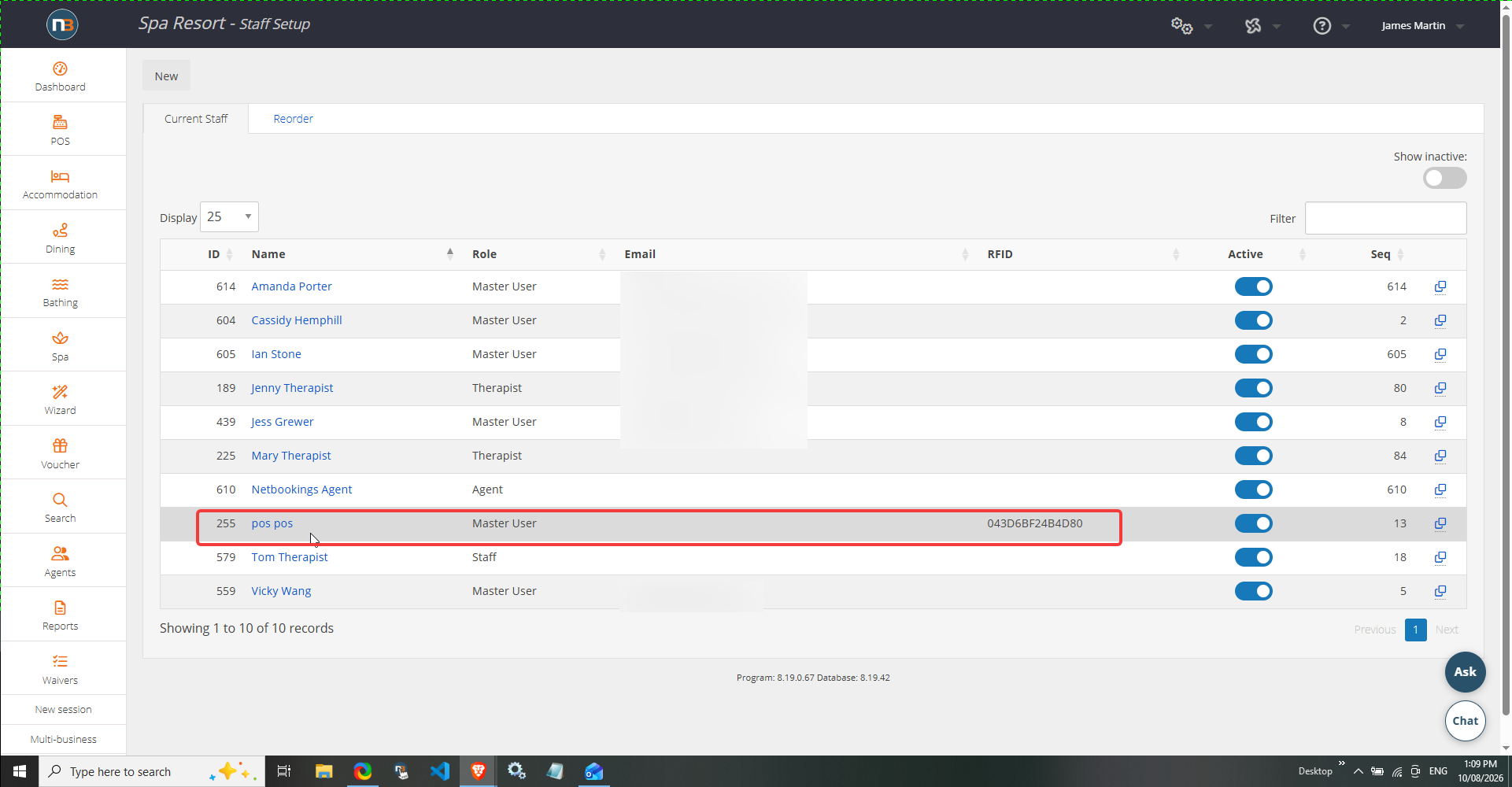
Click ‘Current Staff’ to view a list of your current staff and their roles.