
Calendar
The calendar setup allows you to assign tariffs and minimum number of nights to each day.
It is possible to assign an off-peak price for Spa and Private Bathing type services. Using calendar setup, we assign days which we consider to be off-peak to apply the alternate off-peak pricing on those dates.
Click ‘Calendar Setup’
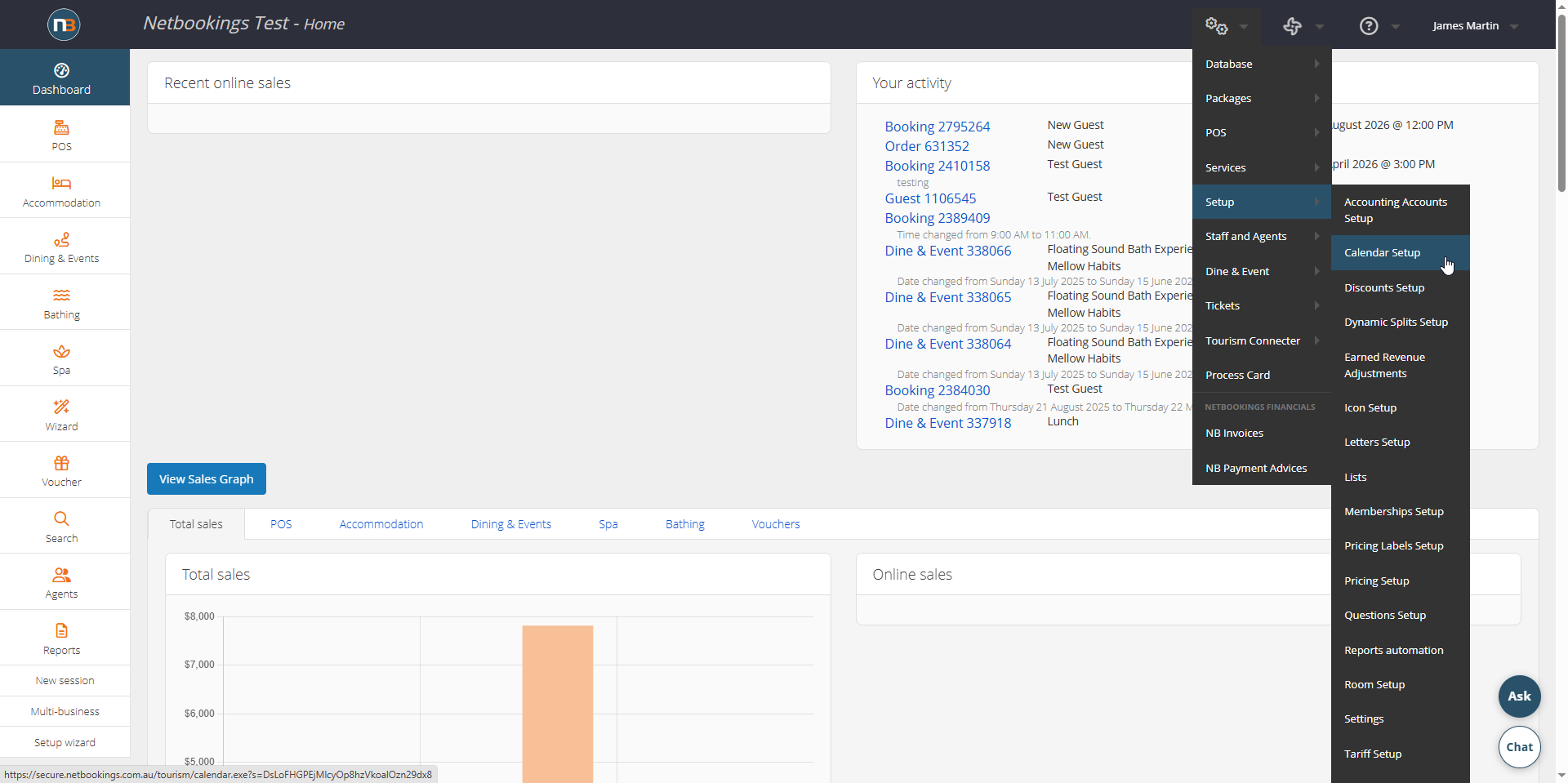
Navigate to System > Setup > Calendar Setup.
Customise Your Calendar
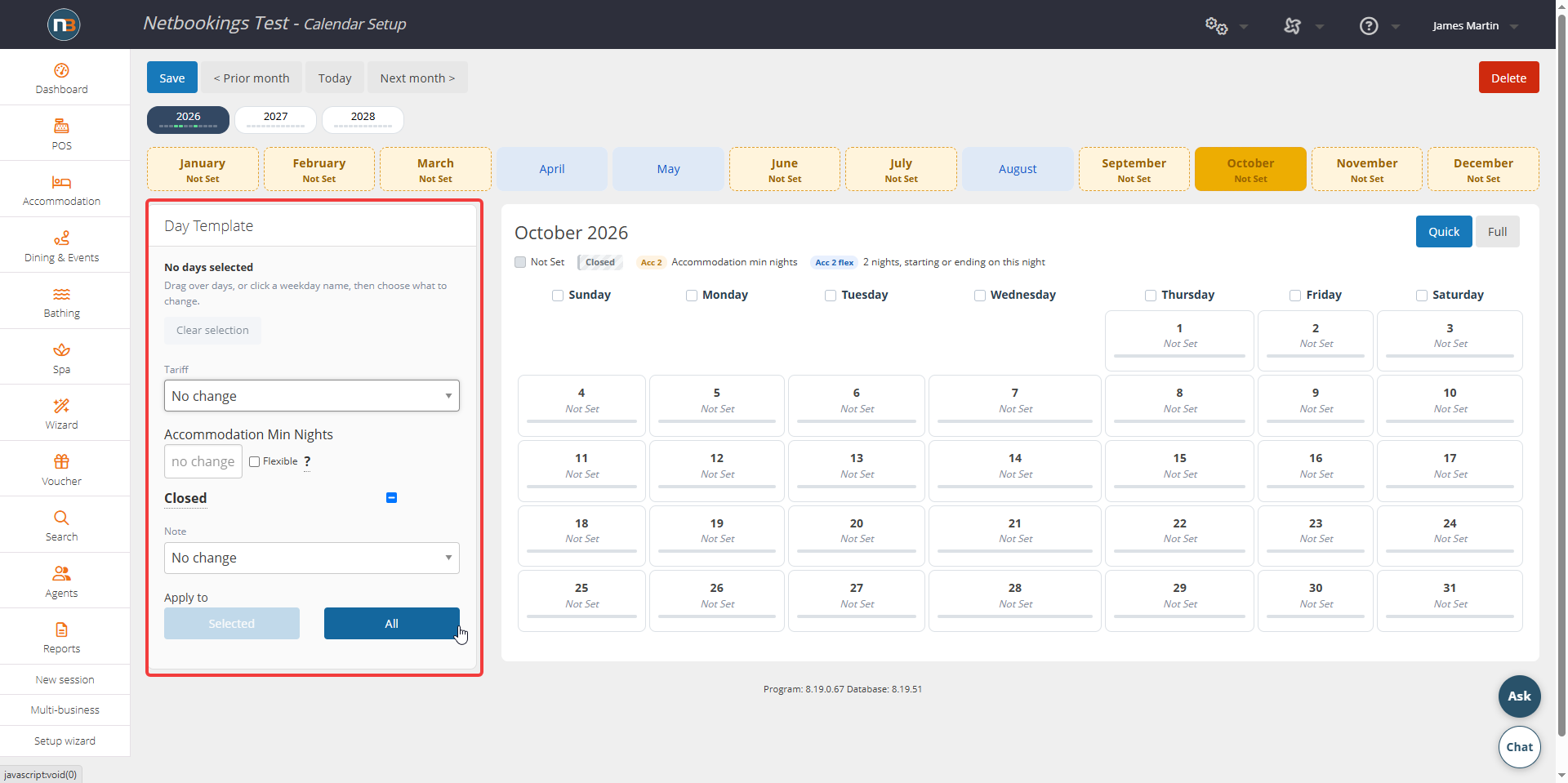
Apply your tariffs by selecting them from the drop-down menu for each day. The number entered in the ‘Min Nights’ is the minimum number of nights the user must book for if they book for that date. You may automatically fill the minimum nights to every cell using the field in the top right (by clicking on ‘All’ indicated by the red box in the image). You may also automatically fill the tariff you wish to apply to all days within the month. This is done in the same menu.
Two Modes
Quick Mode
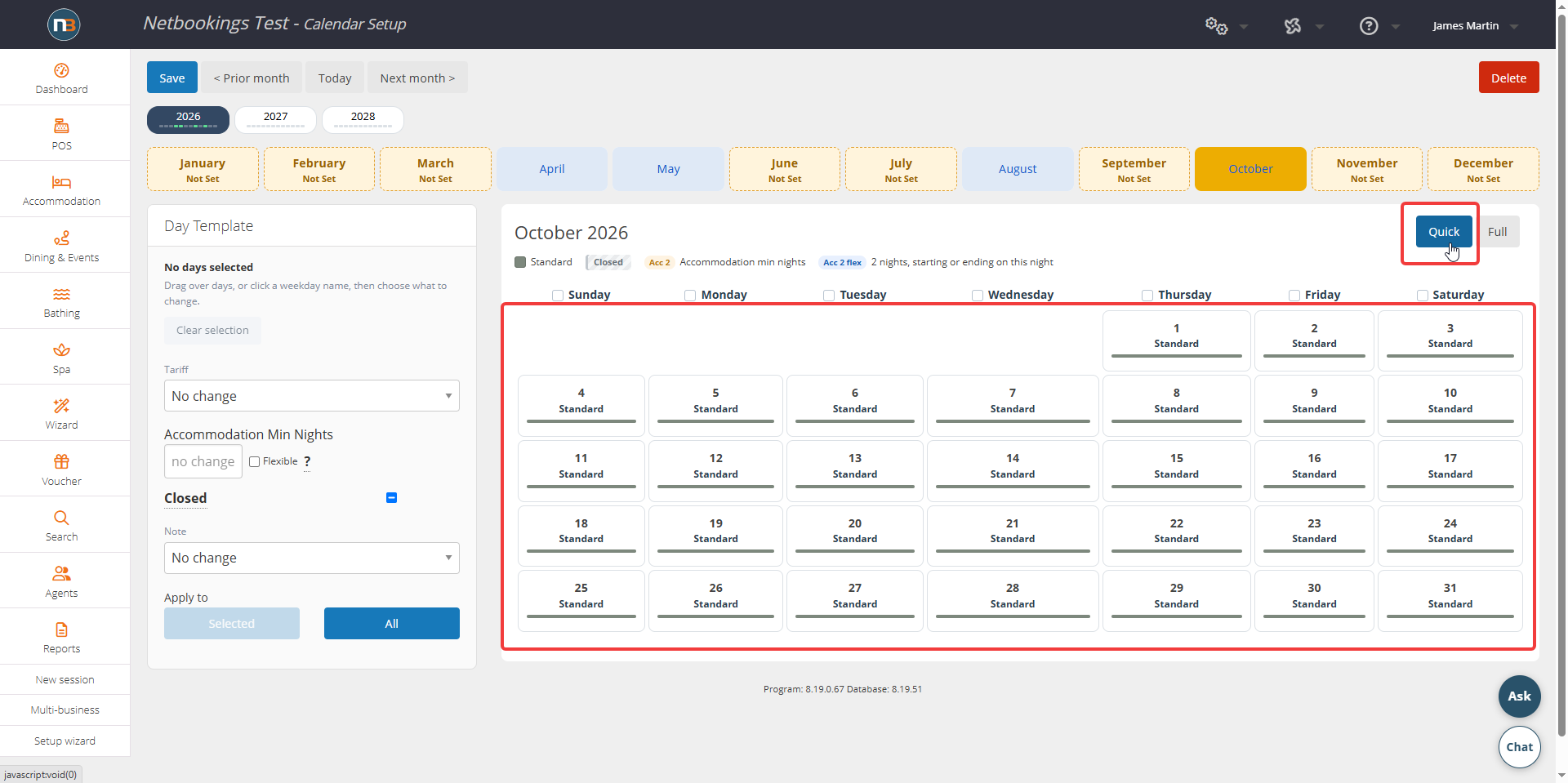
Quick mode allows you to view entire calendar more conveniently. You can still apply changes and select cells to make changes to calendar. Use day template to make required changes.
Full (View) Mode
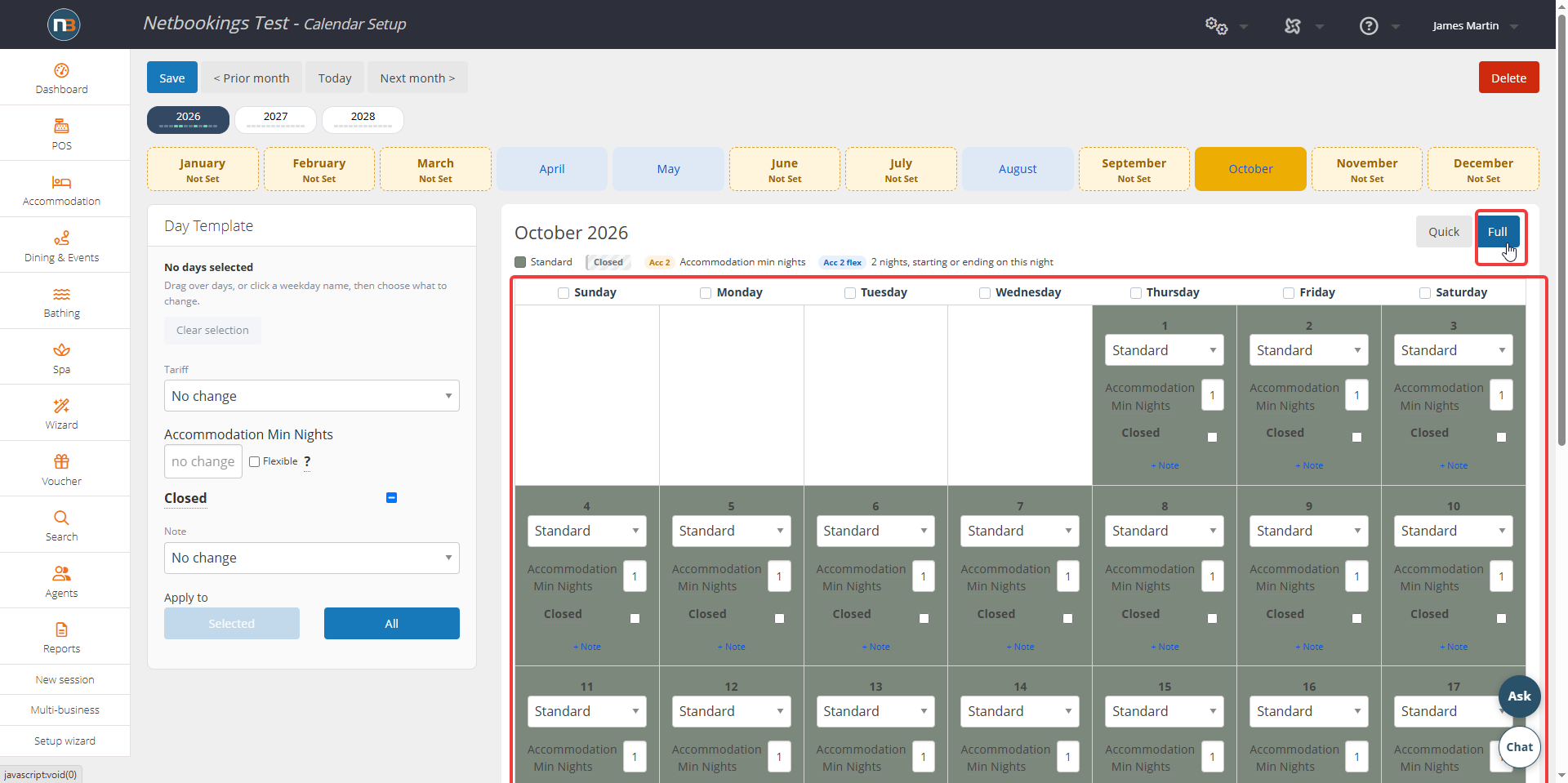
Full mode allows you to view entire calendar with all details required in each cell. You can still apply changes and select cells to make changes to calendar. Use day template to make required changes.
Flexible (Negative) Minimum Nights
If a negative number is entered into the ‘Min Nights’ field for individual cells, the guest must stay for at least the specified number of days, inclusive of either a night after OR before. This providing extra flexibility for guests in their booking. For example, if you are looking to set a Saturday 2 night minimum, but a guest wants to book Saturday and Friday night rather than Saturday and Sunday, they can do so.
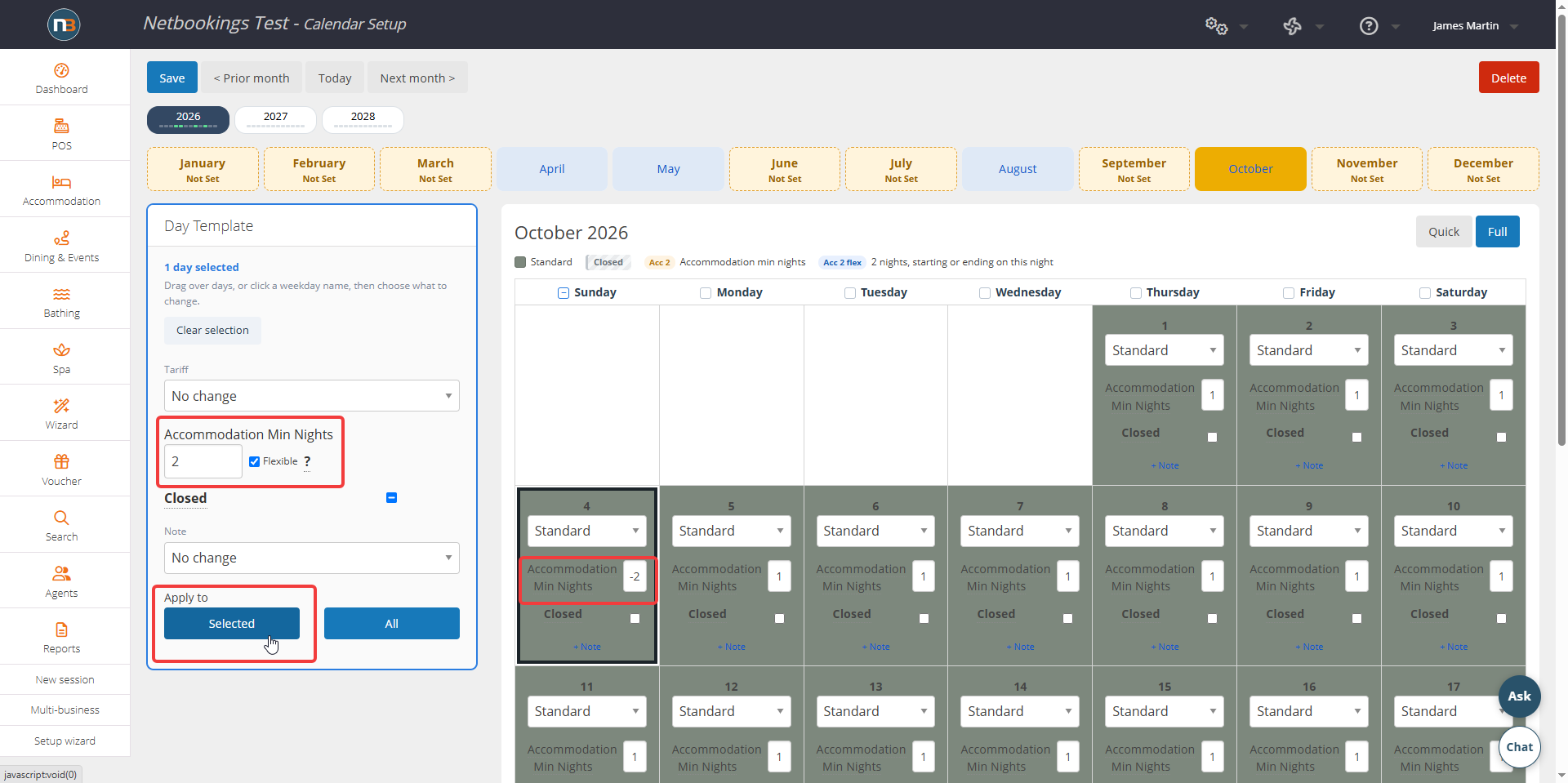
When filling out in the Day Template panel, you can check the ‘Flexible’ option, this applies the negative minimum nights for you into selected cells in the calendar.
Block of Days
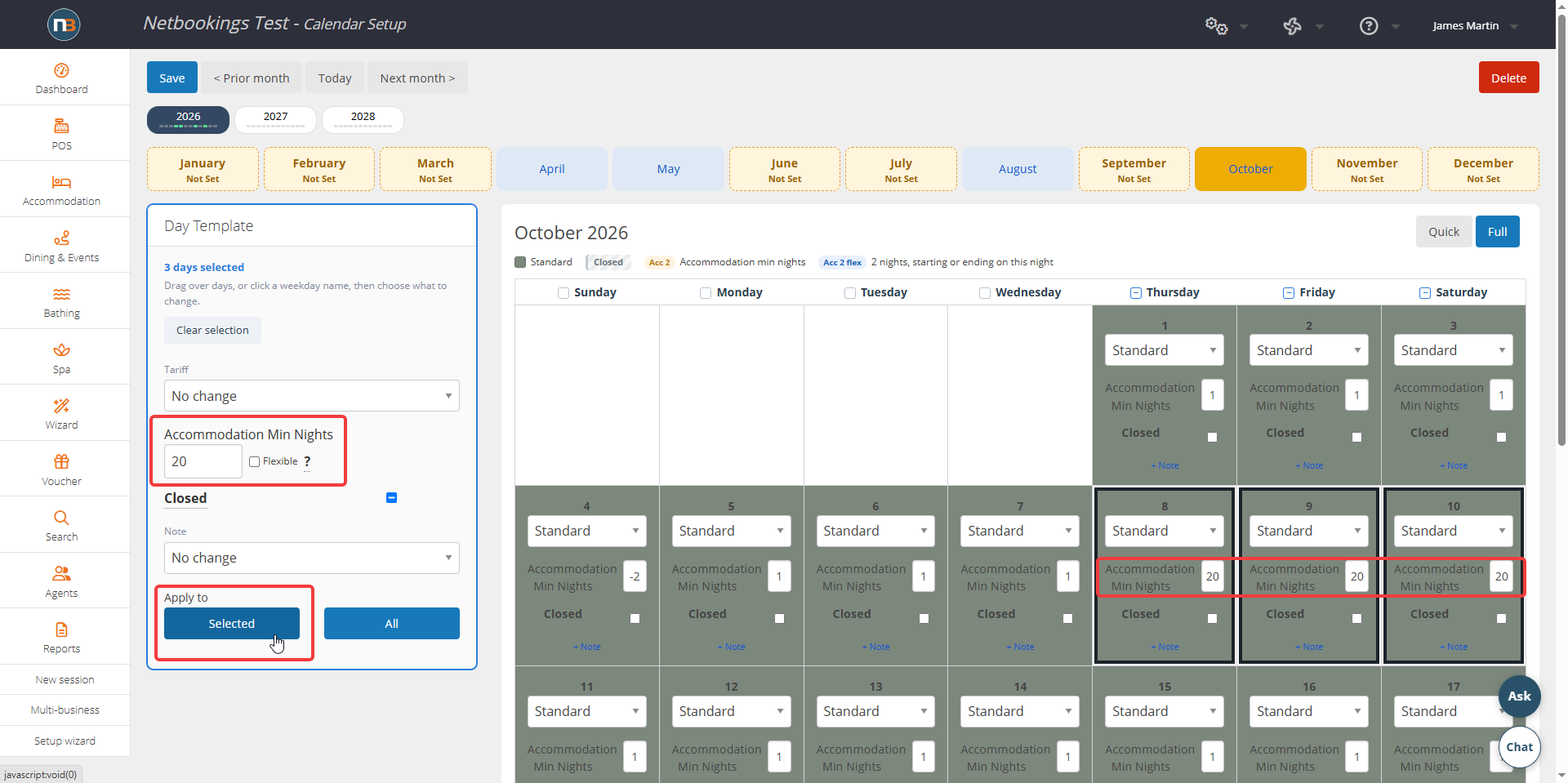
When ’20’ is entered into ‘Min Nights’, the dates entered must be booked as a block and can not be booked individually. For example, in the image above, if a booking is made for the 8th, 9th or 10th, the booking must include all three dates and can not contain only one. This will apply to Accommodation and Camping bookings only.
Calendar ‘Not Set’
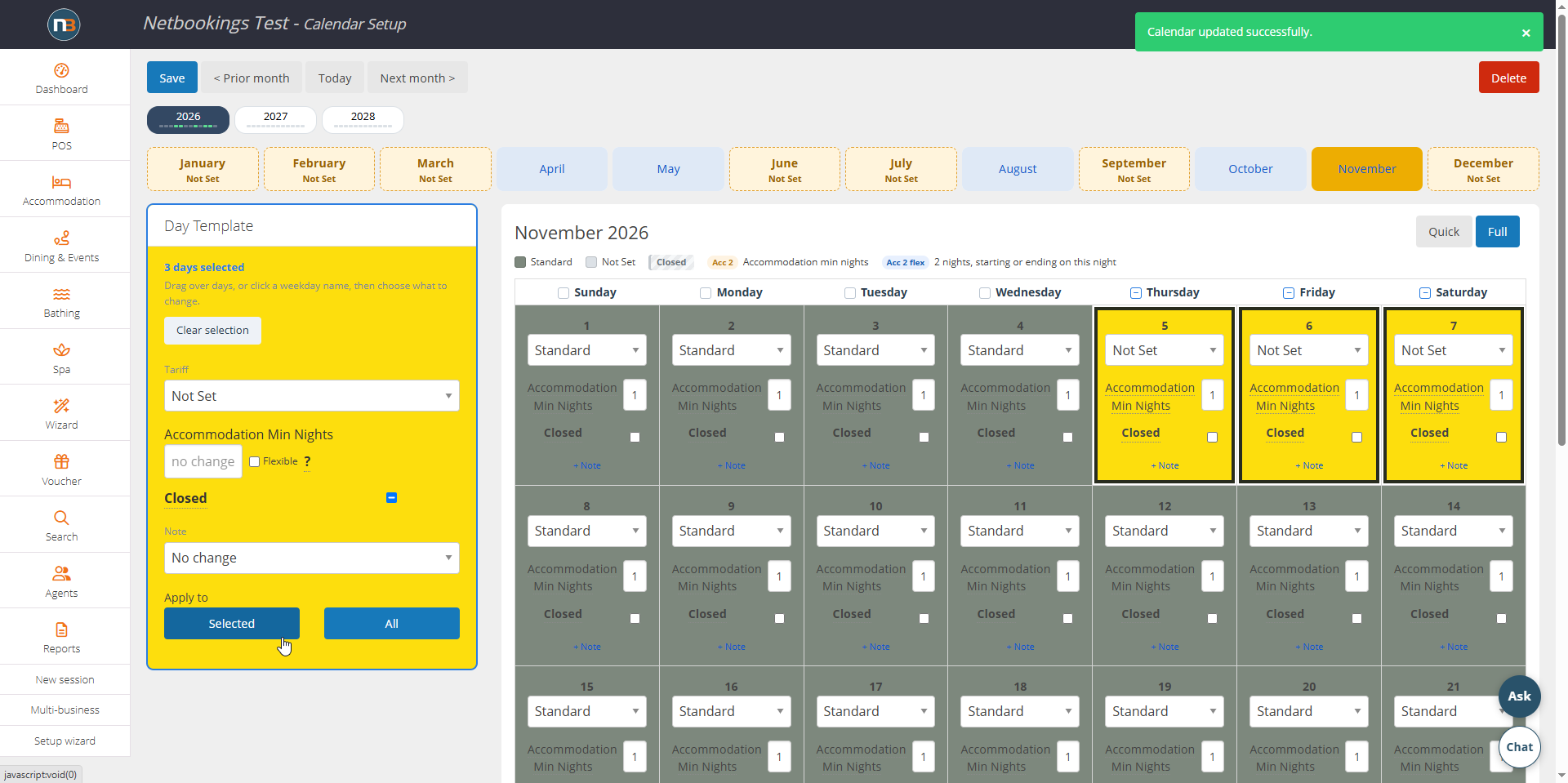
To make it easier to close bookings across the system, set no tariff in the Calendar Setup. When days in the month are ‘Not Set’ then this will close all bookings across Netbookings for those dates.
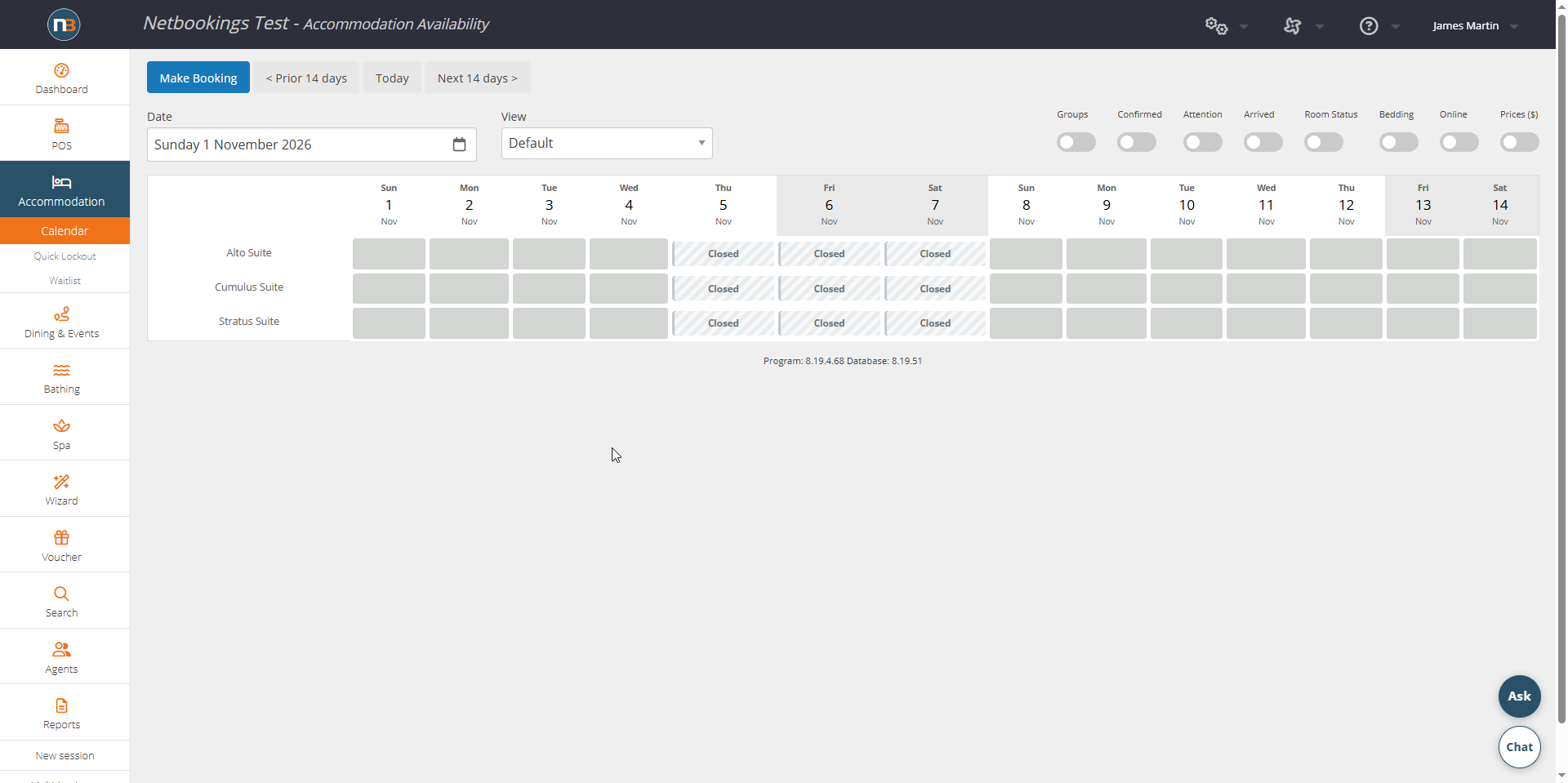
Accommodation Calendar showing ‘Closed’ for dates where tariff is ‘Not Set’.
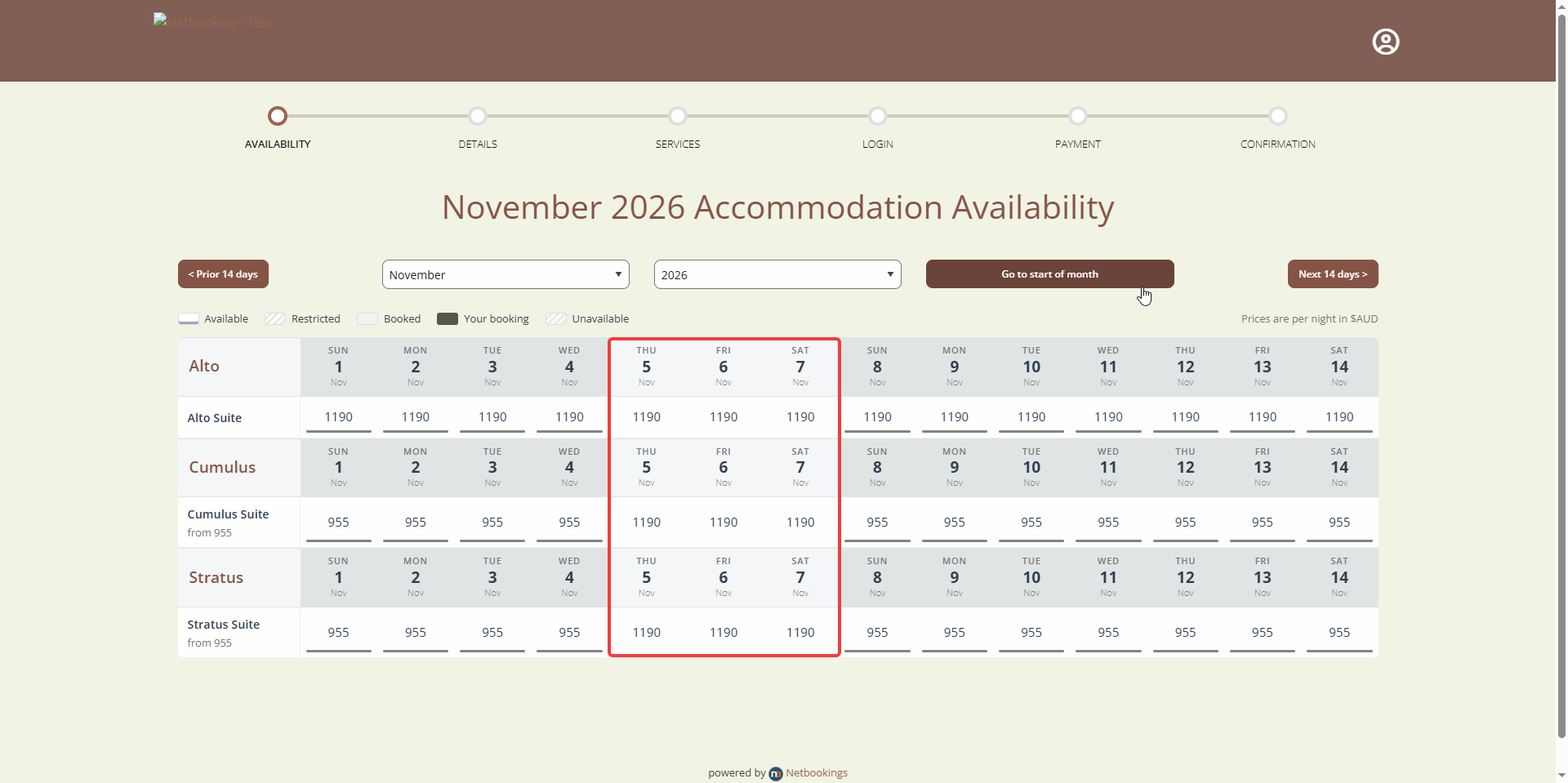
Guests at Accommodation booking link will see ‘Closed’ on respective dates also – with no option to book.
Click ‘Save’
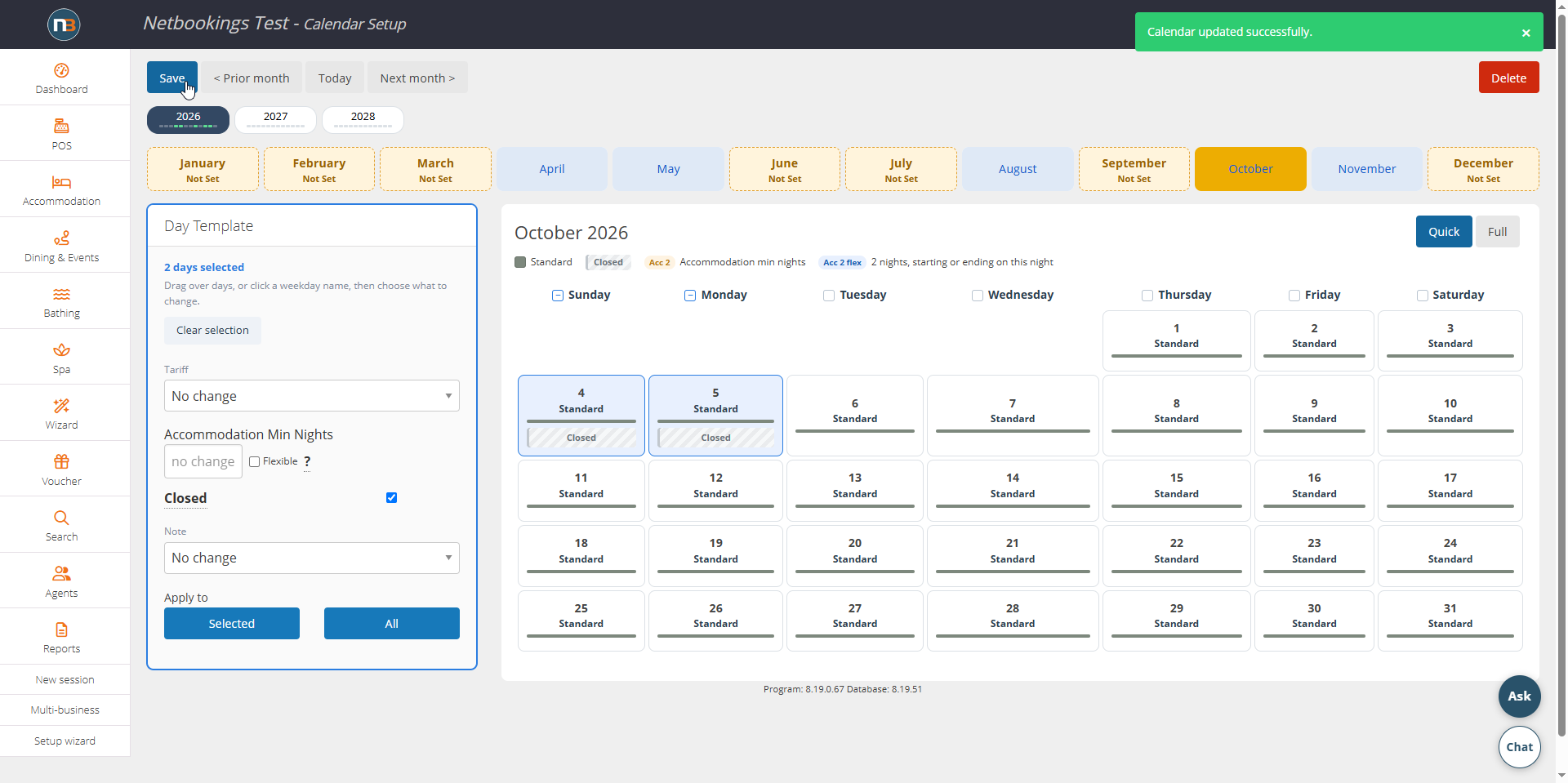
Once you’re finished, click ‘Save’ to confirm changes.