
Cancelling a Booking – Accommodation
If you need to refund a payment, click here to learn about how to make a refund before cancelling the booking.
Click ‘Calendar’
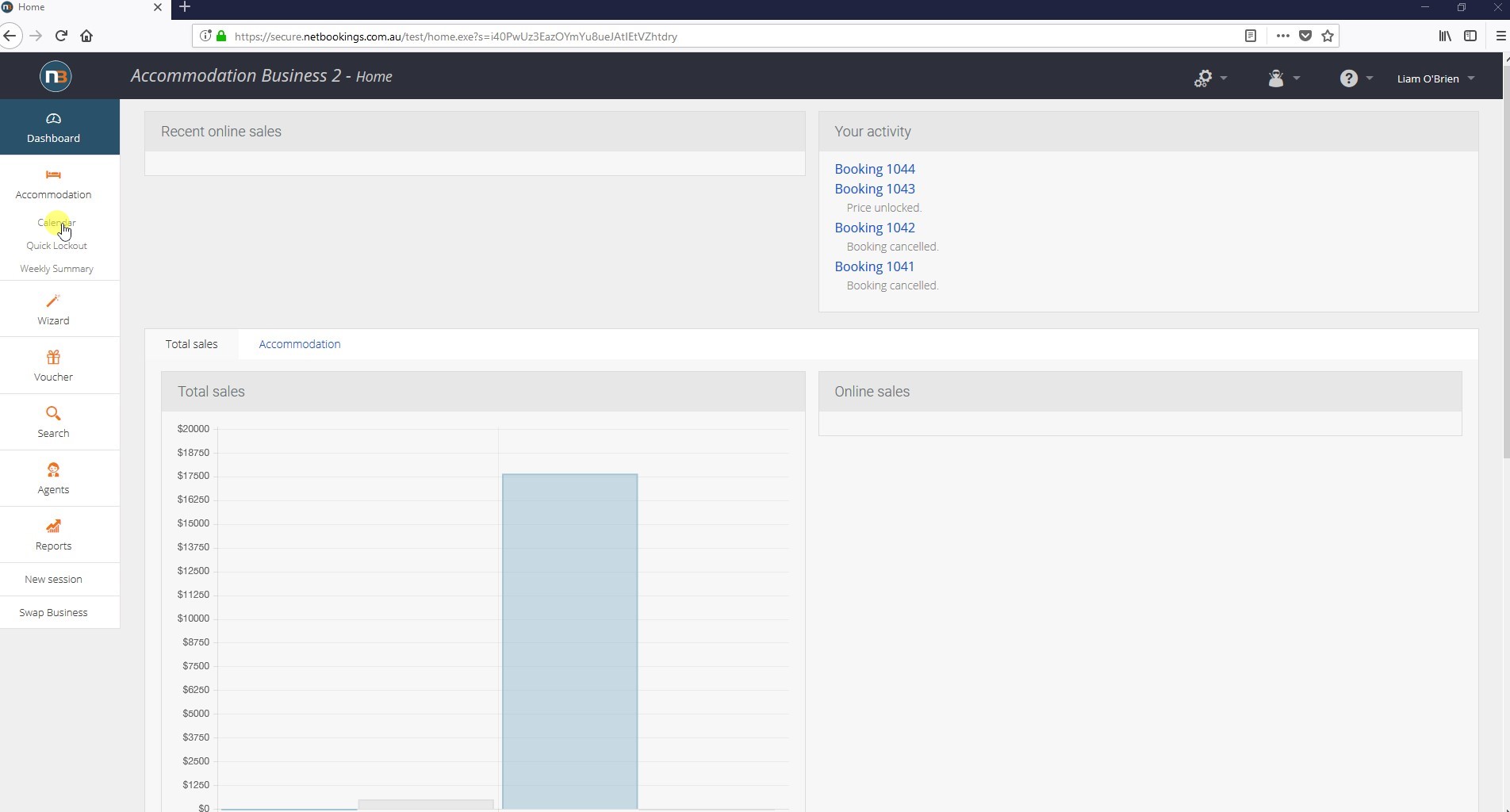
Navigate to Main Menu > Accommodations > Calendar.
Select the Booking
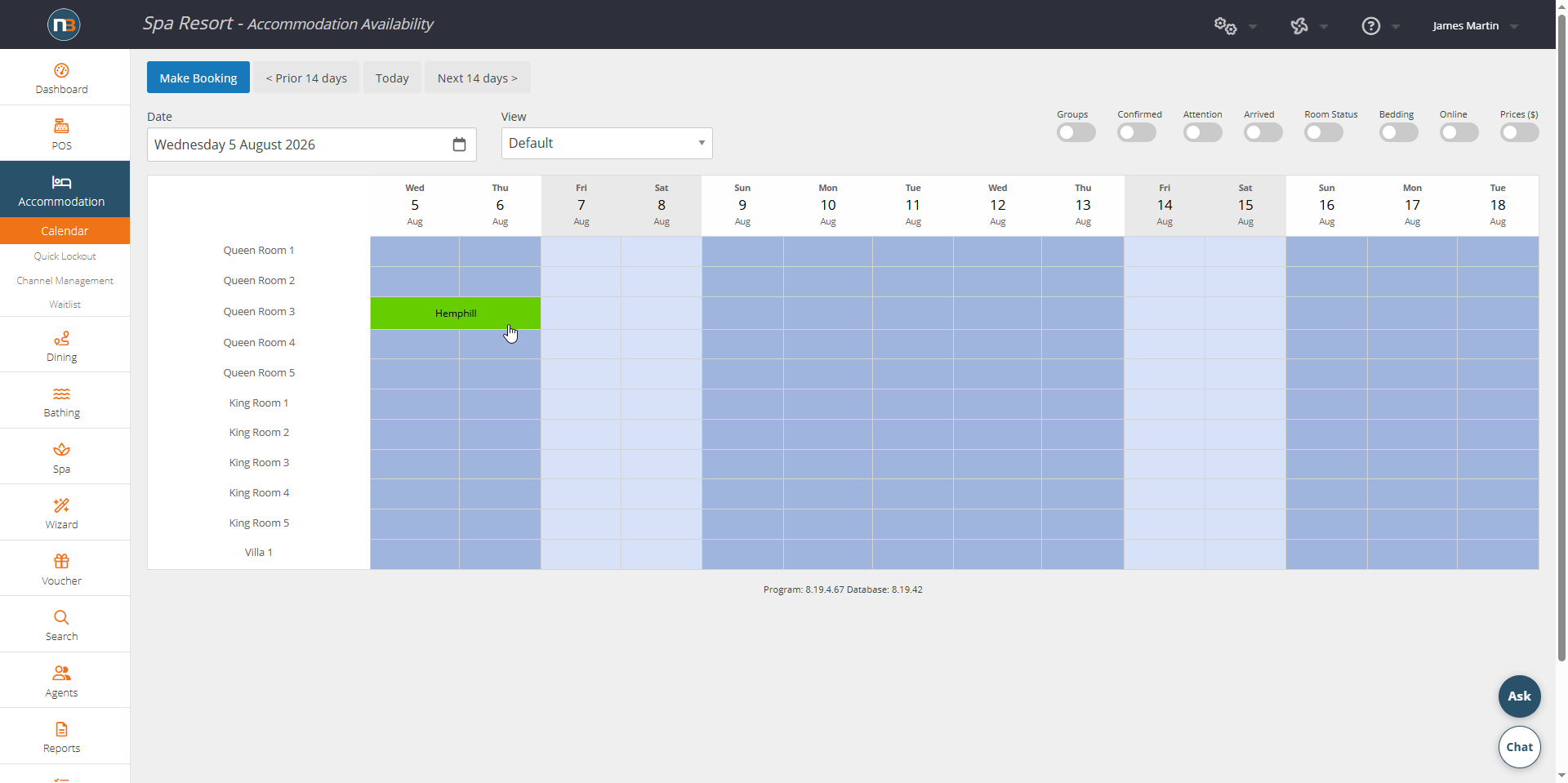
Select the desired booking and click ‘View booking’.
Click ‘Cancel Booking’
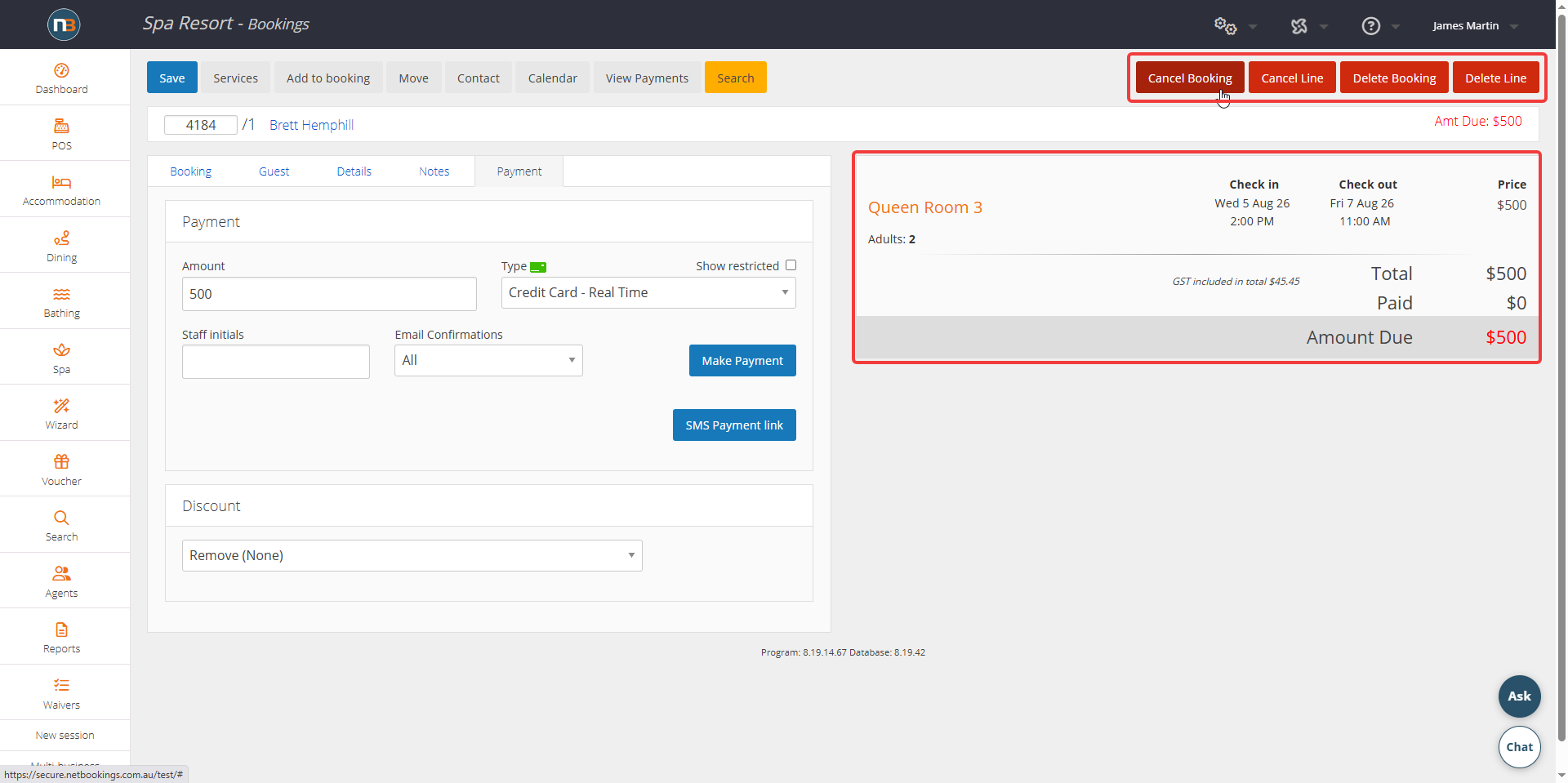
There are four options to cancel a booking (indicated by the red box in the image):
- Cancel Booking – Cancel the booking and keep a record in the system.
- Cancel Line – Cancel a line in the booking and keep other lines active
- Delete Booking – Cancel the booking but not keep a record in the system. This cannot be used after any payment has been made.
- Delete Line – Delete the selected line (indicated by the yellow box in the image). The selected line appears orange.
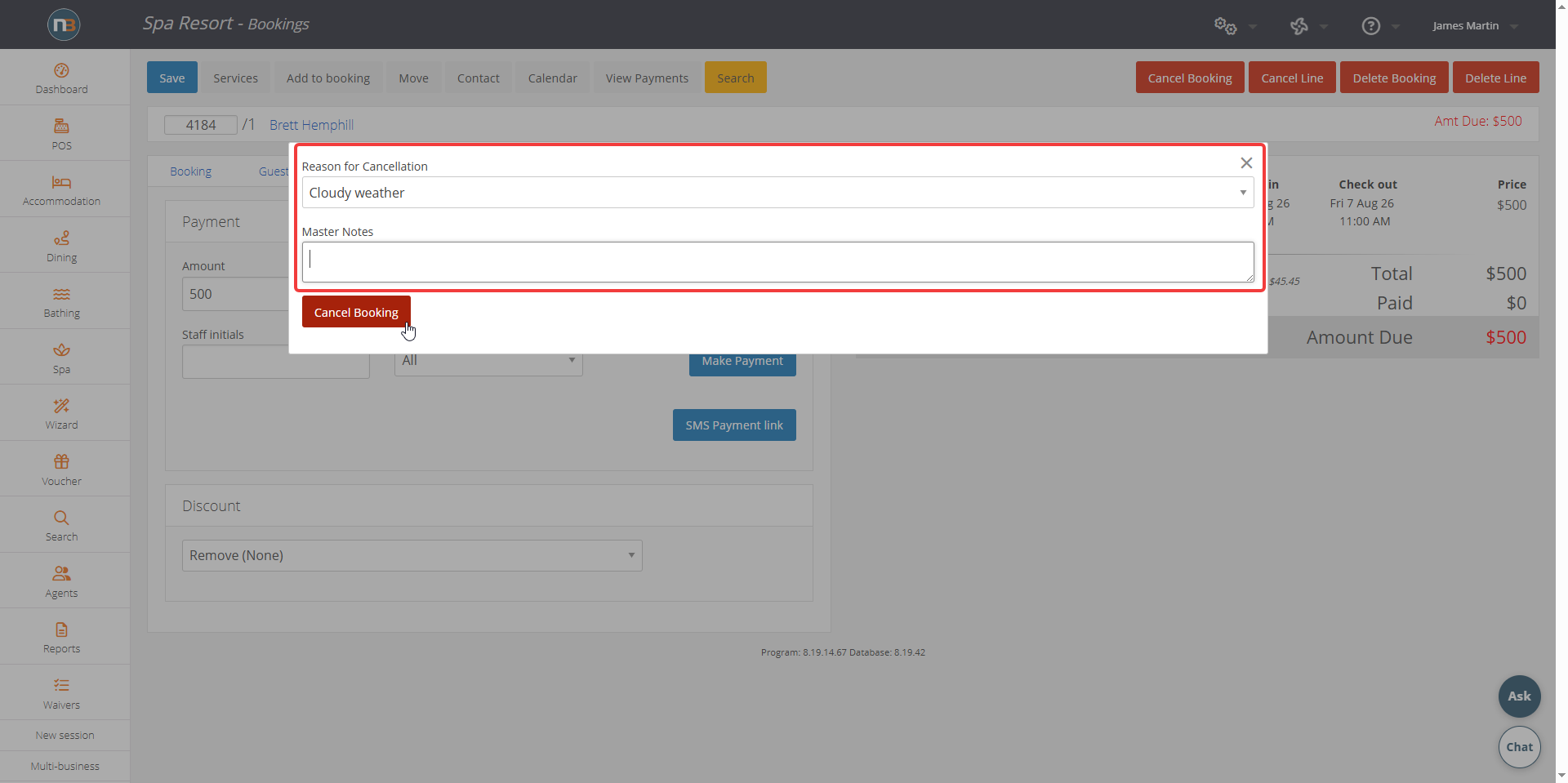
Once cancel booking is clicked, you then can provide a pre-defined reason (these can be added at lists under Cancellation Reasons – see Lists for more information). Add any additional master notes and click ‘Cancel Booking’ to finalise cancellation.
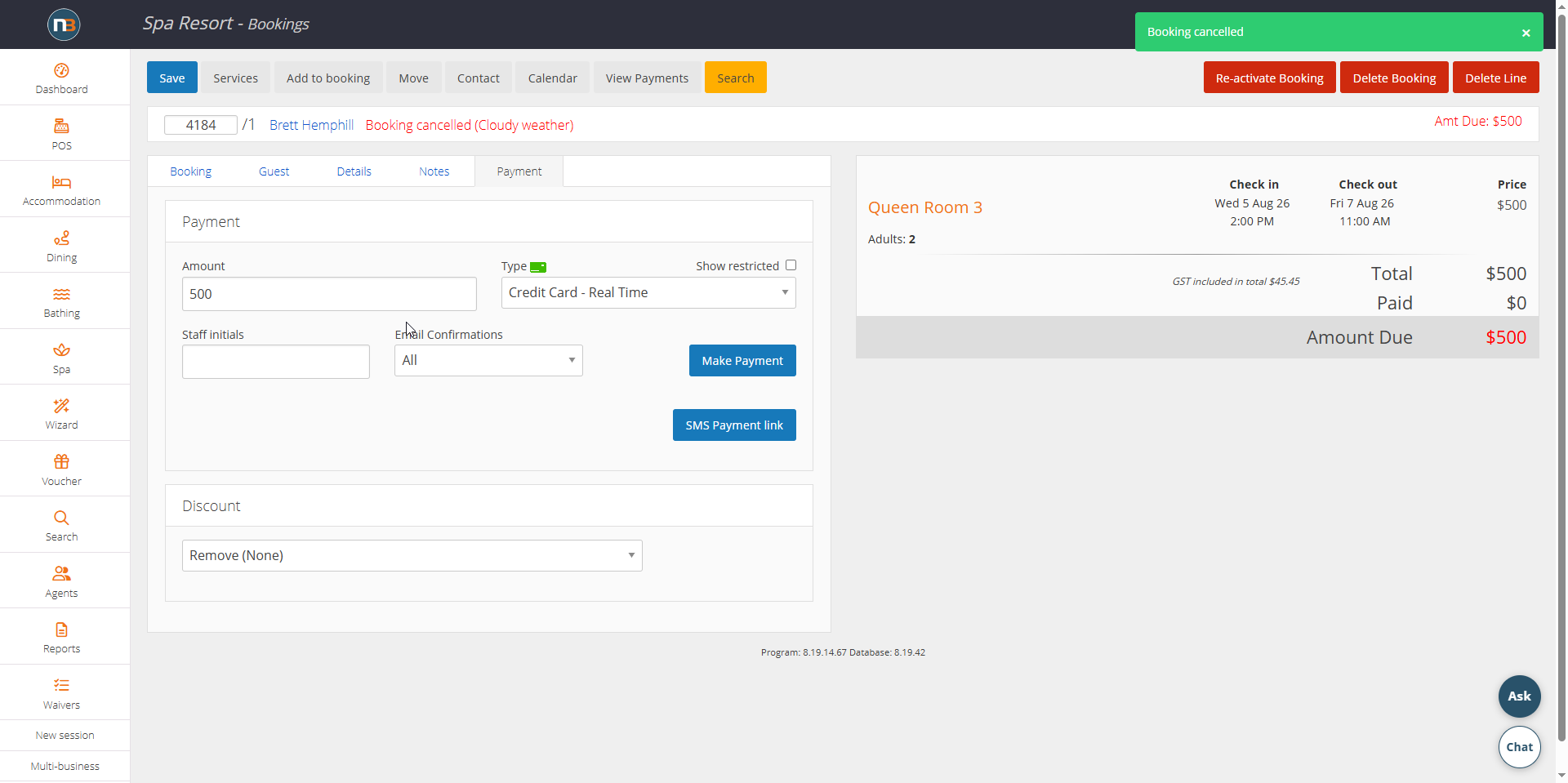
Green message box confirms that your booking is now cancelled. Cancellation label and reason will show next to assigned guest.
Click ‘Calendar’
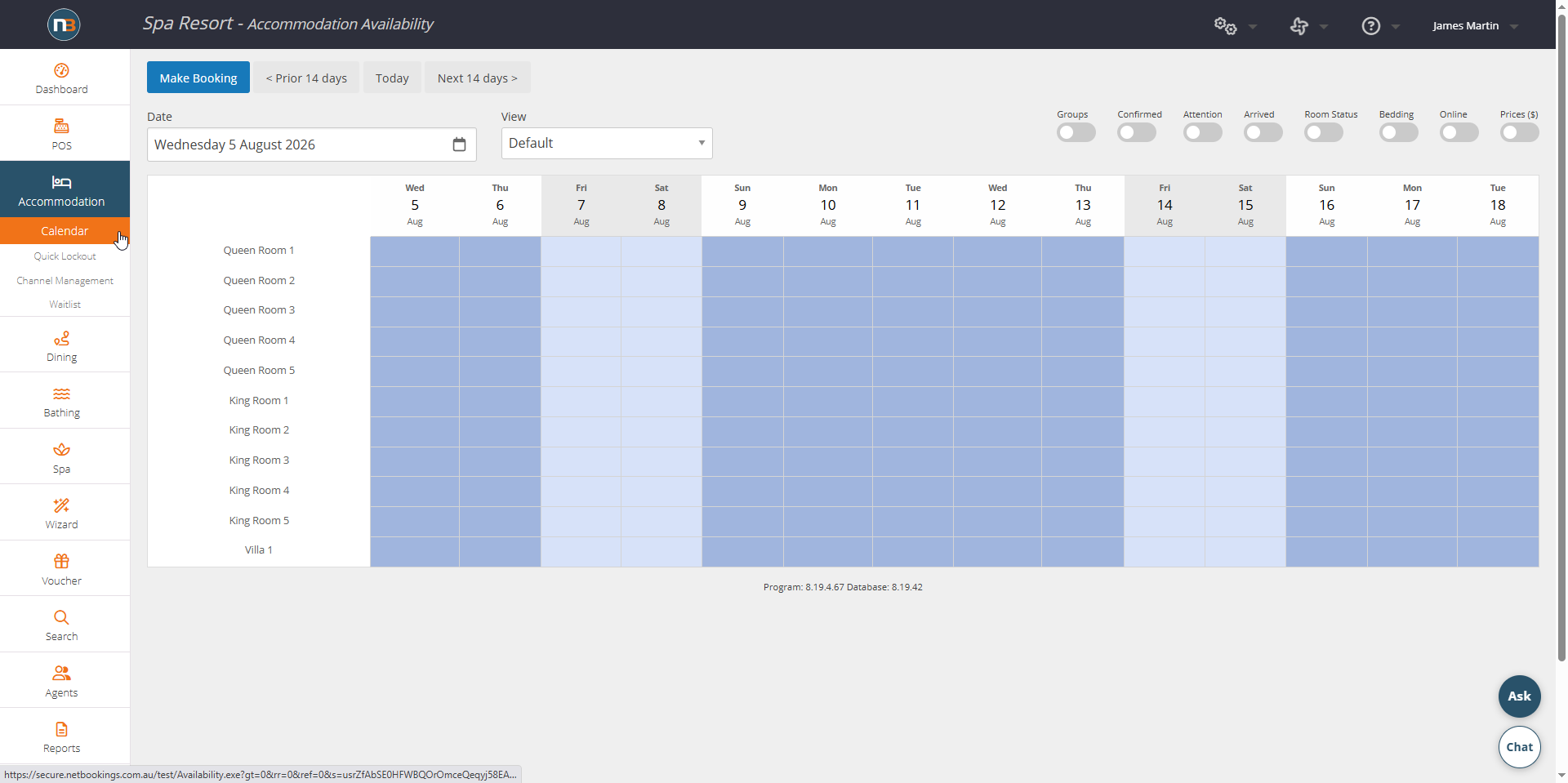
Navigate to Main Menu > Accommodation > Calendar to view your changes. The booking has been cancelled and this is reflected in the calendar.