Staff Attention For POS Bookings
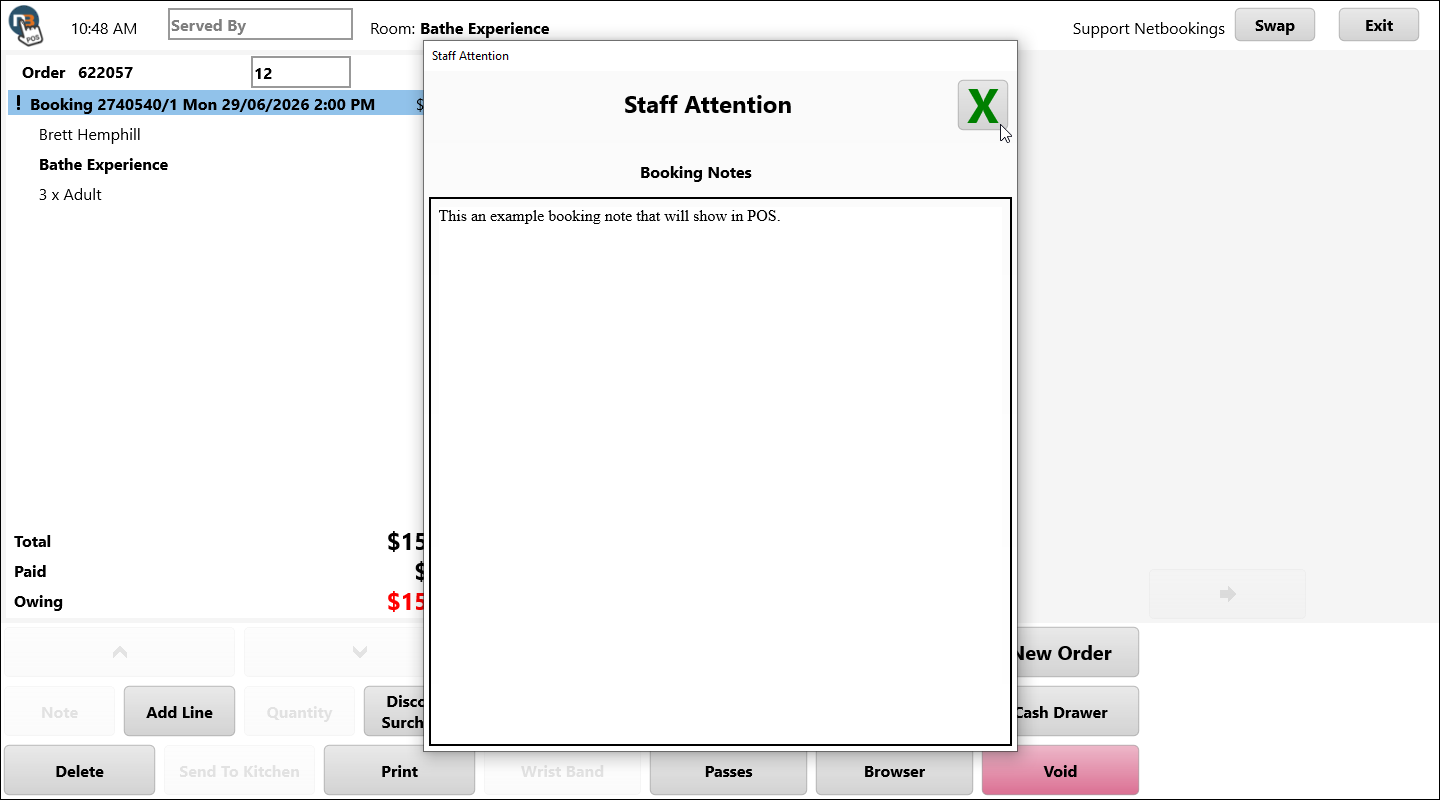
If bookings have been marked for ‘Staff Attention’, notes can be viewed on POS by clicking the ‘!’ icon. See Staff Attention for more information.
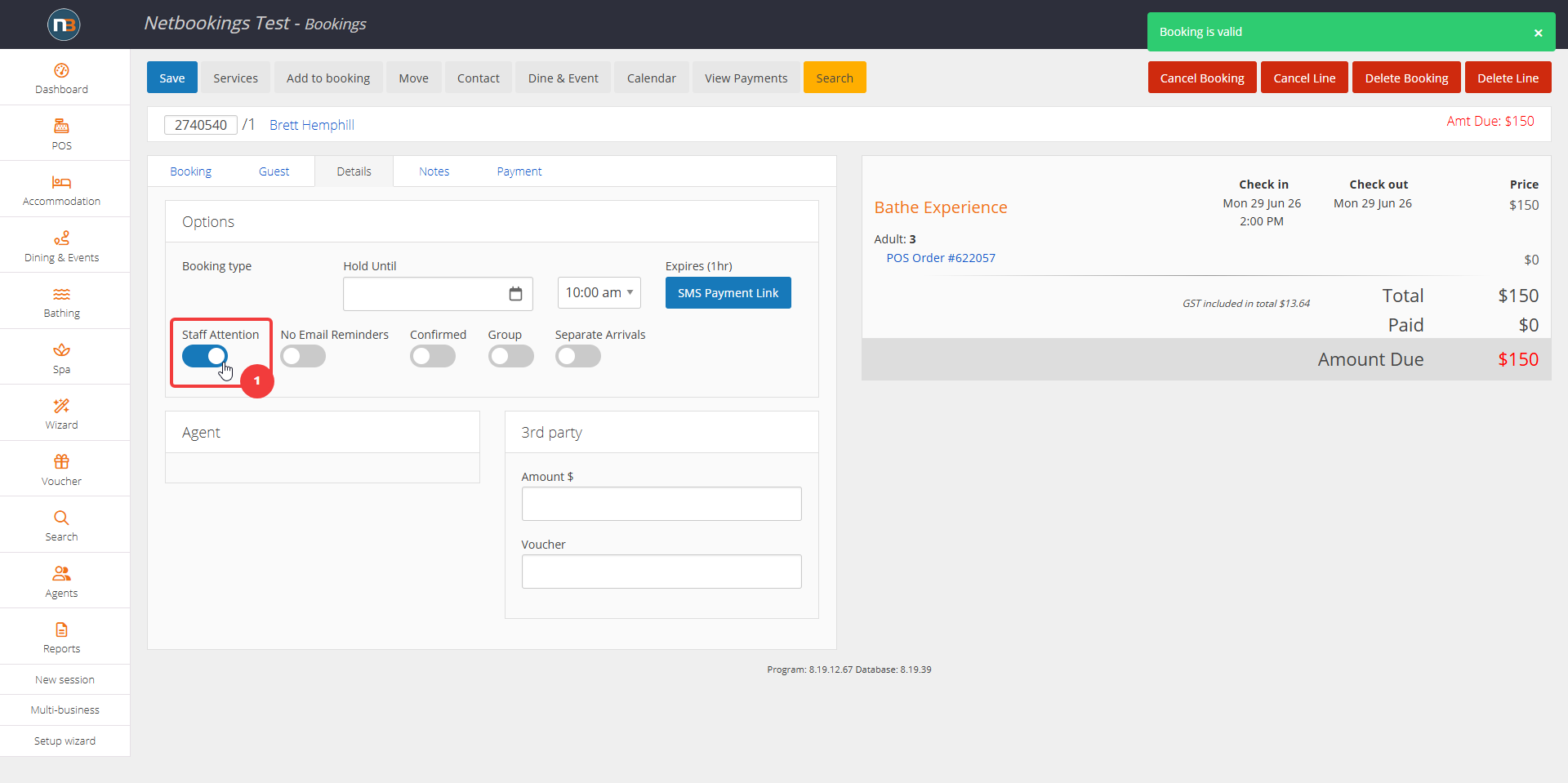
Ensure Booking Has Staff Attention
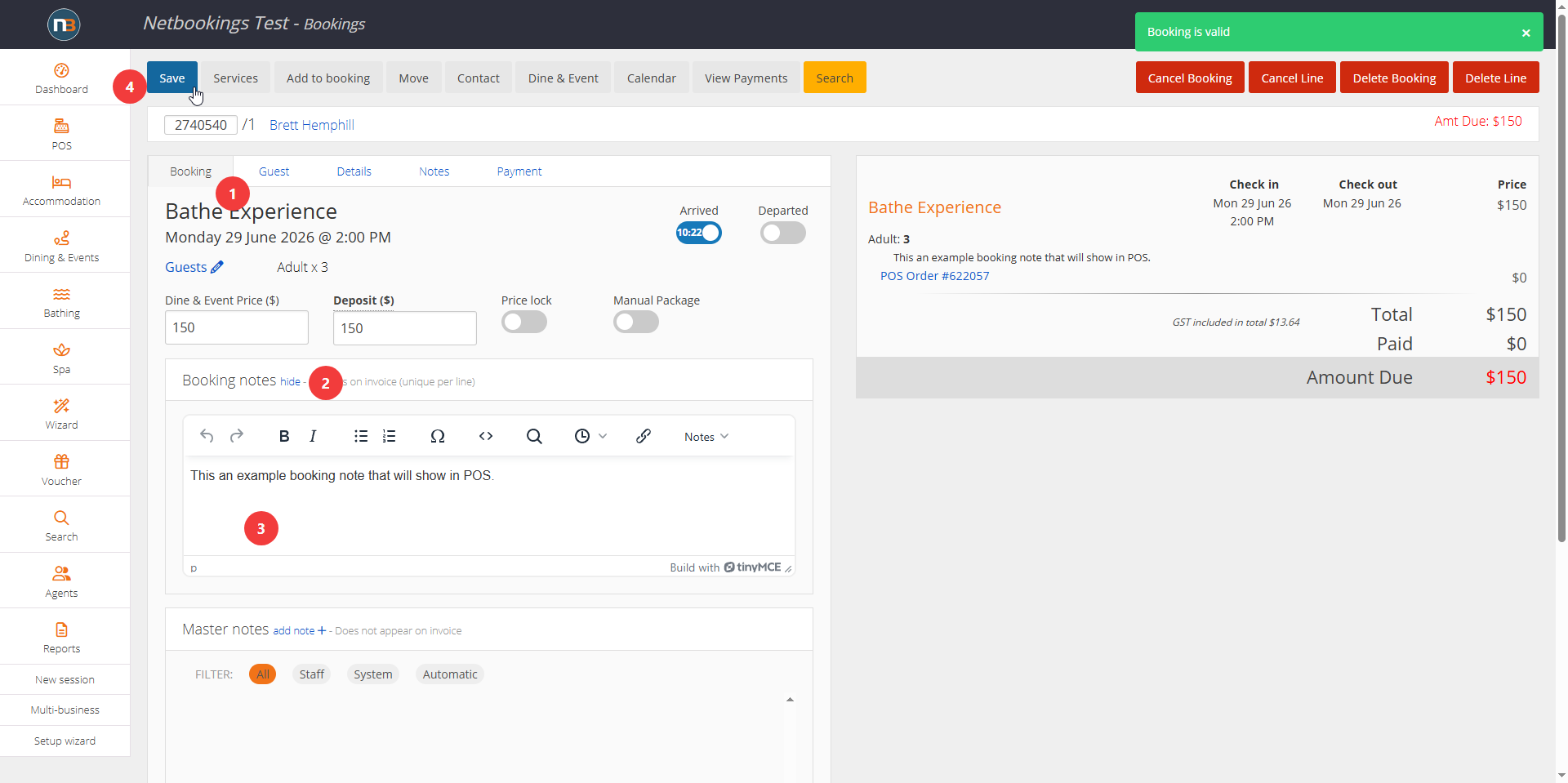
Add Booking Notes
Go To POS
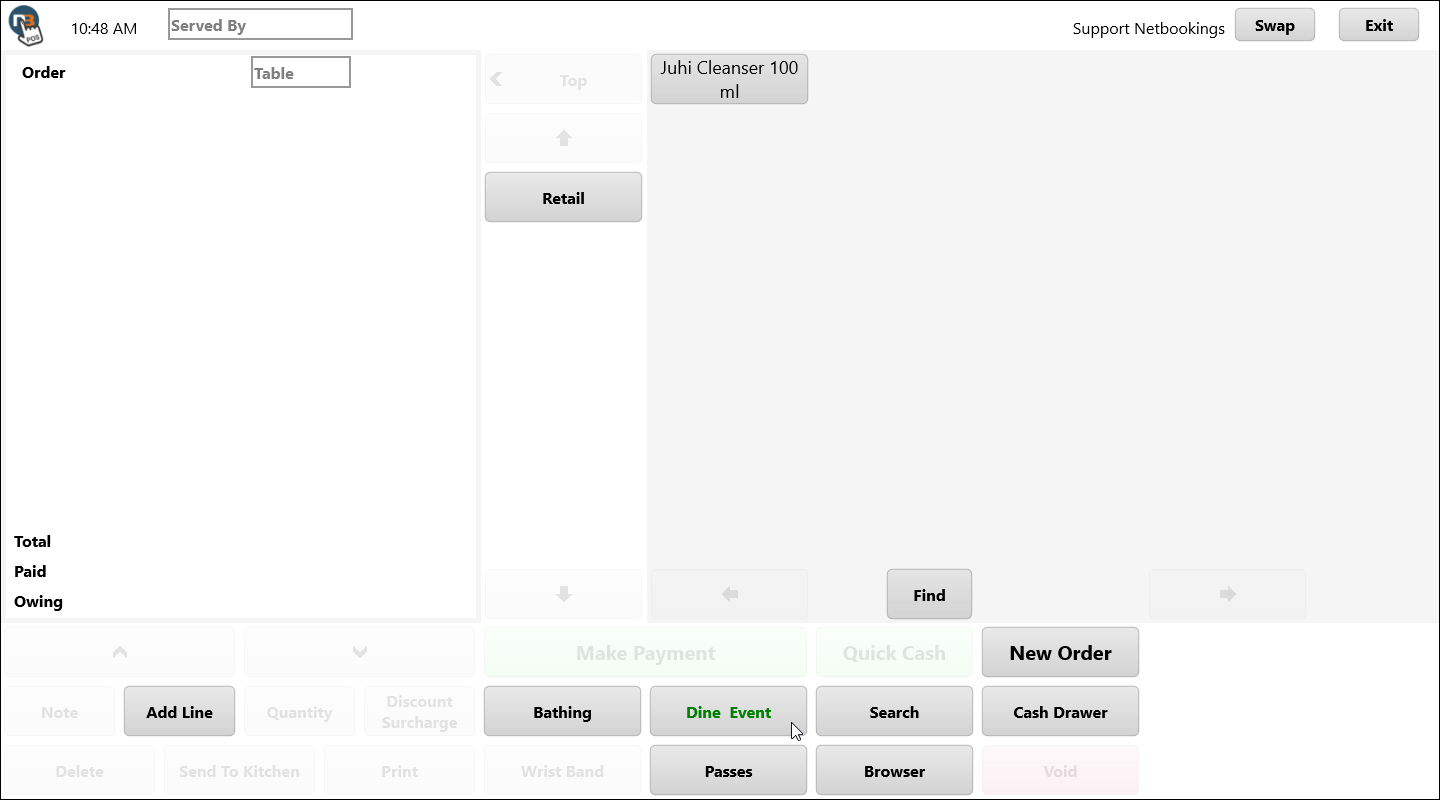
Go to Search>Bookings or Bathing/Tours calendar to search bookings for today.
Search for booking with Staff Attention
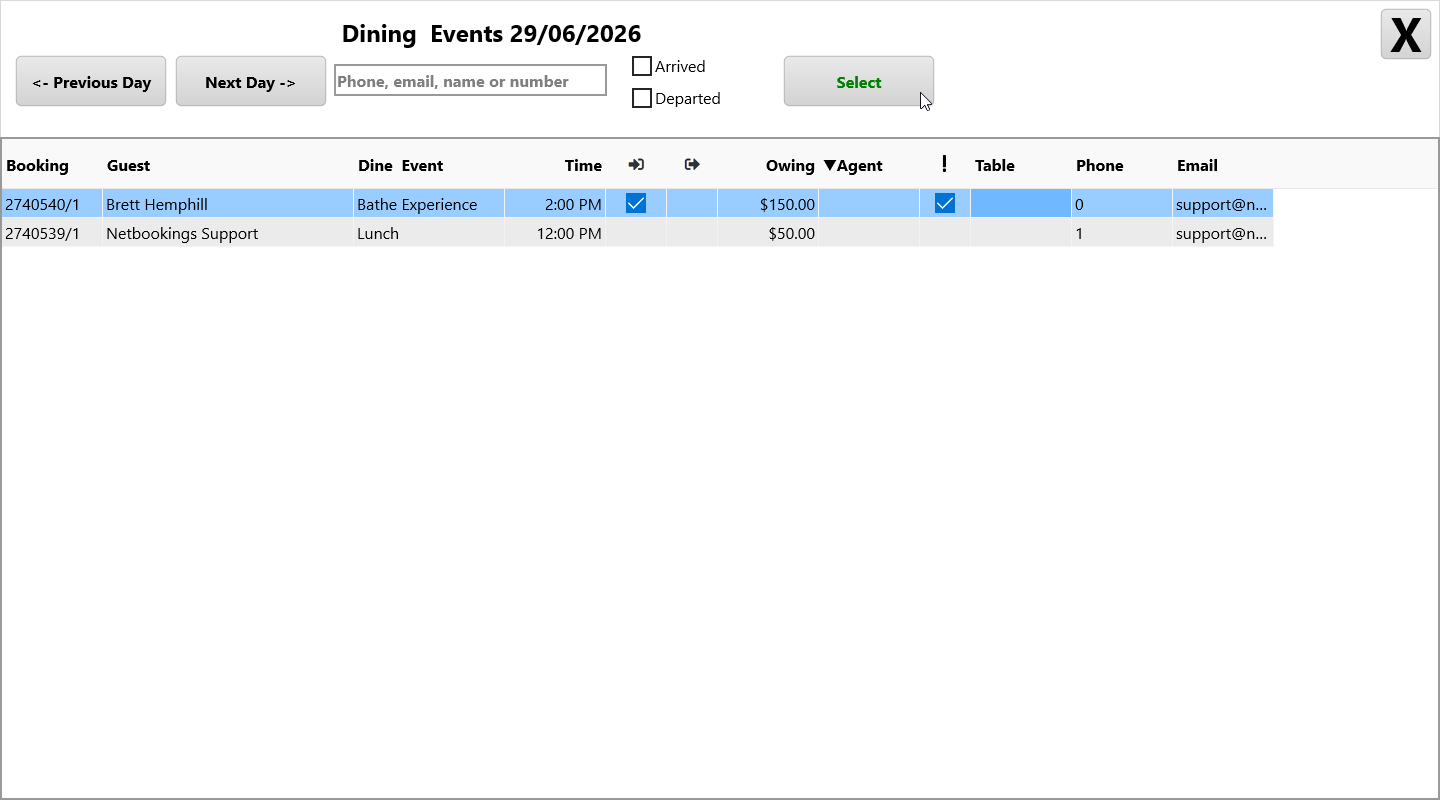
We can see by going to Search>Bookings that we have a booking today with the ‘!’ checked, meaning it has ‘Staff Attention’ enabled in backend as shown above. Could be a note attached but already let’s us know we must pay special attention to booking. Highlight and click ‘Select’ to bring up booking.
Click Exclamation ‘!’ To Show Notes
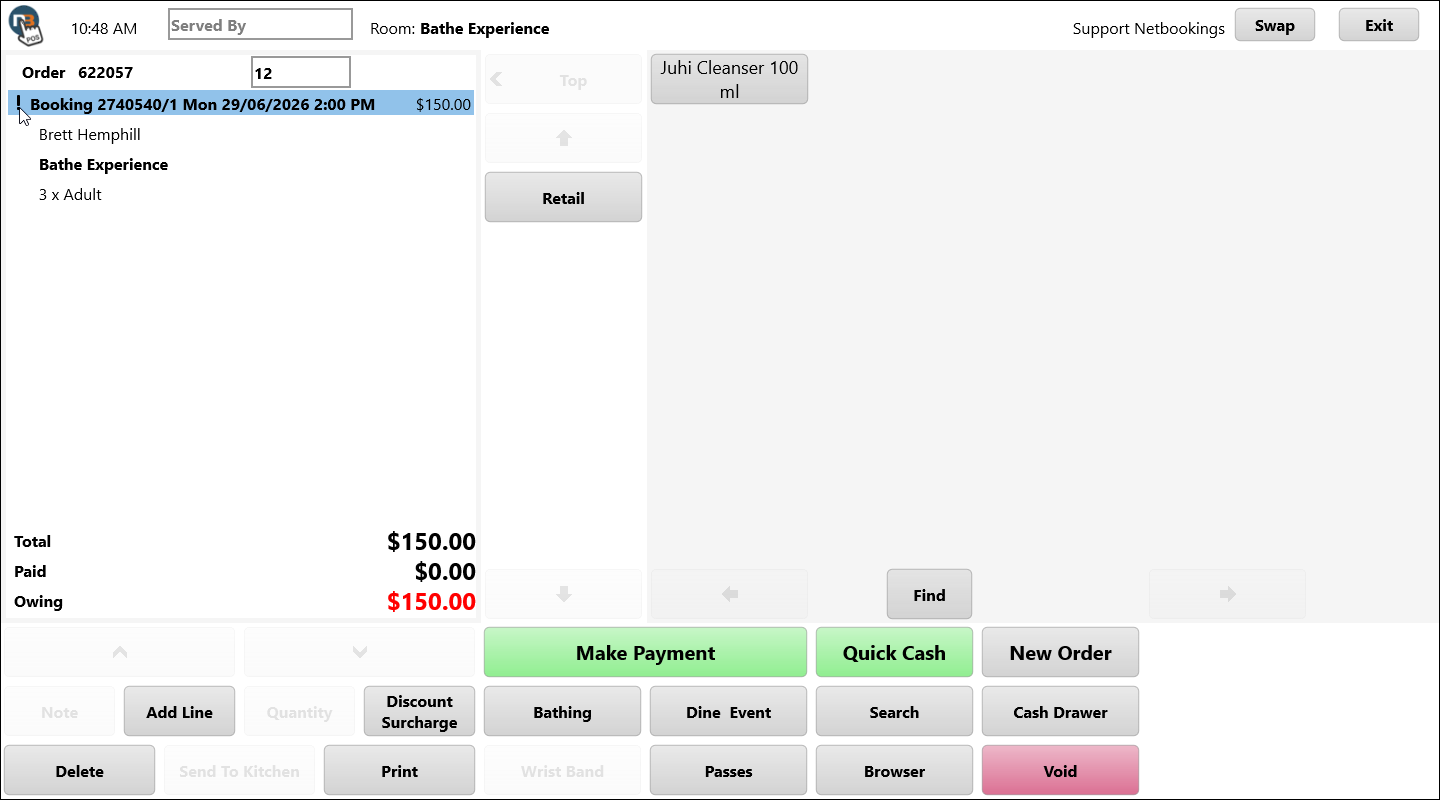
Once we select the booking we can see the ‘!’ next to Booking Number line. Select that with mouse or point/touch to show notes.