
Stock Take
Using the stock take menu, we can search items using barcode, item # or as part of stock grouping. Then we can add/subtract stock or set new stock levels.
Go To System>POS>Stock Take
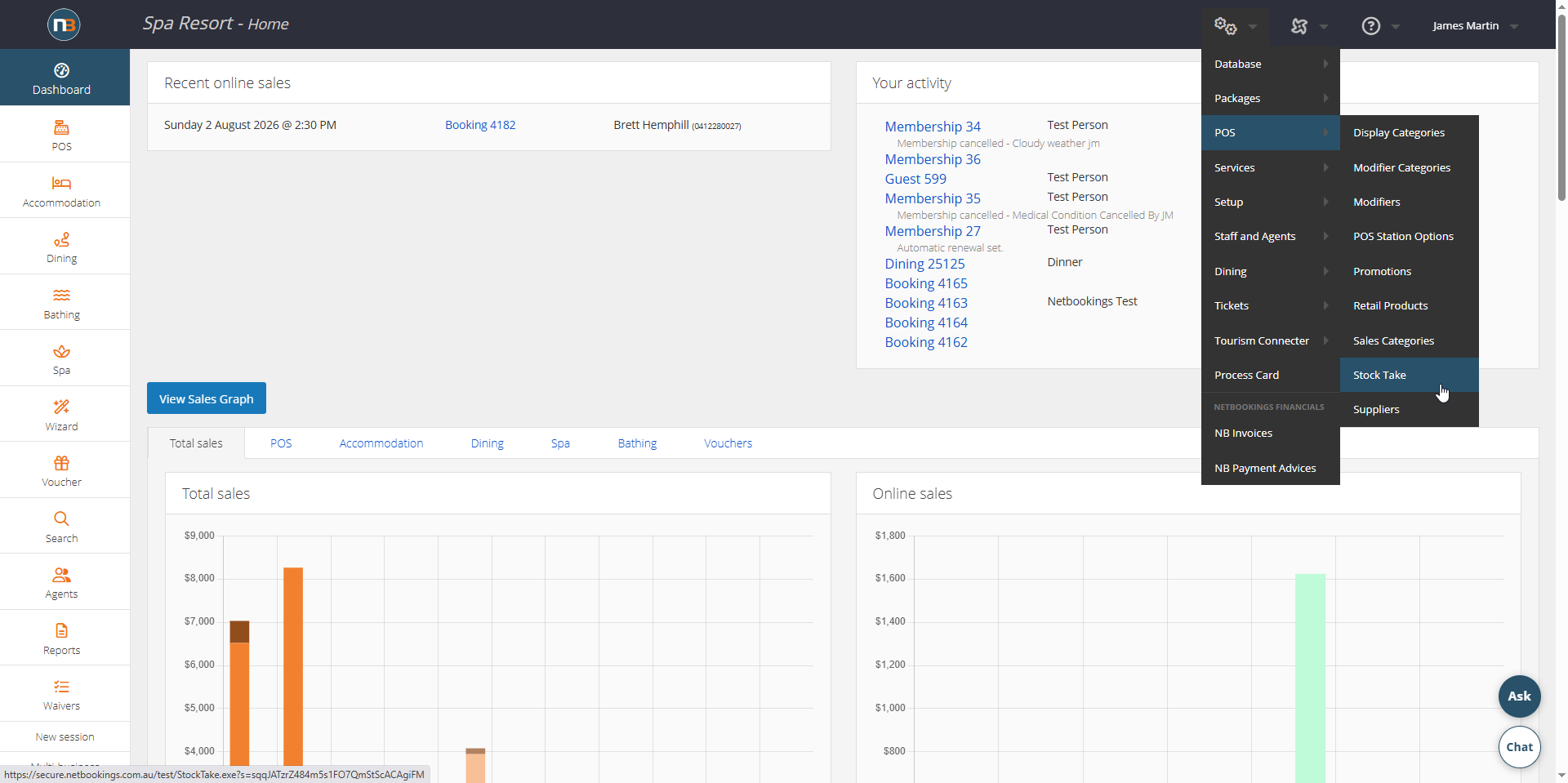
Select Stock Supplier
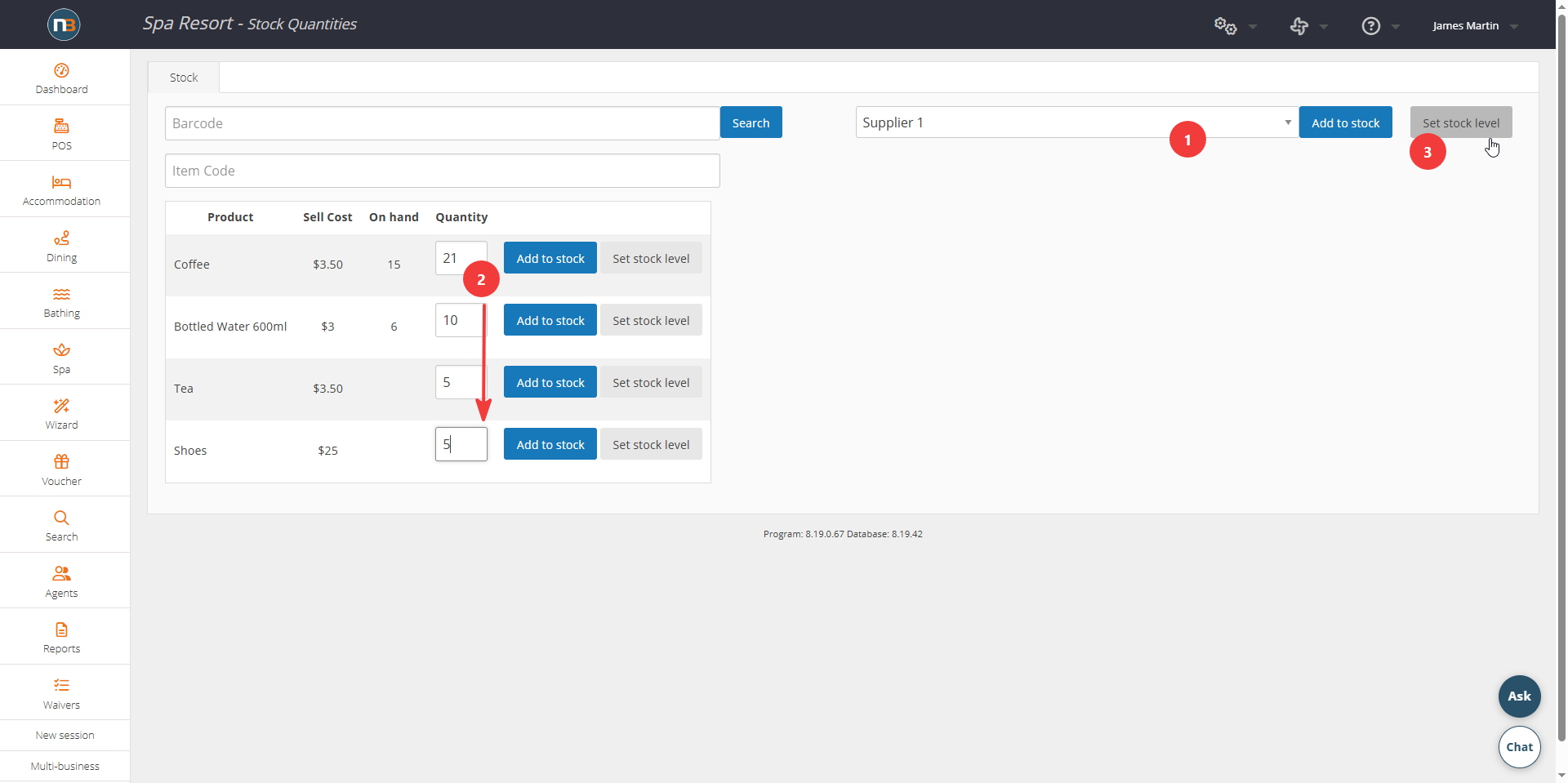
Selecting a stock supplier allows updating stock levels of a set of items at once without having to search individual items. Items need to be assigned to supplier (see further below under Assigning A Supplier or Suppliers help file for more information).
Search By Barcode
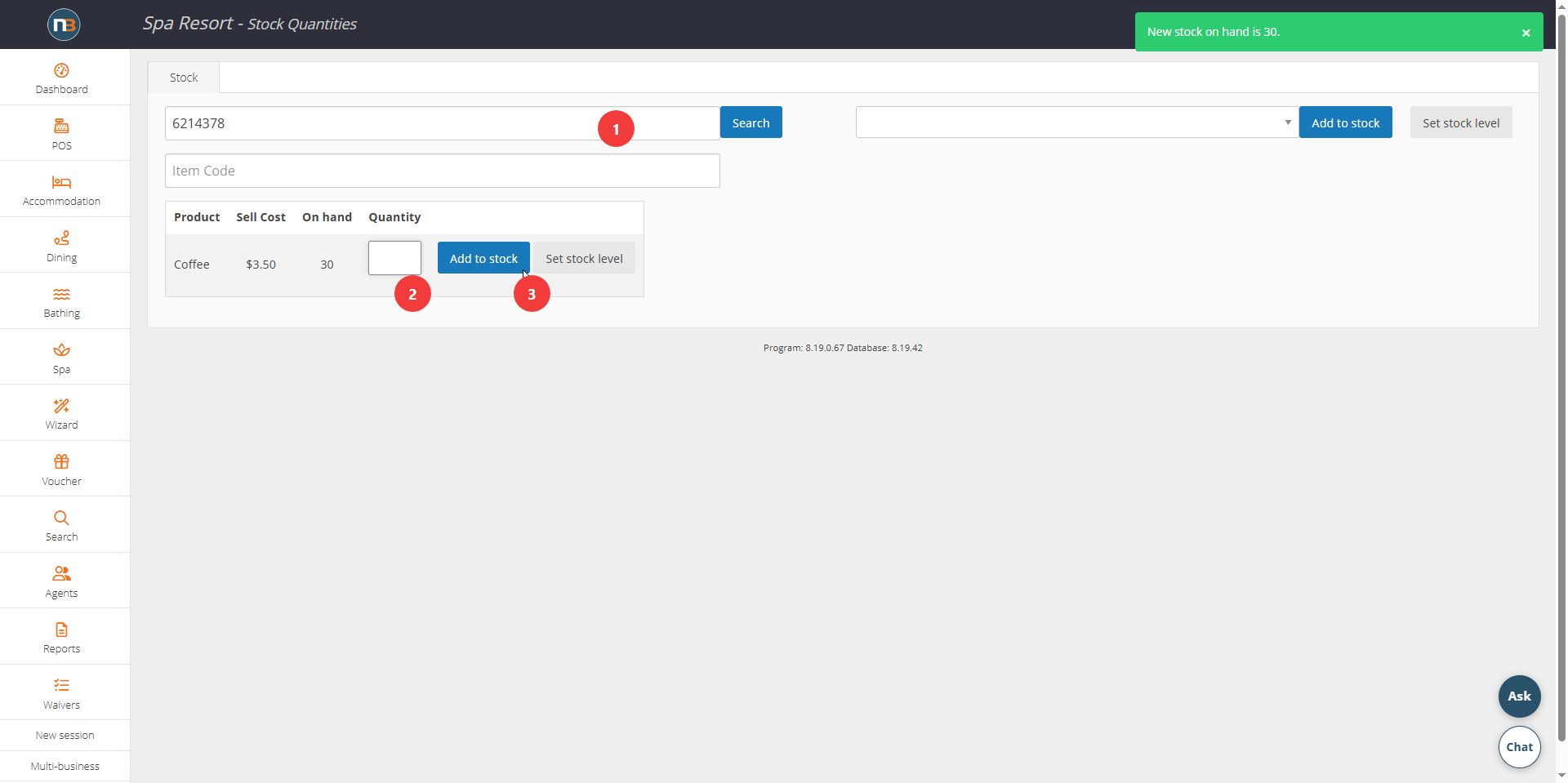
Search by barcode, either typing it in, or preferably scanning barcode with scanner to insert number to search. Then add stock or set new stock level.
Search By Item Number
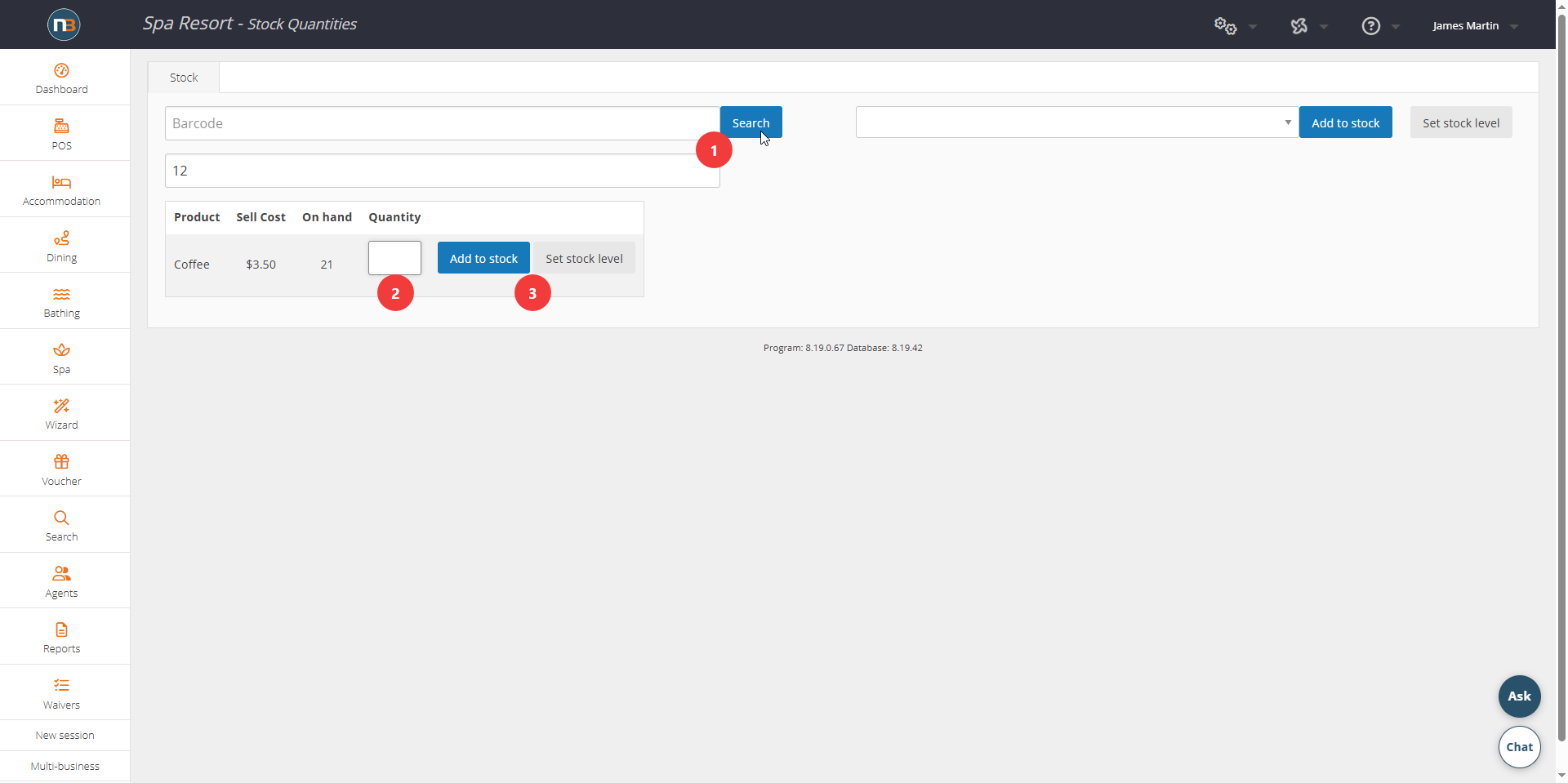
As with barcode search, we can search an item number assigned at System>POS>Retail Products. Then we can add stock or set new stock level for this item.
Find/Set Item & Barcode Number – Change Suppliers
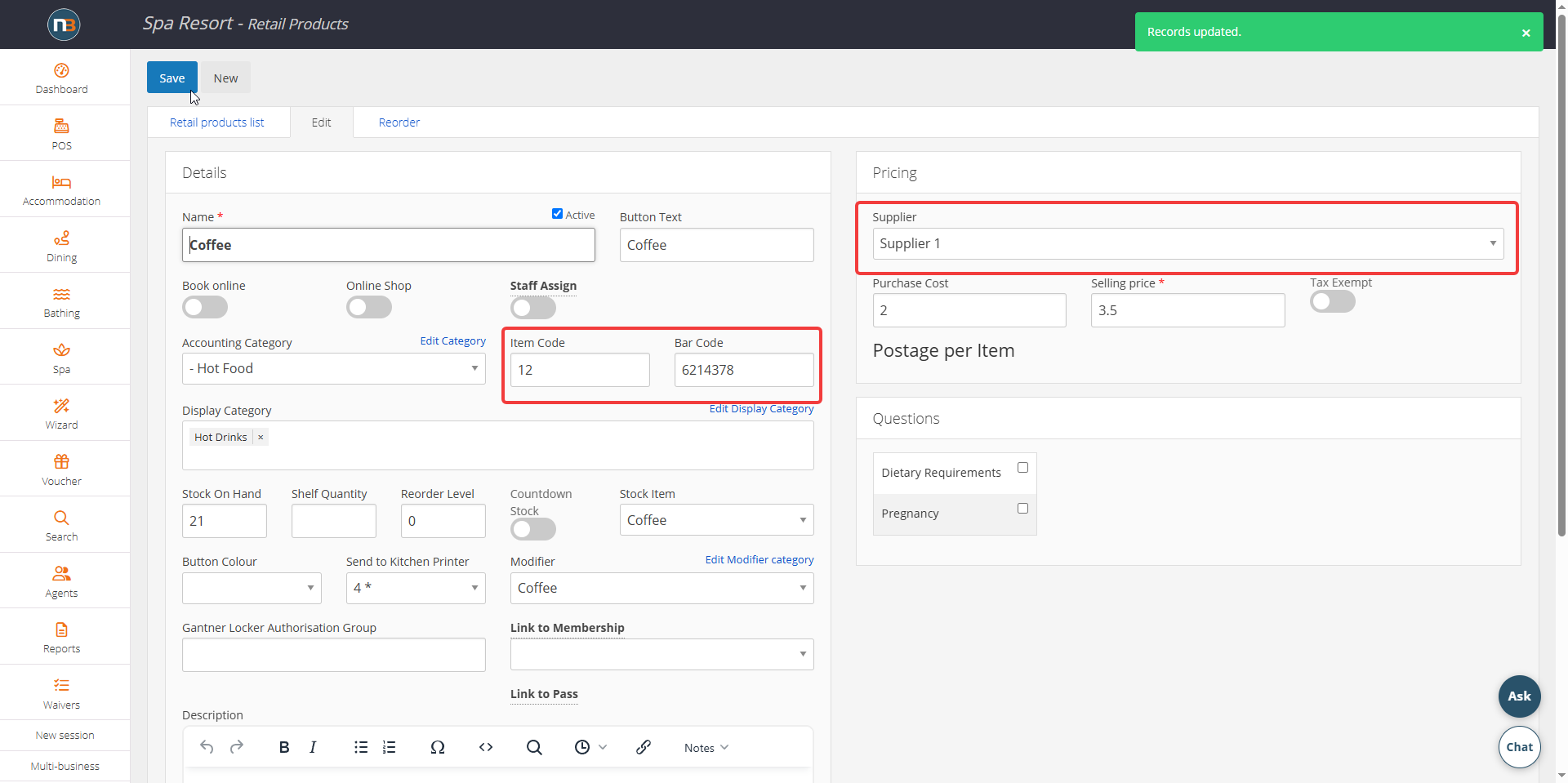
To find/set the item number, barcode or set supplier for a retail product, view these details at System>POS>Retail Products and find your item to view these details above.
Creating & Assigning A Supplier
Go To System>POS>Suppliers
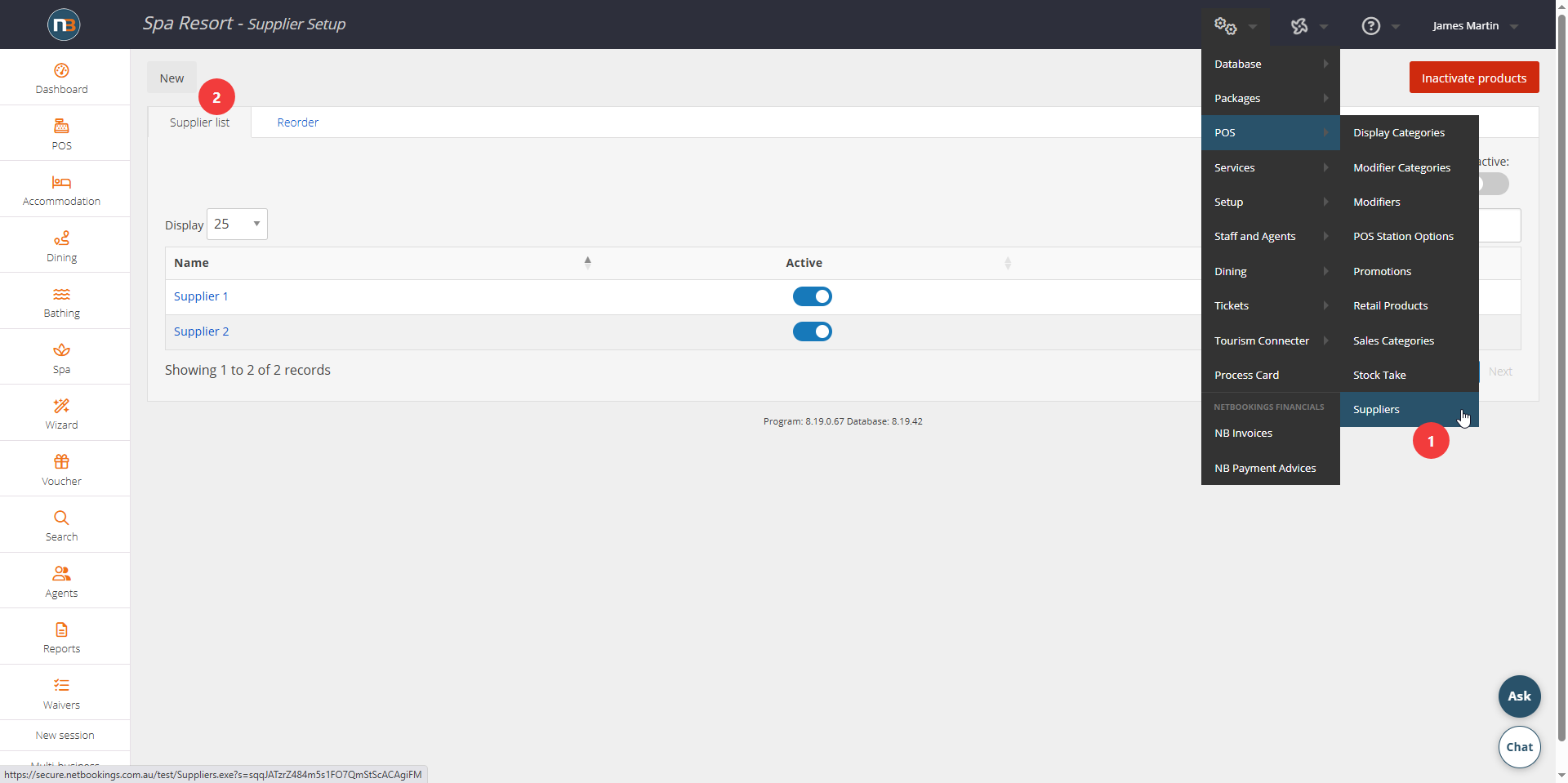
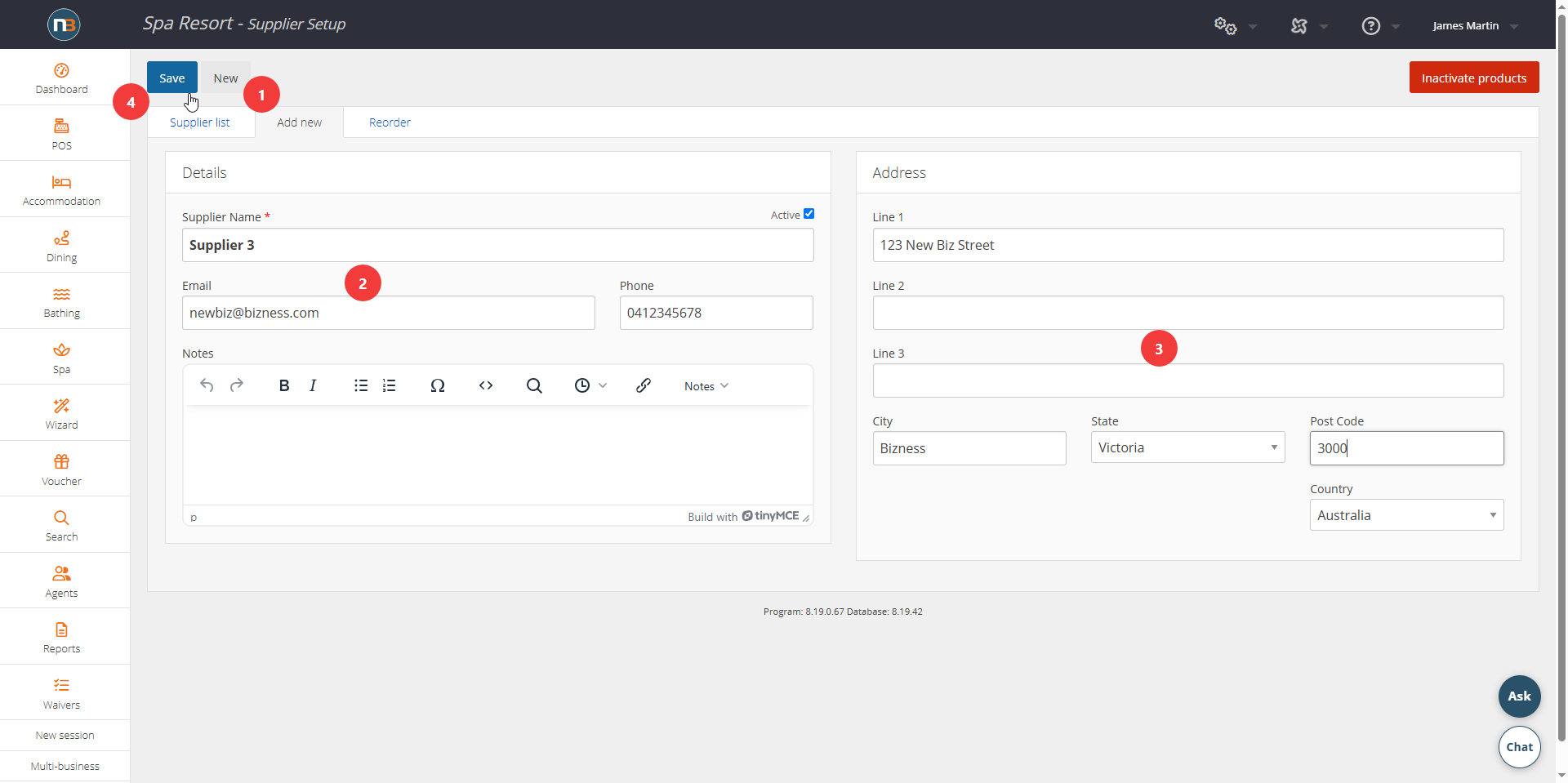
Add New Supplier Details
Go To System>POS>Retail Products
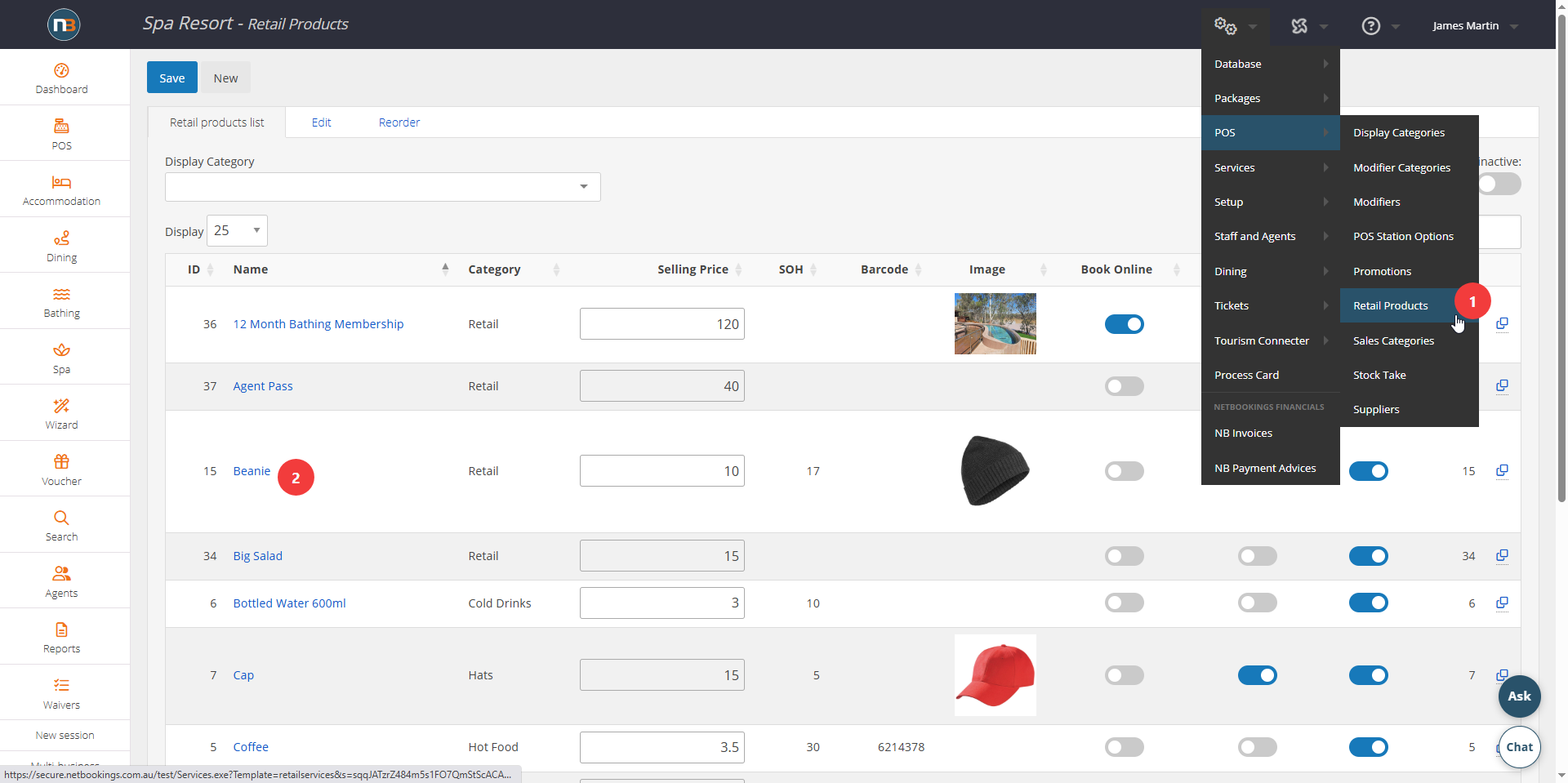
Assign New Supplier To Item
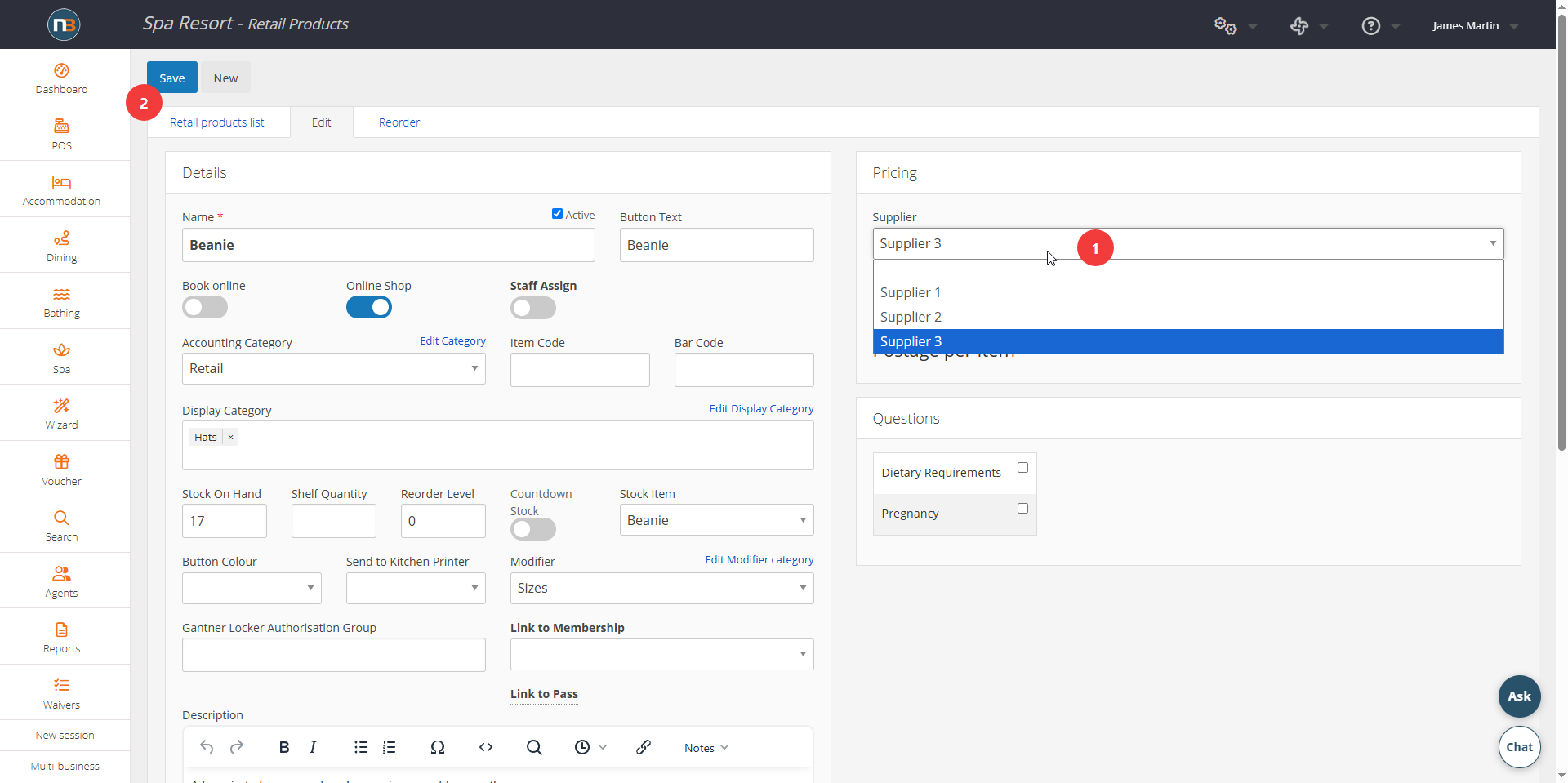
Now Item Exists In Supplier Search
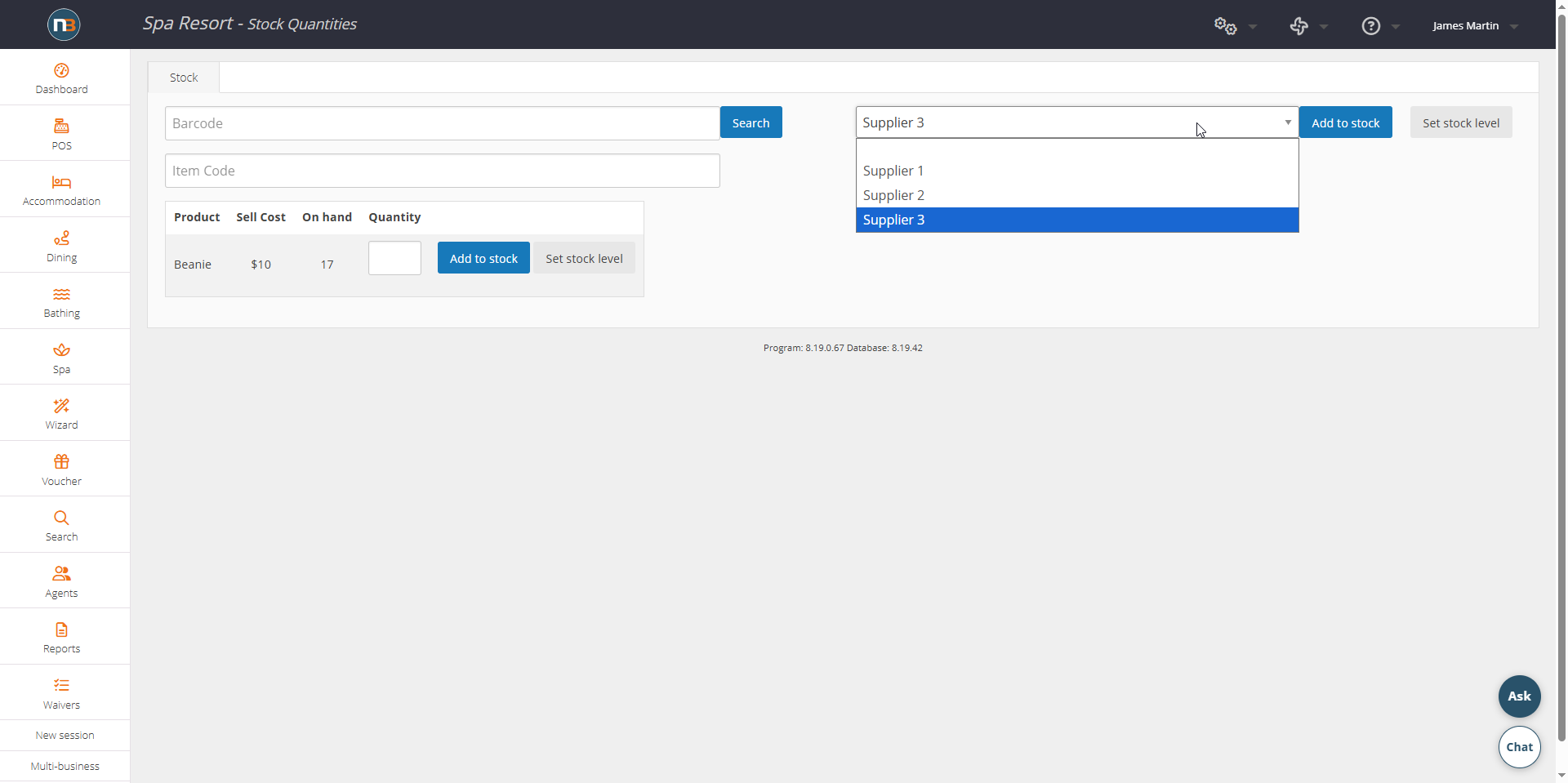
With item now in new group, we can change it’s stock levels or add more stock.