
Creating a Package
Packages are used to group offerings into a single bookable package. There are many features and options a package can use.
For example, you may create a package that includes bathing and accommodation for the night.
NOTE: You must create bookable content in the system before creating a package. These can be services (Spa, Private Bathing, Standard services), accommodation types, bathing and tours/events/dining. See Services, Pricing Backpacker, Pricing Tours, Pricing Accommodation, Pricing Bathing and Pricing Spa for more information.
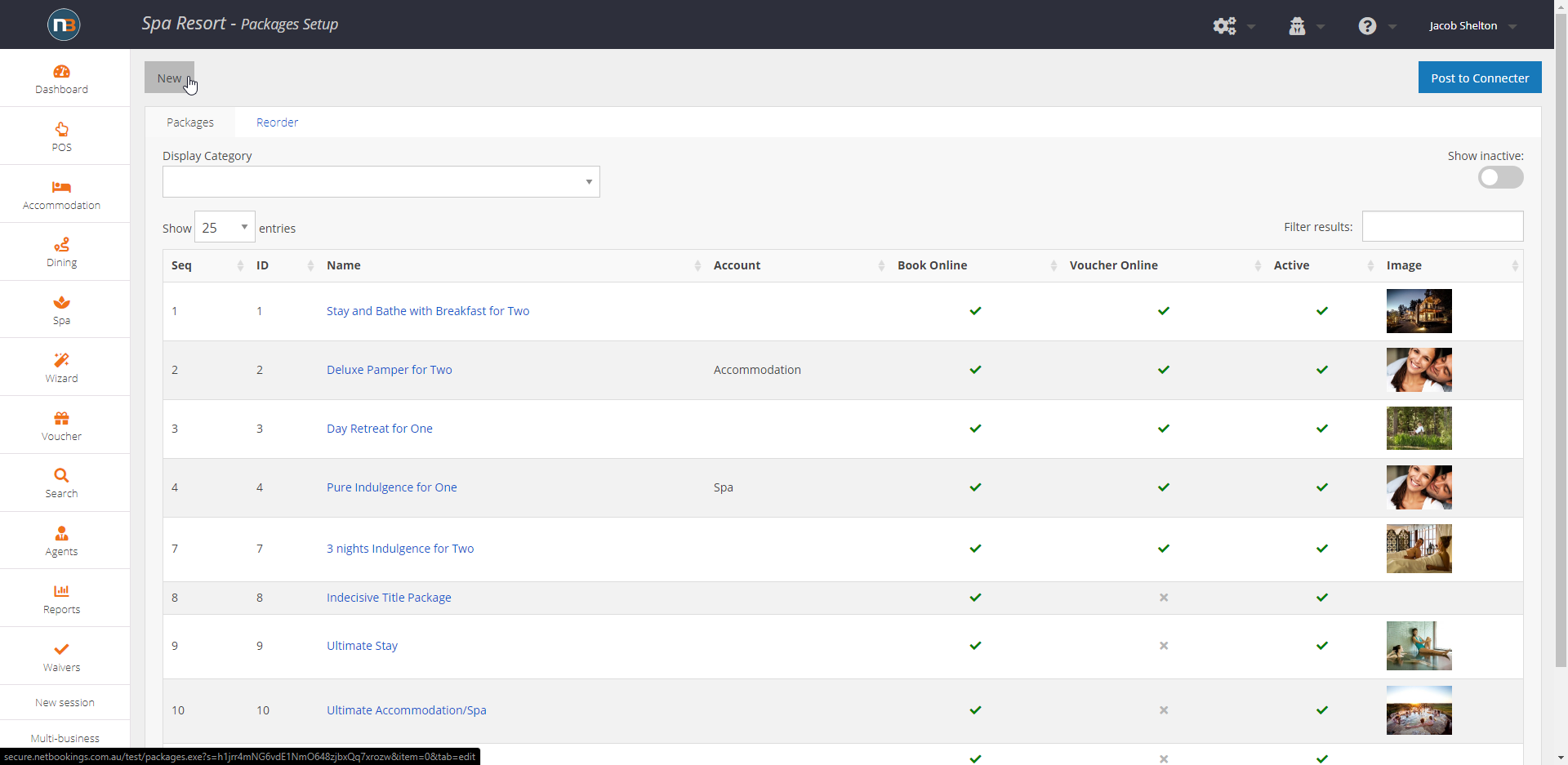
Click ‘Package Setup’

Navigate to System > Packages > Packages Setup.
Click ‘New’
Enter basic details
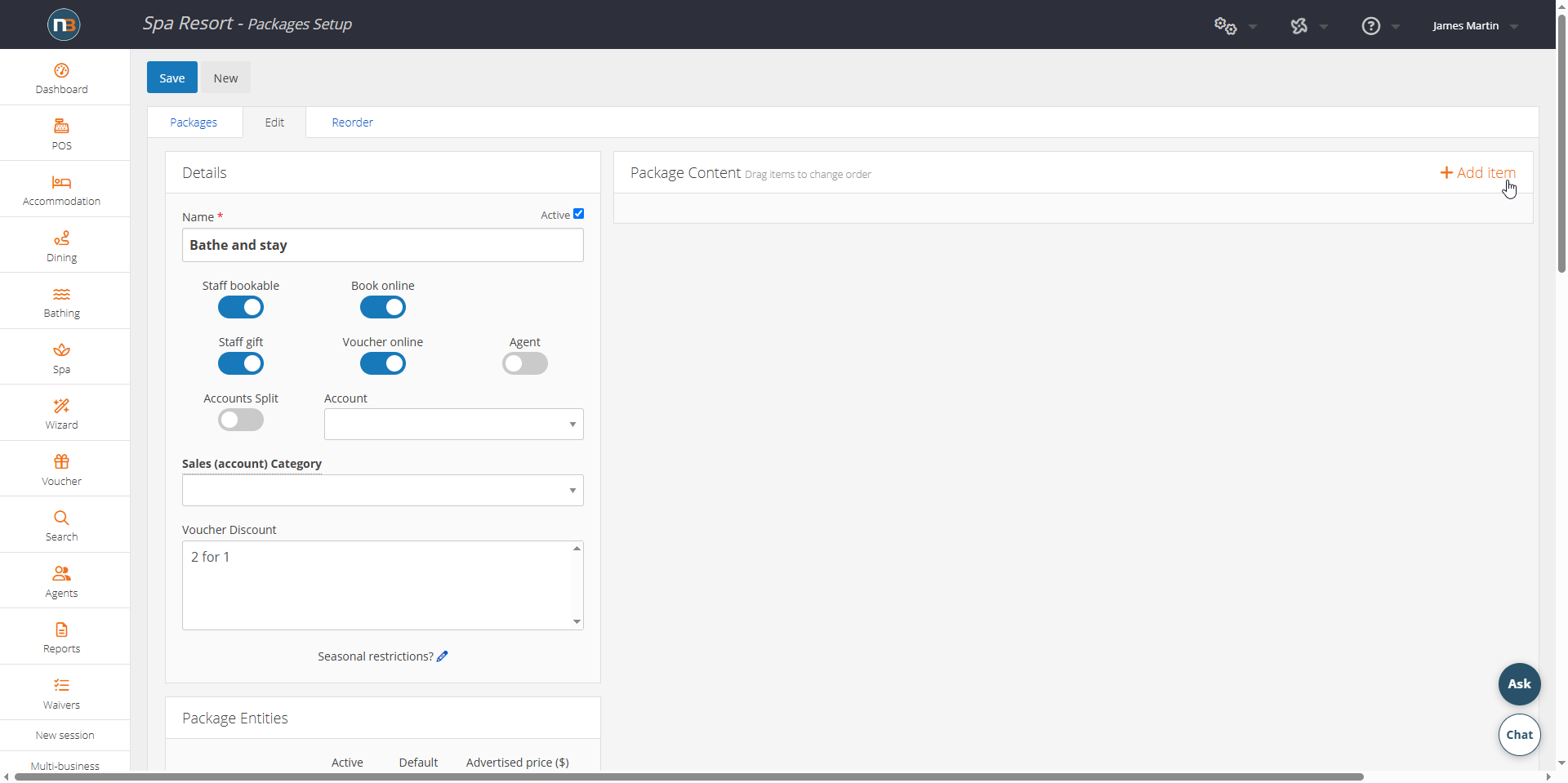
Before you can establish a package we must enter a name, activate the package entities and add a display category. Above we can see a name is added for the package as well as the switches for staff bookable, book online, staff gift (meaning staff can generate a certificate) and voucher online (so guests can also purchase this package as a certificate).
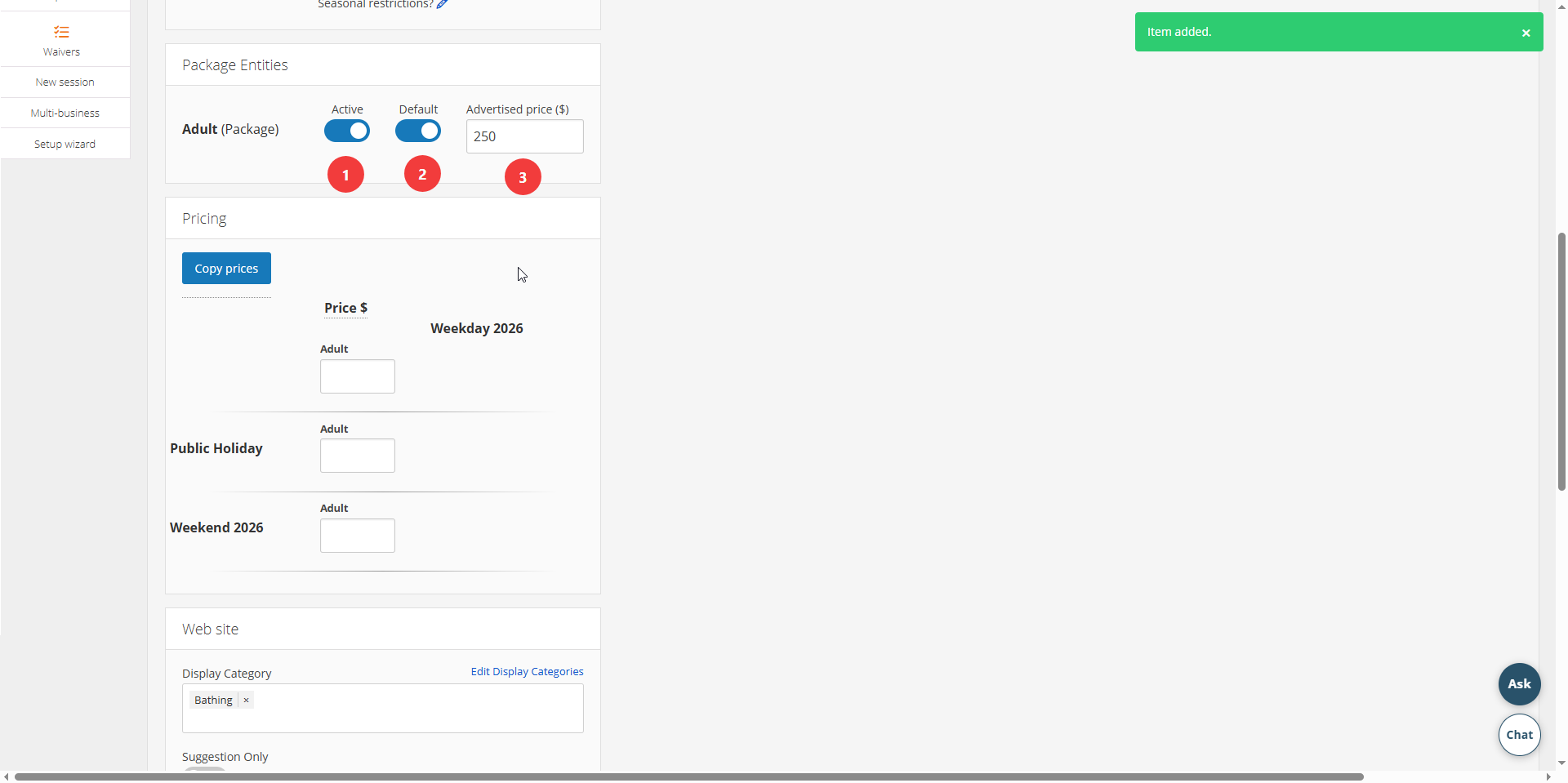
Let’s now ad the ‘Active’ & ‘Default’ switch to make sure that ‘Adult’ is set as the default guest entity (type). Advertised (Booking and Gift) price is the price of the package as it appears on the ‘Find Your Experience’ & voucher sales page.
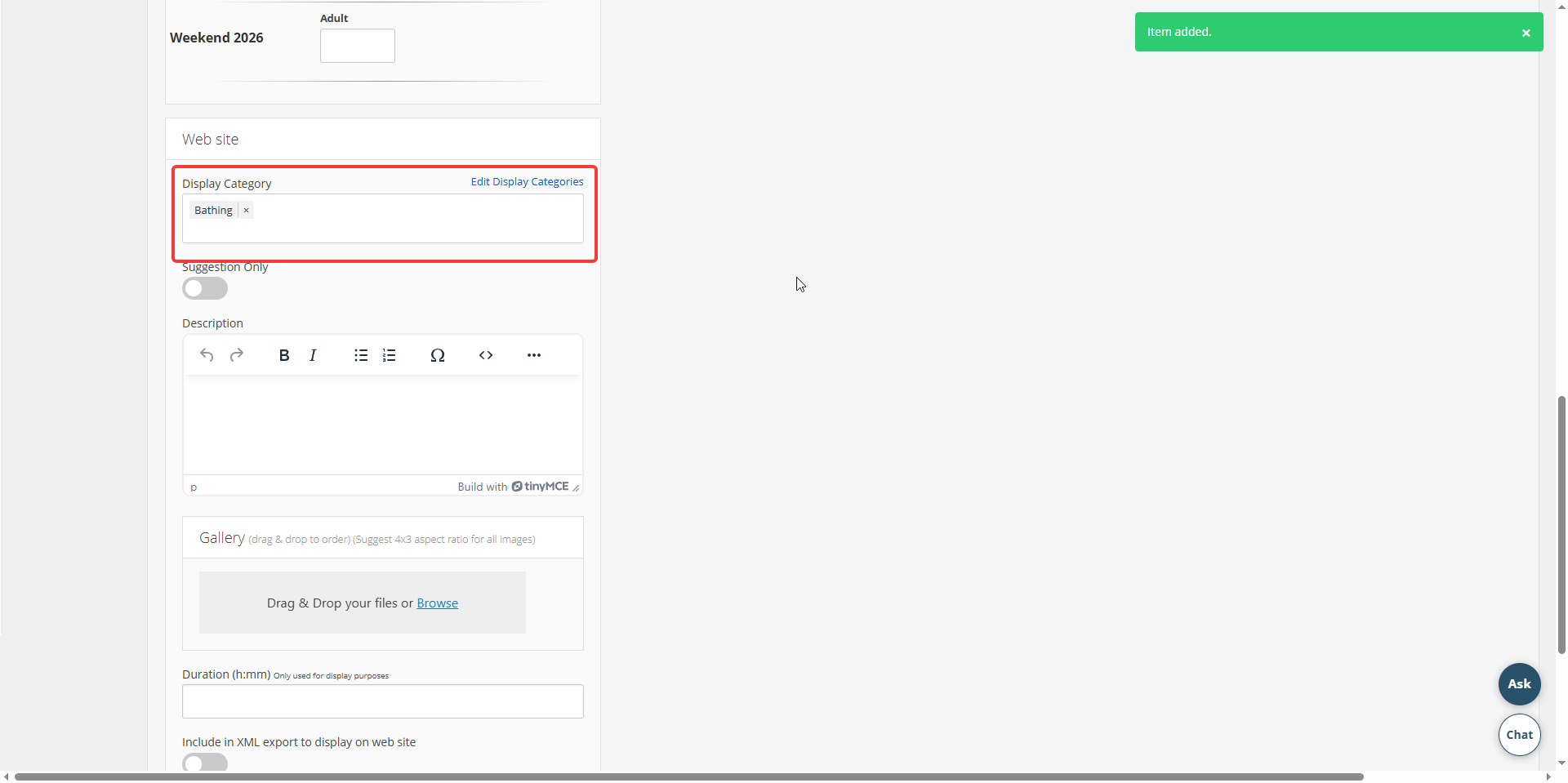
Be sure to set display category and then save it before entering details. It won’t let you add ‘Package Content’ unless you save with these details first.
Enter Package Content
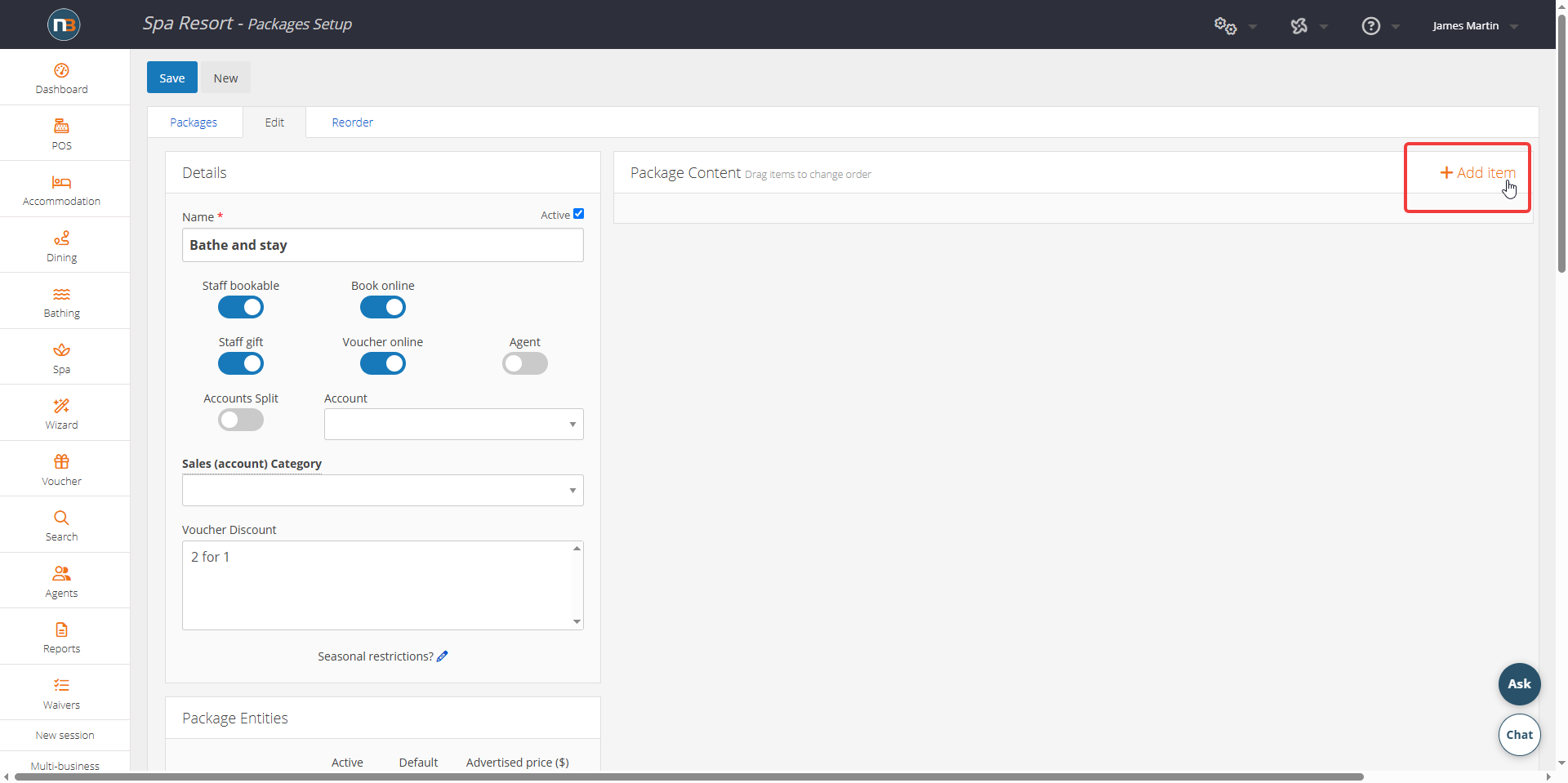
Add as many items to the package as you desire. Items should be listed in the package in chronological order – meaning as you wish the guest to experience each part of a package experience. You may change the order of the items by dragging and dropping the panels.
Click ‘Add content’ to commence.
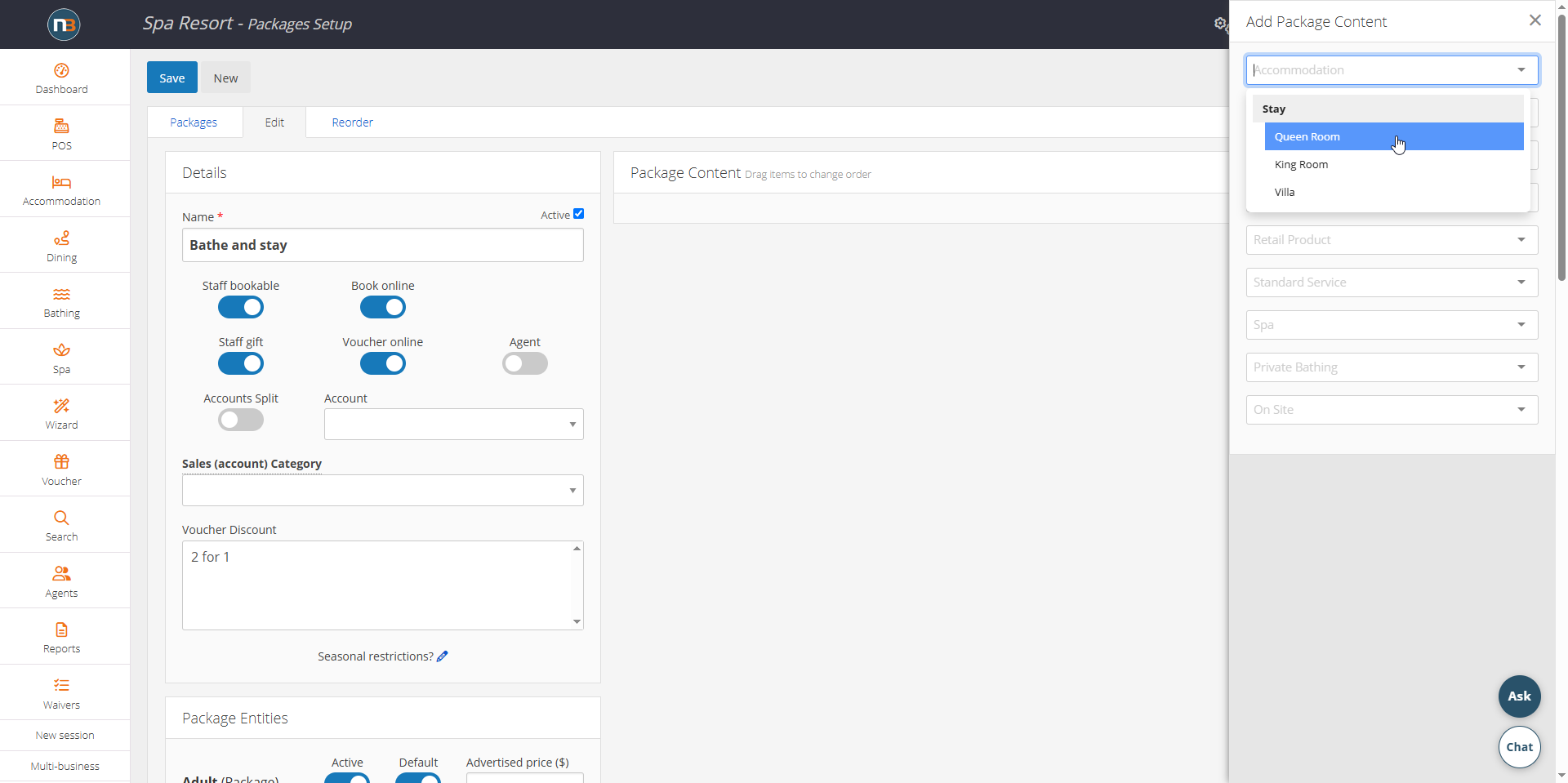
In our example we are adding Bathing and Accommodation. Let’s select the Accommodation first and then add the Bathing as guests will typically check in before bathing.
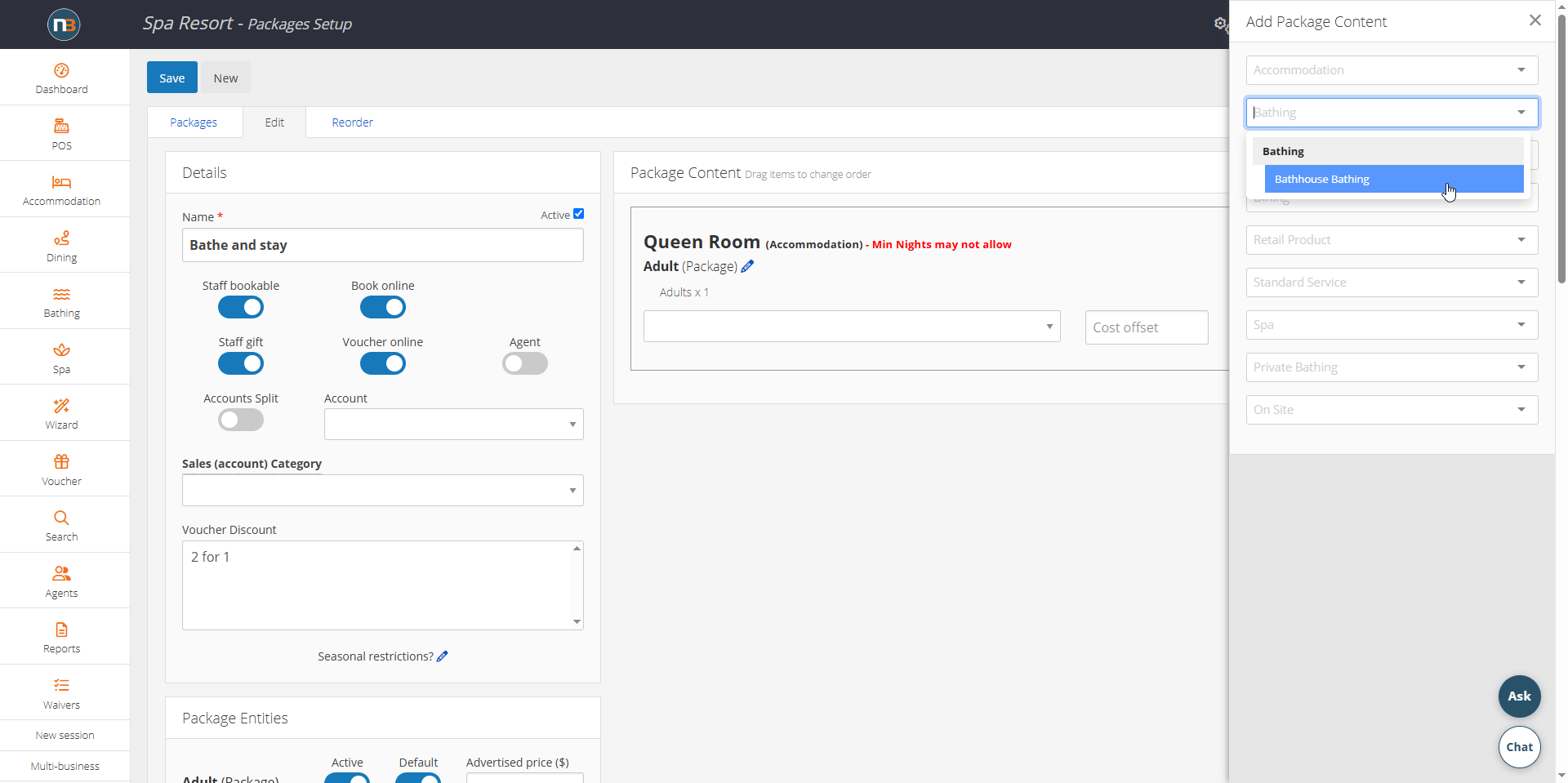
Now add the bathing content.
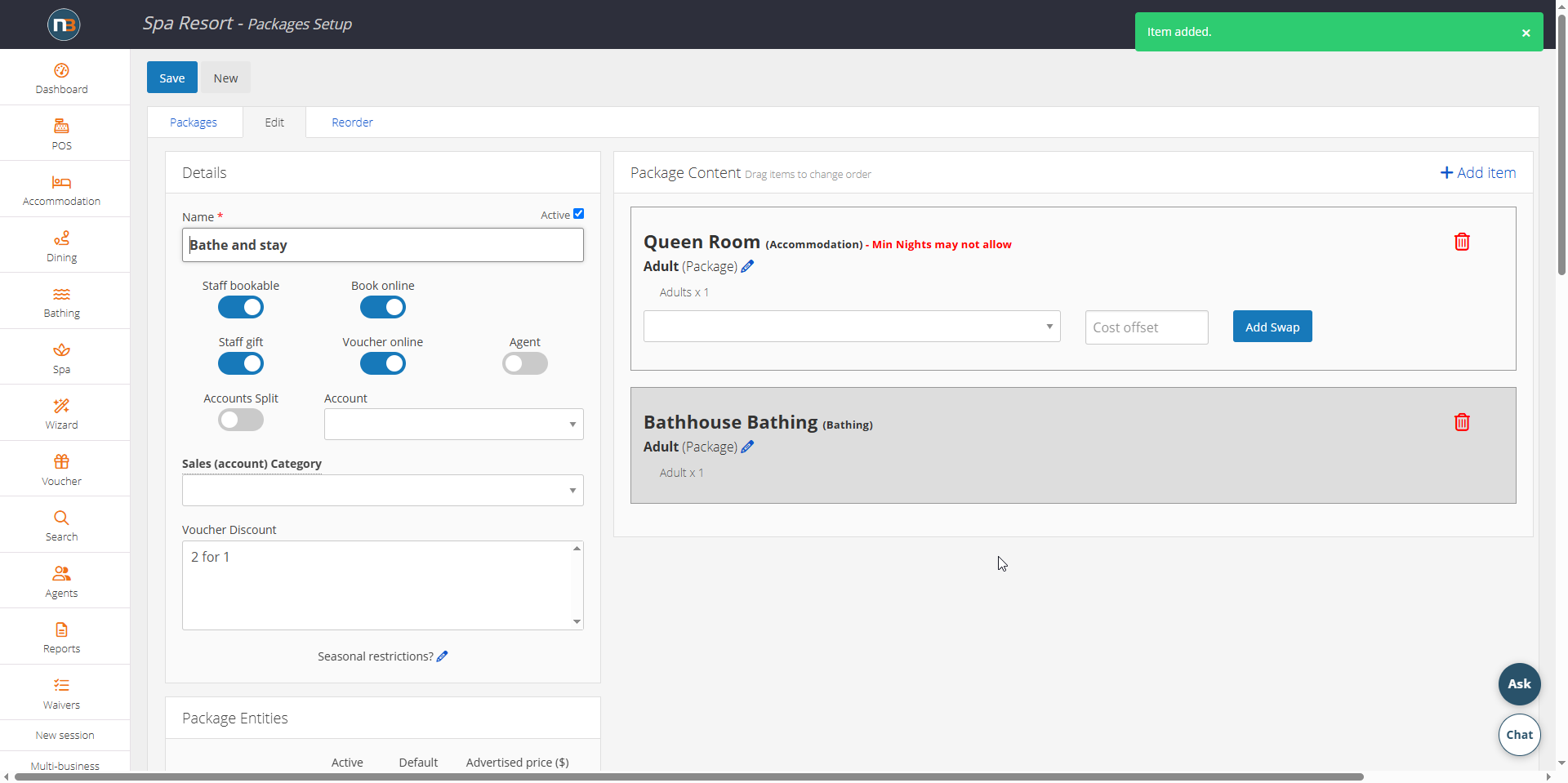
When content is added, it will automatically save the package as content – as indicated by the ‘Item added’ message box.
Adding Accommodation Swaps
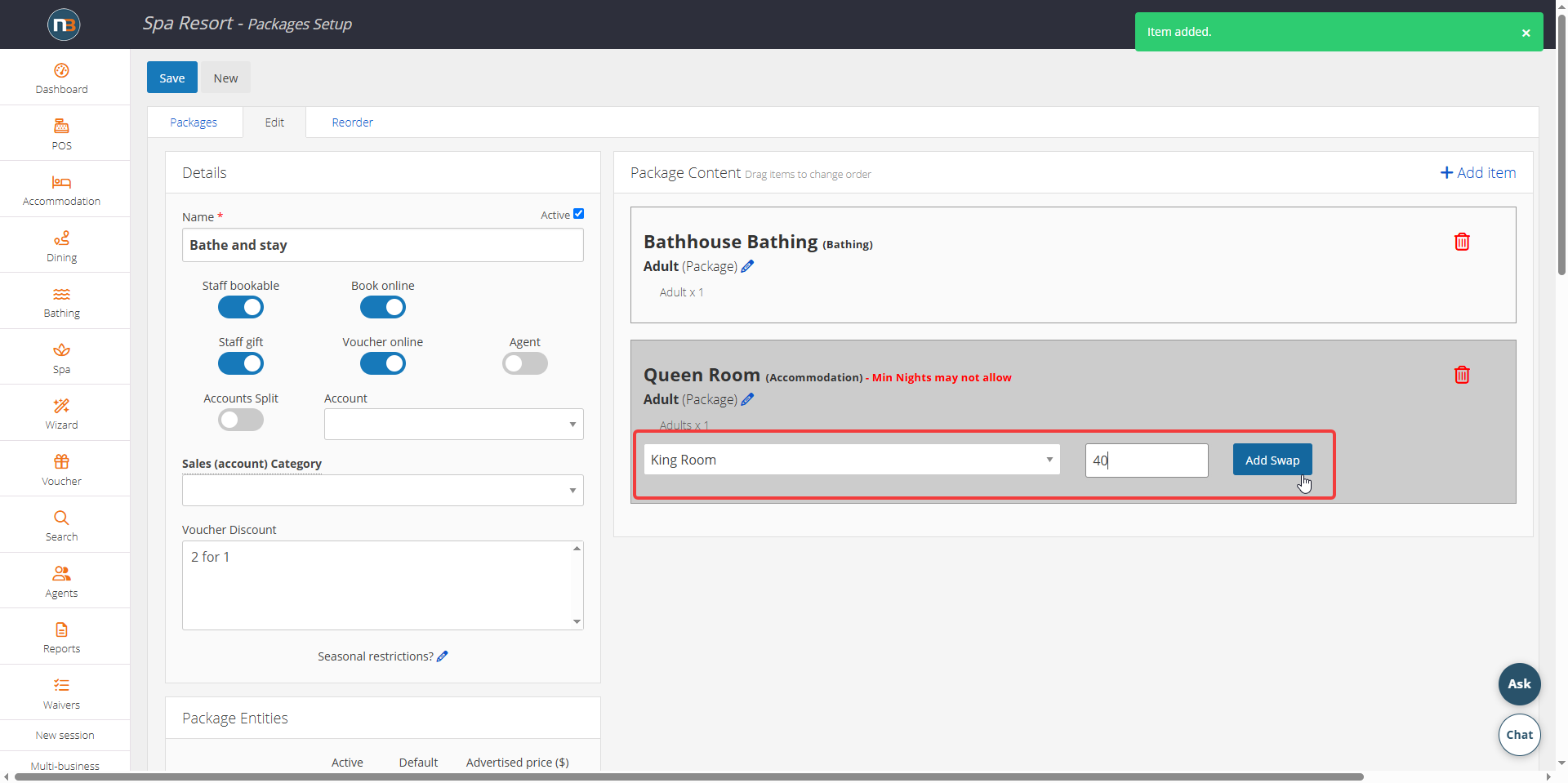
For Accommodation content, if we have multiple types, we can add swaps for guests to utilize on the front end when booking the package.
Above, we add the room type from drop menu, add a cost difference if price is more expensive than default room (Queen in this case); $40 is the extra amount on top of the package price to book this ‘King’ room swap. Click ‘Add Swap’ to include for the Accommodation content.
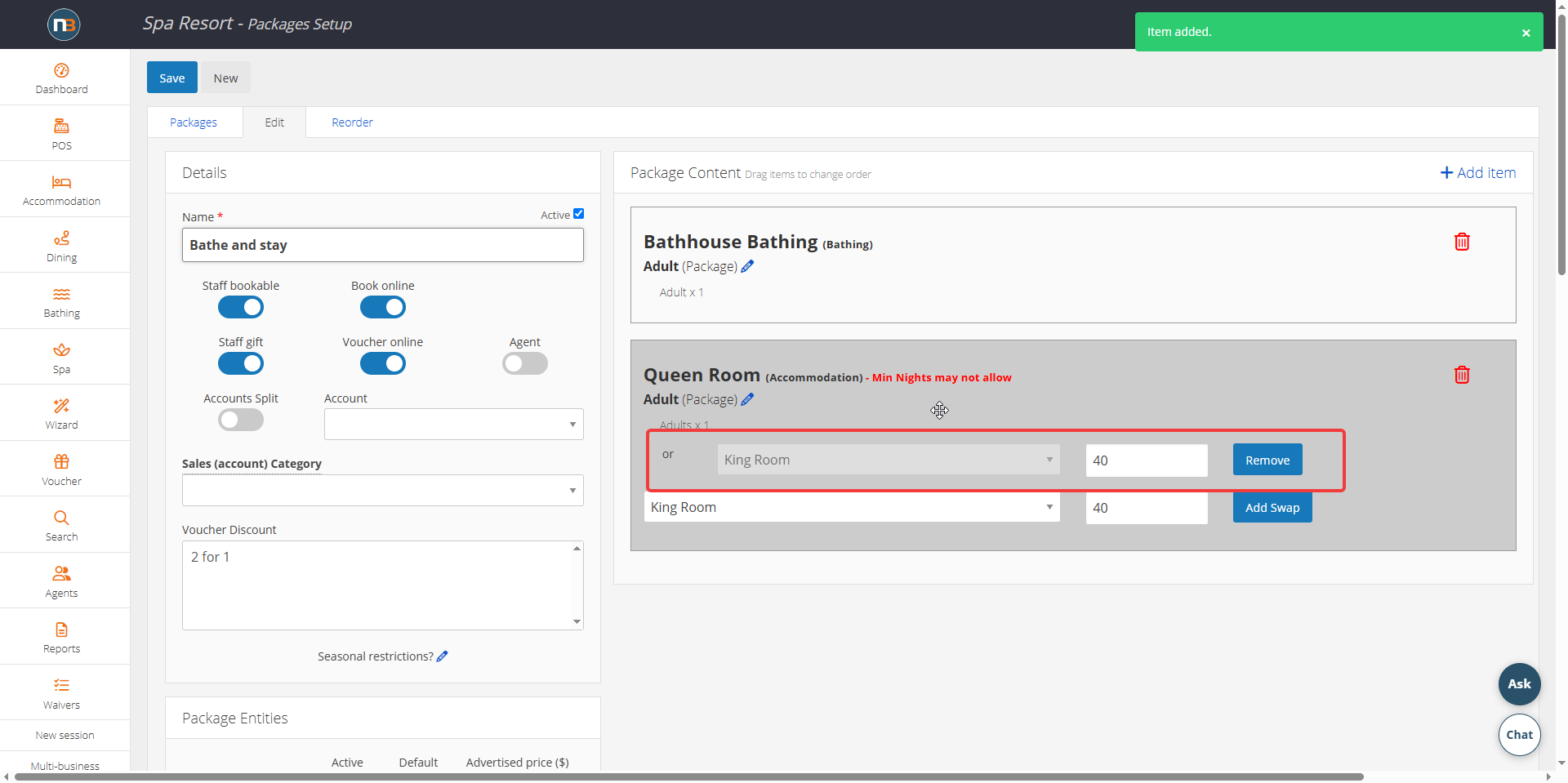
Now note the ‘King Room’ has been added as swappable content for the default ‘Queen Room’. Add as many as you have available if needed.
Enabling Accounts Splits
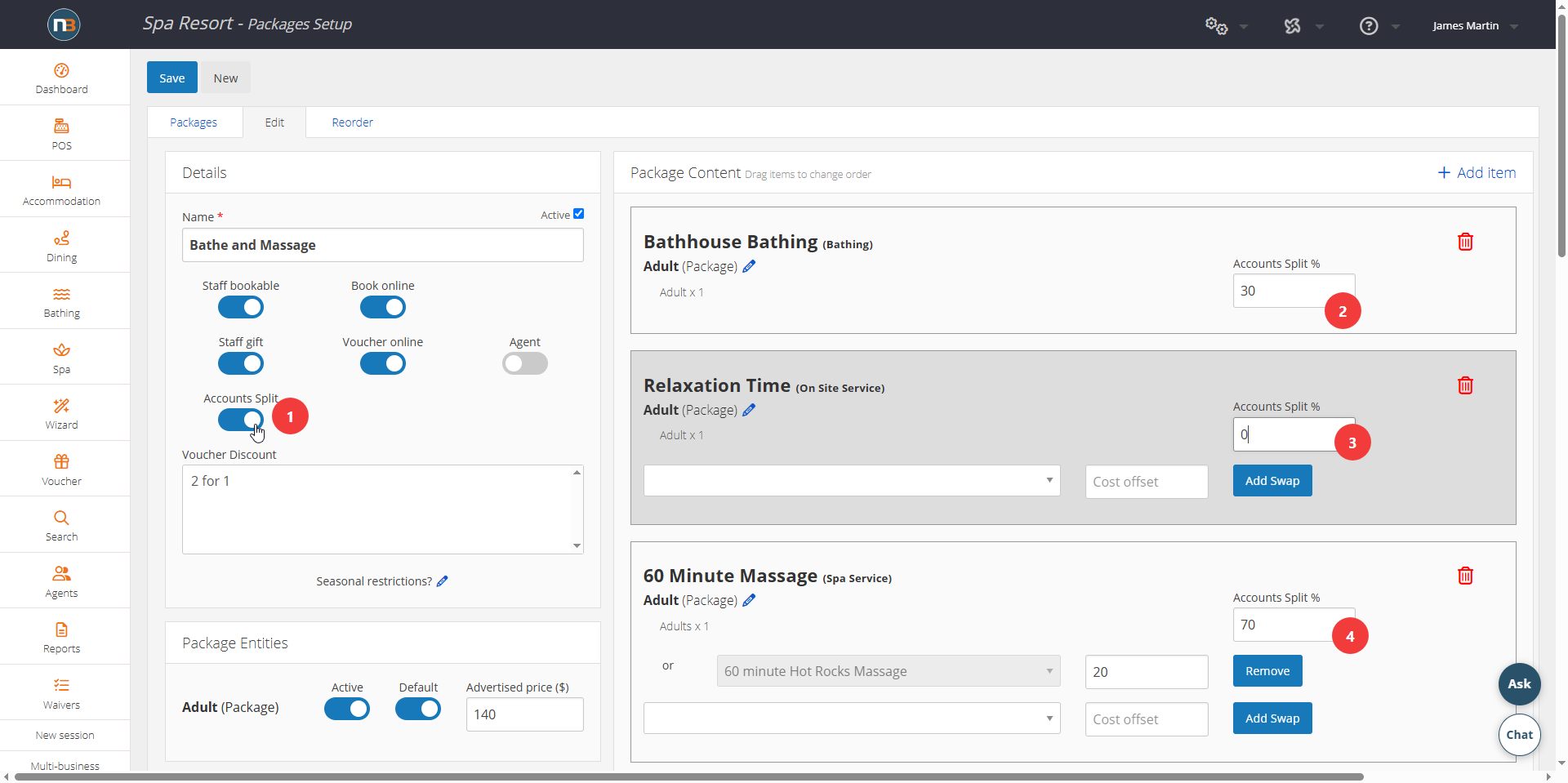
Enabling Account Splits allows the content in the package to have it’s revenue split into it’s own percentages for the purposes of financial reporting. Each content can have different accounting codes which then can be reported on later. See Accounting Codes for more information.
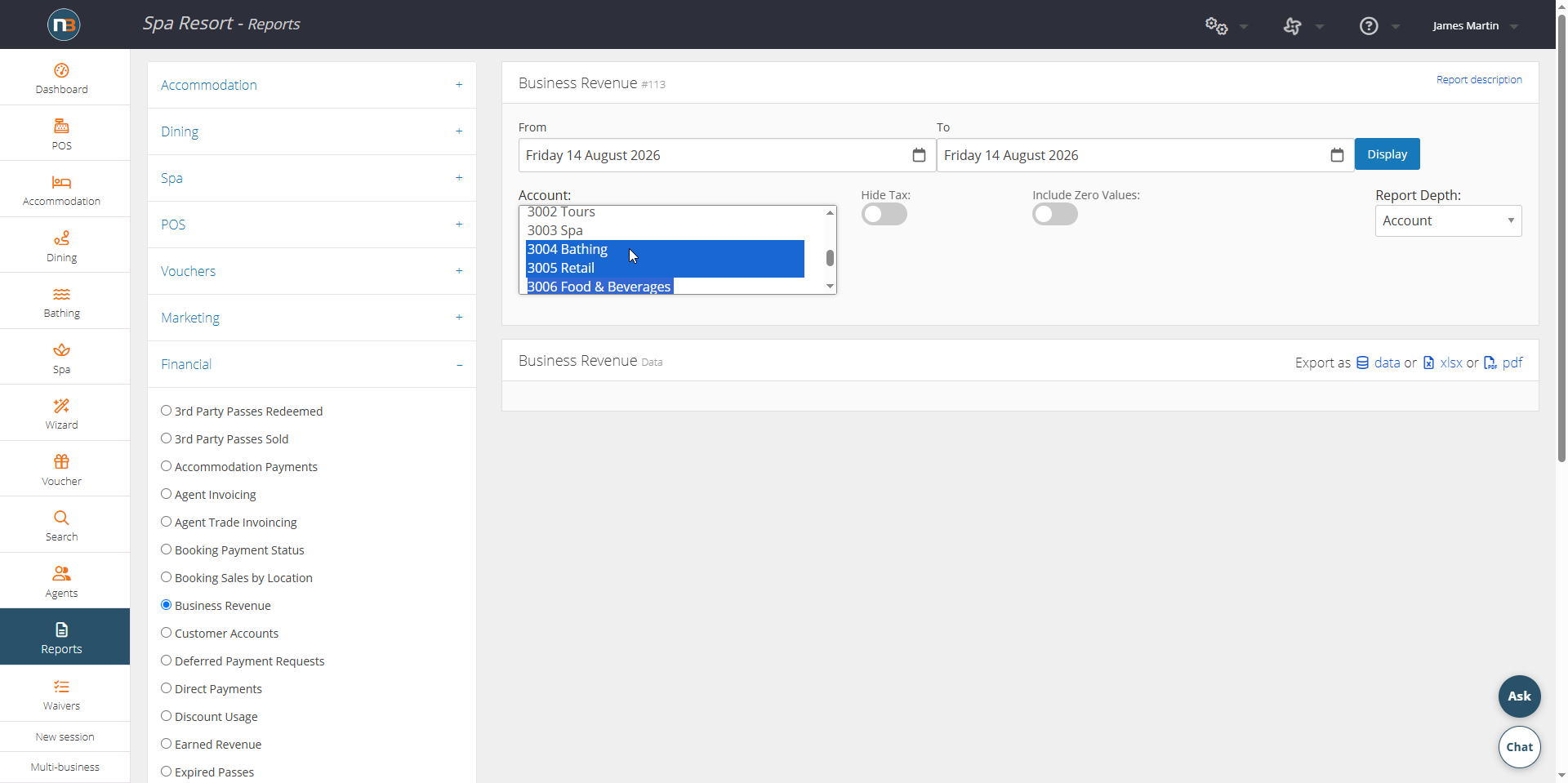
See Reports>Financial>Business Revenue and see impact of account splits and reporting.
Edit Package Content Details
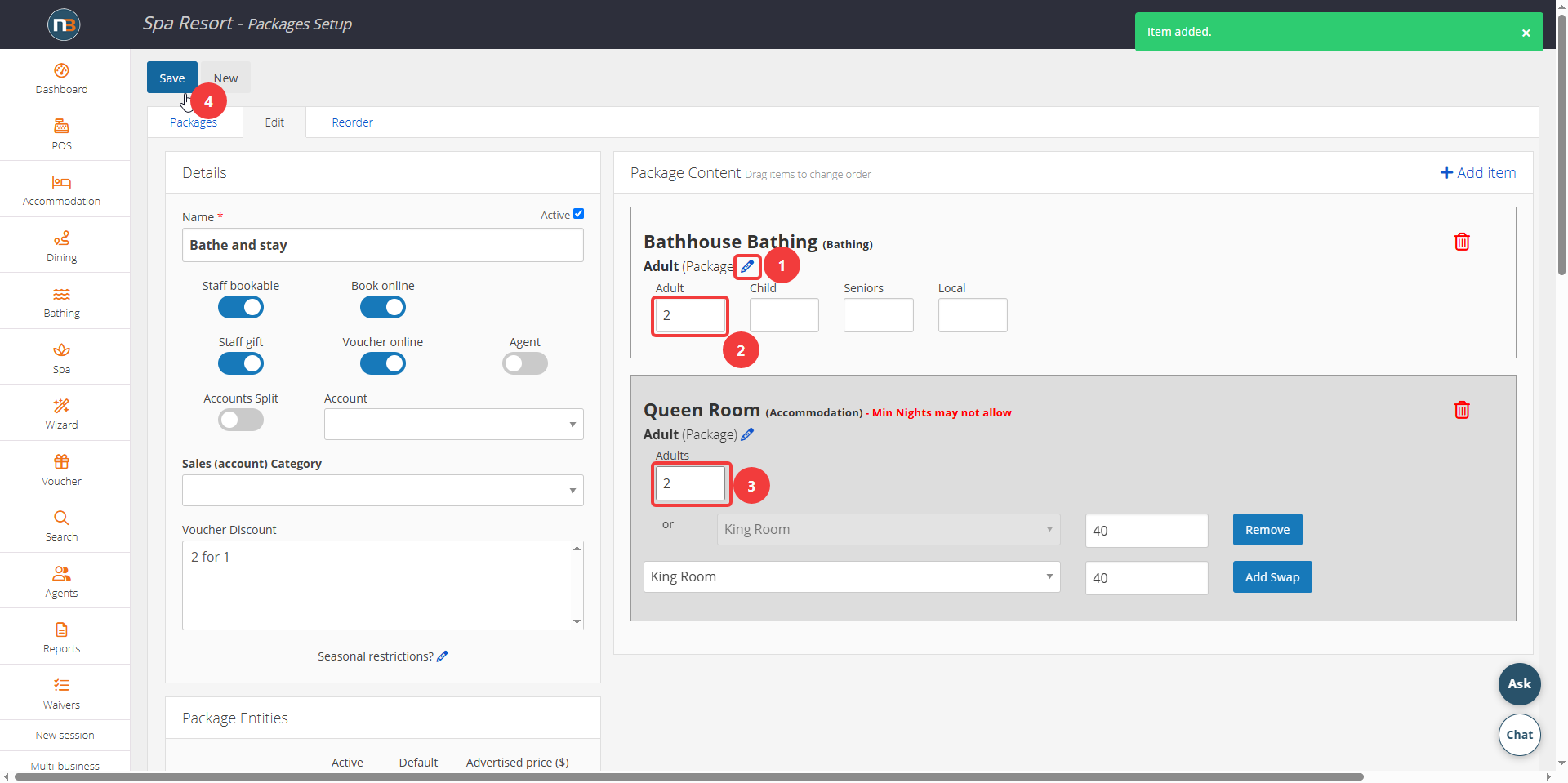
Edit the details of Package Content. For example, above you can press the edit button and the number of adults for each package item – If the package is for two people, then two items will need to be booked for each package booked. Click ‘Save’ to edit the details of the content.
Day-Of-Week Availability
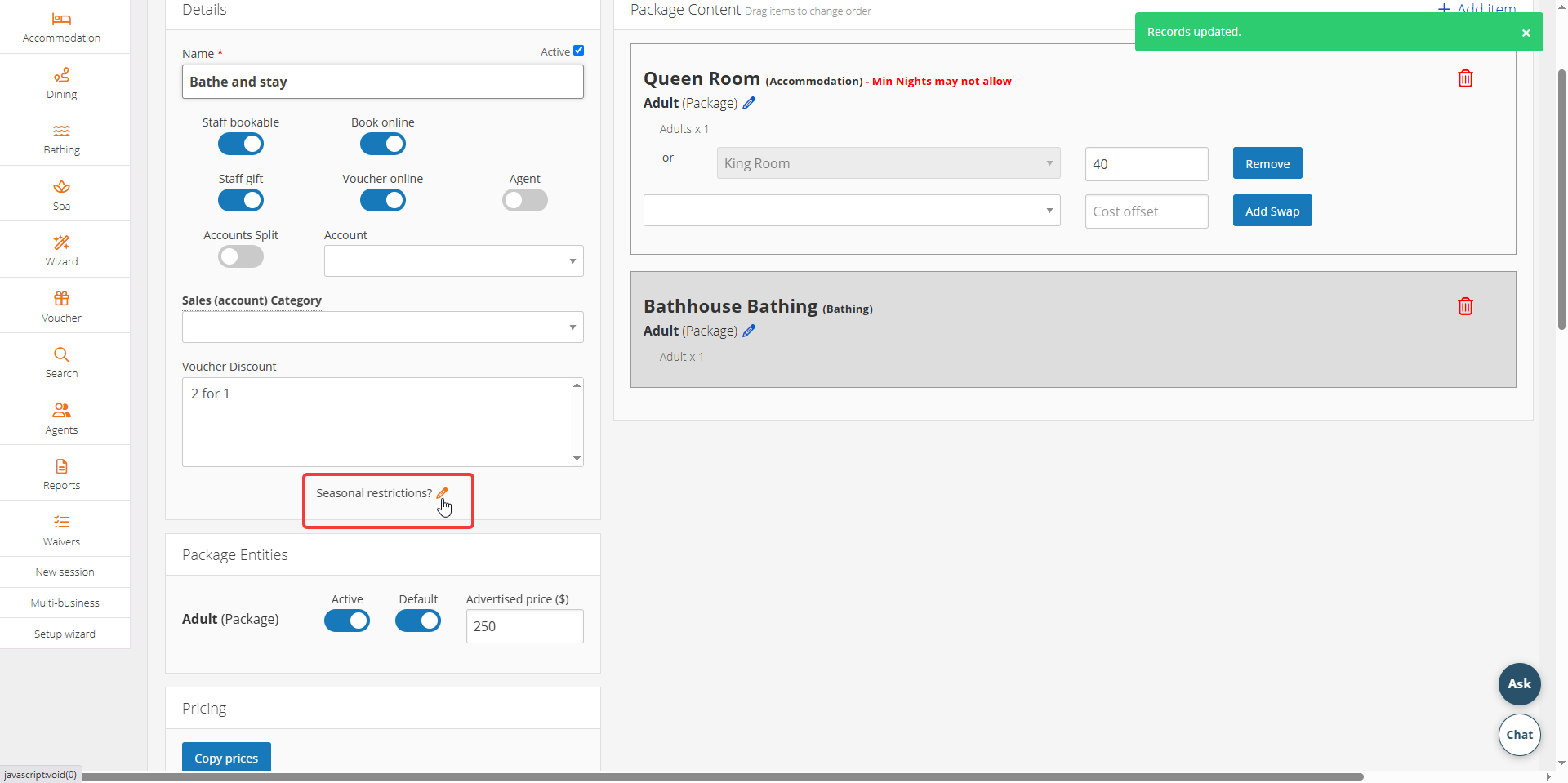
To access the menu for Seasonal Restrictions and Day-Of-Week Availability we must click the ‘pencil’ icon to open it out.
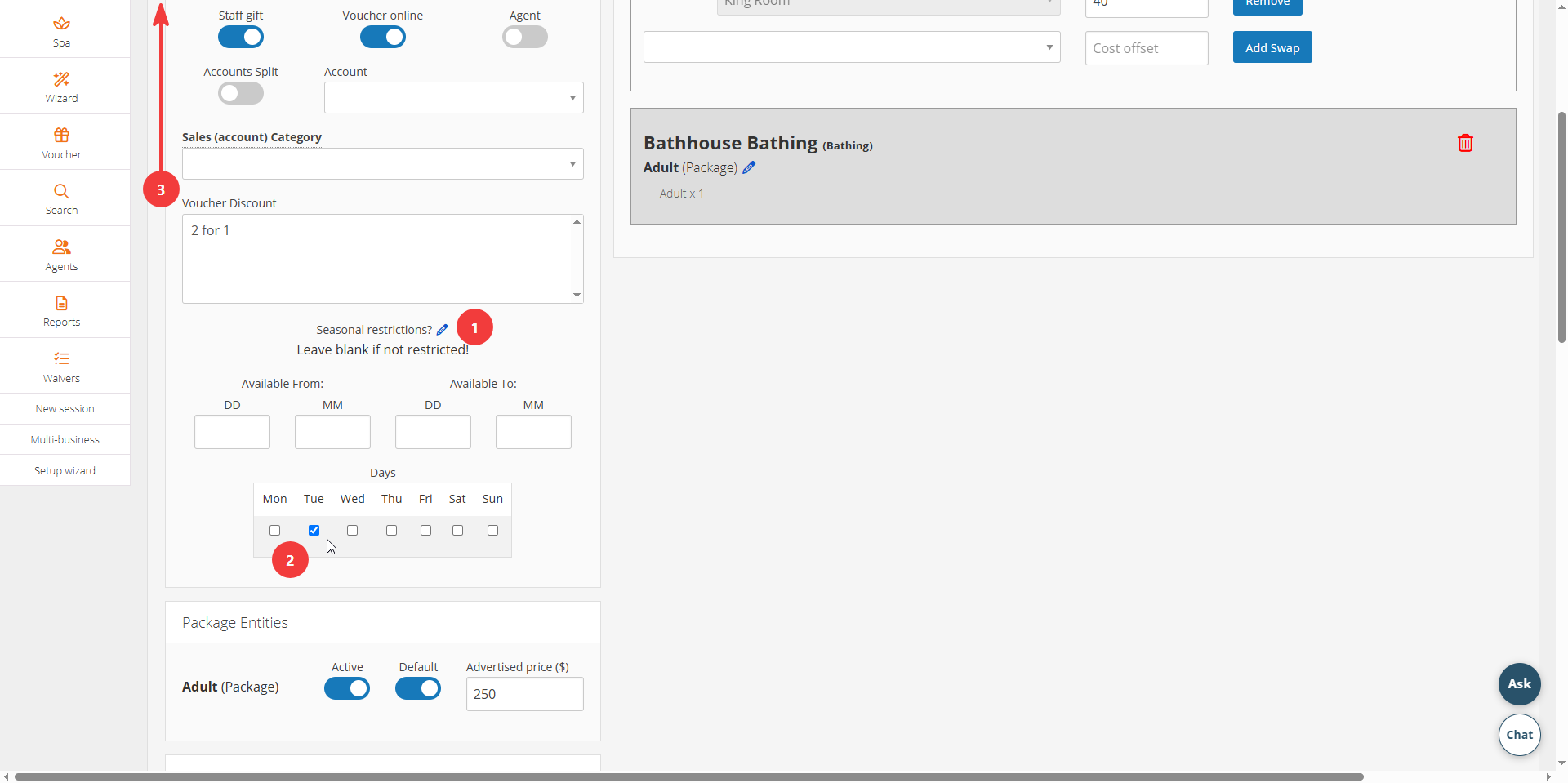
Looking at Day-Of-Week Availability first, we need to list all days that a package can commence on. If it is Monday and Tuesday we must select these days on lines separately. Because this is a one night package, it only needs to have Tuesday selected on one line and note multiple days (NOTE: If there were two nights accommodation we would need to select Tuesday + Wednesday, and so on).
In this case above, we select Tuesday first and then go to save.
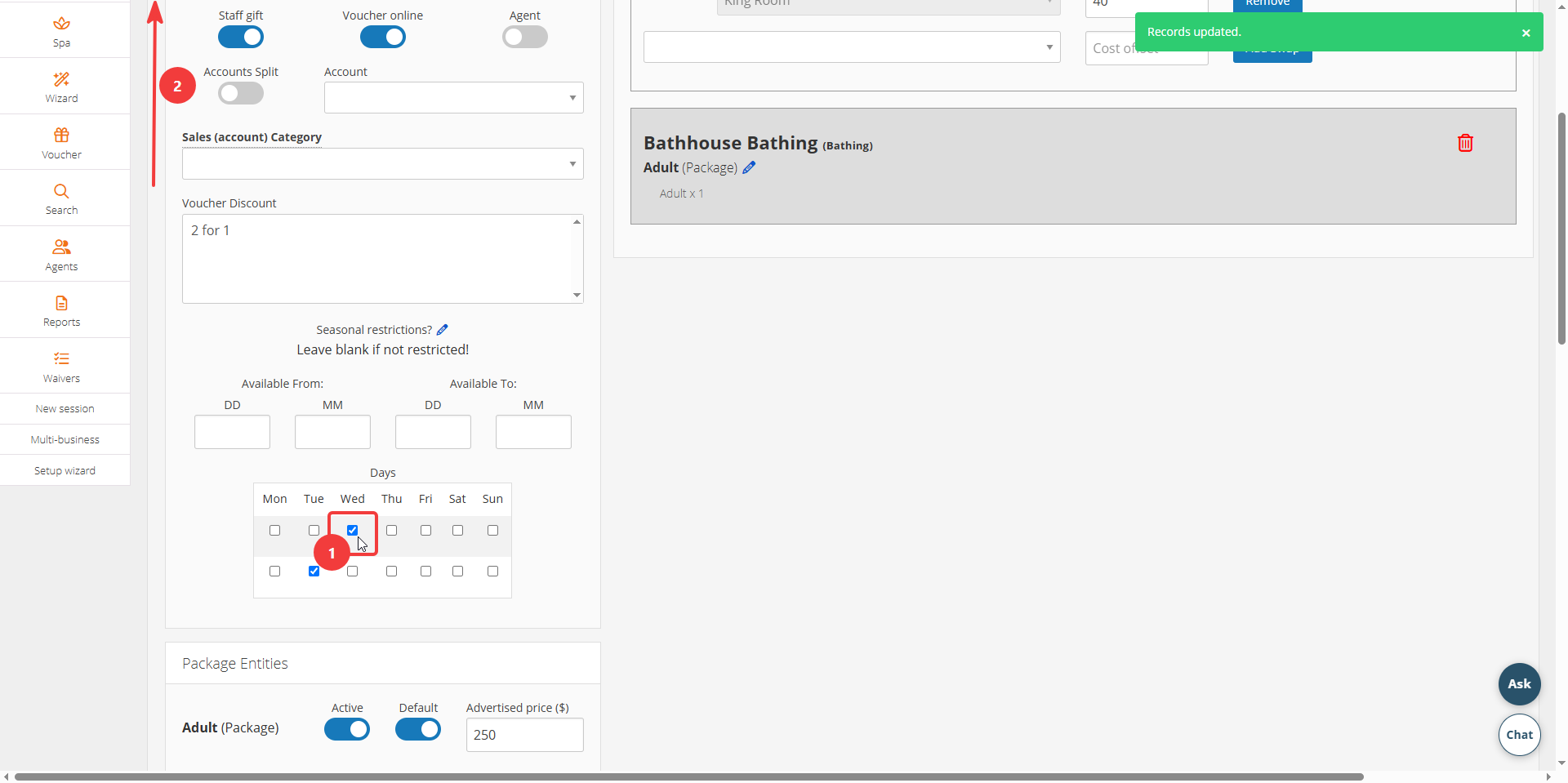
Now we can see a new line has appeared and pre-selected for Tuesday, as that was last item saved. Now we need to select Wednesday on the top line and save again.
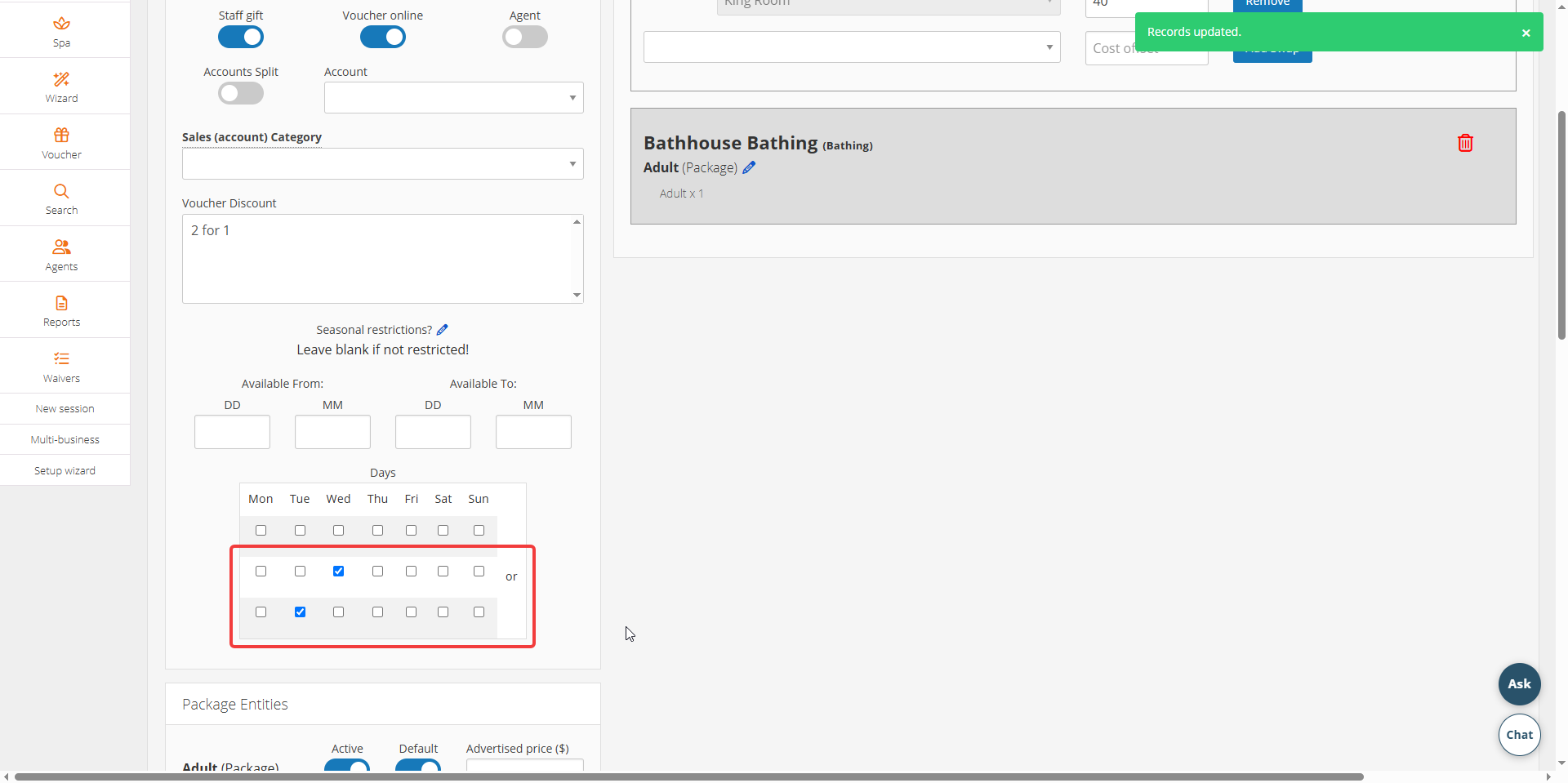
Now we have both Tuesday and Wednesday on the 2nd and 3rd line – meaning package can only be booked on a Tuesday and Wednesday. The top line doesn’t count, that is a future line to be added.
Seasonal Restrictions
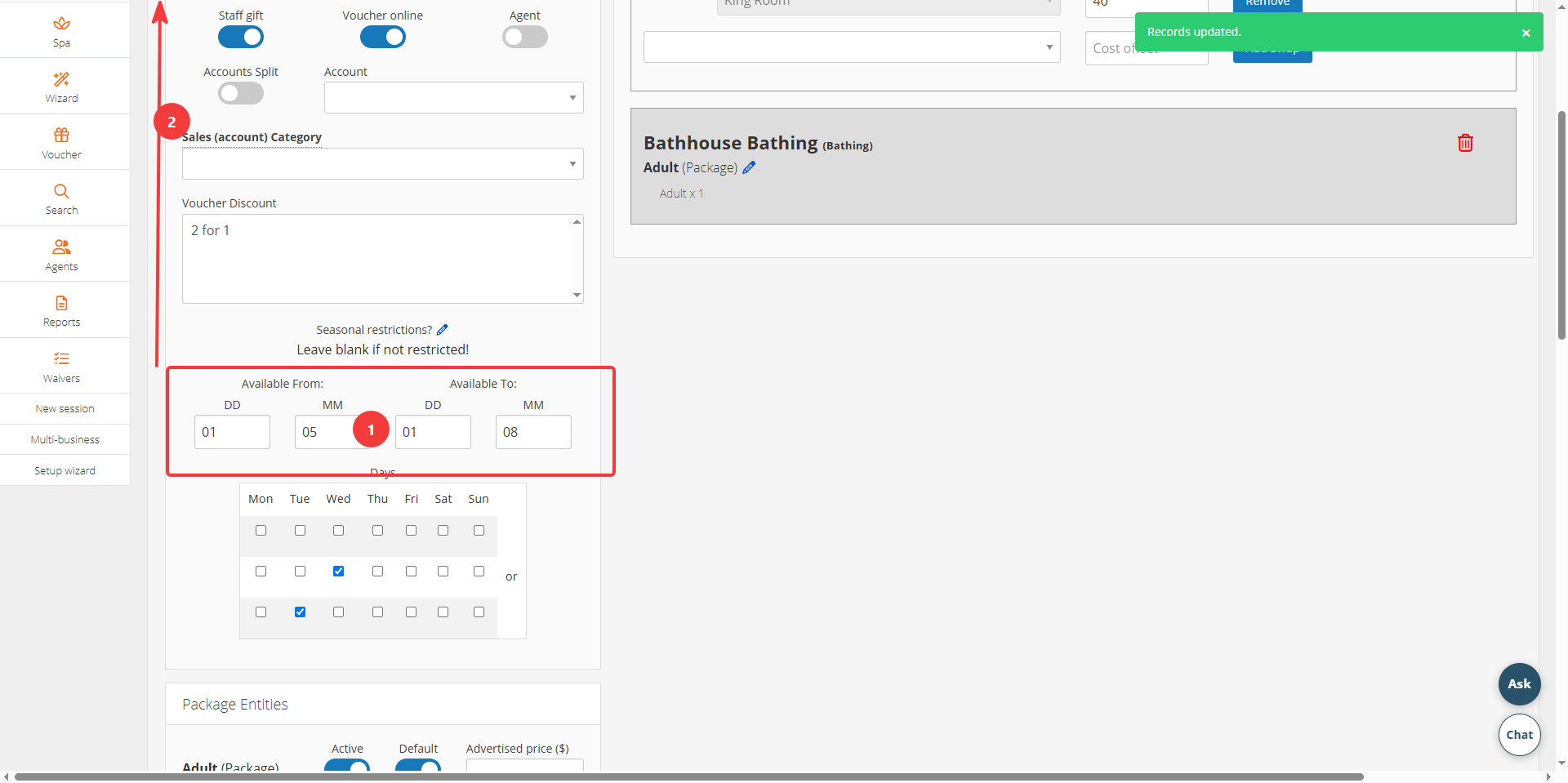
The other part of the menu is Seasonal Restrictions. This works by adding a start date and end date. It will mean the package can only be booked between these dates on any given year; hence Seasonal Restrictions. Once entered go to top and save to record changes.
Transfer Times and Wizard Options
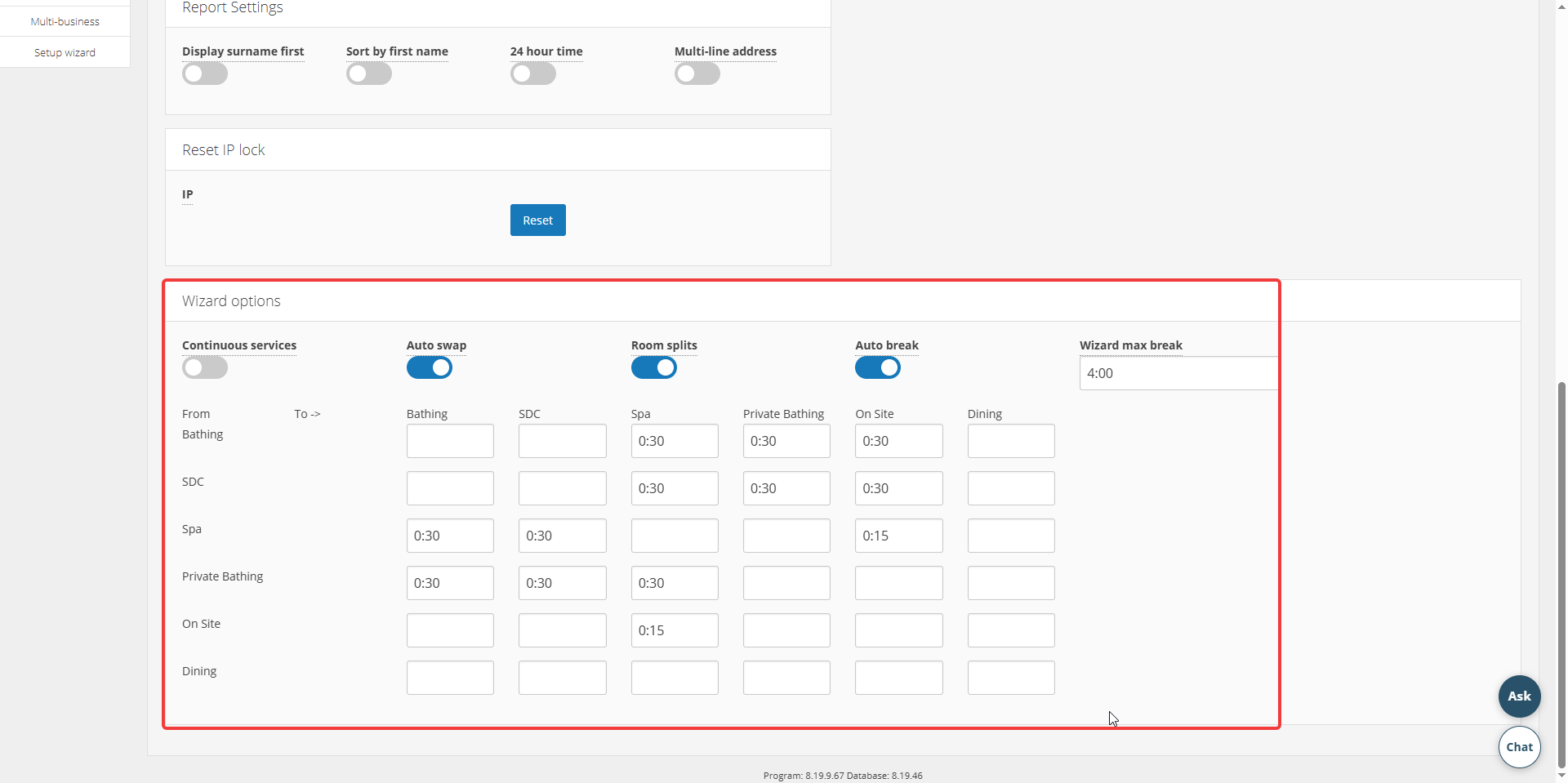
We can set the times between different types of Netbookings content (Go to System>Setup>Settings>General tab and scroll down to Wizard Options panel). For example above we can set the time added between Bathing and Spa treatments is set to 30 minutes. See Wizard Options for more information on how to change settings.
Add Pricing
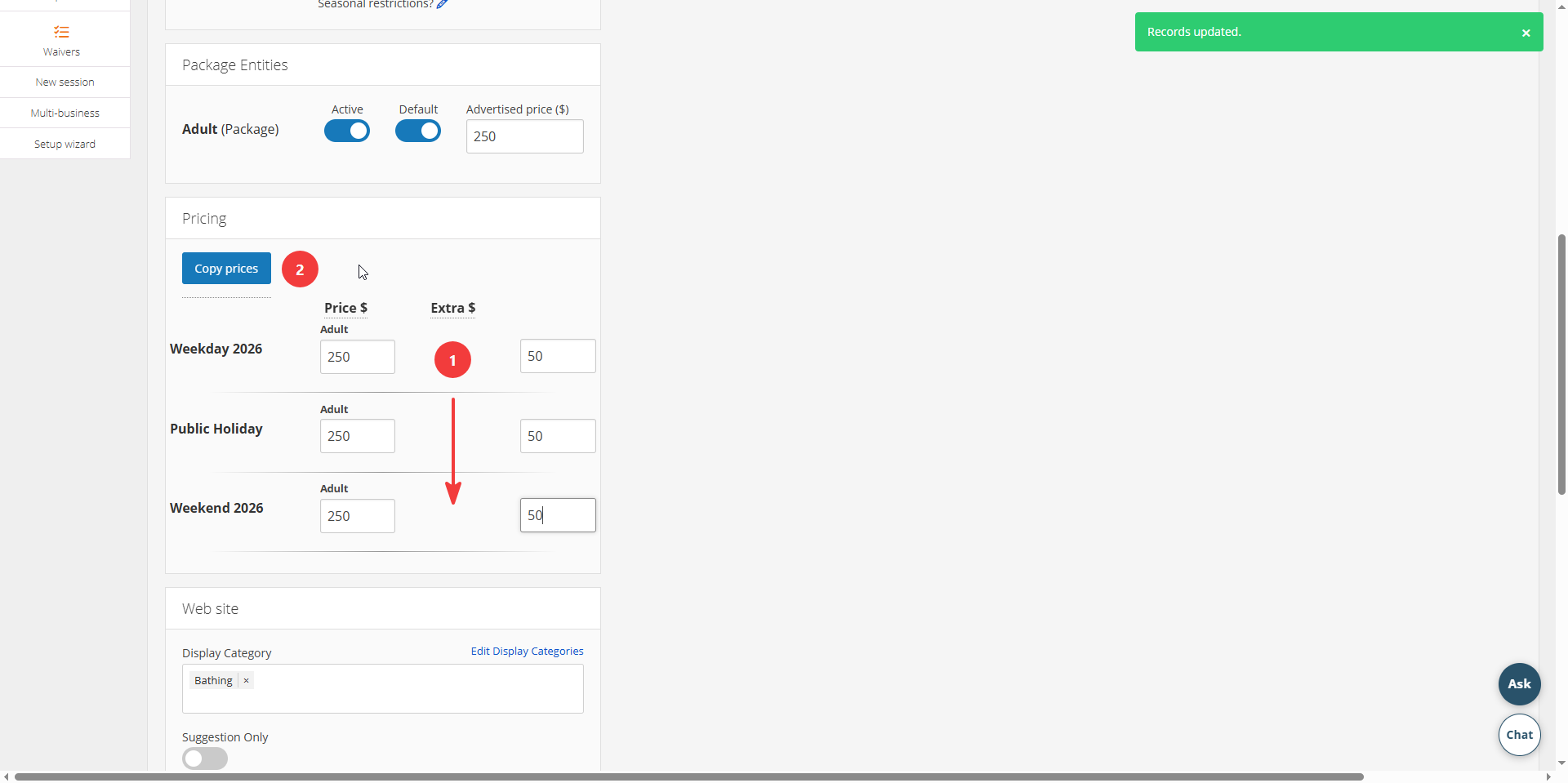
At the ‘Pricing’ panel, we can add the pricing for the three tariffs that exist for our business. Using the ‘Copy Prices’ can make it easier to fill out the pricing to multiple tariffs if the pricing more or less stays the same for each tariff. It will auto fill from first tariff to the remaining below.
The ‘Extra $’ field allows us to add additional guests on top of the 2 we have added for the package, in the instance where Accommodation available guests allows us to do so. NOTE: This field will not appear if no Accommodation/Tours exists in your content.
Enter Website Details
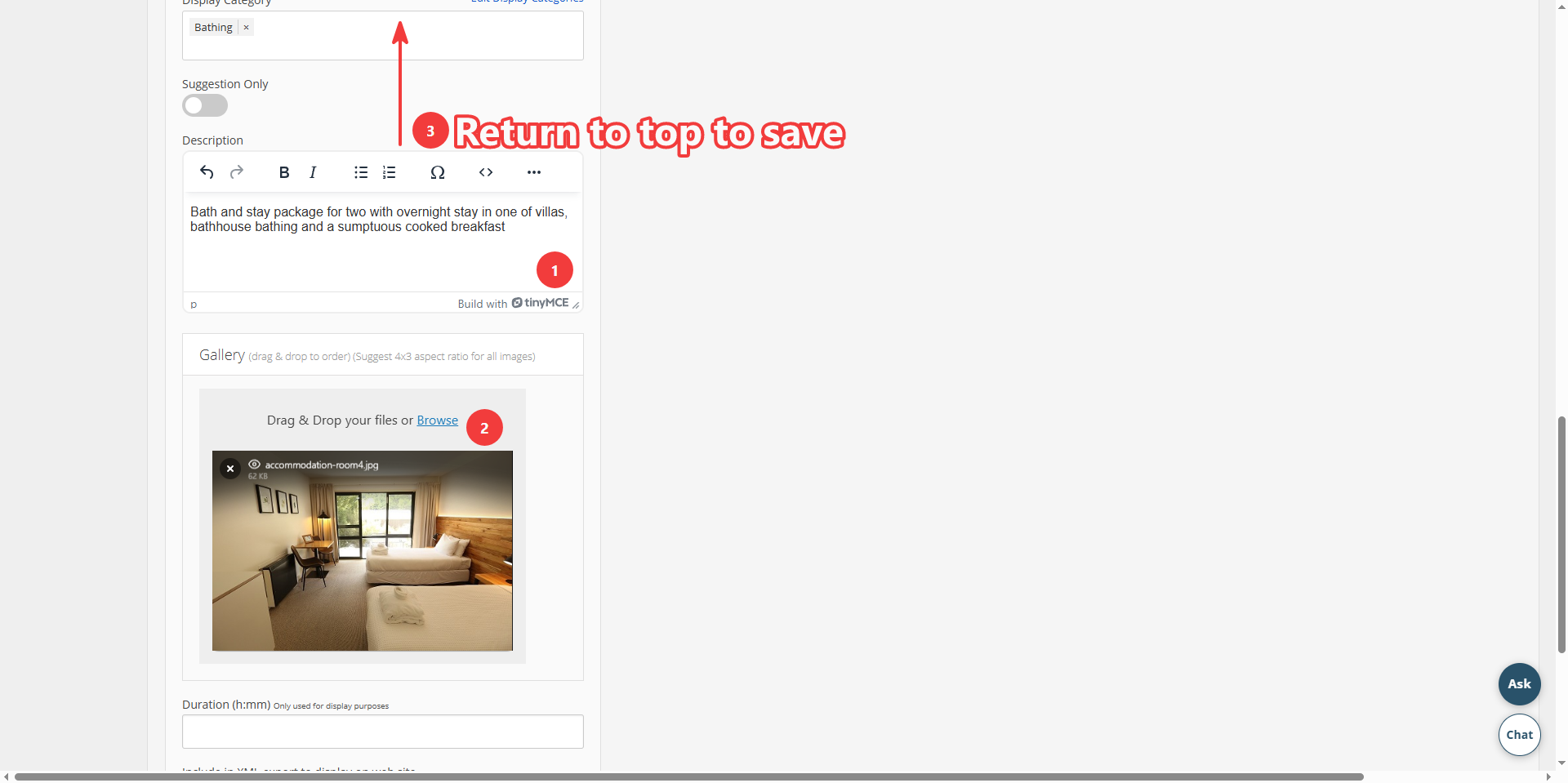
You can add a description and image in the gallery. The details entered here will appear on the ‘Find Your Experience’ booking page. NOTE: You may select multiple display categories if you wish to add more than one (and want the package to show under more than one category).
Click ‘Save’
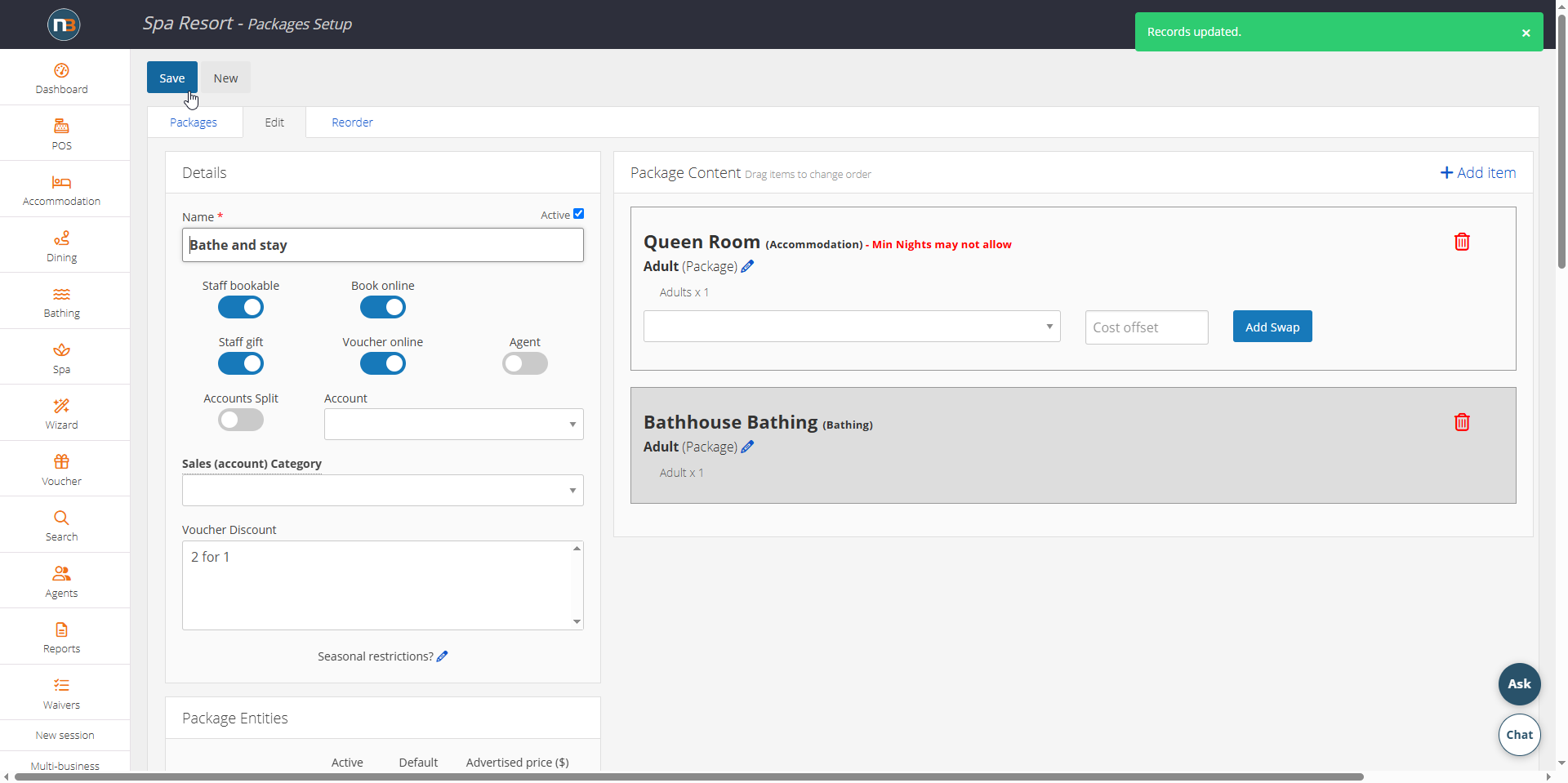
With photo, categories and text added make a final save.
Your Package Appears Here
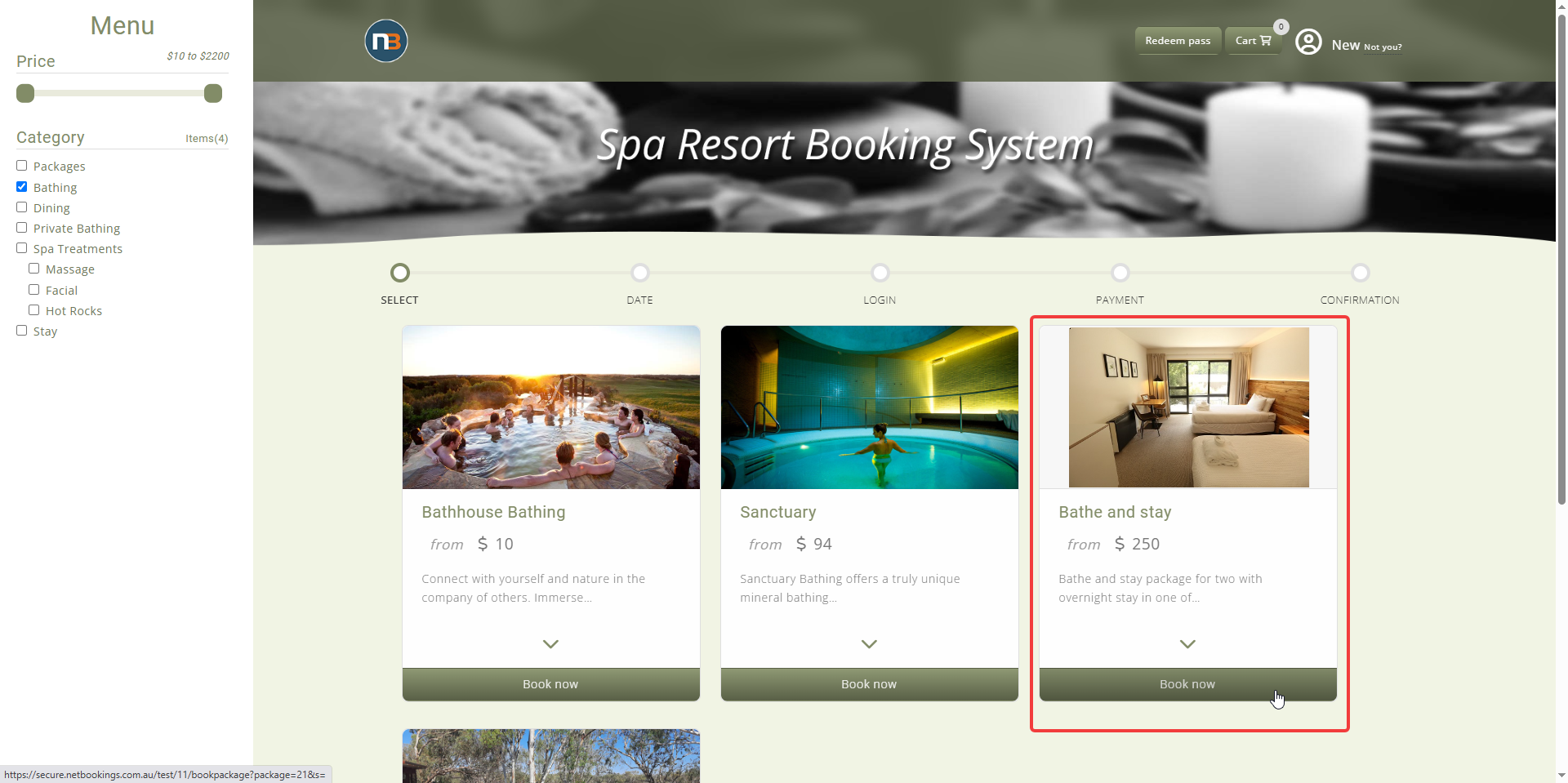
Your package appears here on the ‘Find Your Experience’ booking page. To view some client examples, click here.