Services
Services setup is used to create services that may be provided for many different purposes; a Spa treatment in a room, for example, a 90 minute massage. Alternatively Private Bathing, Onsite services, Standard services (Vouchers & other add-ons that don’t require a booking – such as Breakfast or Wine, Snorkeling Gear Hire or any extras that you want to include for your bookings) . 3rd Party Services can also be created here for businesses you may be partnered with.
It is possible to assign an off-peak price for Spa and Private Bathing type services. Using calendar setup, we assign days which we consider to be off-peak to apply the alternate off-peak pricing on those dates.
Click ‘Services Setup’
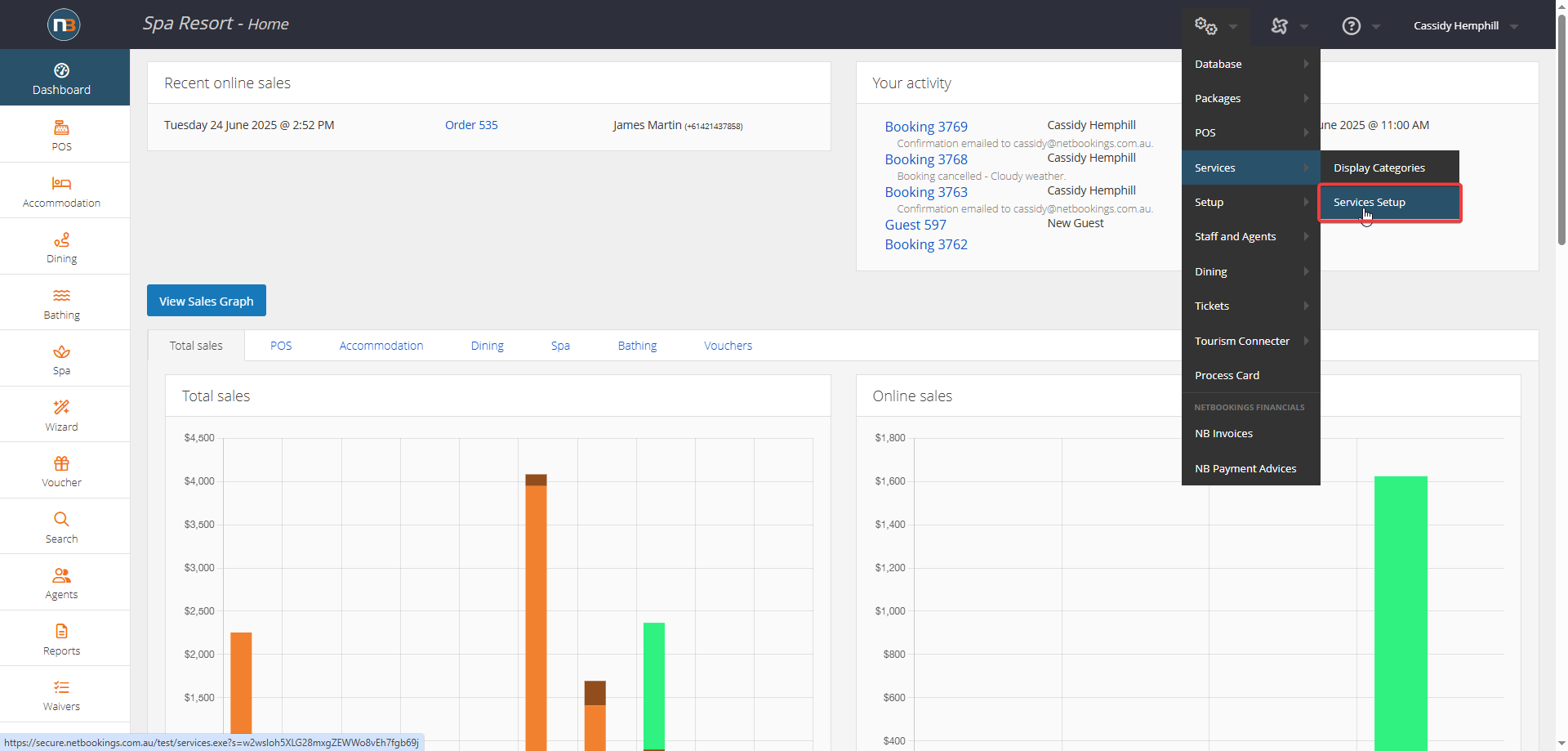
Navigate to System > Services > Services Setup.
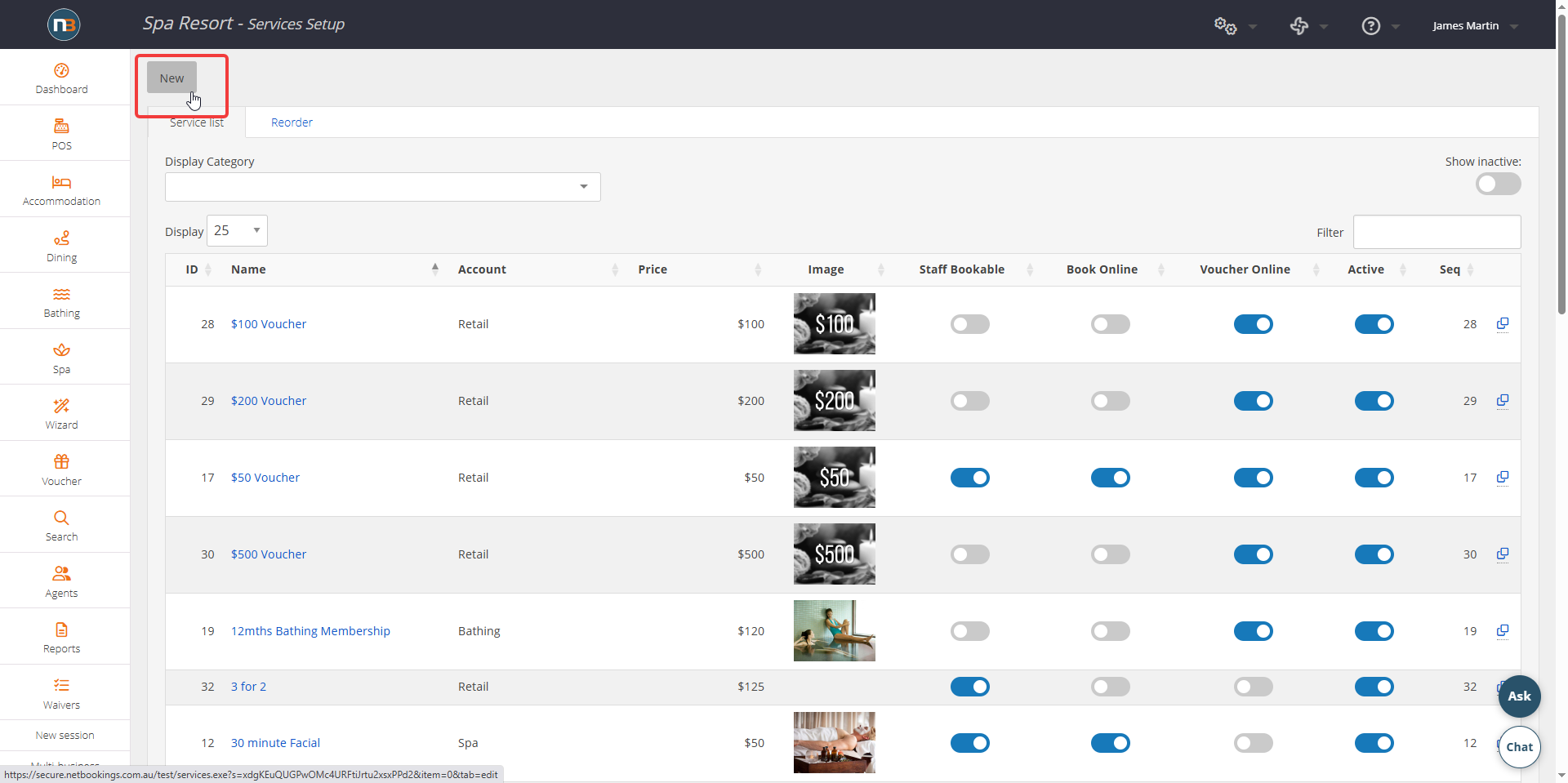
Click ‘New’
Standard Services
Standard services can be a number of different things. First of all a voucher in the system – see Voucher Setup for more information. When not a voucher, is often used as suggestions or extras for other bookable items. For Accommodation suggestions it could be a Breakfast package, hamper or bottle of wine. In a tours/diving business it could be used for scuba hire gear, which guests can select when booking. See Suggestions and Extras for more information.
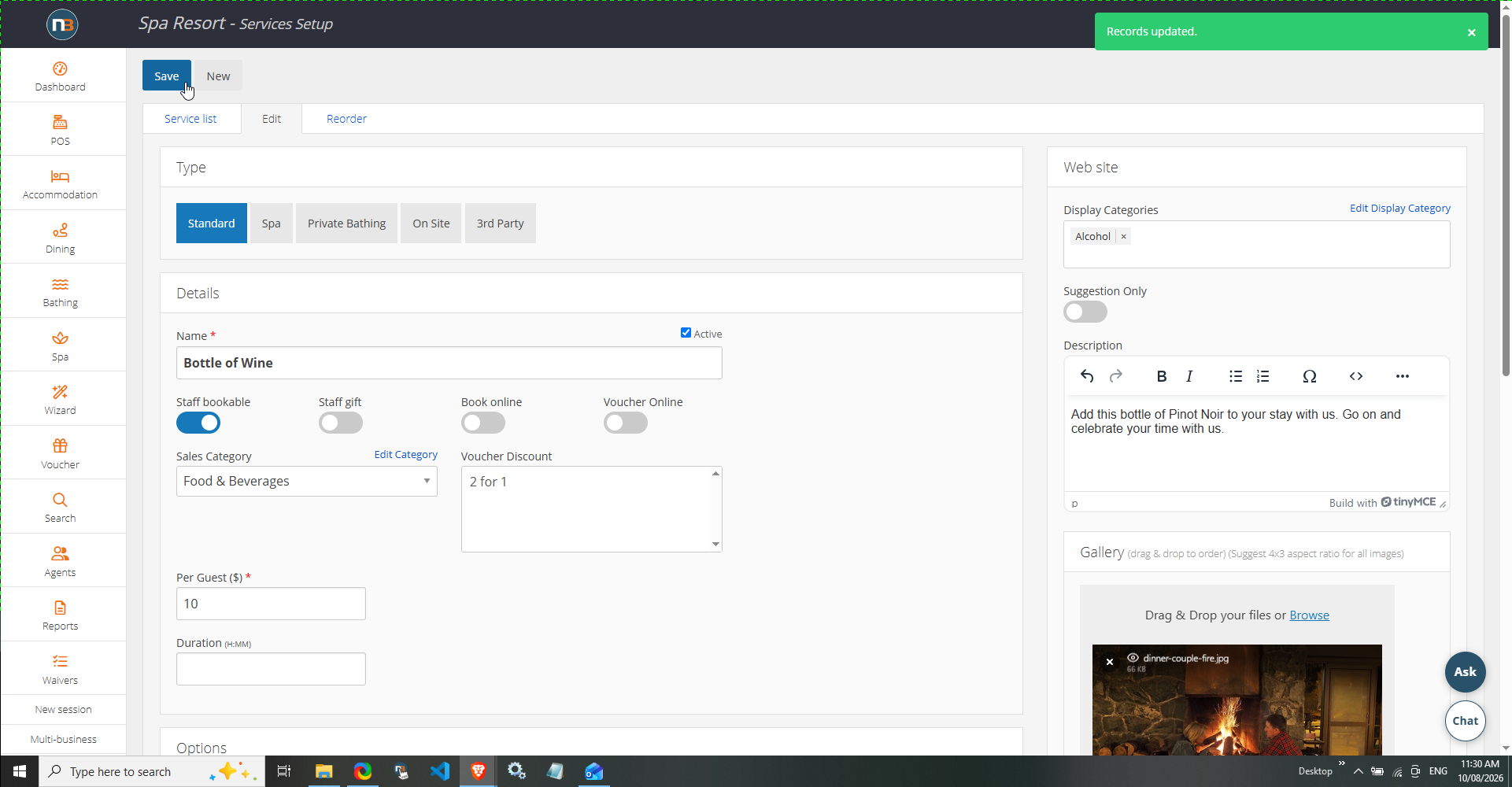
Enter Service Details
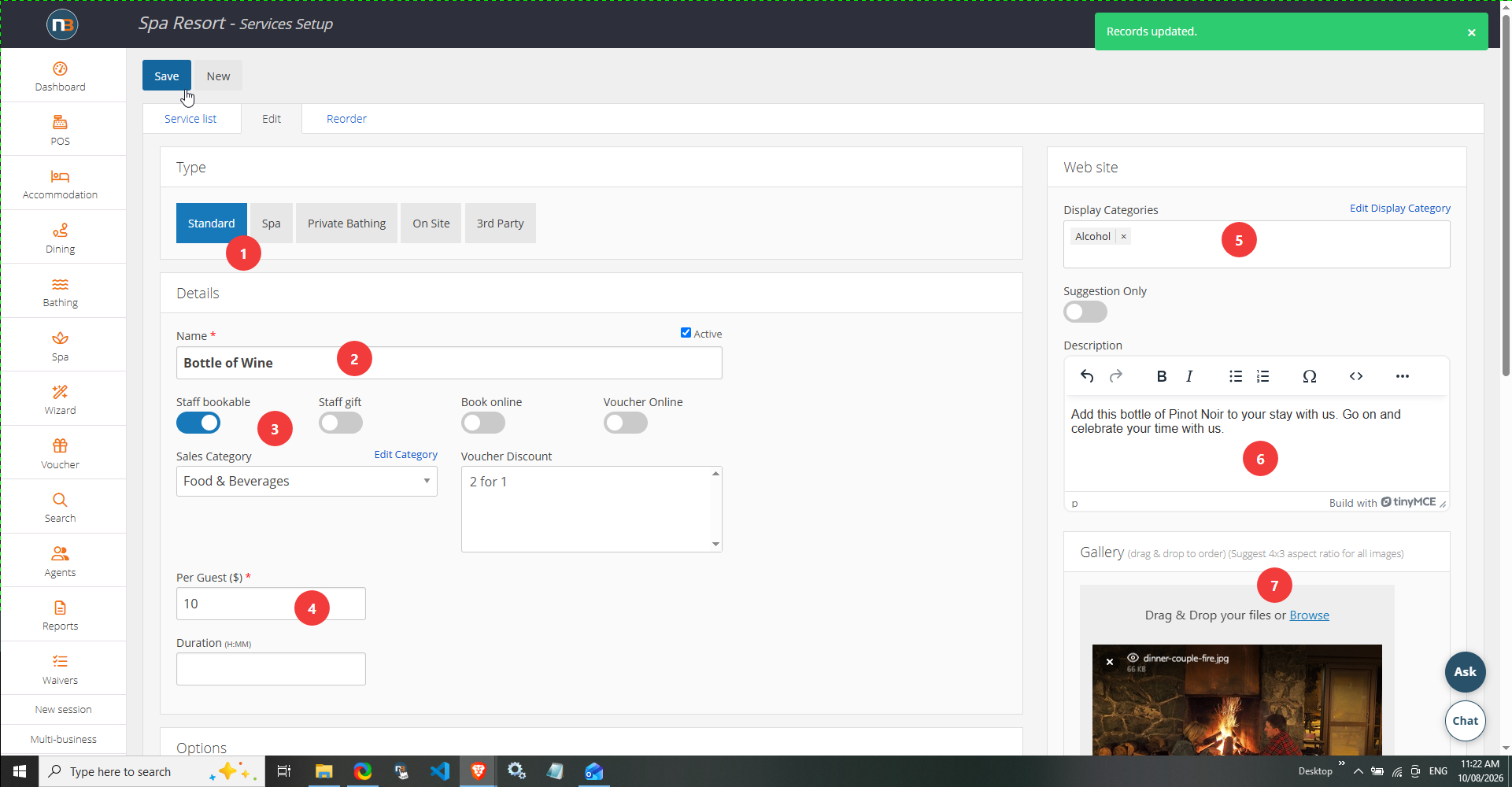
1. Assign the ‘Standard’ type.
2. Add service name that guests will see online and in backend for staff.
3. Add switches for whether staff can add it, exist online or be sold as a voucher as well for staff or online.
4. Add price per item.
5. Add Display Category – this means the service will show under this category on front end sales page and in backend via ‘Booking Wizard’.
6. Add service description that guests will see online.
7. Add image for display online.
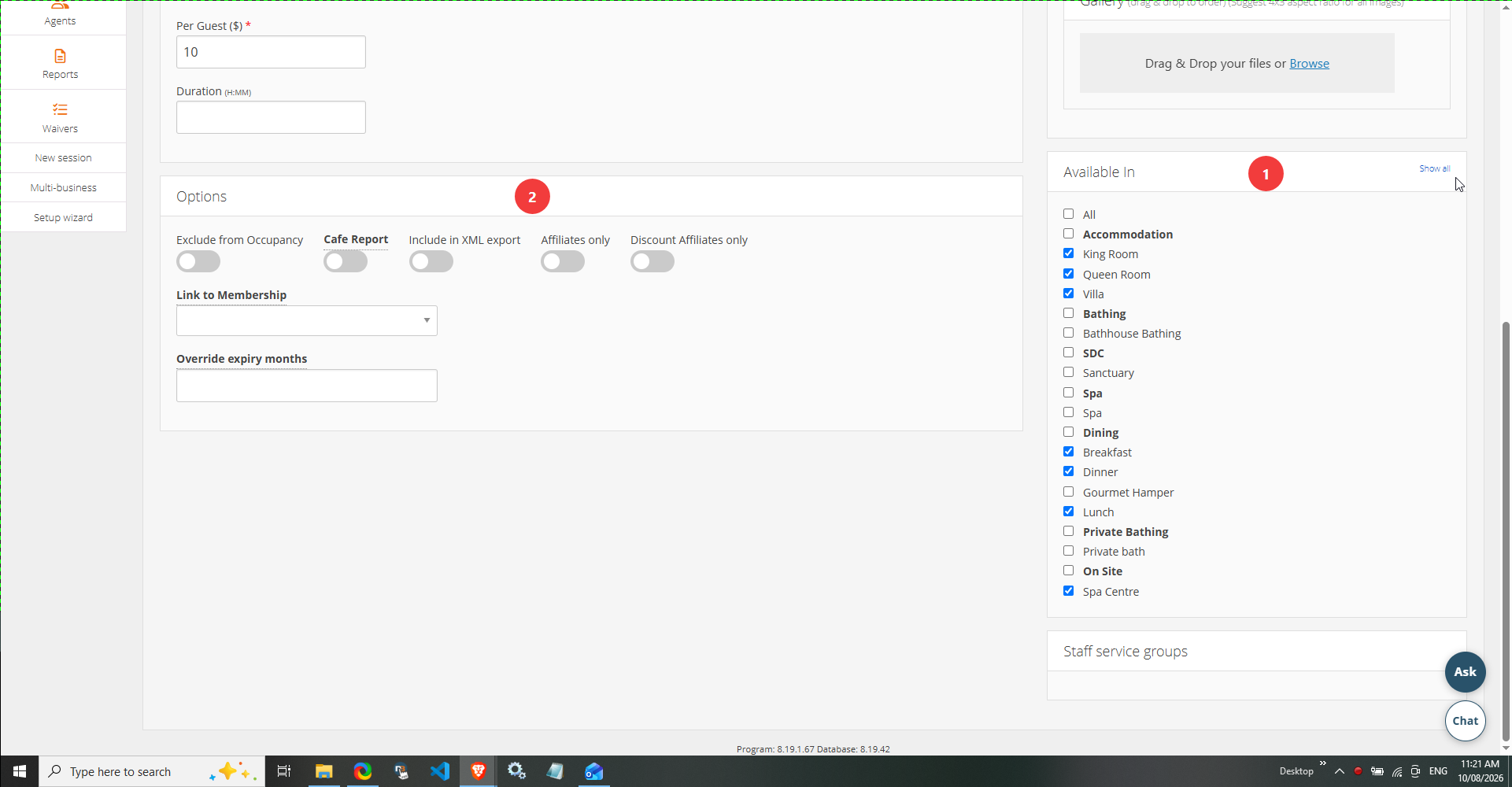
8. Add which pricing groups the services will be ‘Available In’ – this is for staff use when assigning services to bookings in the backend.
9. Options panel here has many options (some may be of relevance). Here the ‘Link To Membership‘ and ‘Expiry Extension’ are relevant to the standard service. Expiry extension can be set to the individual voucher as an override to the system setting for all vouchers. Talk to Netbookings team about these functions if needed.
Click ‘Save’.
Spa Services
Enter Service Details
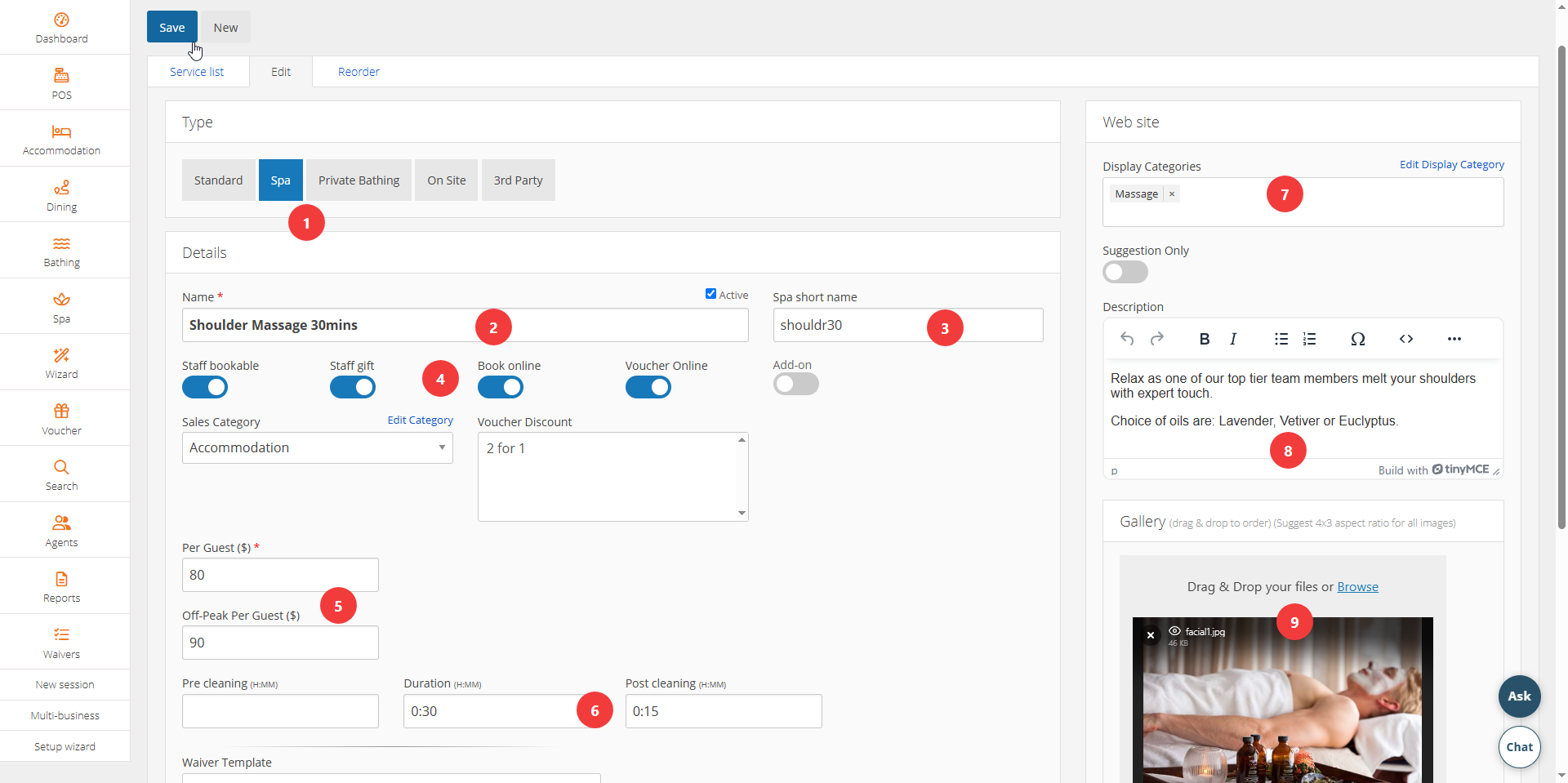
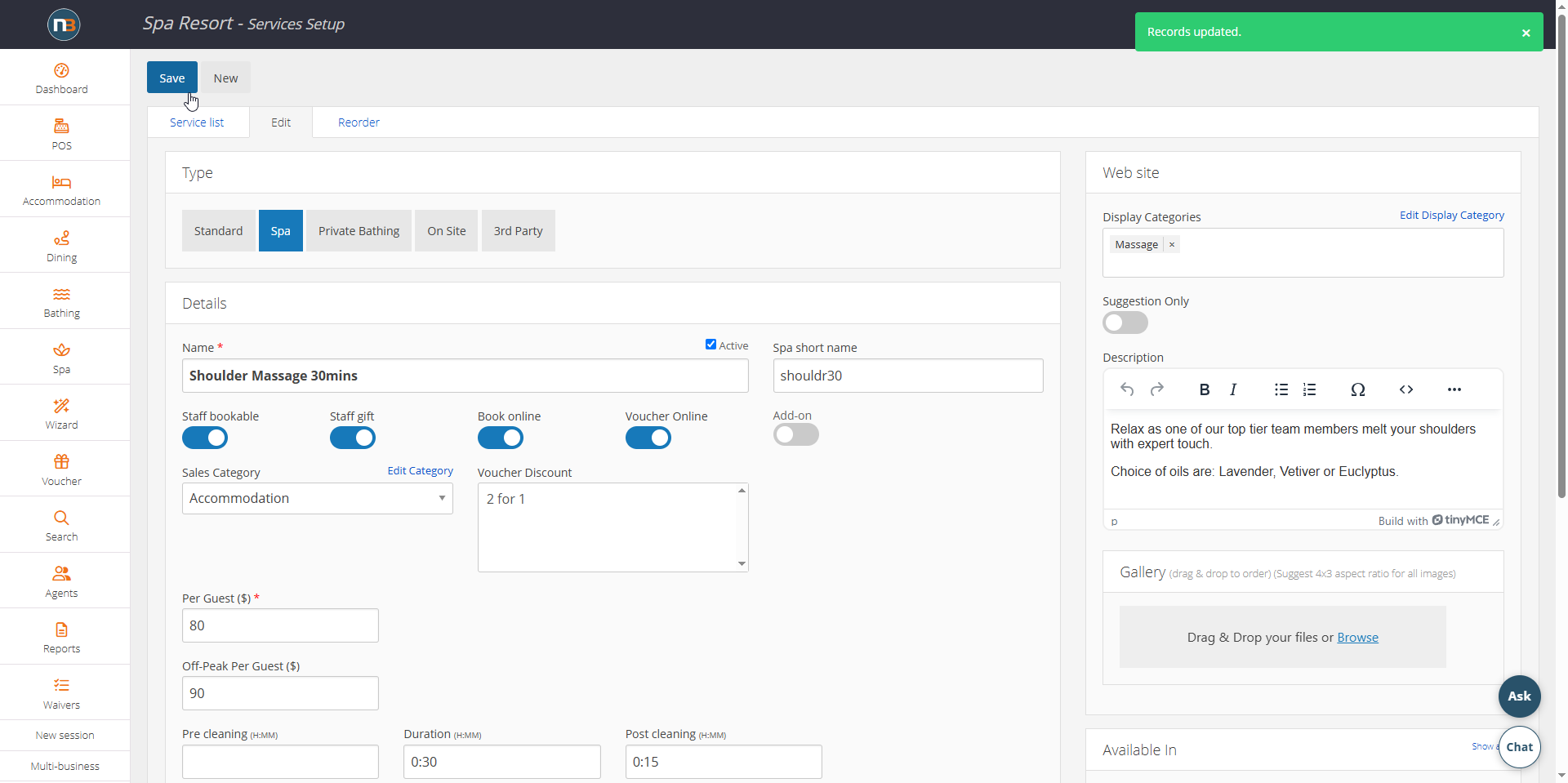
1. Assign the ‘Spa’ type.
2.Add service name that guests will see online and in backend for staff.
3. Add short name that Staff will see from the Spa Calendar.
4. Add switches for whether staff can book it, online or be sold as a voucher as well. Note the ‘Add-On’ switch which will mean that it is only available when booked with another service of the same type available in the same pricing (a panel will present itself below to add which pricing groups the add-on will apply to).
5. Add price for normal rate and off-peak rate. See further down in this article for more information.
6. Add duration of the service and whether it has a pre-cleaning or post cleaning time added to the service.
7. Add Display Category – this means the service will show under this category on front end sales page and in backend via ‘Booking Wizard’.
8. Add service description that guests will see online.
9. Add image for display online.
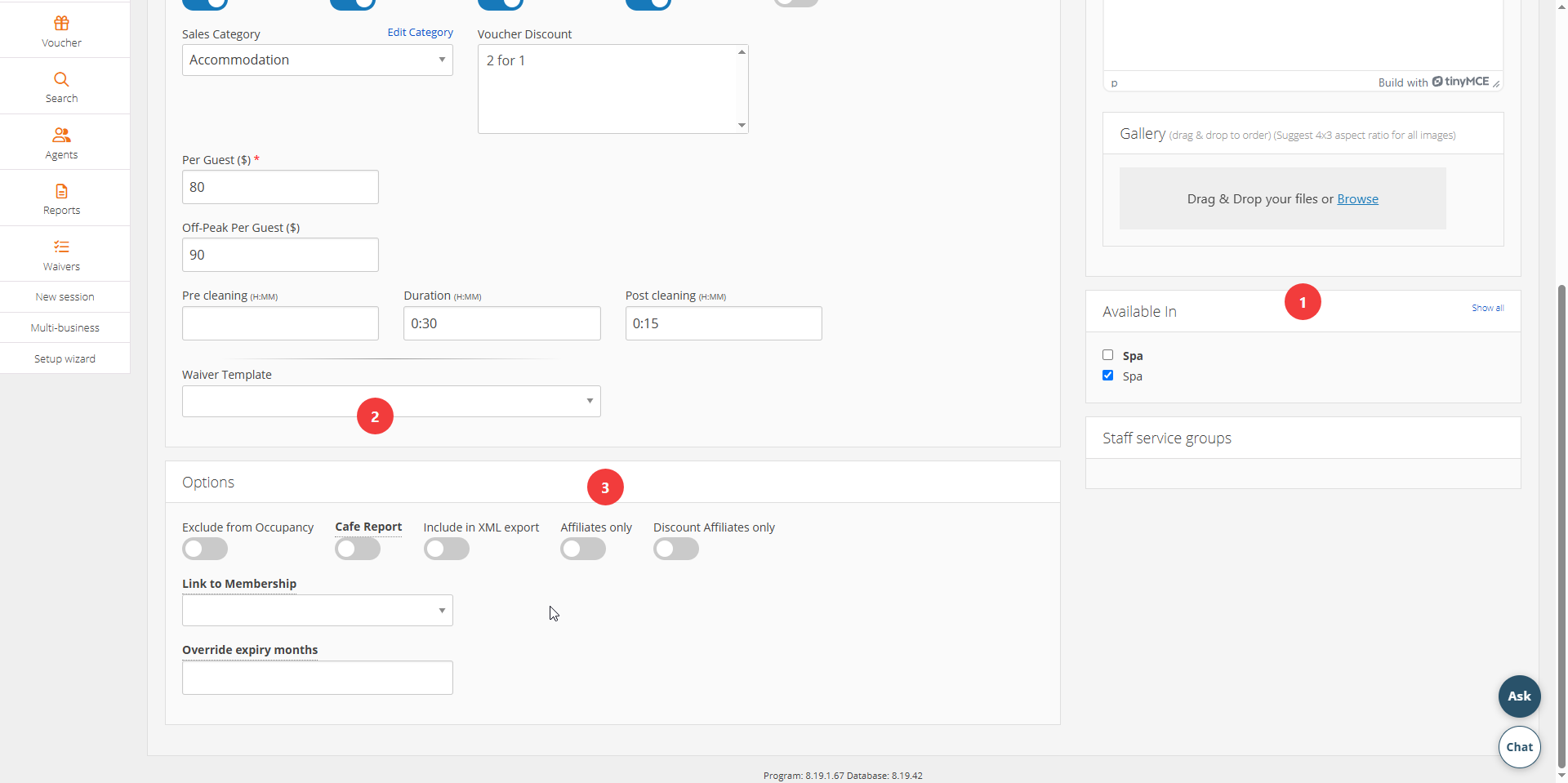
10. Add which pricing groups (and therefore rooms) the Spa treatments will be ‘Available In’.
11. Add a waiver template to apply to spa treatment if needed.
12. Options panel here allows the service to be excluded from occupancy reporting and m
ore. Talk to Netbookings team about these functions if needed.
Click ‘Save’
Private Bathing Services
Enter Service Details
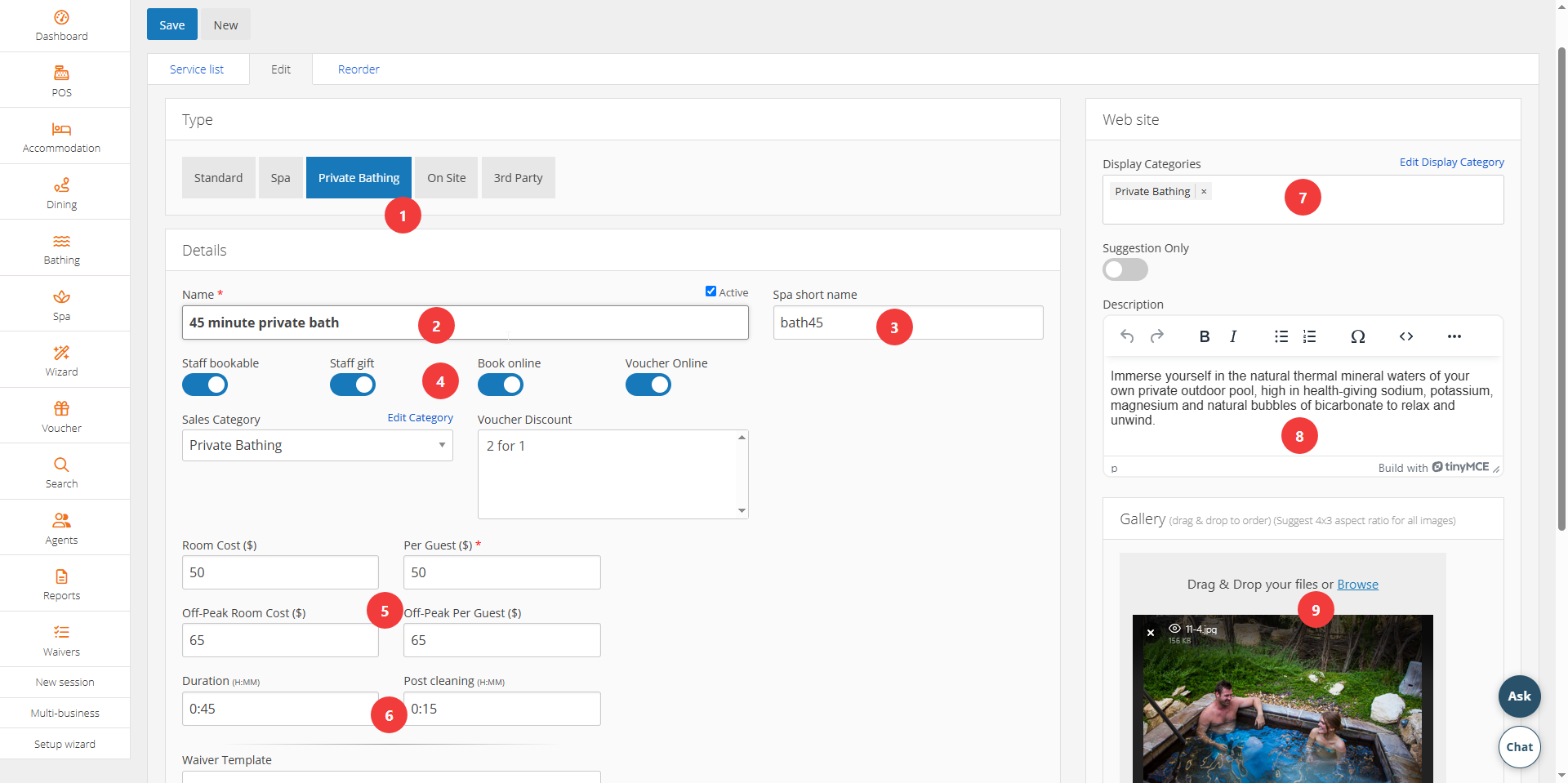
1. Assign the ‘Private Bathing’ type.
2.Add service name that guests will see online and in backend for staff.
3. Add short name that staff will see from the Spa Calendar.
4. Add switches for whether staff can book it, online or be sold as a voucher as well.
5. Add price for normal rate and off-peak rate per guest and per room. Per room cost or per guest cost can be $0 if needed. Some businesses will charge by the room and not guest; and vice versa or will charge for both. See further down in this article for more information about off-peak pricing.
6. Add duration of the service and whether it has a post cleaning time added to the service.
7. Add Display Category – this means the service will show under this category on front end sales page and in backend via ‘Booking Wizard’.
8. Add service description that guests will see online.
9. Add image for display online.
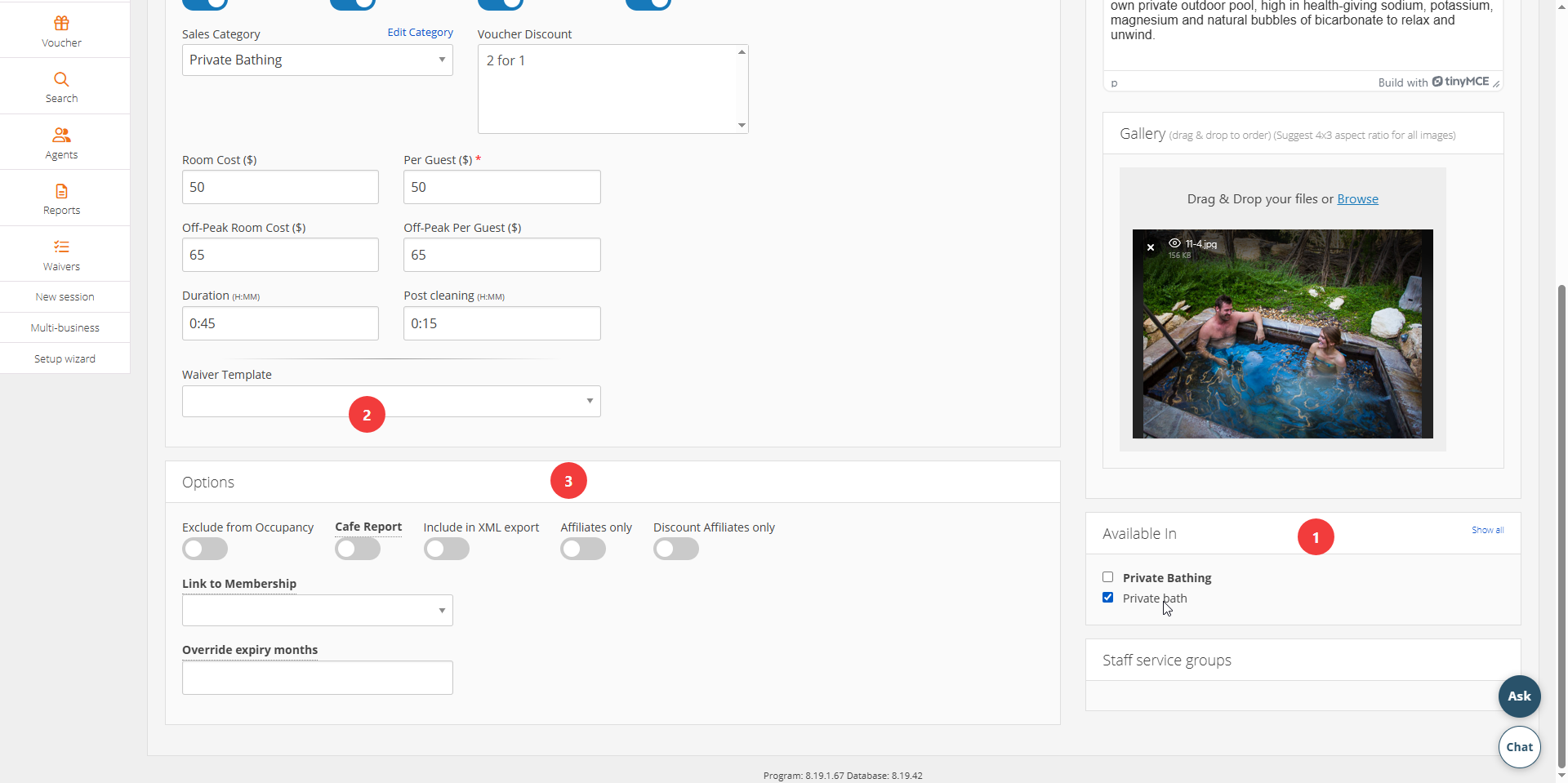
10. Add which pricing groups (and therefore rooms) the Private Bathing will be ‘Available In’.
11. Add a waiver template to apply to spa treatment if needed.
12. Options panel here allows the service to be excluded from occupancy reporting and more. Talk to Netbookings team about these functions if needed.
Click ‘Save’
Spa & Private Bathing Off-Peak Pricing
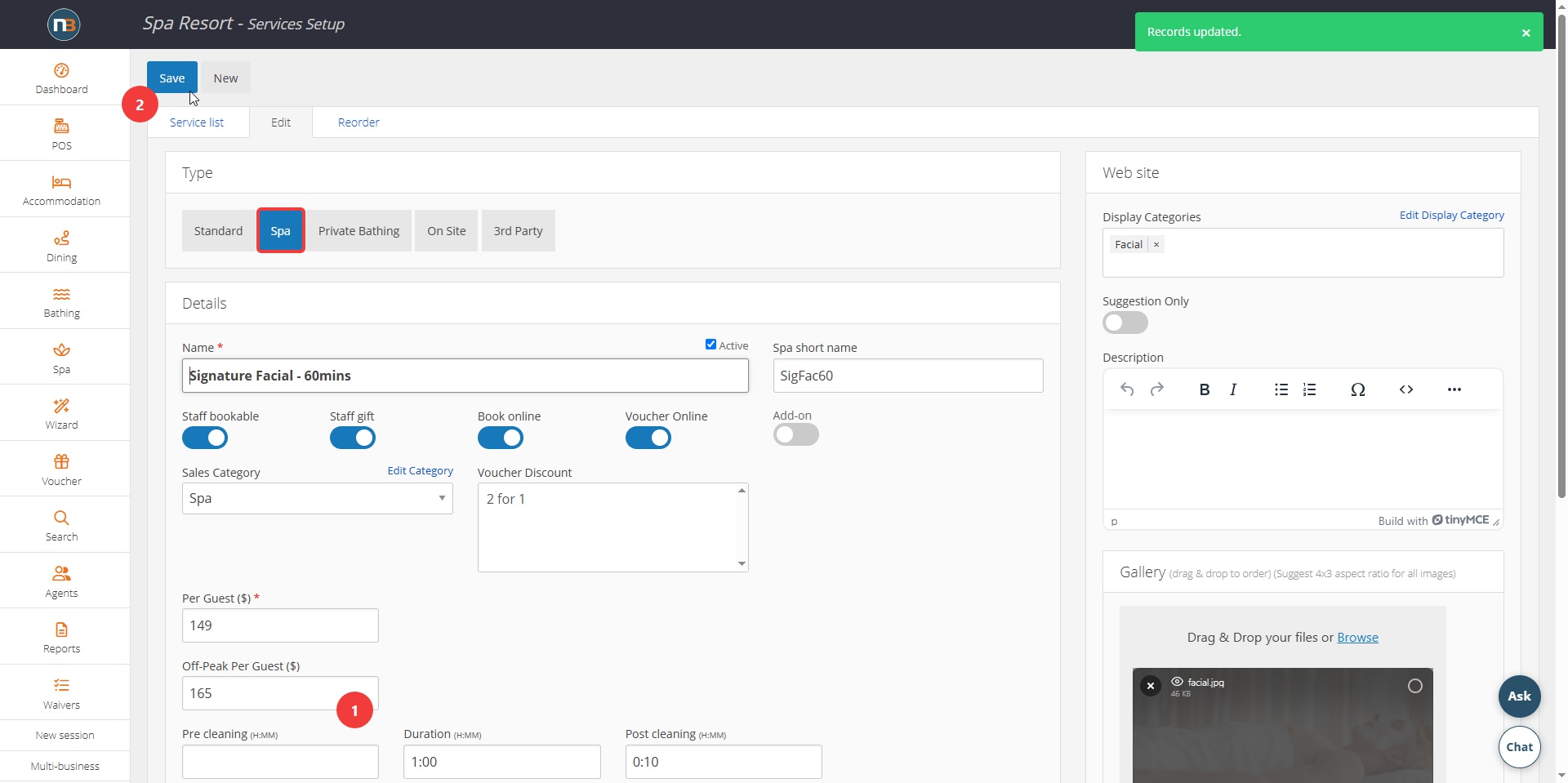
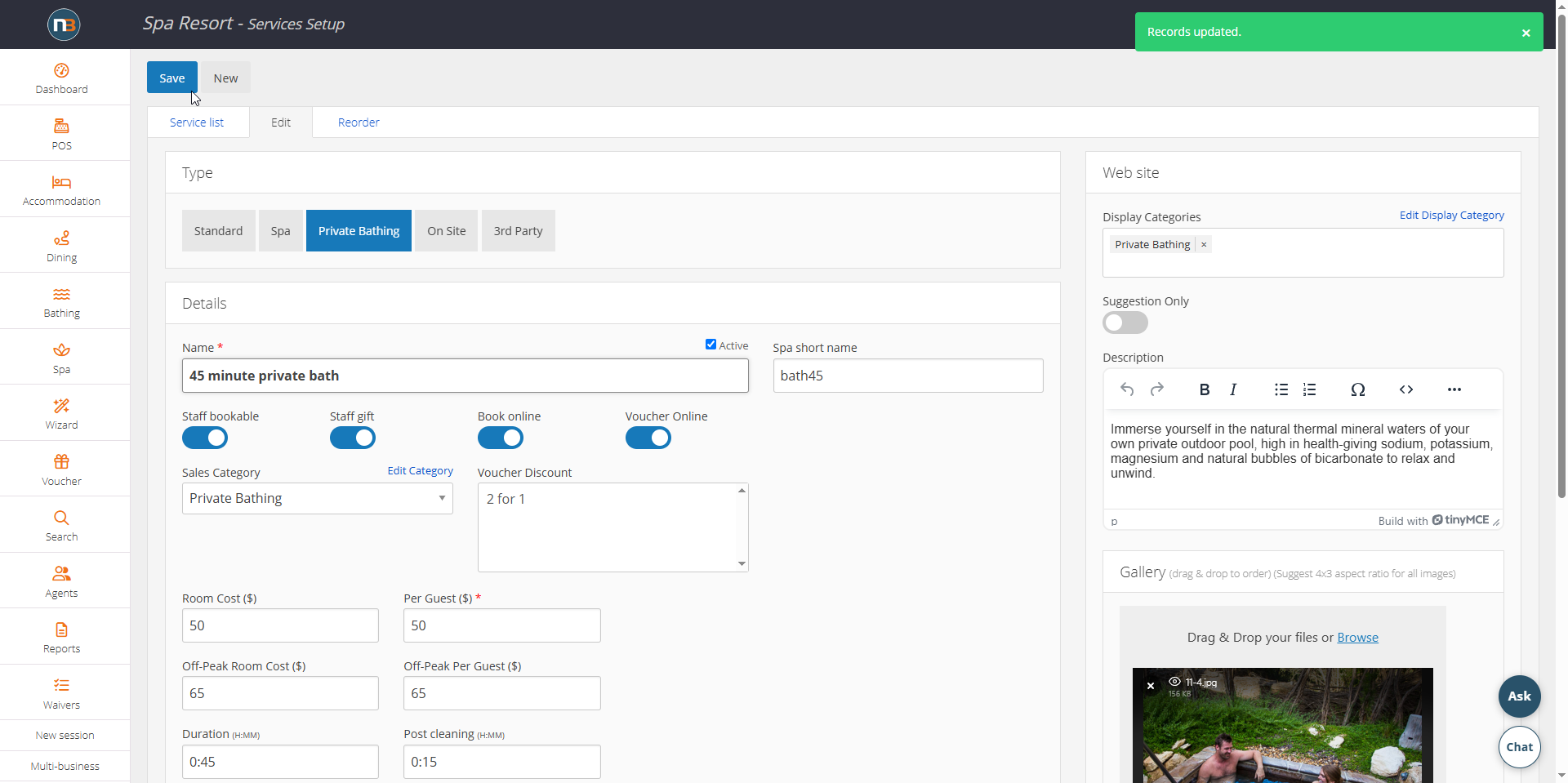
When Spa type service is selected, we can add off-peak pricing amount. Then Save.
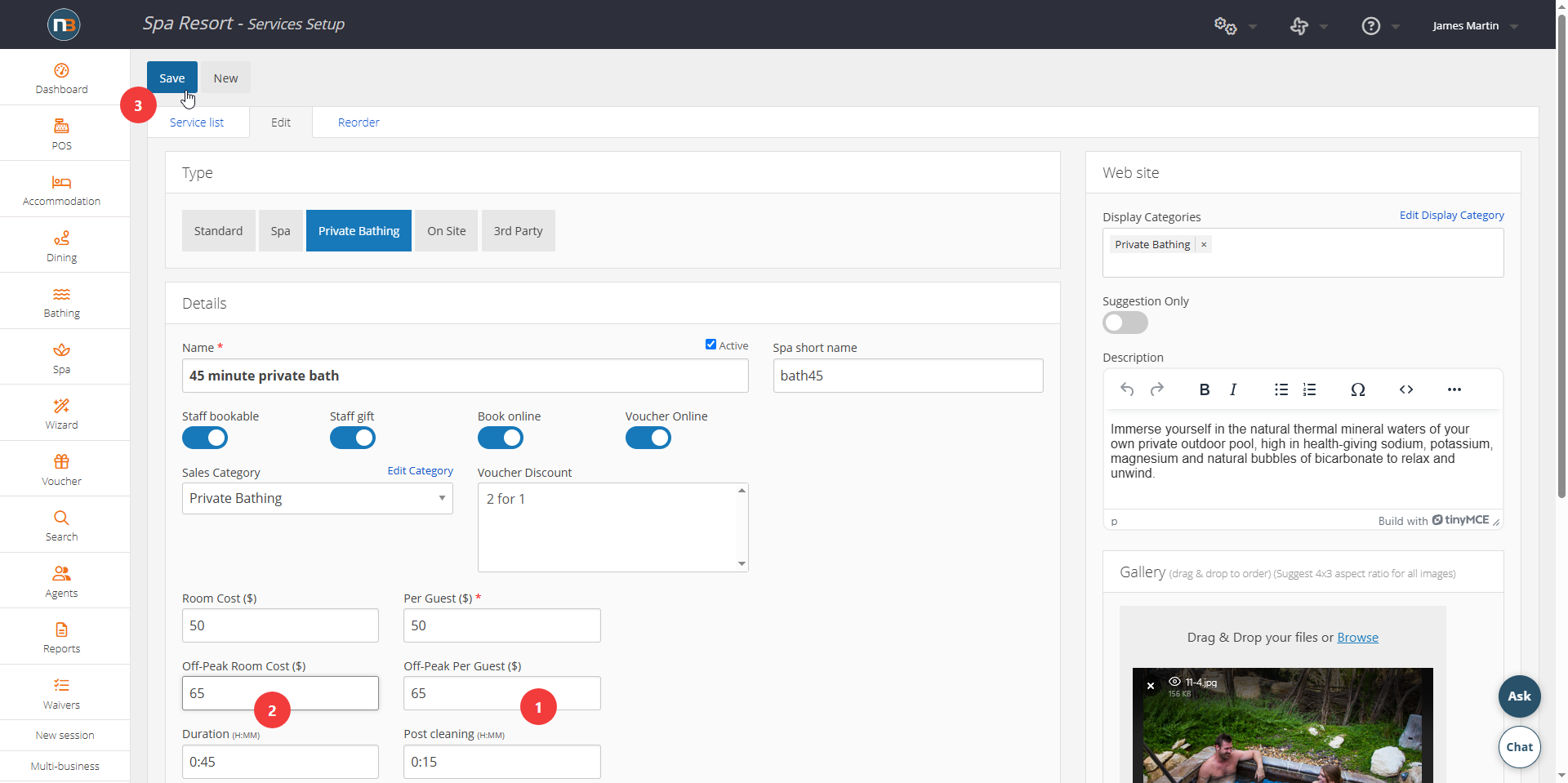
When Private Bathing type is selected we can also add off-peak price for room and per guest.
NOTE: We don’t neccessarily need to have a different price for room or per guest, but either one at least can have a price difference. A value must be added even if it is the same for either for off-peak pricing to function properly.
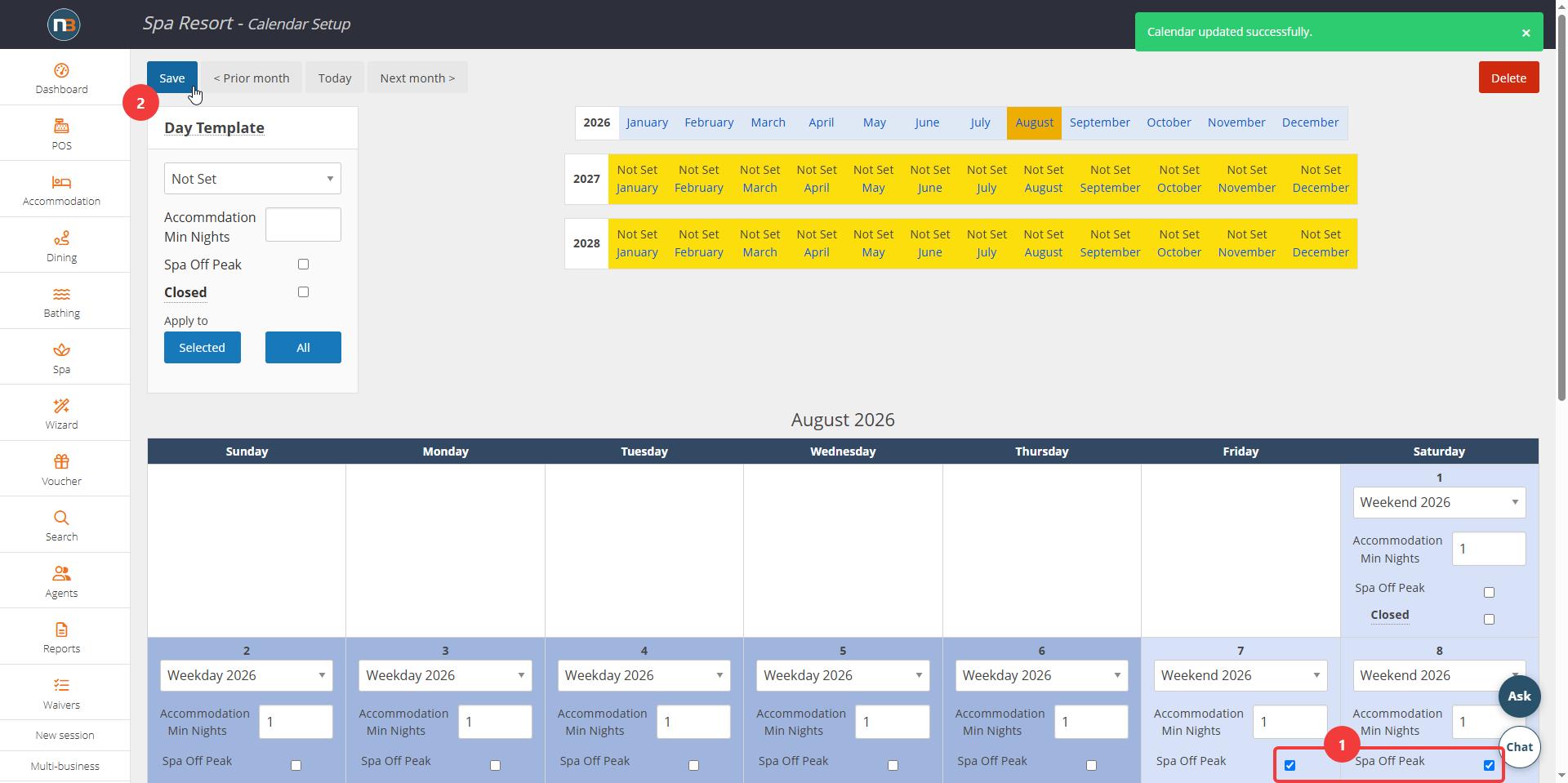
Add the ‘Spa Off Peak’ checkbox on any date we want this alternate pricing to apply at System>Setup>Calendar Setup.
Onsite Services
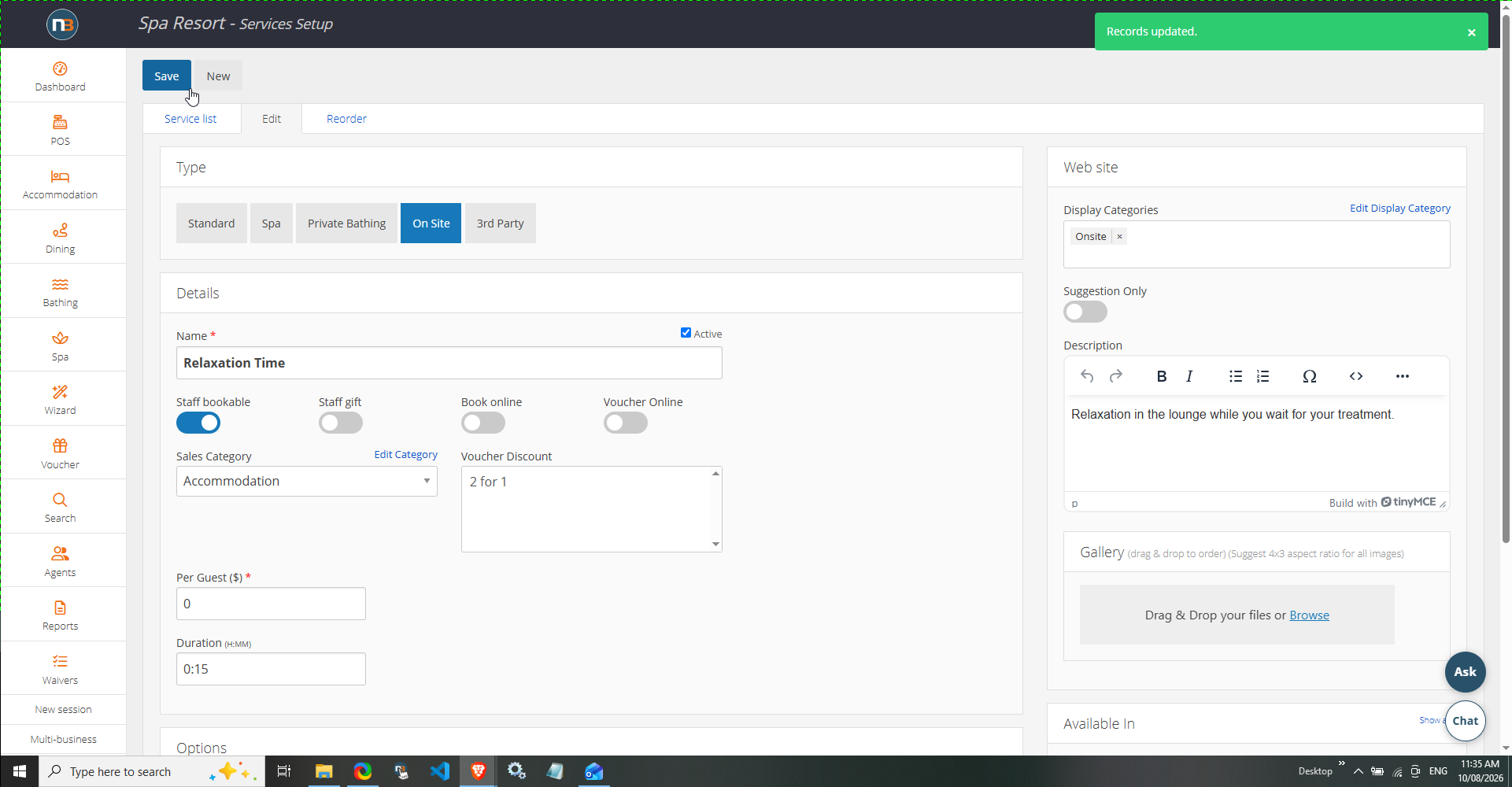
An onsite service is for services that occur in a specific place ‘onsite’ – it could be for example called ‘Relaxation time’ available in a ‘Relaxation Lounge’ – typically for staff to add to booking or as part of package setup. Usually shorter, as onsite services could be temporary spaces for guests to use in between other bookable services – for instance between bathing and a spa treatment. See Onsite Services for more information.
Enter Service Details
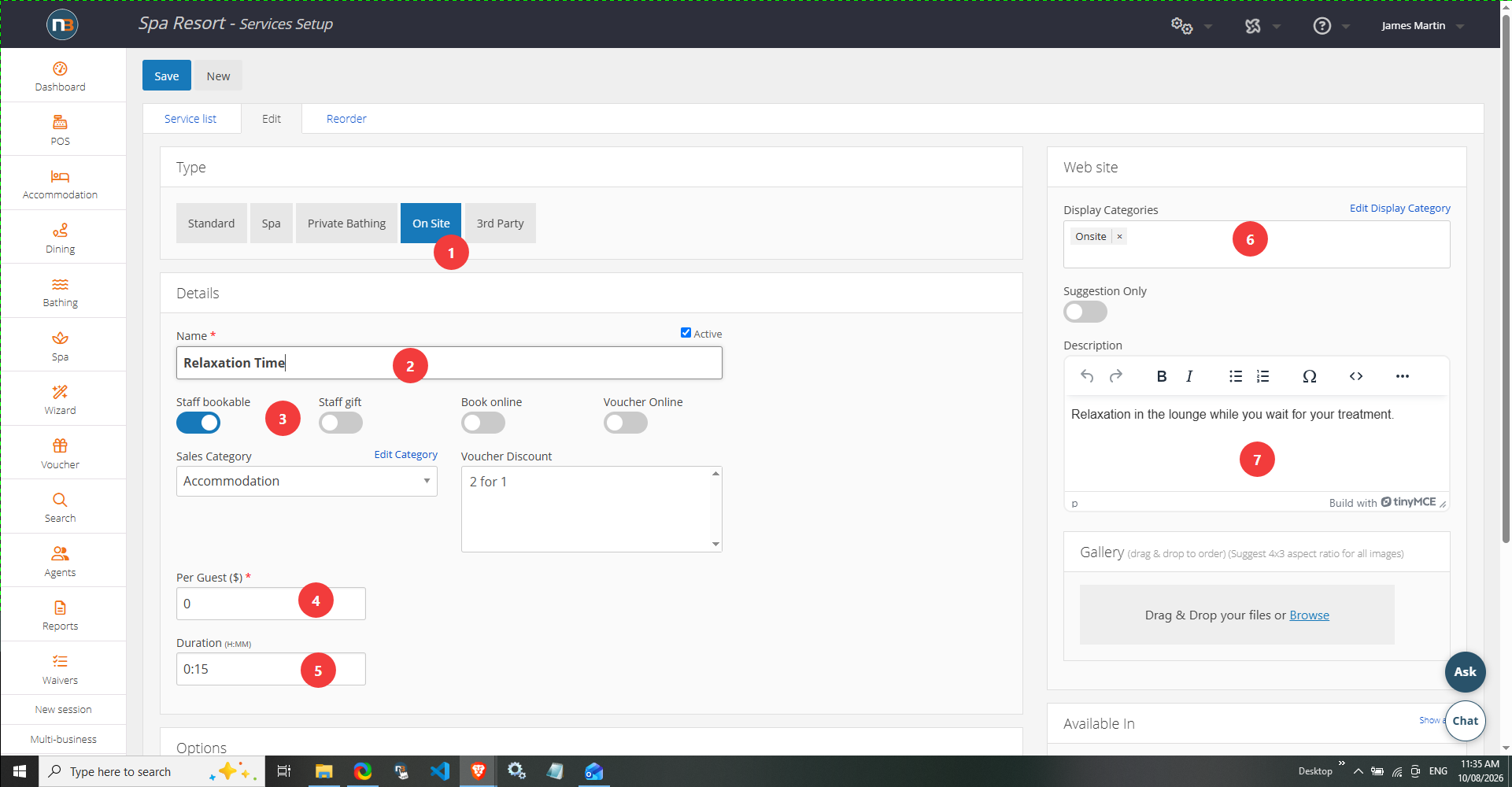
1. Assign the ‘Onsite’ type.
2. Add service name that guests will see online and in backend for staff.
3. Add switches for whether staff can add it or be sold online. Typically onsite services are viewed by staff online and don’t get sold to guests directly. It can be added to a package to assign ‘Relaxation Time’ before a service for instance.
4. Add price per item.
5. Add duration of onsite service – typically shorter as onsite services are used as temporary spaces for guests to use in between other bookable services – for instance bathing and spa treatments.
6. Add Display Category – this means the service will show under this category on front end sales page and in backend via ‘Booking Wizard’
7. Add service description in case staff need to know more about what it is for.
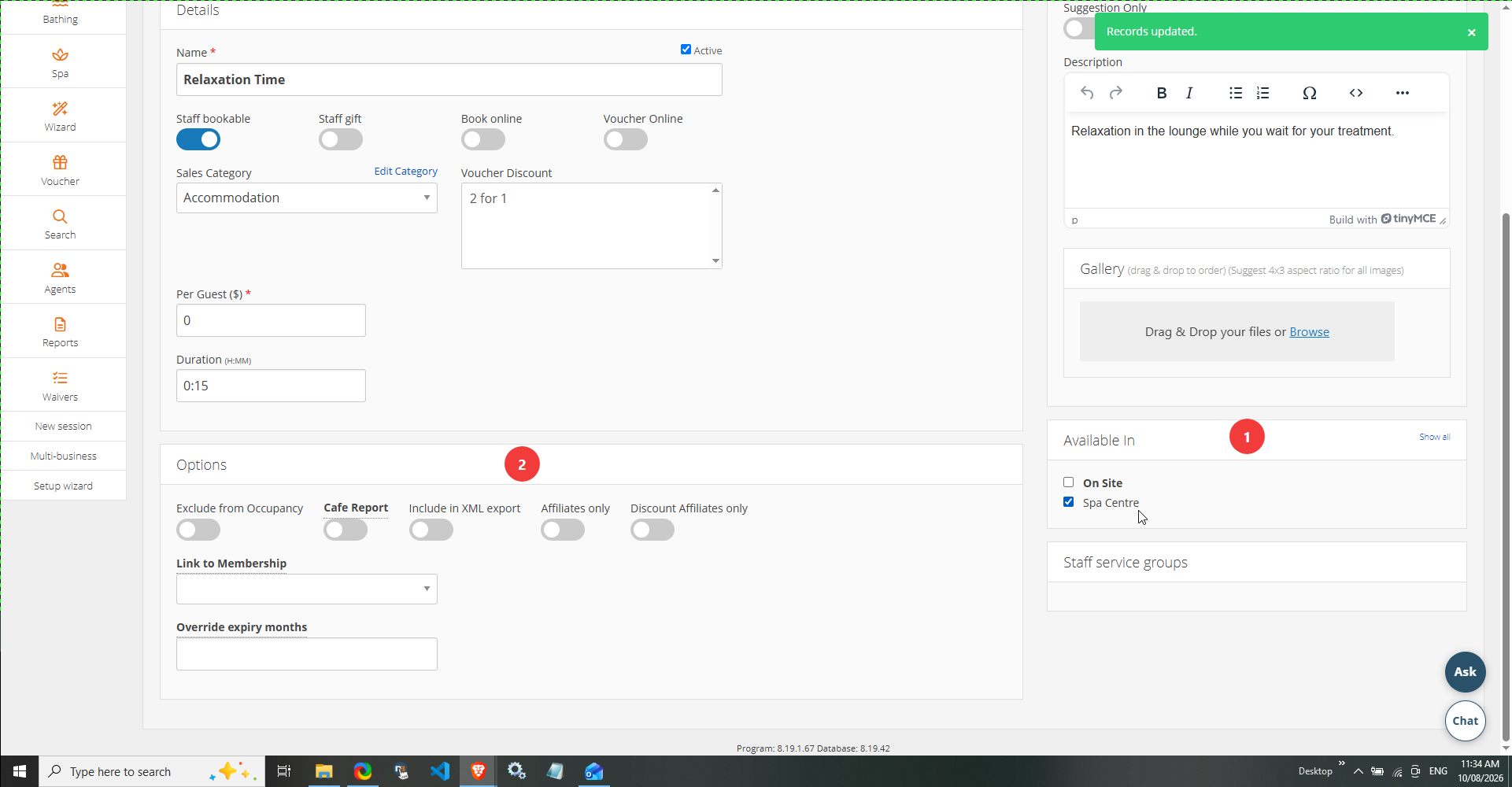
8. Add which pricing groups (and therefore rooms) the Onsite service will be ‘Available In’ – it will only show onsite pricing groups here.
9. Options panel here has many options (some may be of relevance). Talk to Netbookings team about these functions if needed.
Click ‘Save’
3rd Party Services
Allows you to add services for local 3rd party businesses. Can either be added to bookings by staff or added as part of a package. Local businesses will be contacted when a booking is made for this service. Requires setup of 3rd party maintenance under System>Setup>3rd Party Suppliers. Speak to Netbookings staff for more information about 3rd Party Suppliers.
Enter Service Details
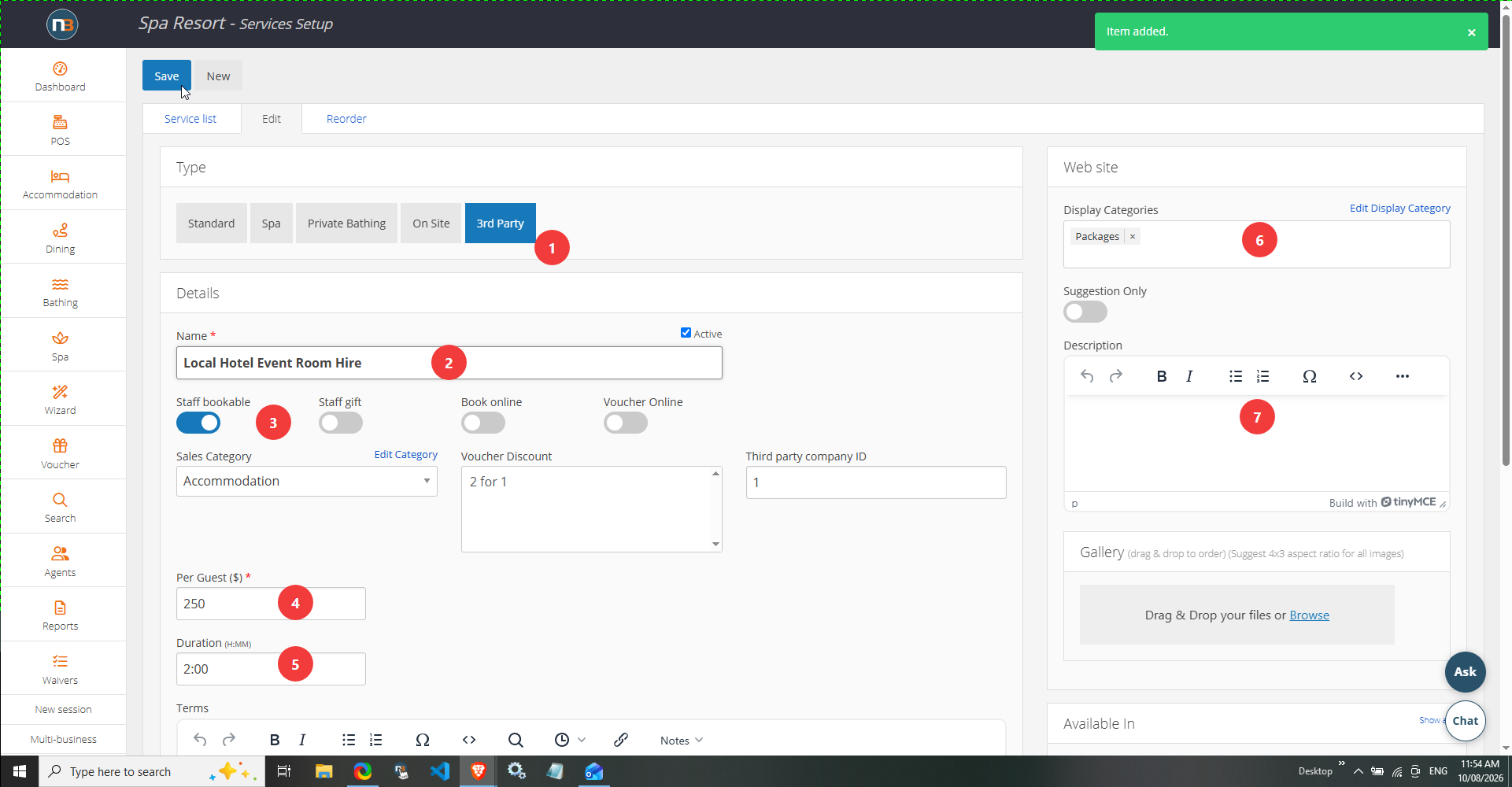
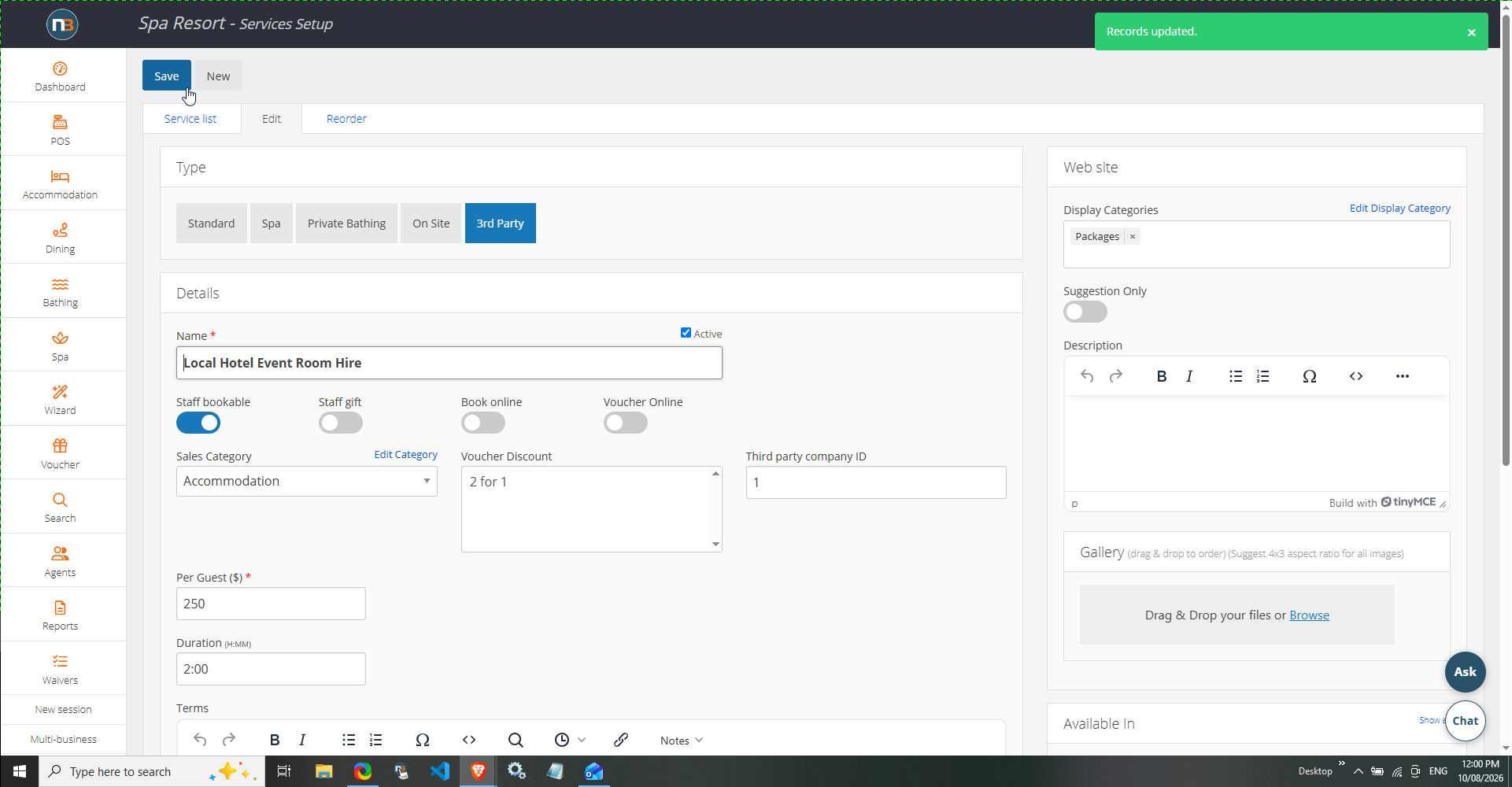
1. Assign the ‘3rd Party’ type.
2. Add service name that guests will see online and in backend for staff.
3. Add switches for whether staff can add it or be sold online. Typically 3rd party services are added to packages with services your business has to create partnership packages with other businesses.
4. Add price per item.
5. Add duration of onsite service – typically shorter as onsite services are used as temporary spaces for guests to use in between other bookable services – for instance bathing and spa treatments.
6. Add Display Category – this means the service will show under this category on front end sales page and in backend via ‘Booking Wizard’.
7. Add service description in case staff need to know more about what it is for.
Click ‘Save’