
Display Categories
Display categories allow vouchers to be organised into categories in your online voucher shop. You can use display categories to generate a Gift link with pre-selected categories.
Click ‘Display Categories’
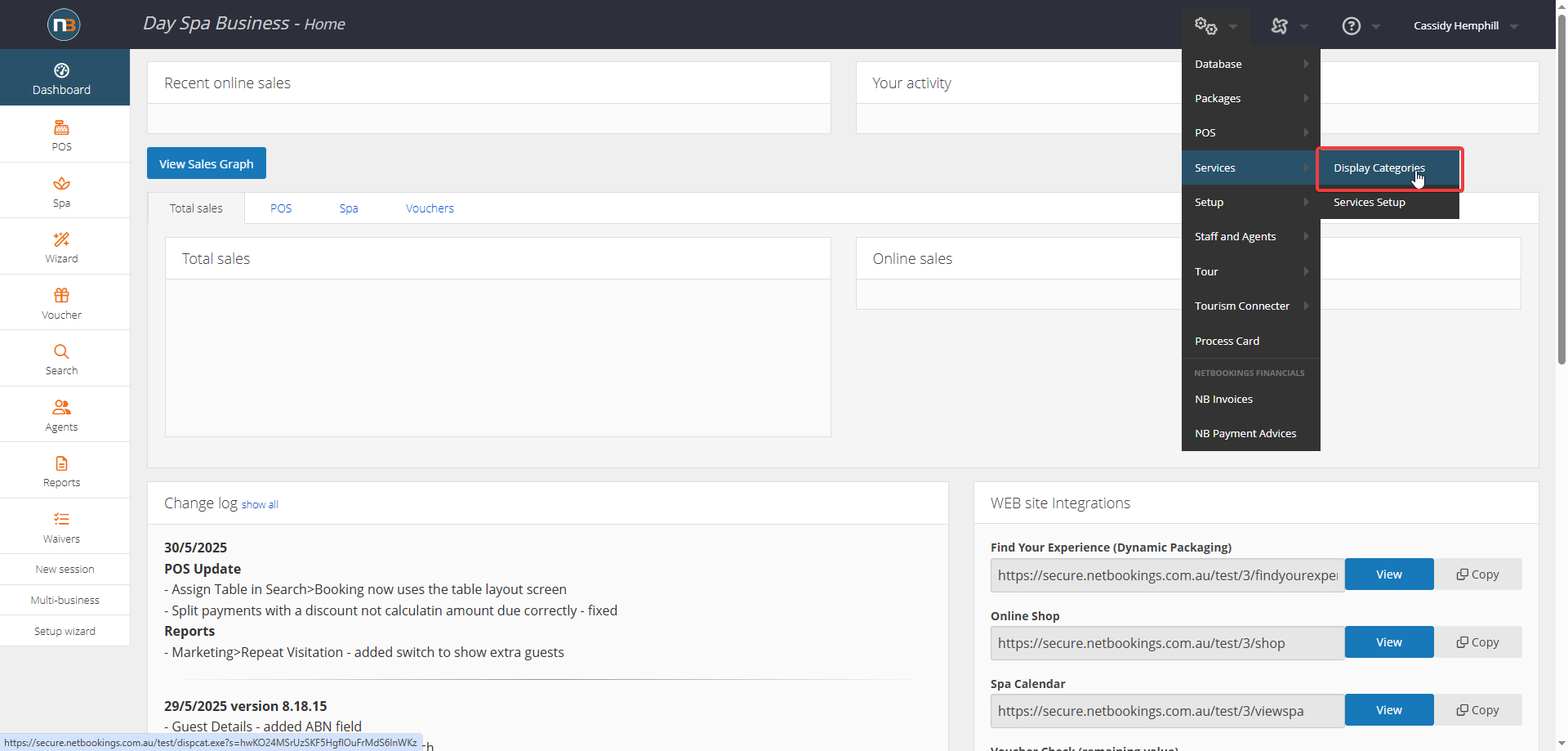
Navigate to System > Services > Display Categories.
Click ‘New’
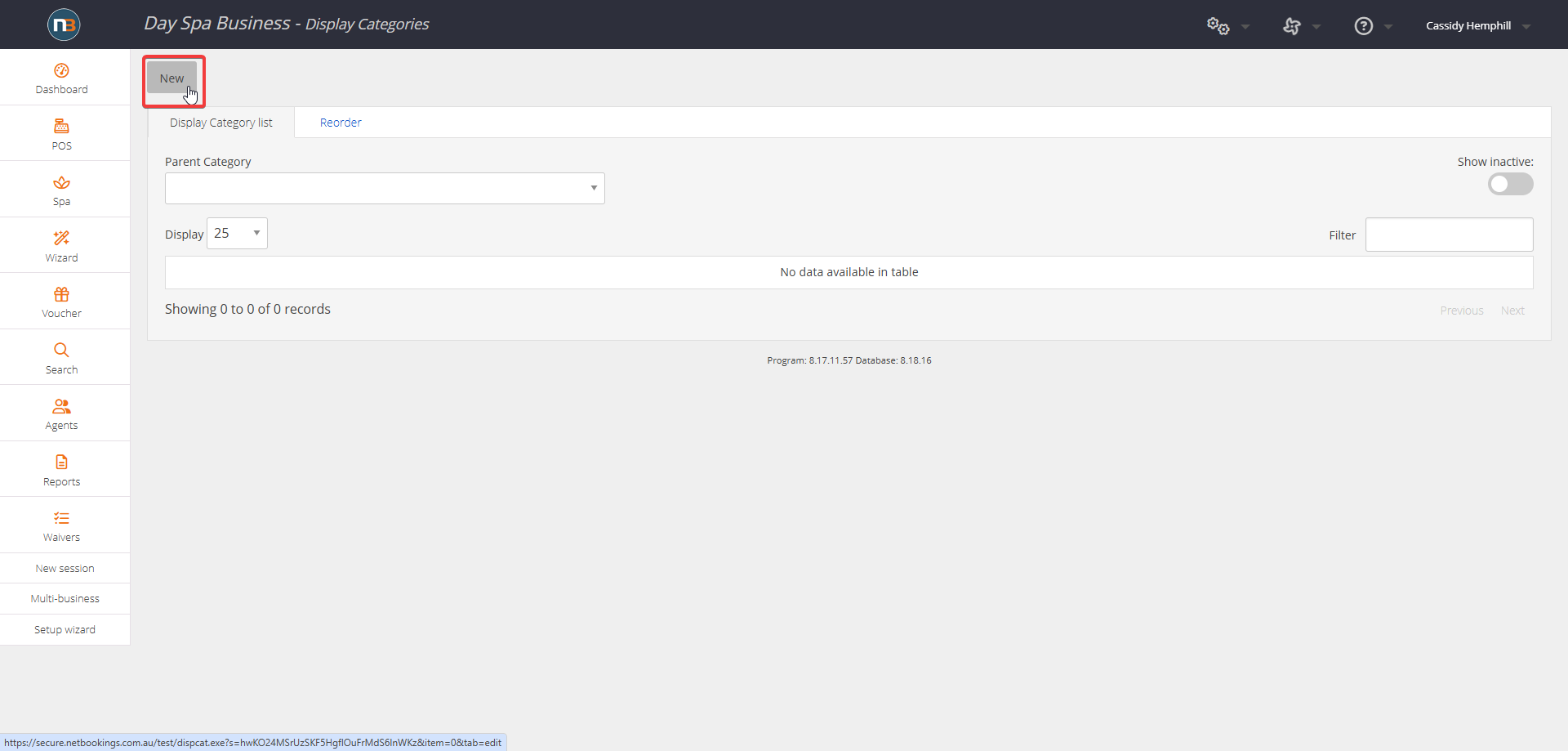
Enter Display Category Details
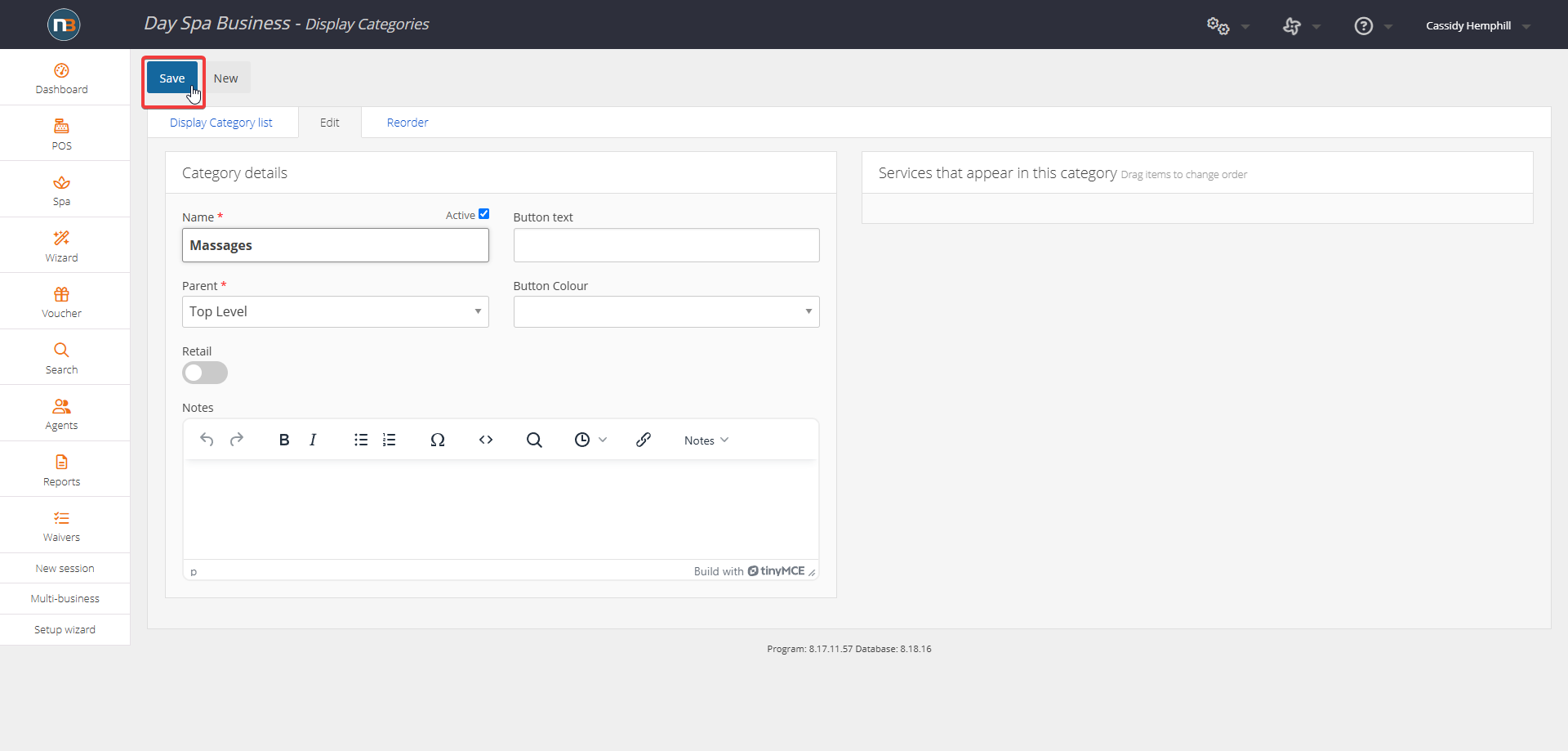
Enter a name, then click ‘Save’.
Note: Button text is for use with a POS system.
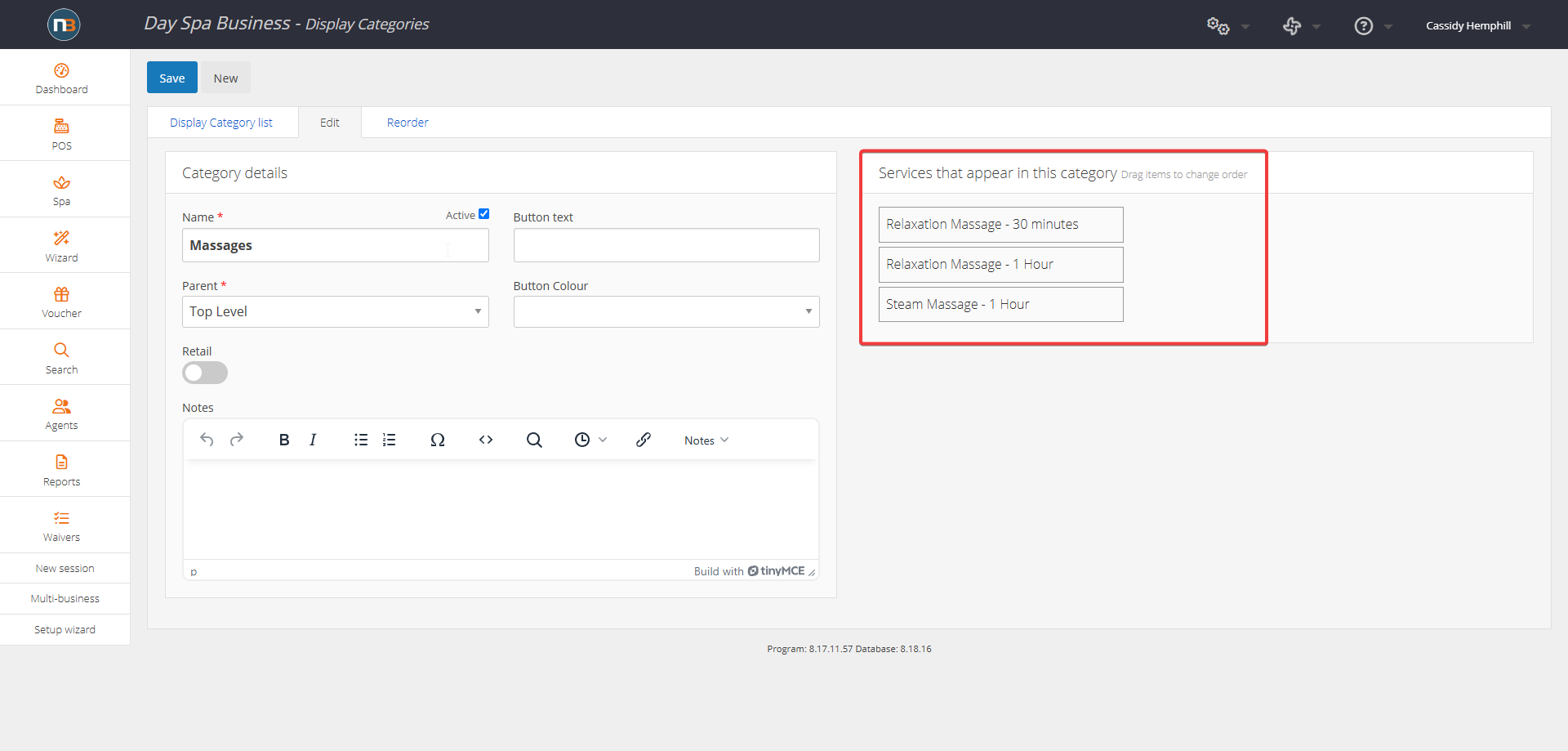
Once you have created services and added them to this display category, the you can rearrange the order in which they appear in your online voucher shop (indicated by the red box in the image).
‘Display Category List’
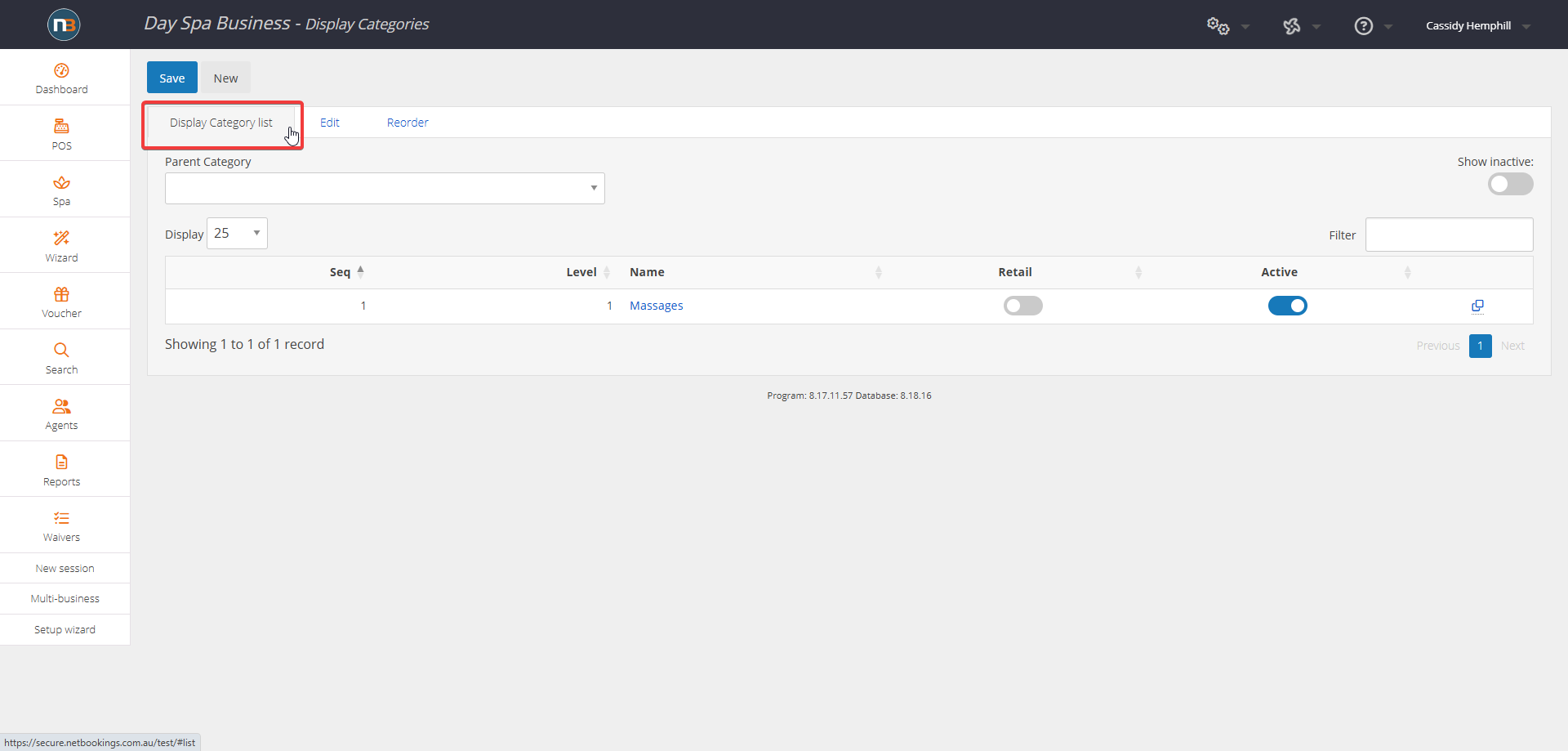
Click ‘Display Category List’ to view your display categories.
Add Display Category to Service
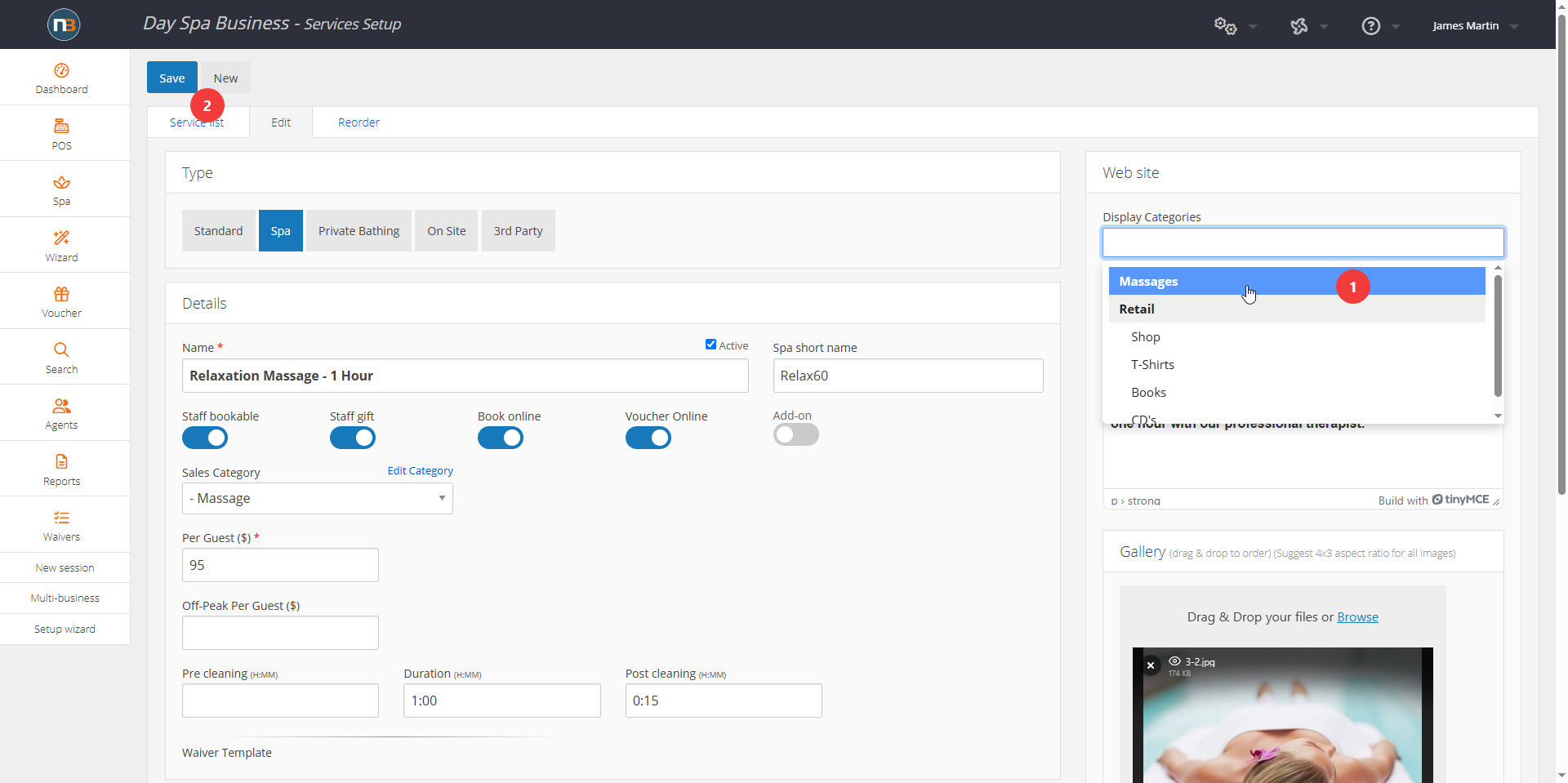
Go to System>Services>Services Setup and find existing service (or create a new one). In order for services to appear under a display category they must be added to the services you want to appear underneath them. Search and add display category in the appropriate field as above.

Now we see ‘Massages’ appear as the display category for this massage service.
Display Categories Appear Here
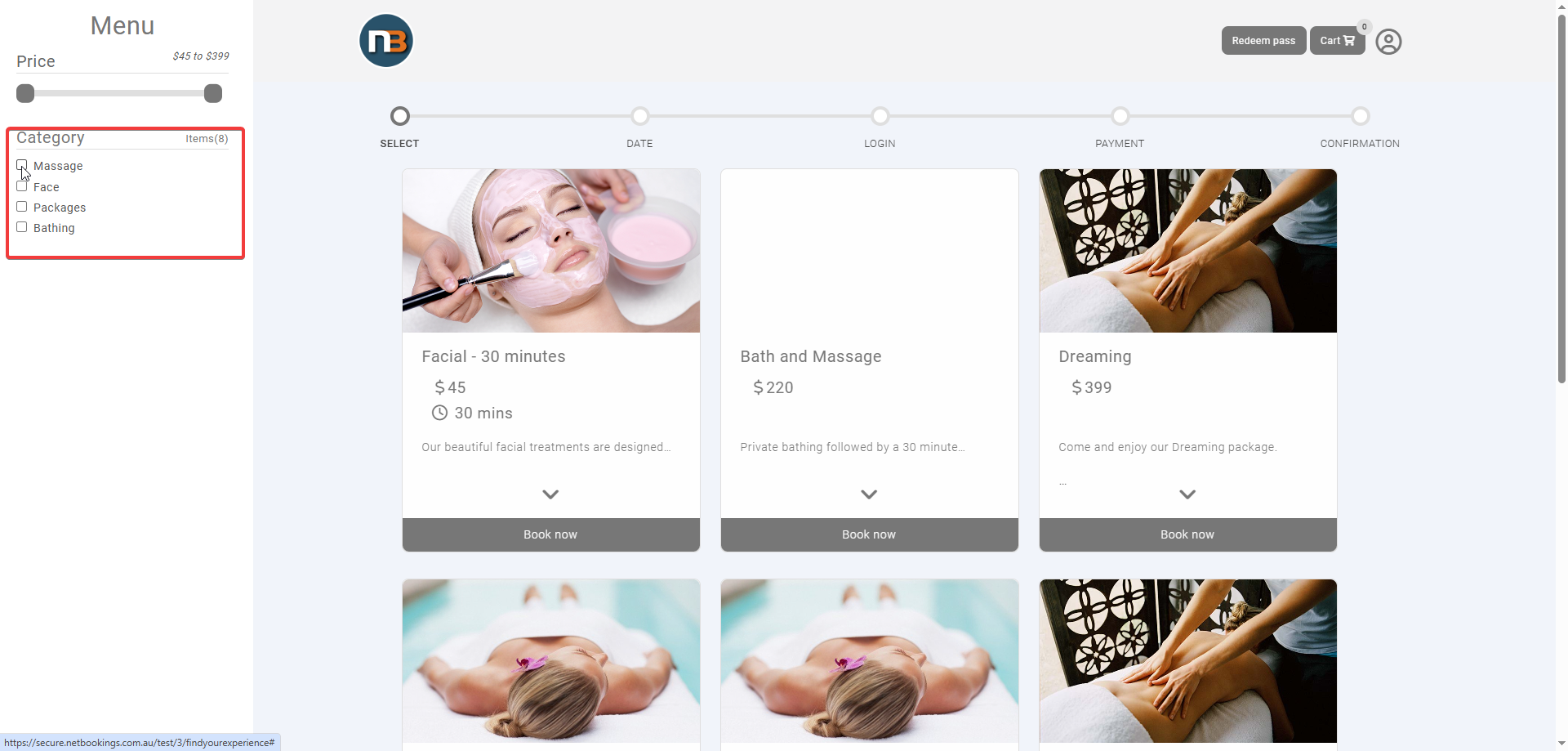
Your display categories will appear here (indicated by the red box in the image) in your online voucher shop. This will now display any new services added to these categories.
Category Gift Voucher Links
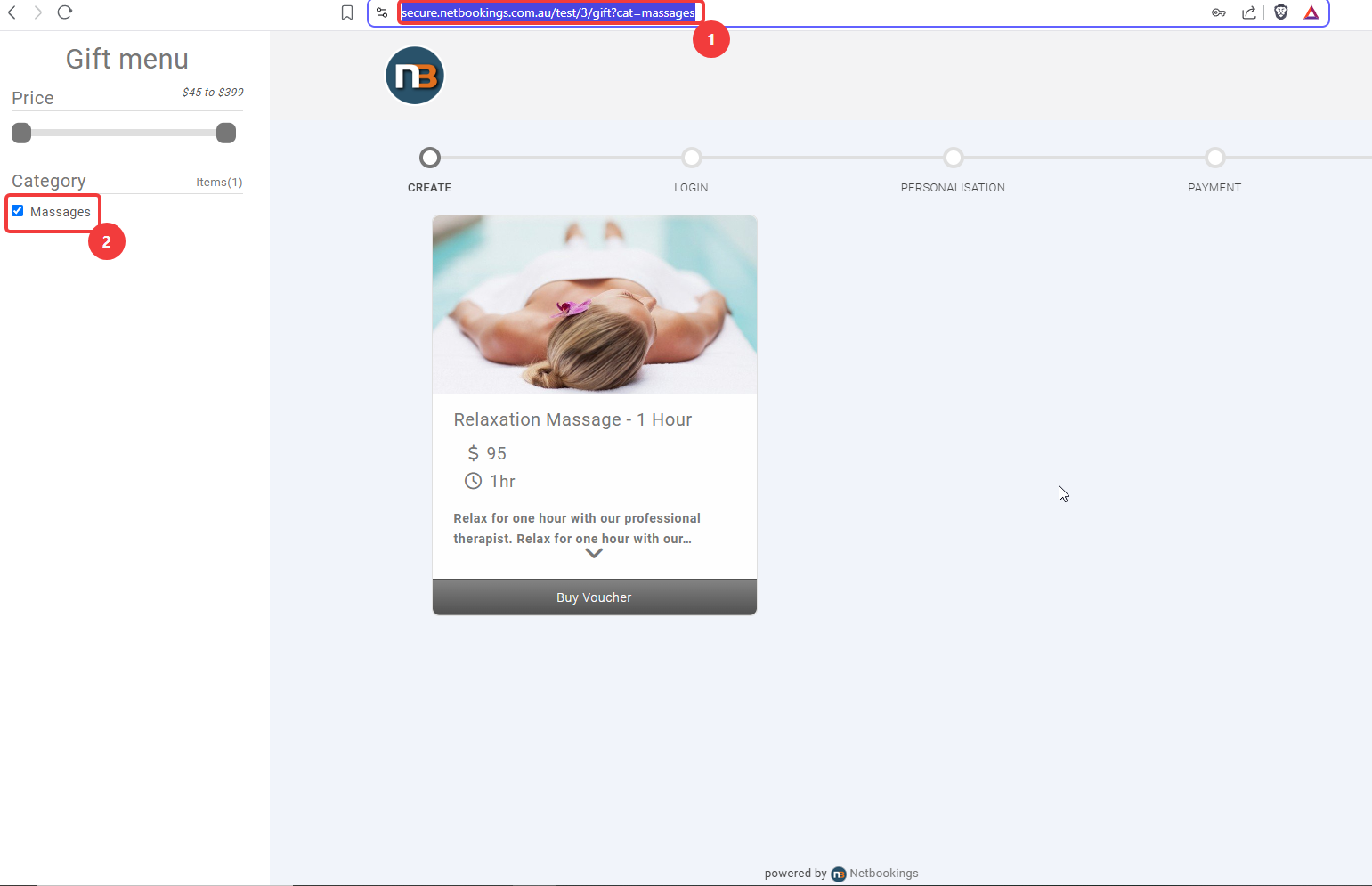
To create a link that pre-selects a display category on the standard gift voucher sales page we must add ?cat=x where x is the display category name. Where there are spaces you need to add a dash between the words of display category. I.e. day-spa
e.g. URL in our example above is https://secure.netbookings.com.au/test/3/gift?cat=massages