On Site Services
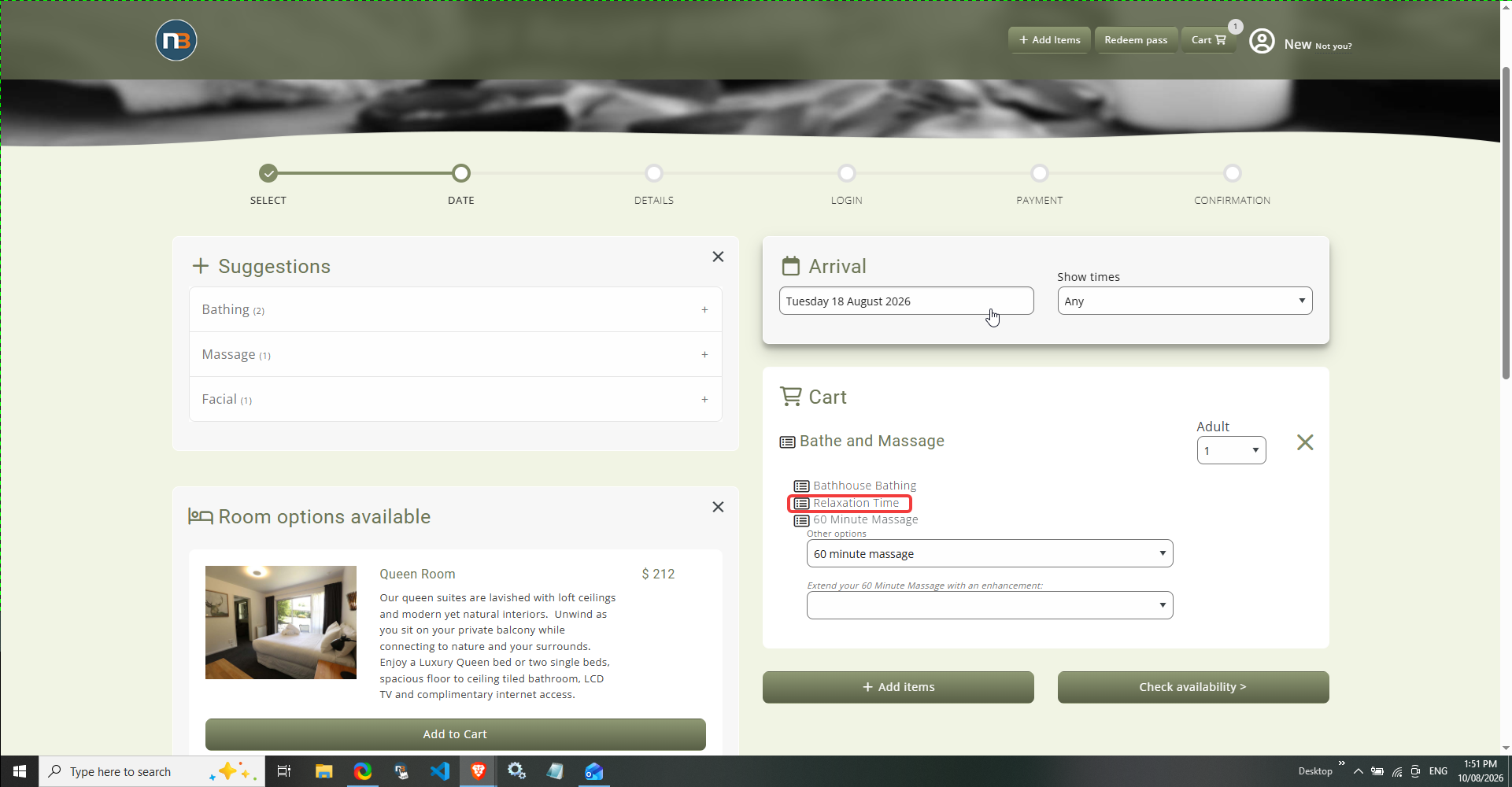
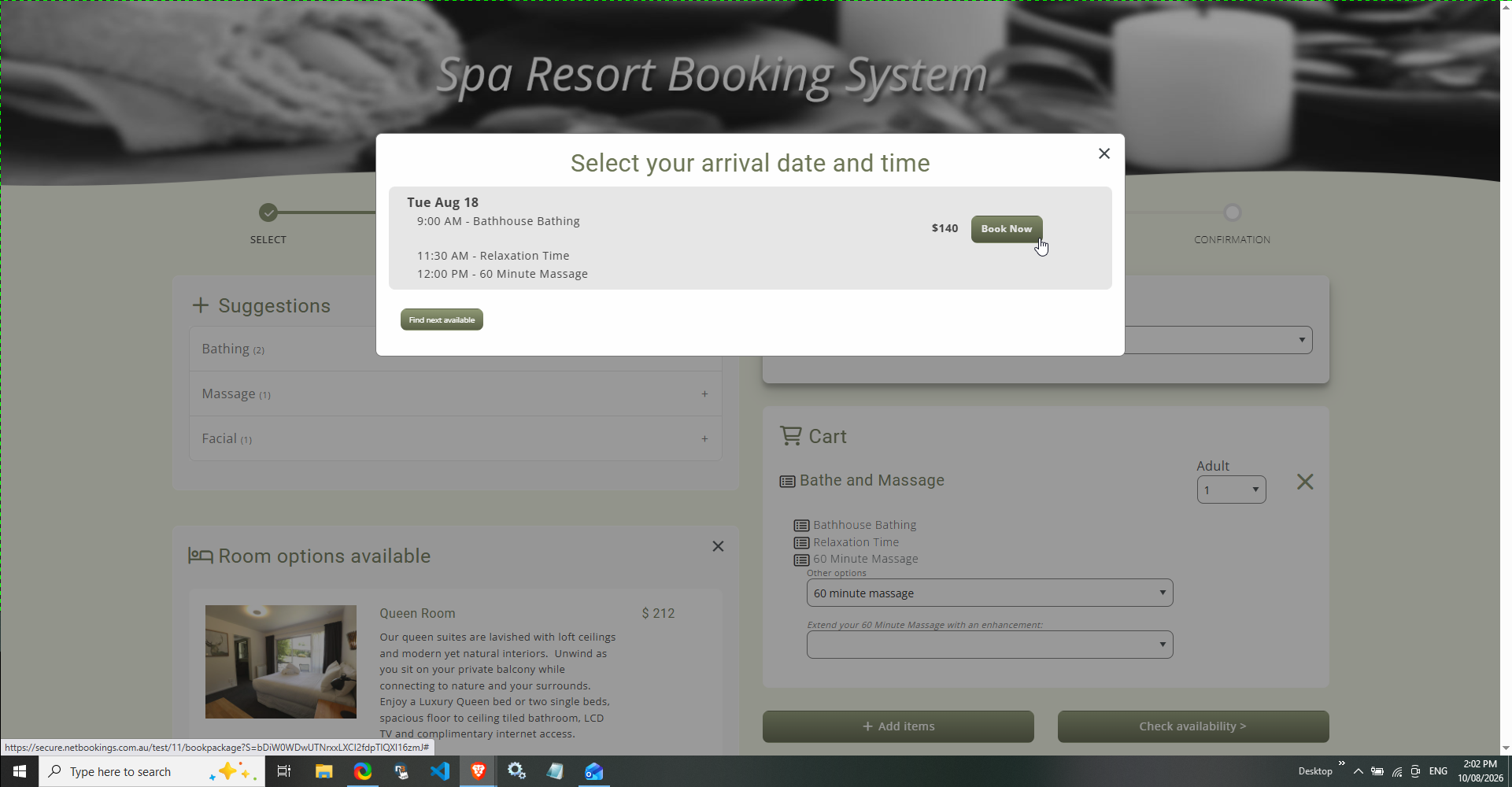
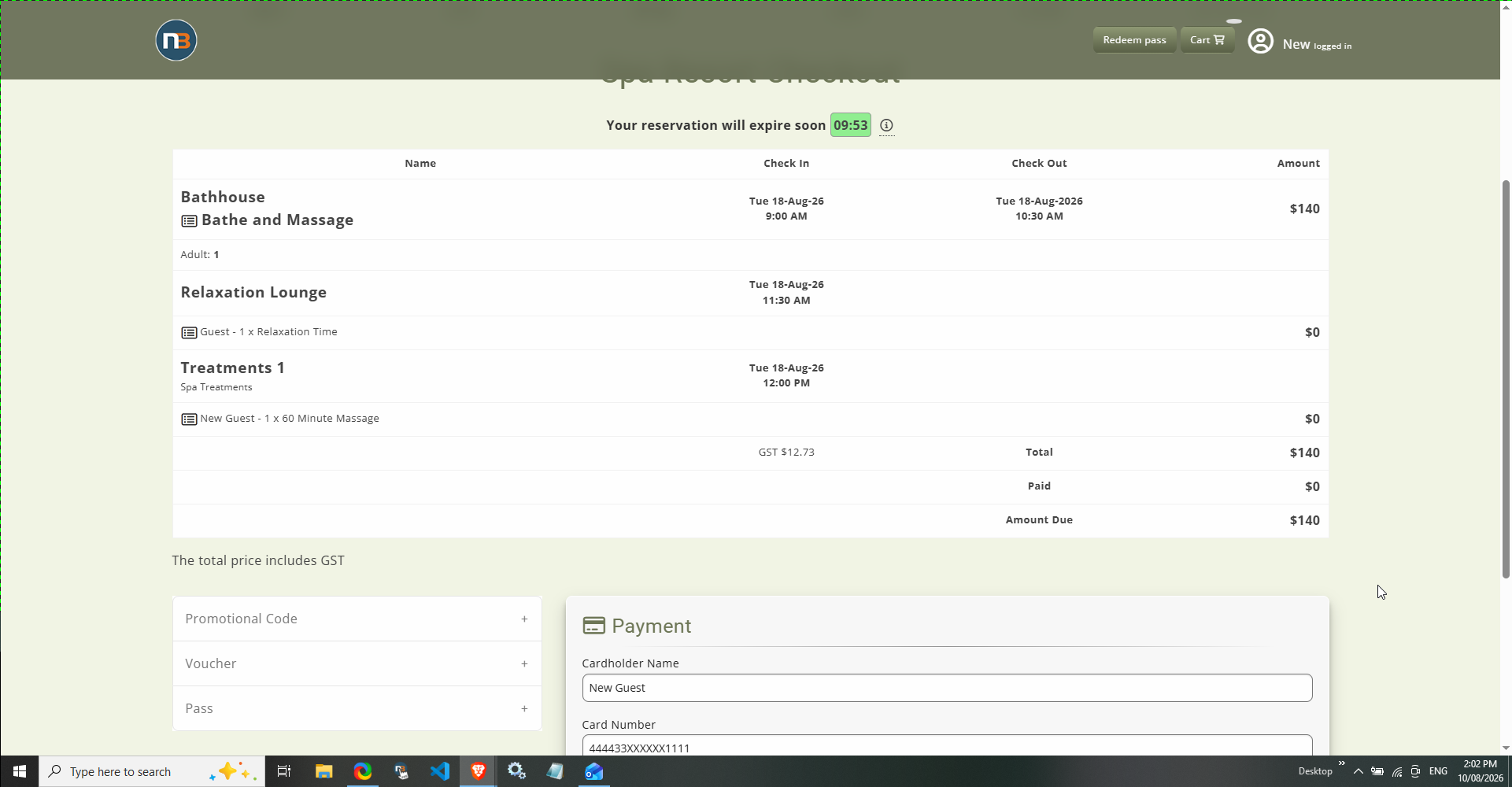
On Site services are great for when we want to provide recorded time in a location in our business. For example, we may want to provide guests with ‘Relaxation Time’ in between or before experiences, but want to be able to schedule that in at a location in our business – in our example could be a ‘Relaxation Lounge’. Here the guest could experience ‘Arrival Time’ on arrival or ‘Relaxation Time’ between services.
For this reason, on site services are most often used in packages (but don’t have to be). They create space between services and we can let guests know where they can rest between experiences, enhancing guest journey.
There are a few steps involved to setup an onsite service:
- Create an on site pricing group
- Create at least 1 on site room.
- Create at least 1 on site service – see Services for additional information.
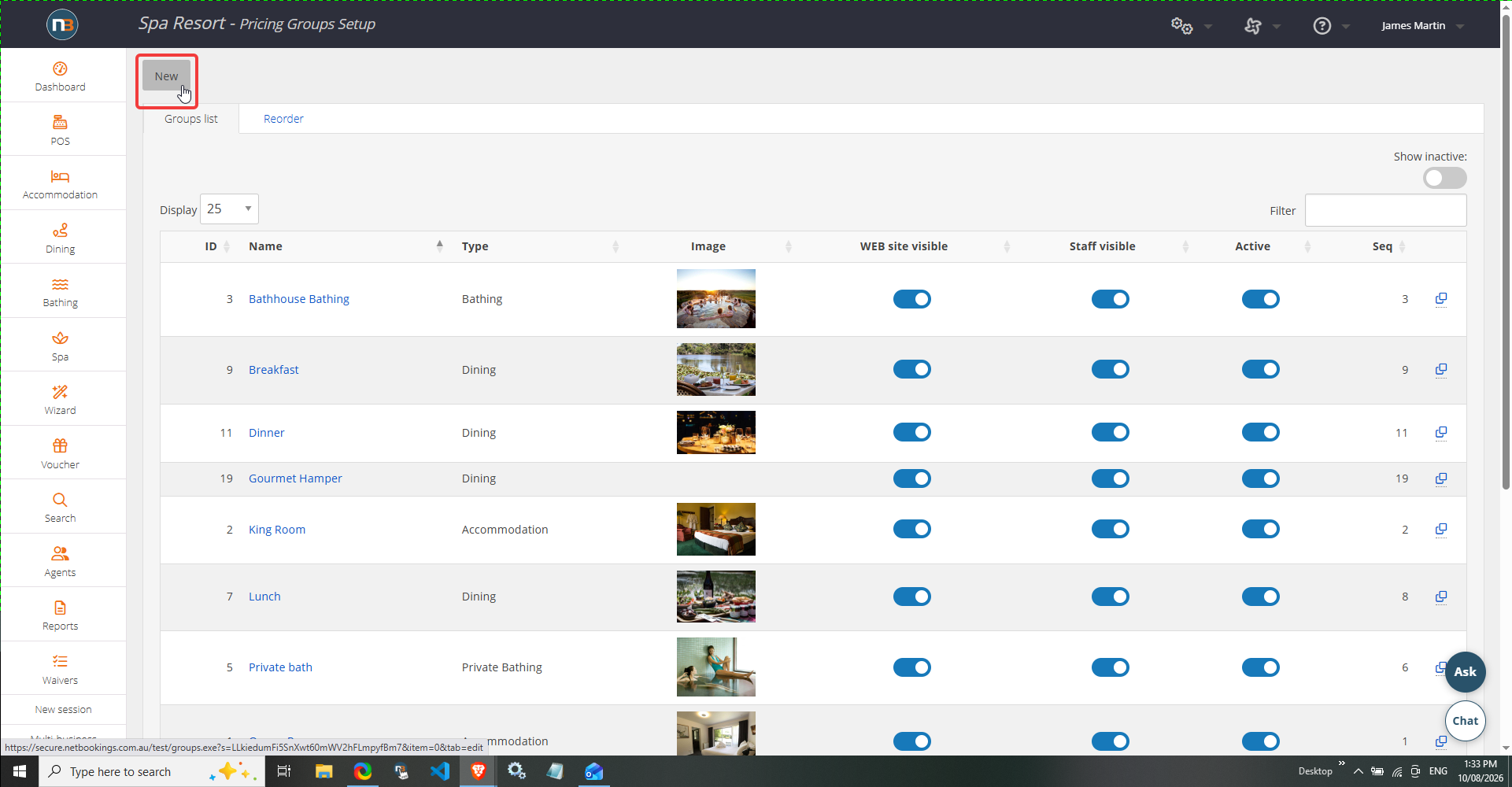
Go To System>Setup>Pricing Setup
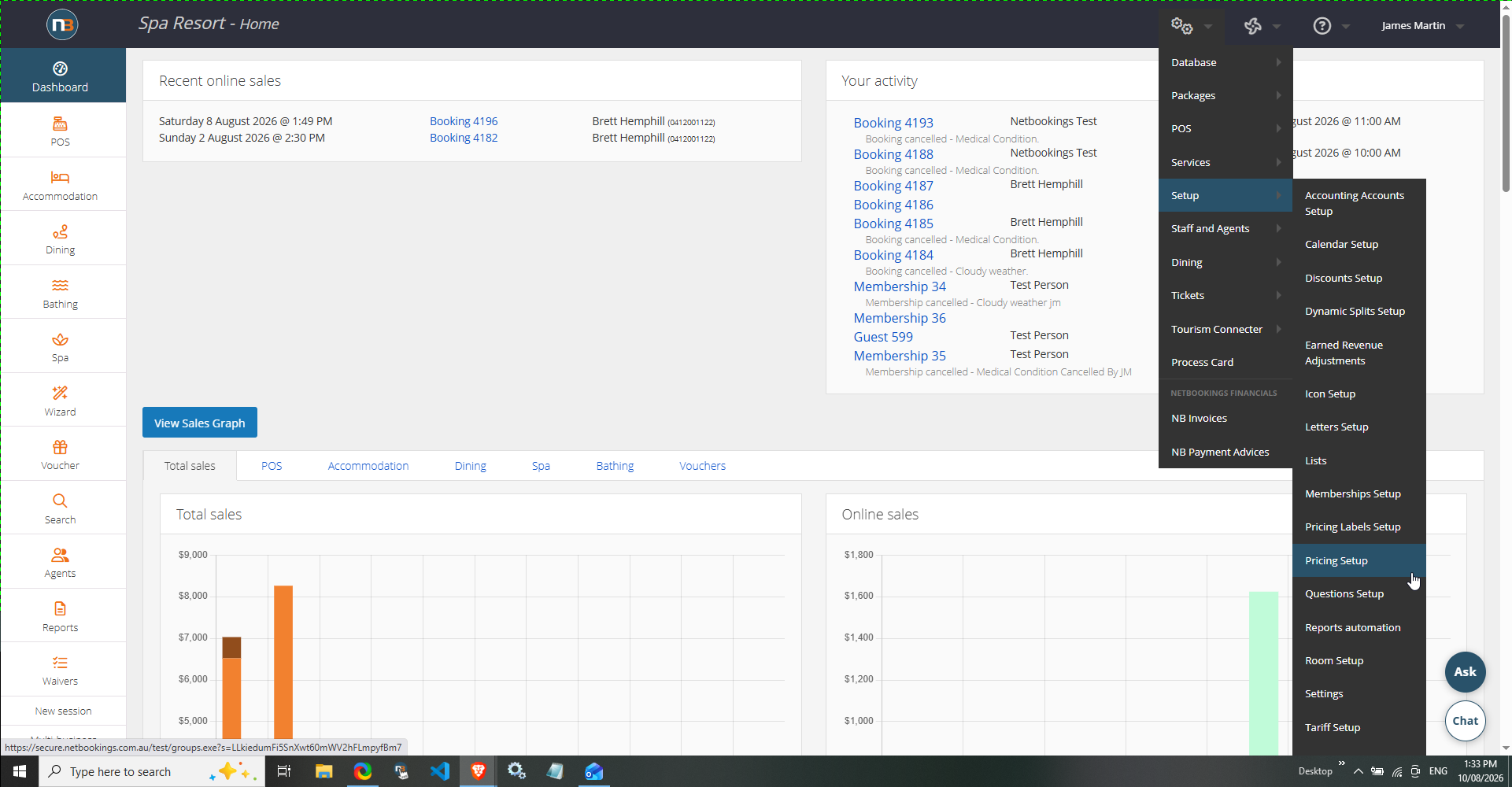
Create ‘New’
Add details
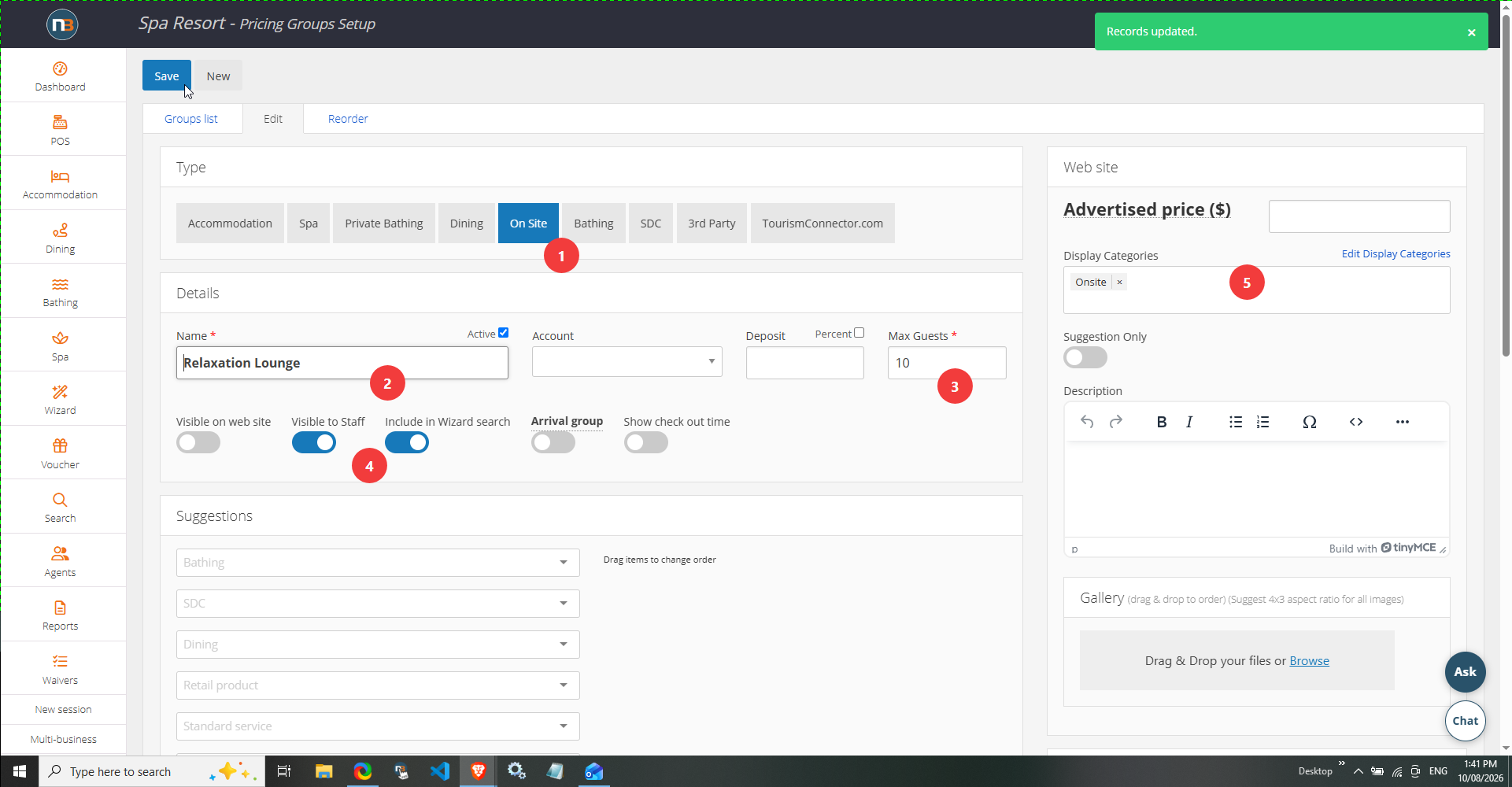
- Add On Site type.
- Add name.
- Add max guests allowed in this on site space at any one time.
- Add relevant switches for your purposes. Mostly we want it to be used by staff and in the backend wizard so select these by default.
- Add display category to find service under.
Available Hours
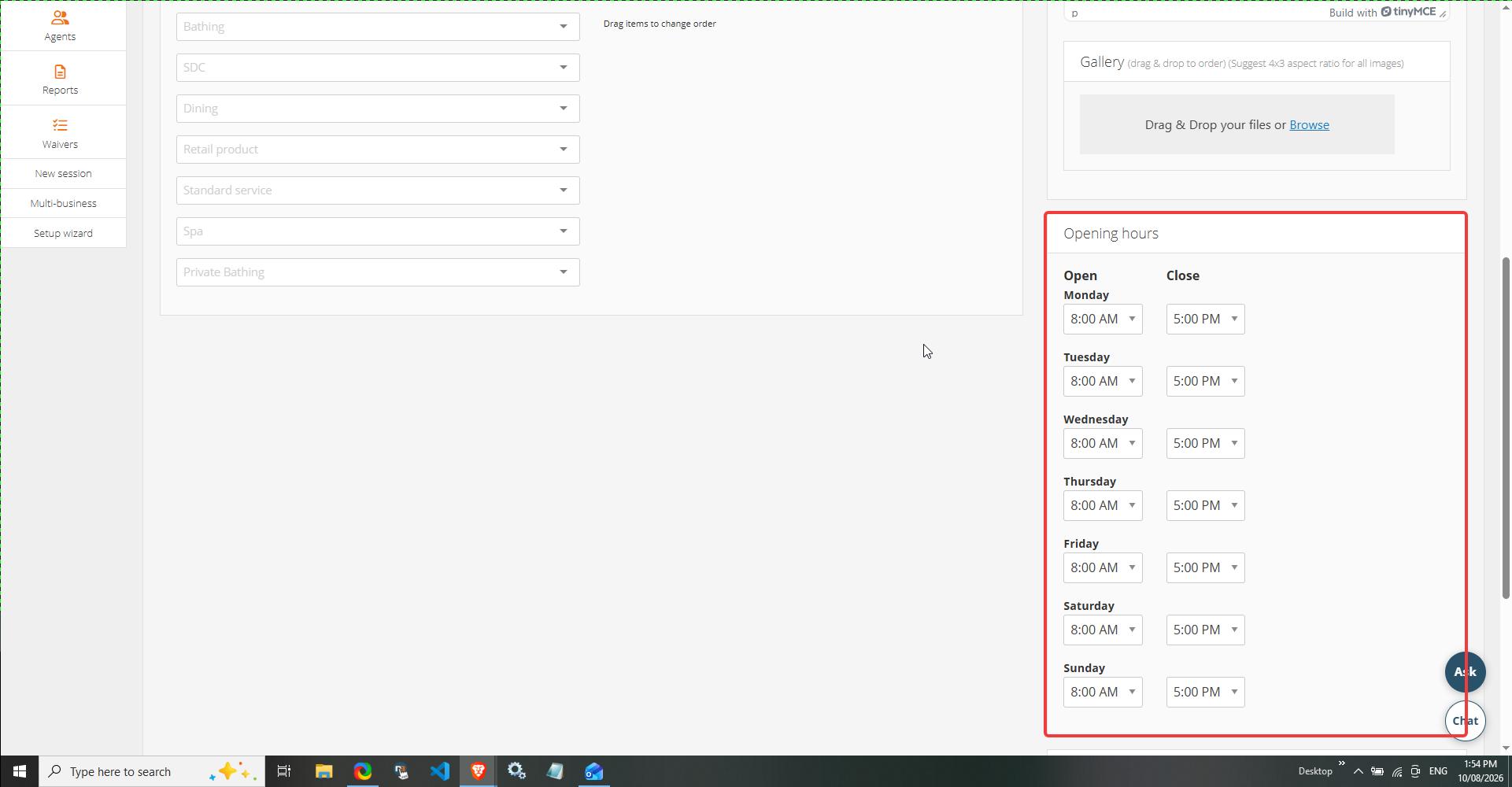
Opening hours must be defined so system knows what time frames the space/s will be open. Now go to top and save.
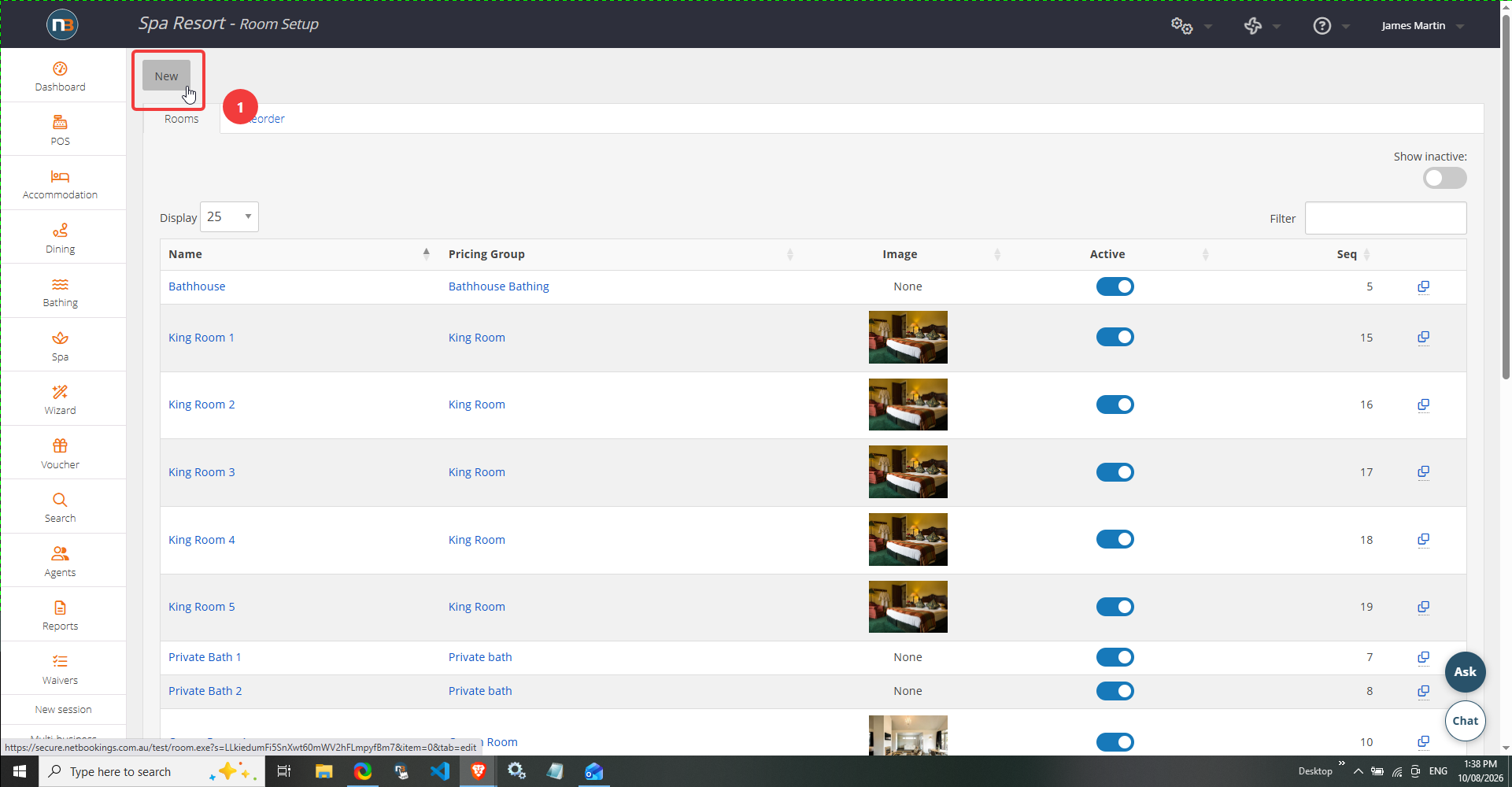
Go To System>Setup>Room Setup
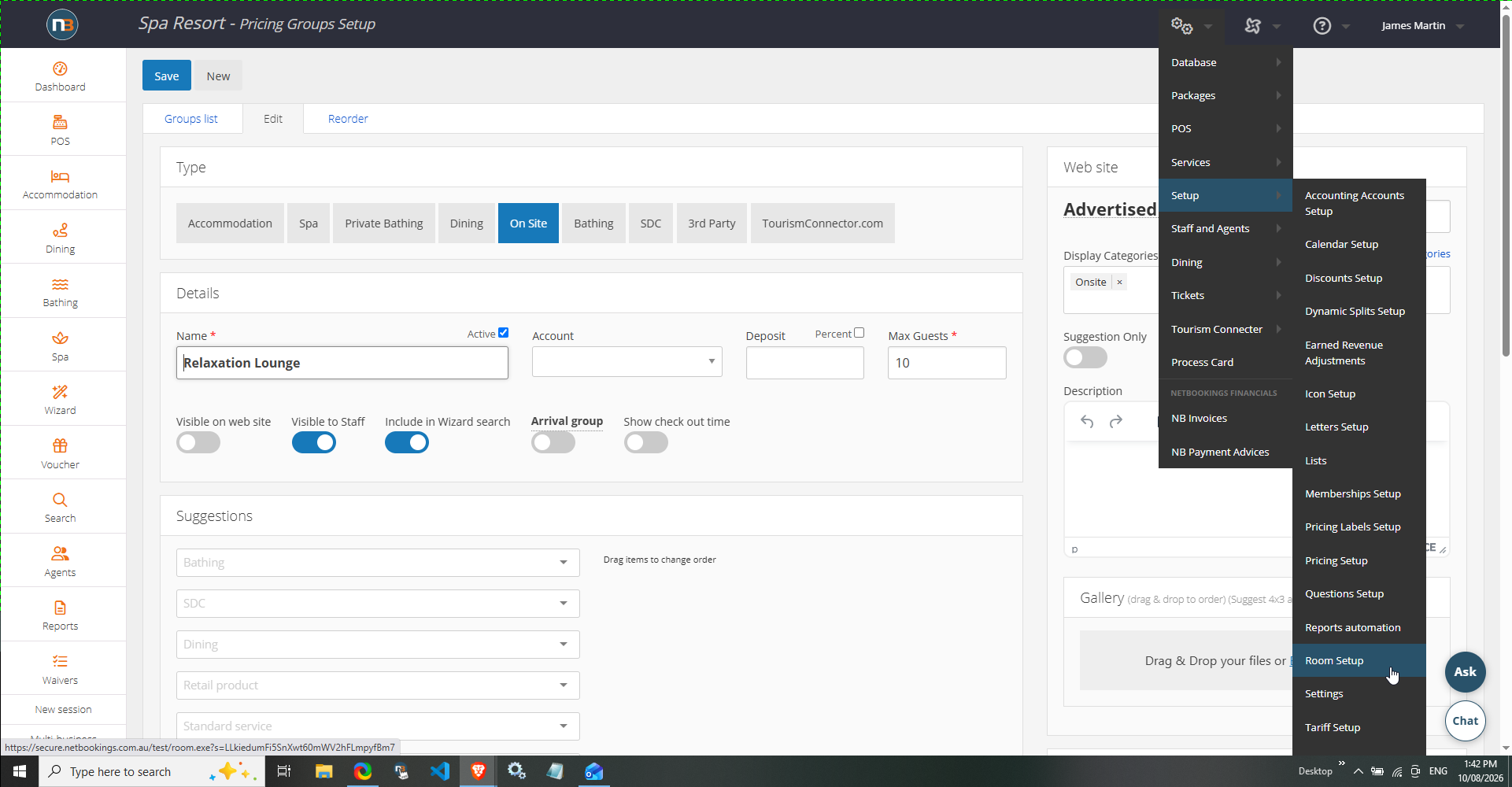
Create ‘New’
Add details
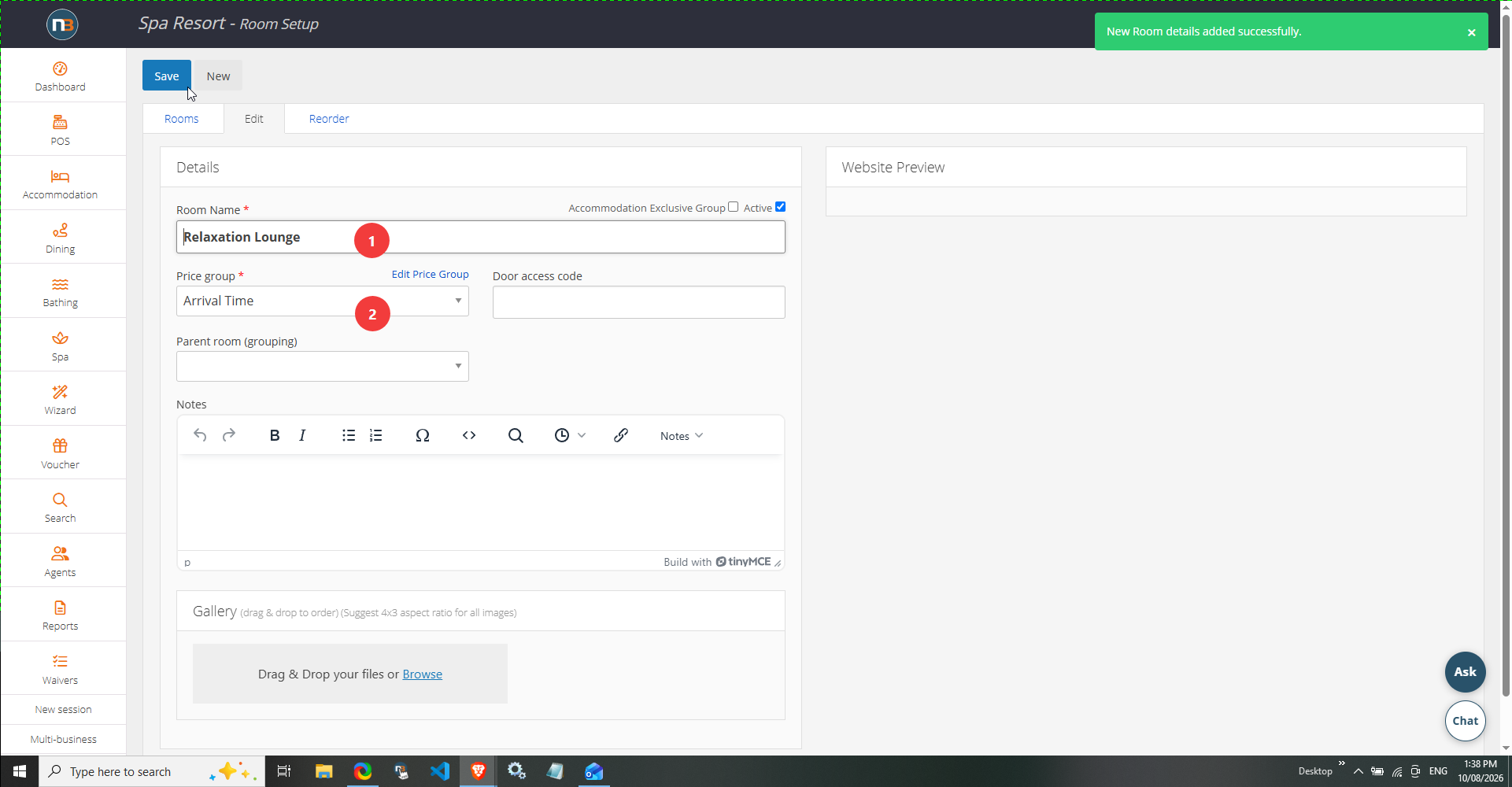
Add name of room the services will exist in. Typically the same as the pricing group name, in this case ‘Relaxation Lounge’.
Go To System>Services>Services Setup
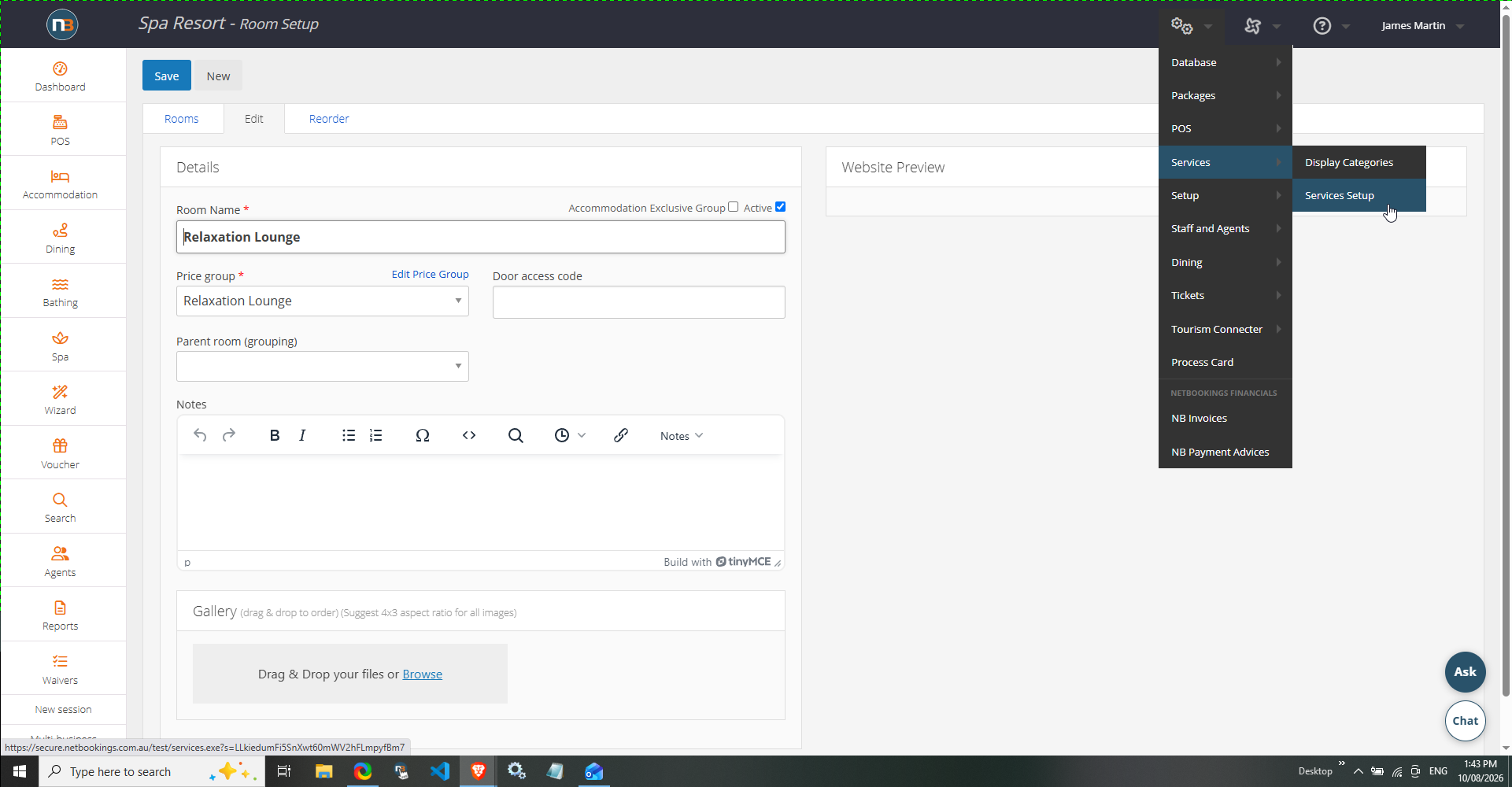
Create ‘New’
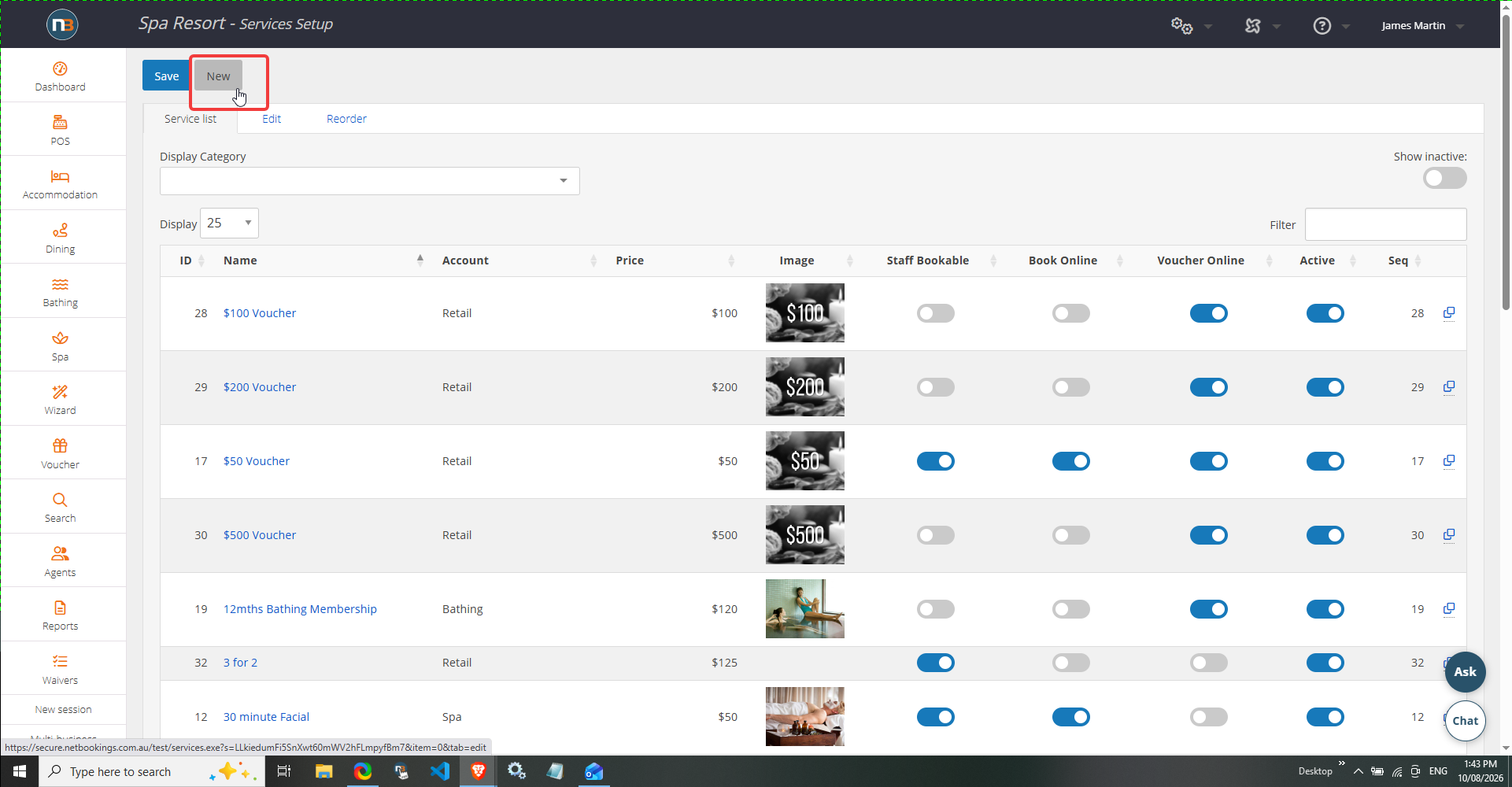
Add details
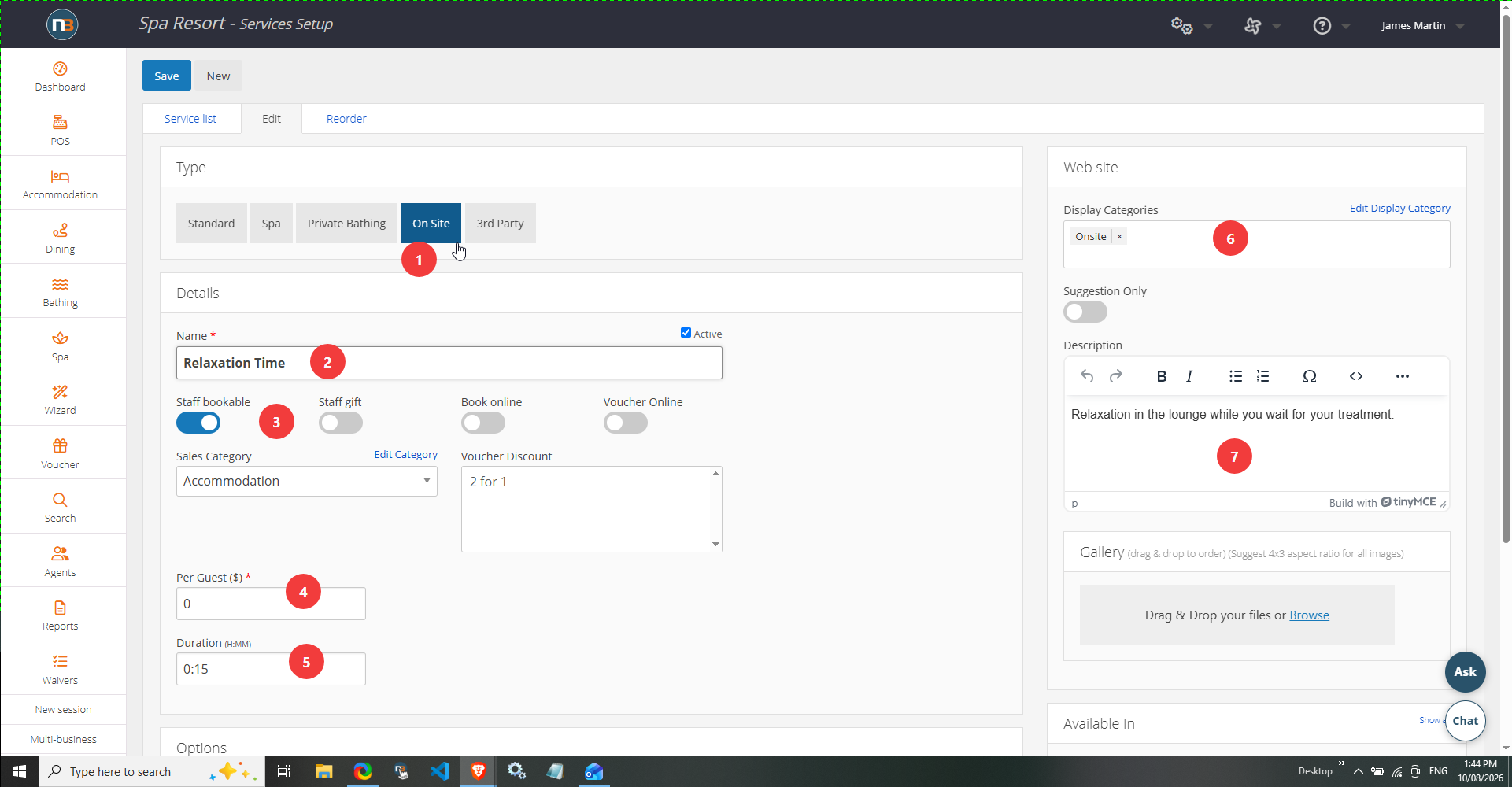
1. Assign the ‘On Site’ type.
2. Add service name that guests will see online and in backend for staff.
3. Add switches for whether staff can add it or be sold online. Typically on site services are viewed by staff online and don’t get sold to guests directly, but ensure that ‘Book Online’ is selected if you wish to use in online in packages. It can be added to a package to assign ‘Relaxation Time’ before a service for instance.
4. Add price per item.
5. Add duration of onsite service – typically shorter as onsite services are used as temporary spaces for guests to use in between other bookable services – for instance bathing and spa treatments.
6. Add Display Category – this means the service will show under this category on front end sales page and in backend via ‘Booking Wizard’
7. Add service description in case staff need to know more about what it is for.
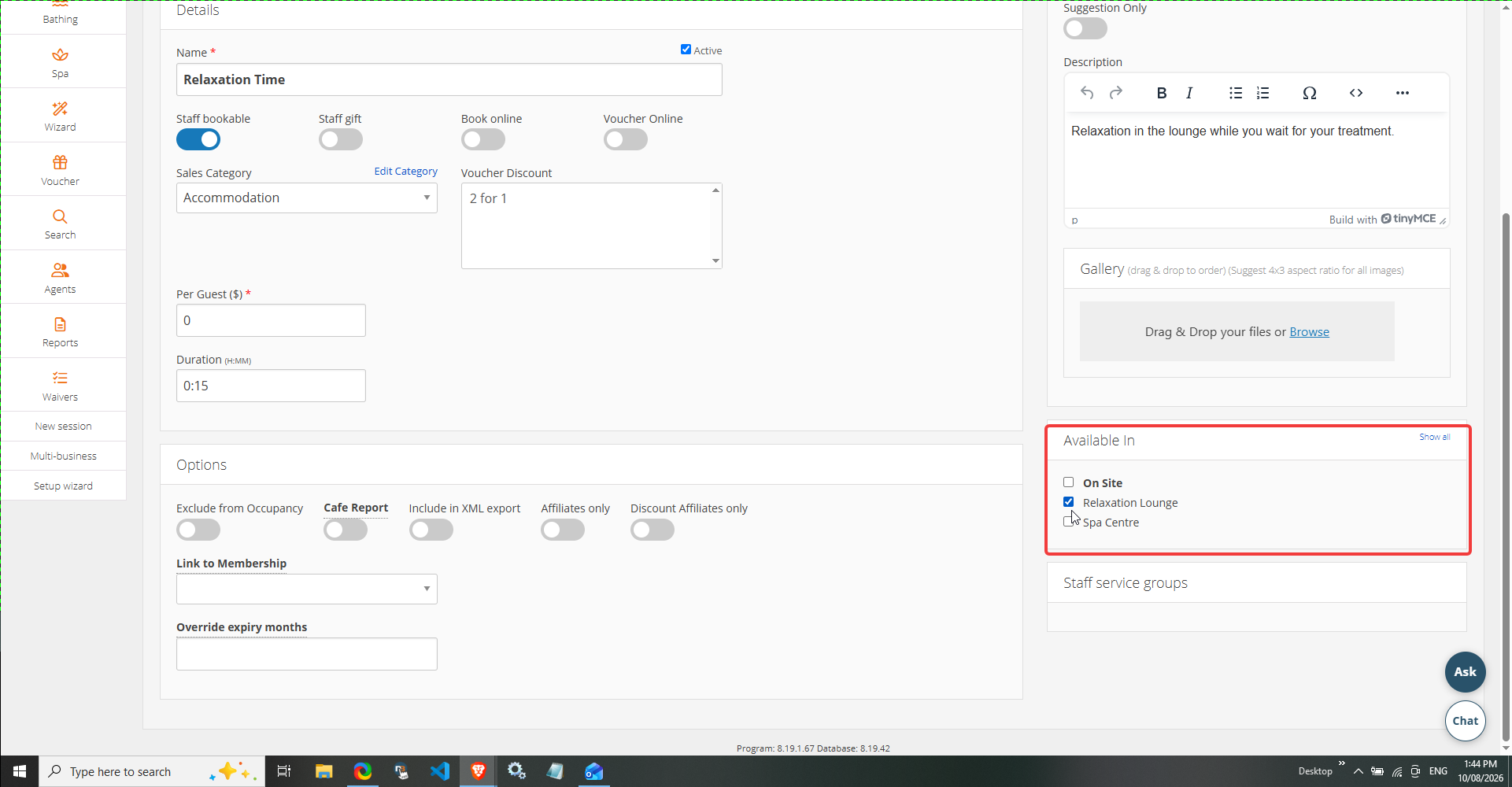
8. Ensure that the service is available in the new pricing group we created for this service.
Example in package
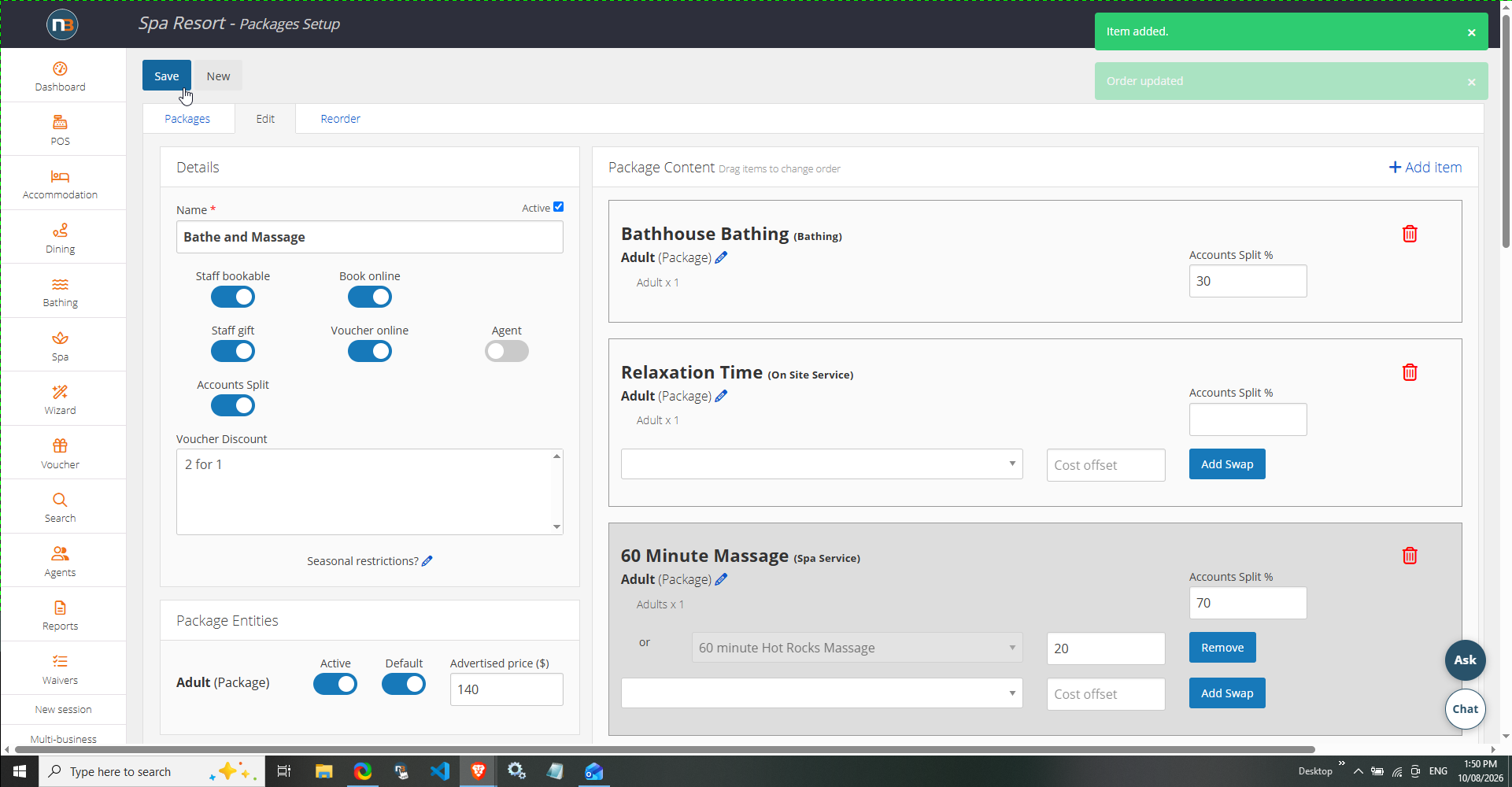
Front End Example