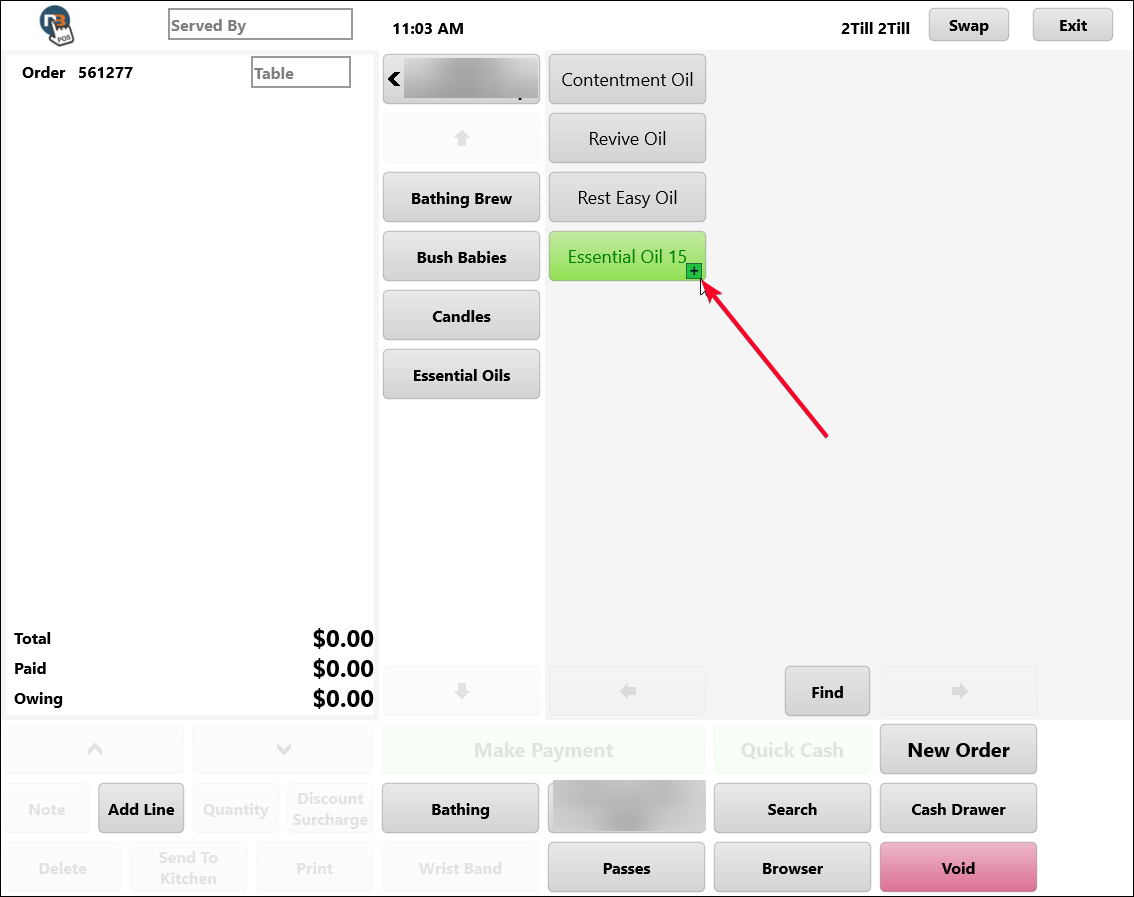
Stock Countdown
Allows for retail products in POS to have a countdown icon; to track stock levels when set in retail product setup.
Correct role functions must be enabled for your user profile to be able to make stock updates in POS. For editing of stock level, product & buttons, enable ‘POS Maintain Buttons’ function. See Role Functions for more information about how to modify role functions.
Go to POS>Retail Products and select product
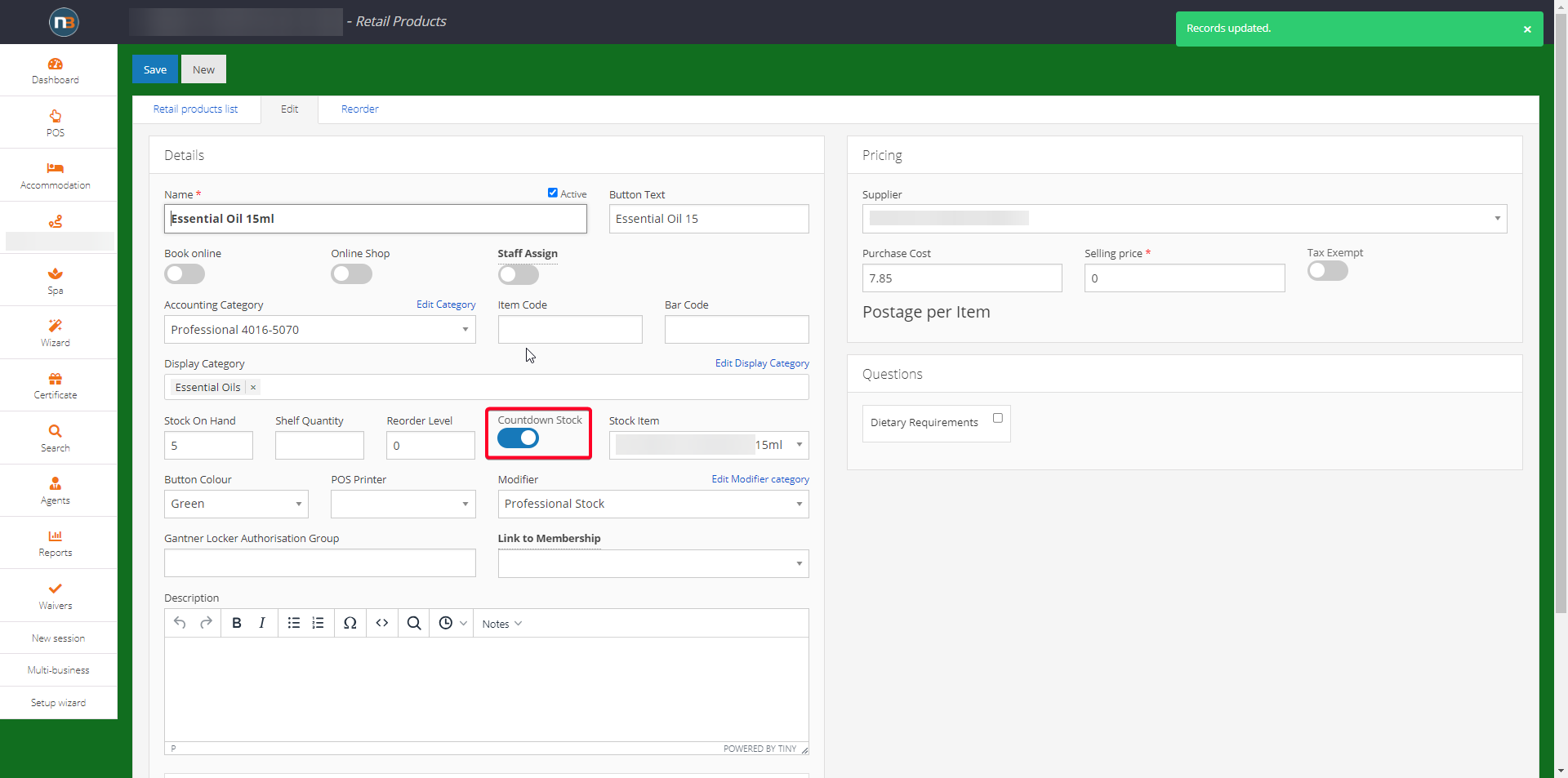
Set Countdown Stock switch to enable. Adjust stock levels in backend here as well as on POS by setting ‘Stock On Hand’.
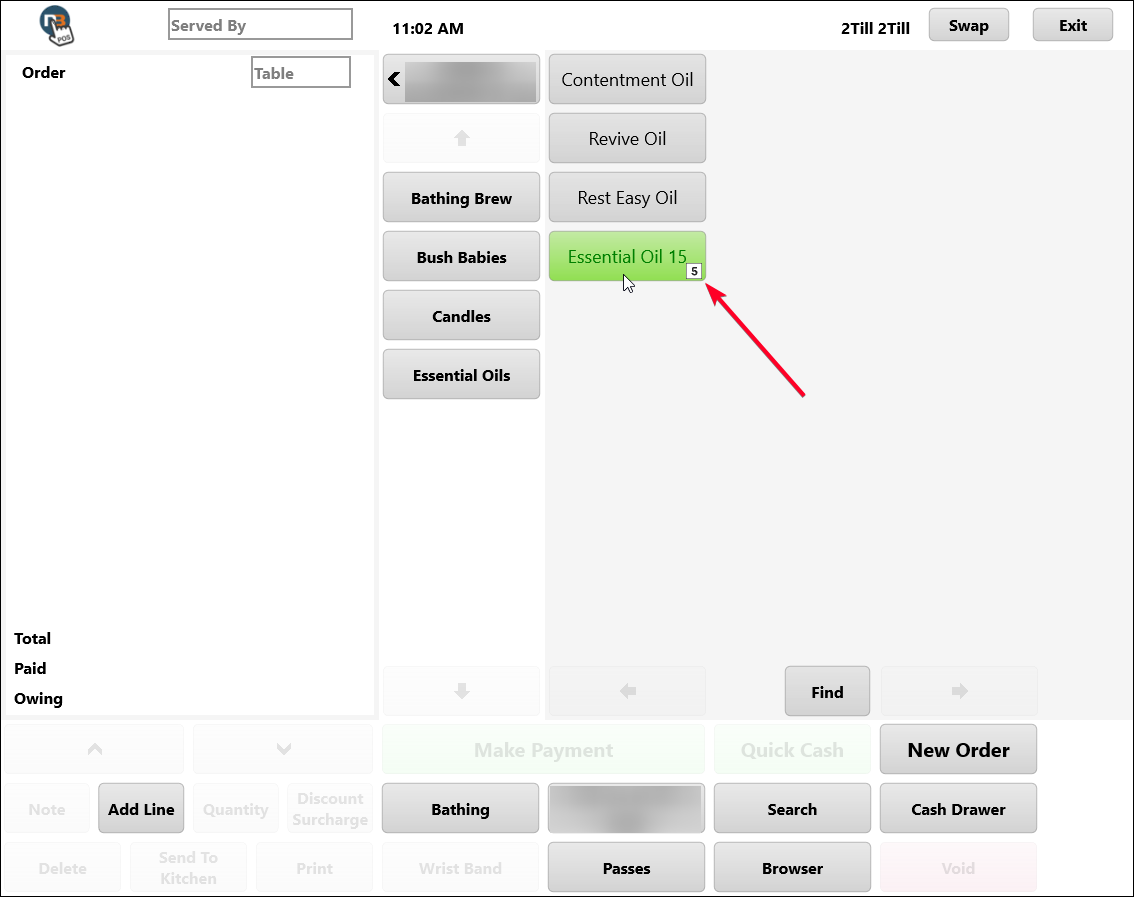
See stock level icon in POS for item
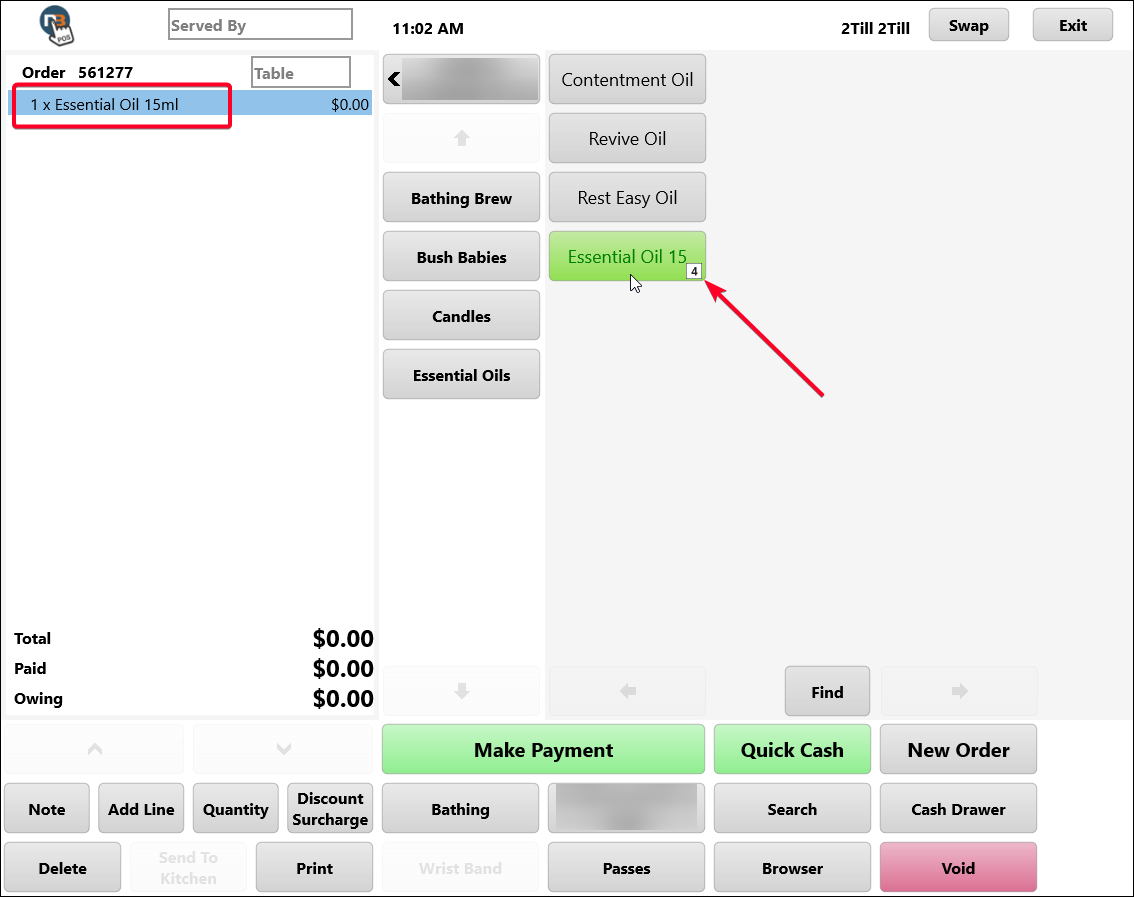
Stock number icon reduces with use
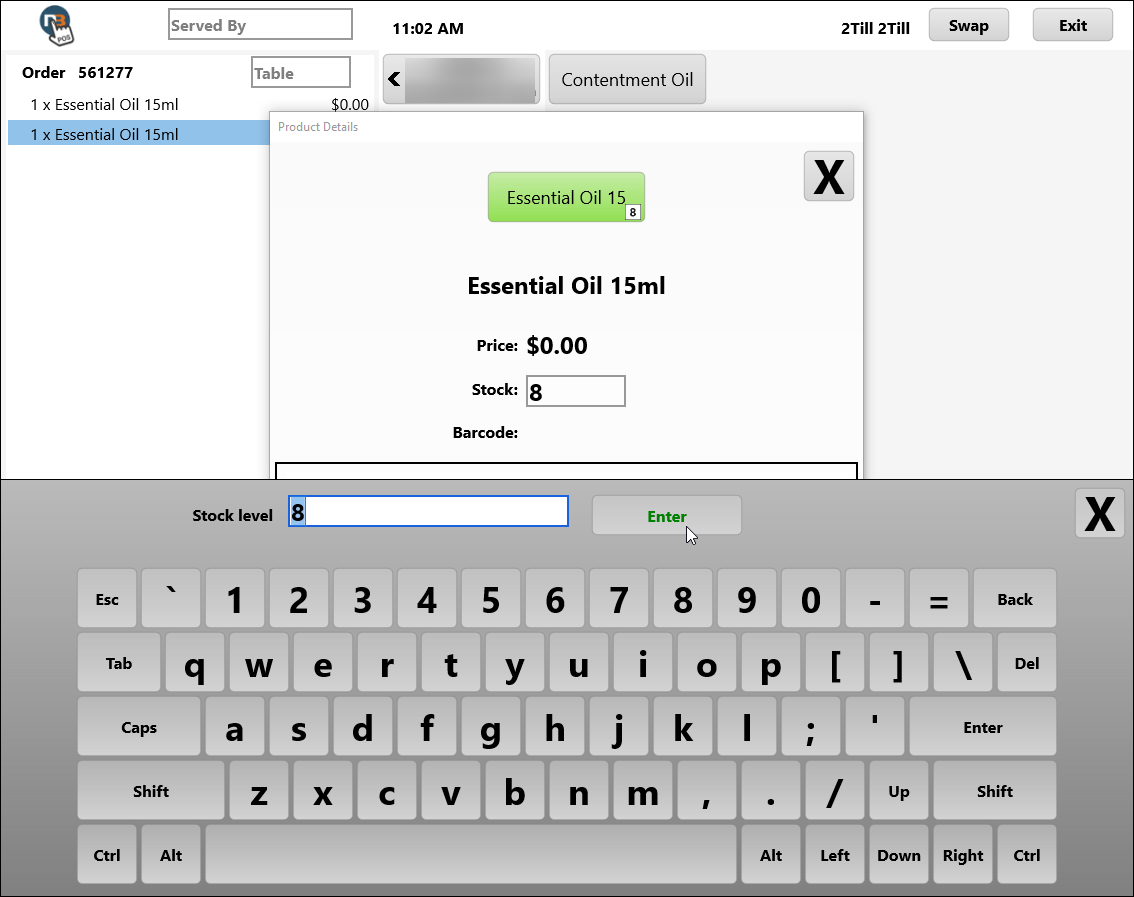
Stock can be updated in POS with right click (or press and hold)
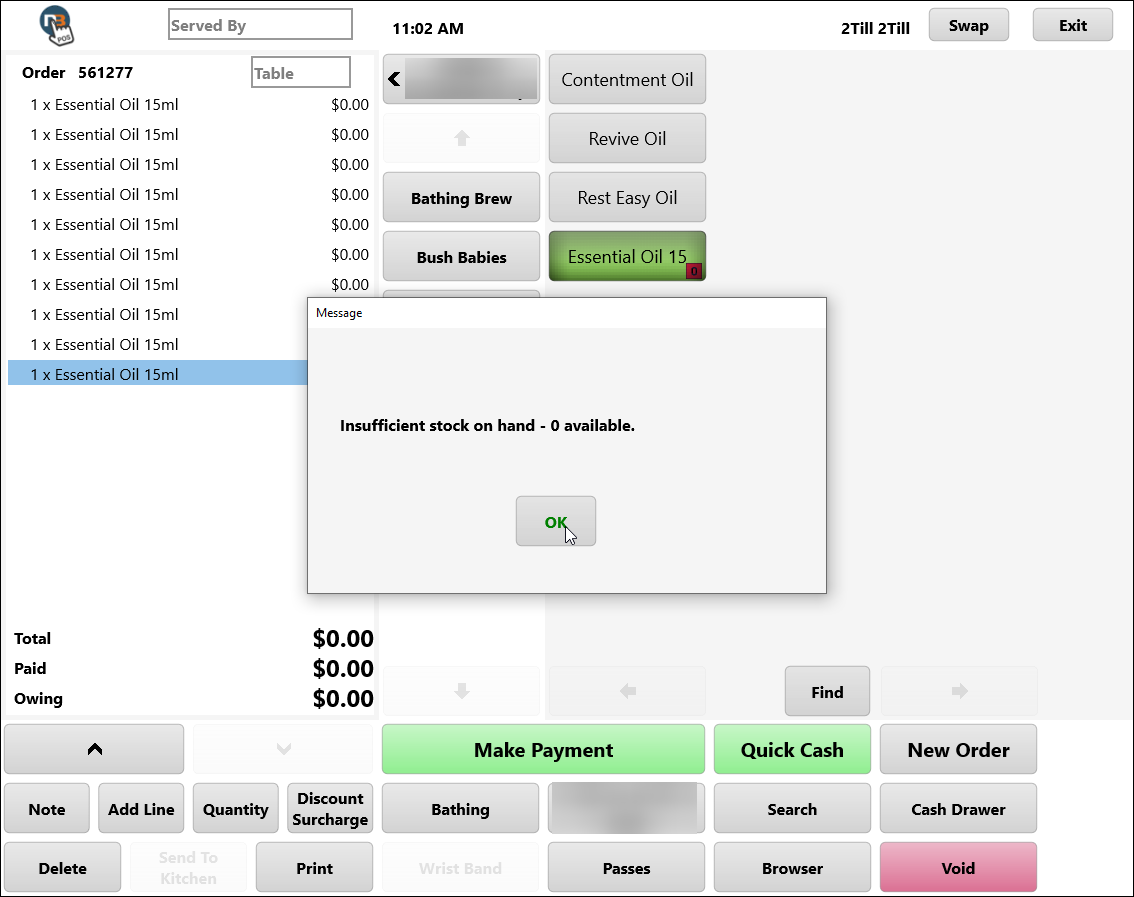
When stock is 0 can’t be used
 +
+
When stock level 10 or higher shows ‘+’ symbol