Google Analytics and Tag Manager
Google Analytics and Tag Manager can be used to track how your products are viewed, selected or abandoned on front end web pages. In Netbookings, we have setup GA4 and Tag Manager to assist in capturing customer journey data.
We can create categories in Lists setup, then assign categories to pricing groups, services, memberships, tickets, packages and retail products in order to track them in better detail. We also have to assign our Tag Manager or GA4 ID’s in settings to send this data to Google Analytics.
Difference Between Google Analytics and Tag Manager
Google Analytics
Allows you to collect things such as:
- how many people visit
- where they came from, e.g. Google, Facebook, direct, another website
- which pages they visit
- what device/browser they use
- how long they engage
- which actions they perform
- whether they complete important actions such as an enquiry, signup or booking
When using with Netbookings, GA4 could potentially show:
2,400 people visited the booking page → 1,600 selected an experience → 1,050 selected a date/time → 780 entered guest details → 610 reached payment → 570 completed a booking.
That gives you a conversion funnel and lets you see where customers are falling out. You can also compare things like mobile users abandon at the guest-details screen 18% more often than desktop users.
Tag Manager
Google Tag Manager (GTM) is different. It doesn’t primarily analyse anything.
It’s a system for putting tracking instructions on the website and controlling when they fire. You can now assign your pricing groups, services and retail products to categories which can be tracked by GTM and GA4.
So the flow is could be for example:
Customer uses Netbookings page
↓
GTM detects something
↓
“Customer just completed a bathing booking worth $320”
↓
GTM sends that event to GA4
↓
GA4 stores and analyses it
↓
You see reports, funnels, conversions, traffic sources, etc.
Why have both?
You technically don’t need GTM to use GA4. You can use Netbookings GA4 tracking by adding your GA4 ID. But GTM makes sophisticated tracking much easier to manage by using GA4 Item cateogories in Netbookings.
When using GTM within Netbookings, the interesting part isn’t merely knowing “someone visited/made bookings”. You could instrument the actual booking journey.
Then GA4 starts becoming much more useful than gathering a simple customer journey. You could see exactly where guests abandon bookings, which products have higher conversion rates, whether particular booking flows perform badly on mobile, which marketing sources actually generate bookings, and potentially the revenue associated with those bookings.
GA4 & GTM Setup
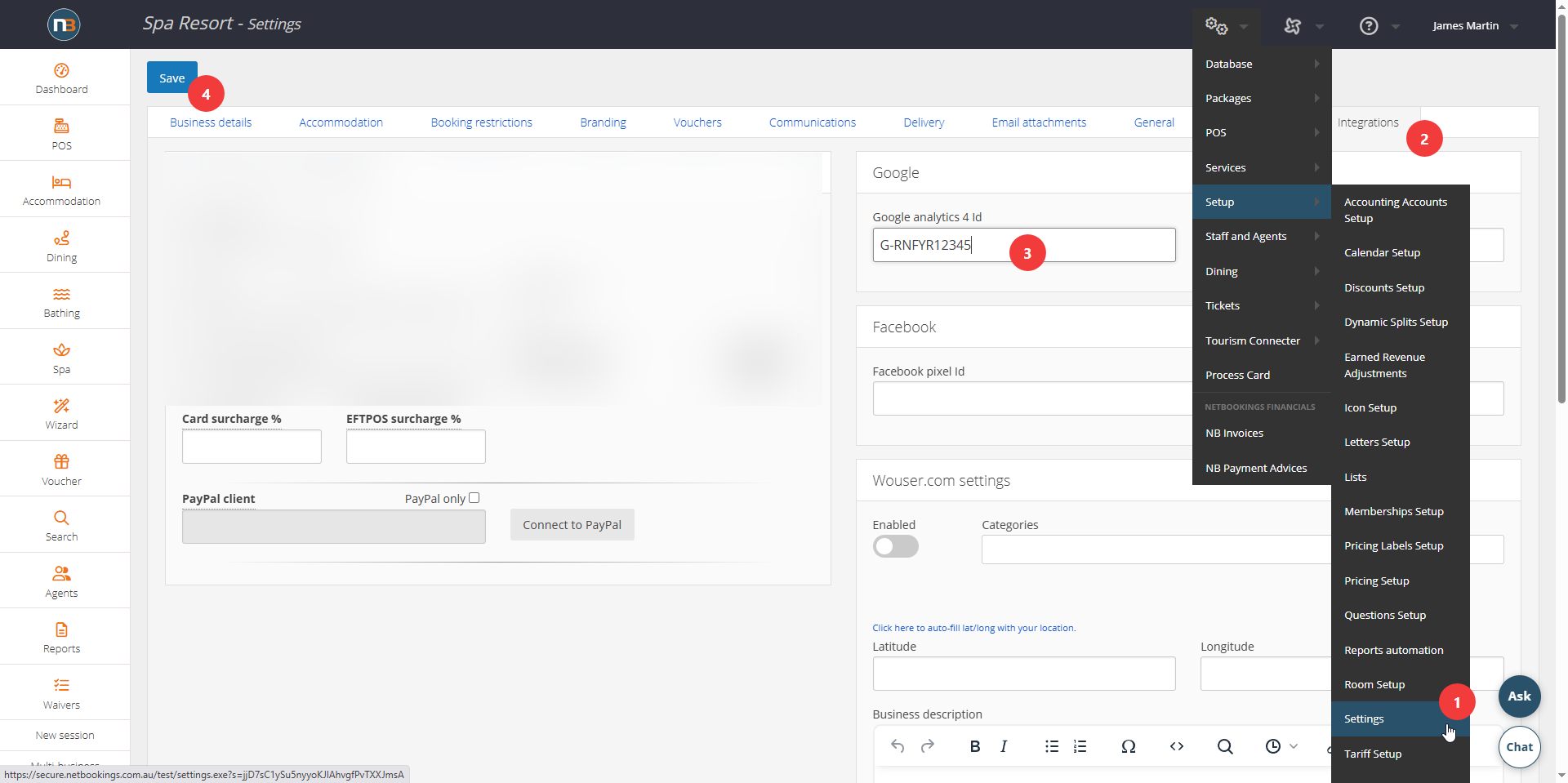
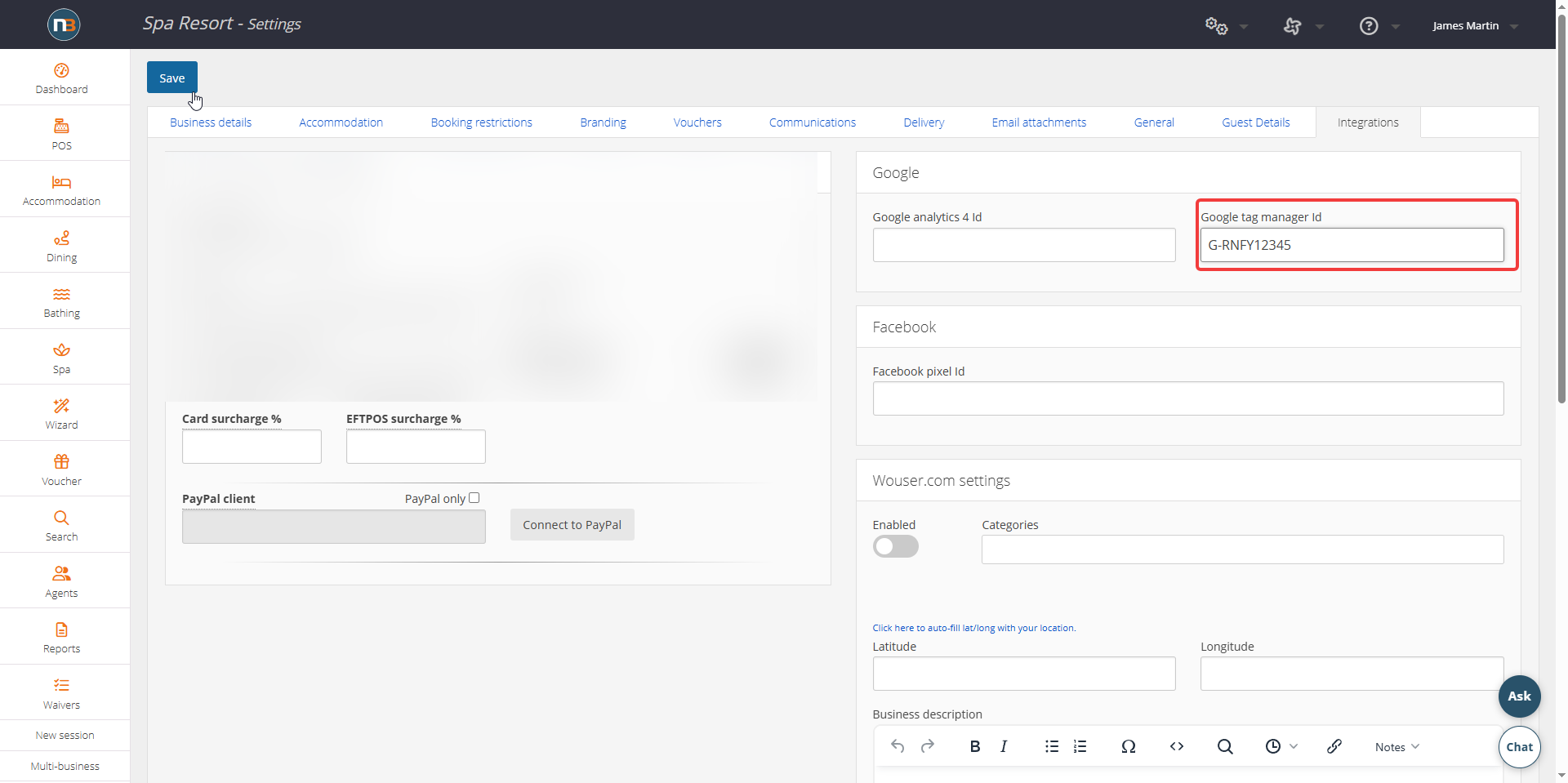
Go to System>Setup>Settings>Integrations tab. Add GA4 ID if only using GA4 – if using both GA4 and GTM then only need to add GTM ID.
Adding Categories
Go To System>Setup>Lists
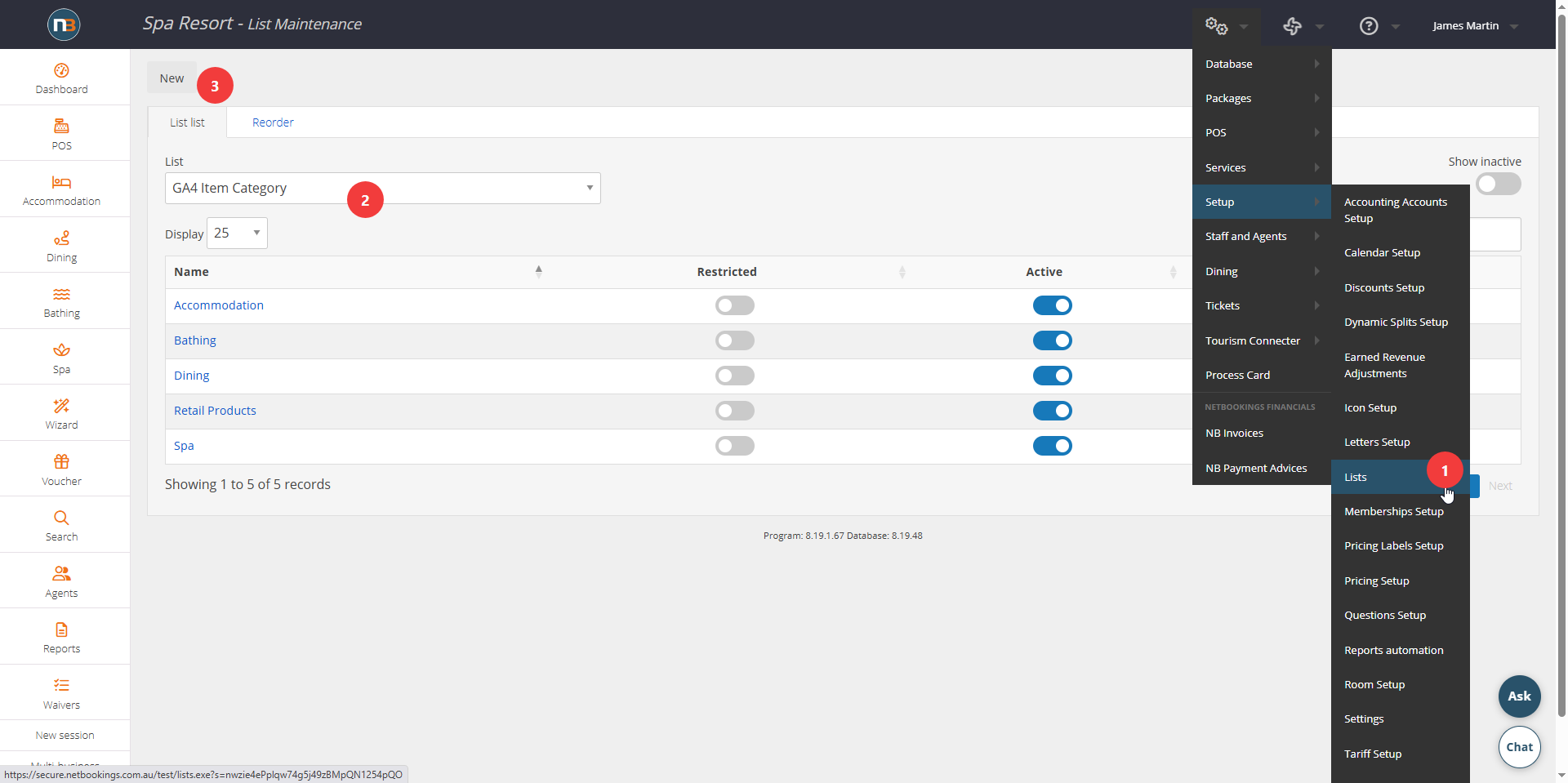
Select GA4 Item Category from lists drop menu. Click New to create new category.
Create New Category
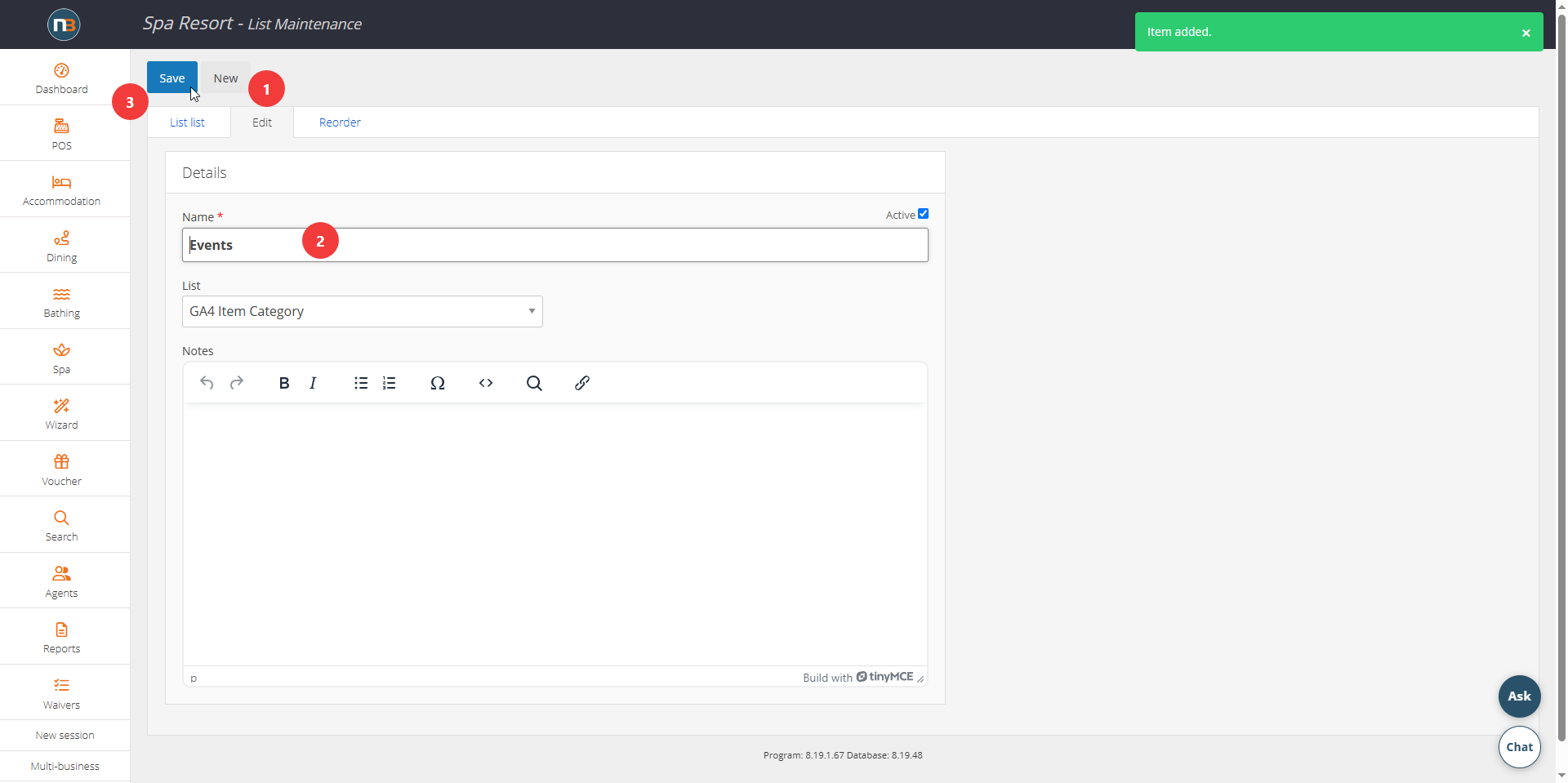
Add new category name and save.
Review List
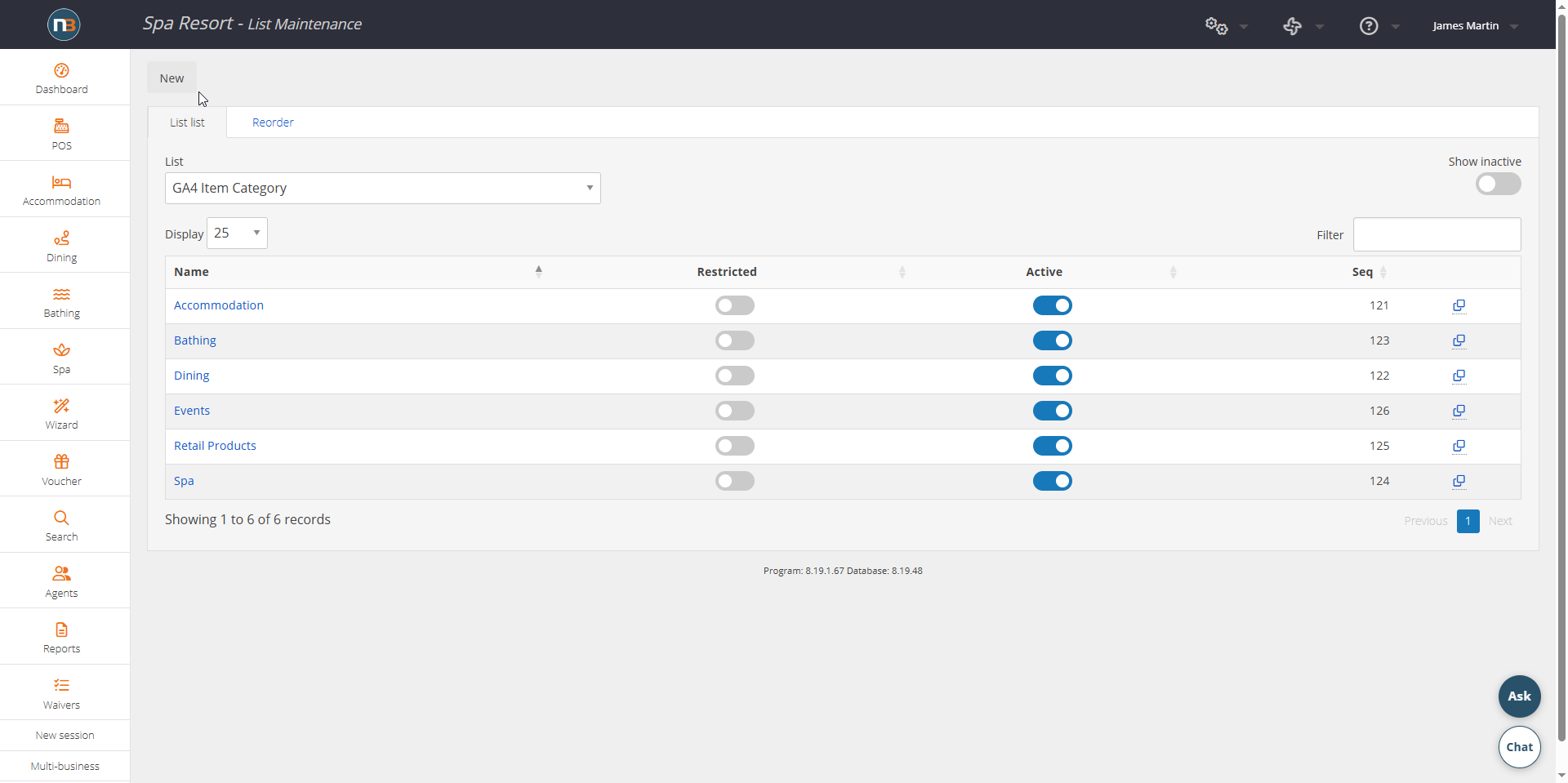
New category ‘Events’ now added to list.
Assigning Categories
Open any Pricing group, Service, Retail product, Ticket, Membership or Package, and you’ll find a GA4 Item Category dropdown on the Edit tab. Choose from the list you set up previously, so the same wording is used consistently across everything you sell.
Services Setup
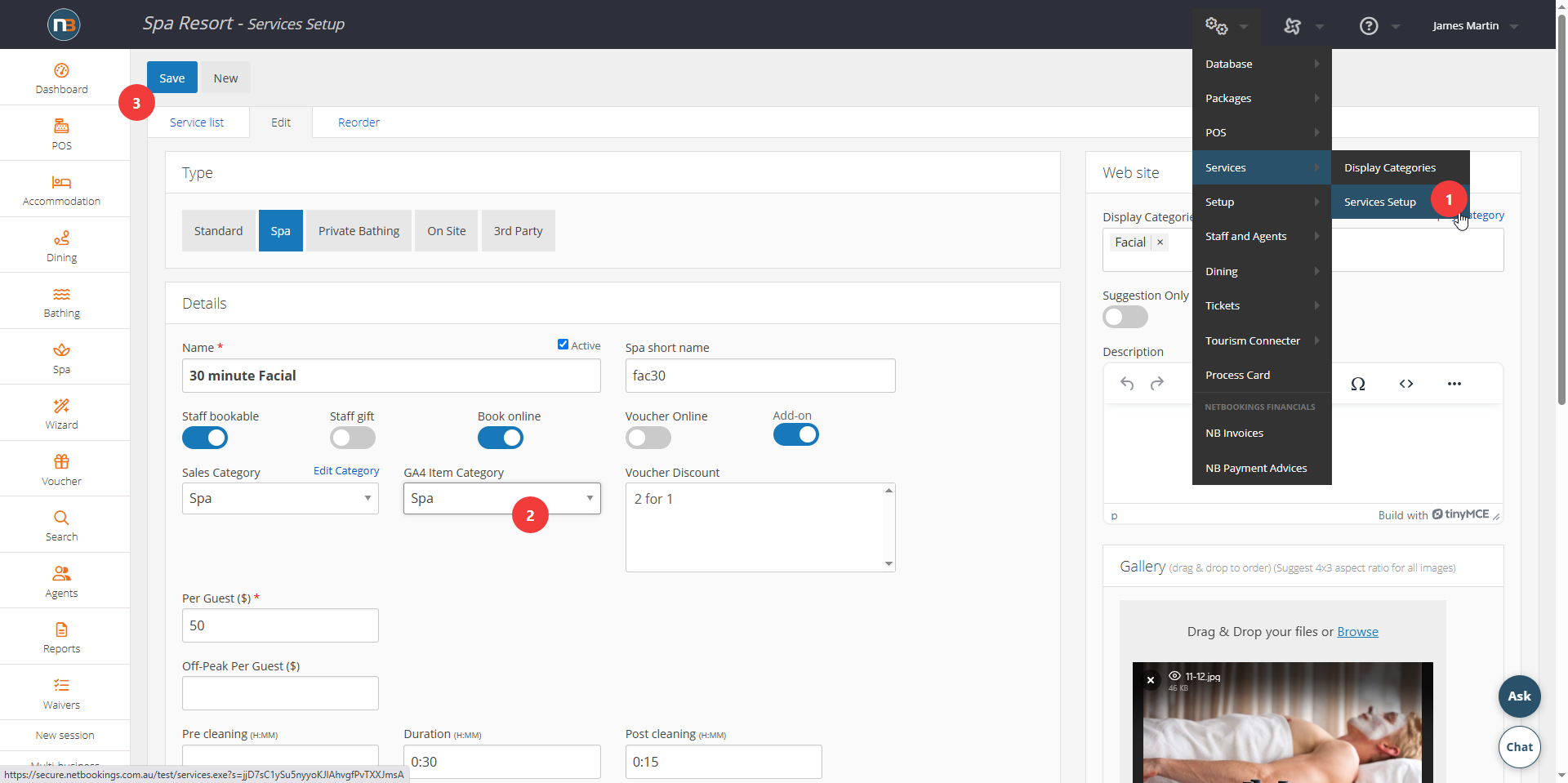
Go to System>Services>Services setup and choose a service to add category for.
Retail Products
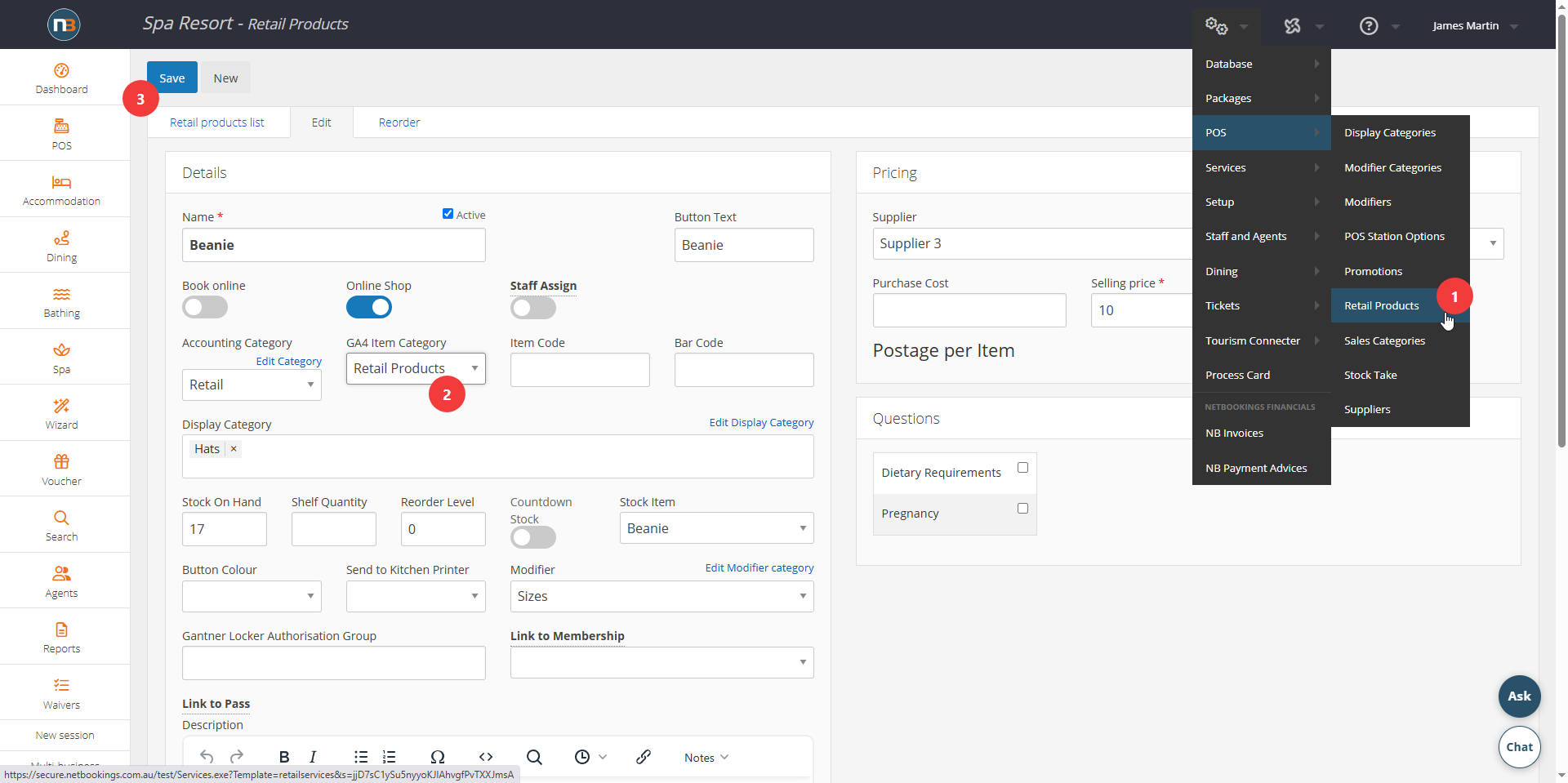
Go to System>POS>Retail Products and choose a service to add category for.
Pricing Setup
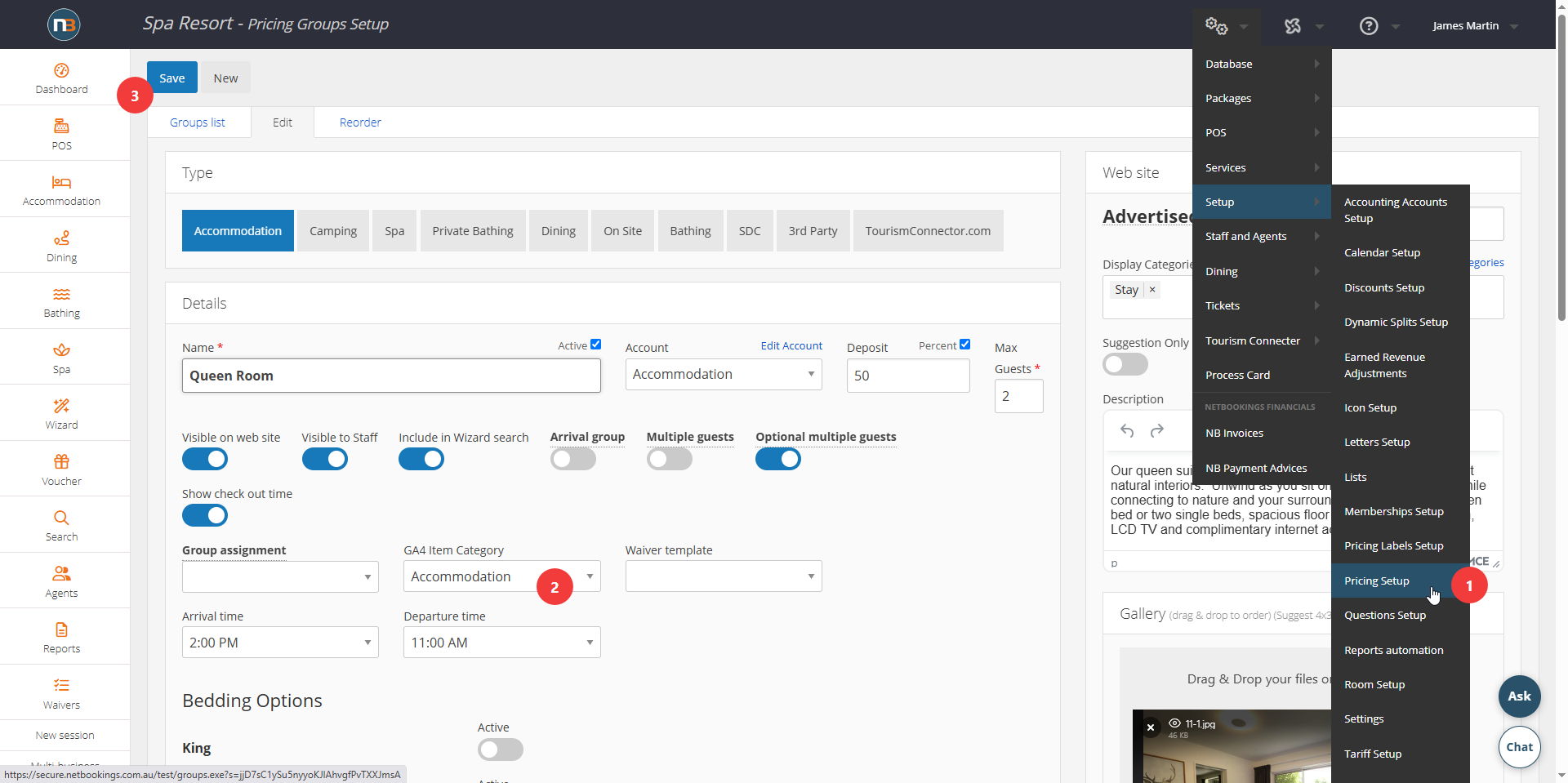
Go to System>Setup>Pricing setup and choose a product to add category for. This can be for any NB type, such as Accommodation, Tours/Events/ Dining, Spa, Bathing etc.
Ticket Setup
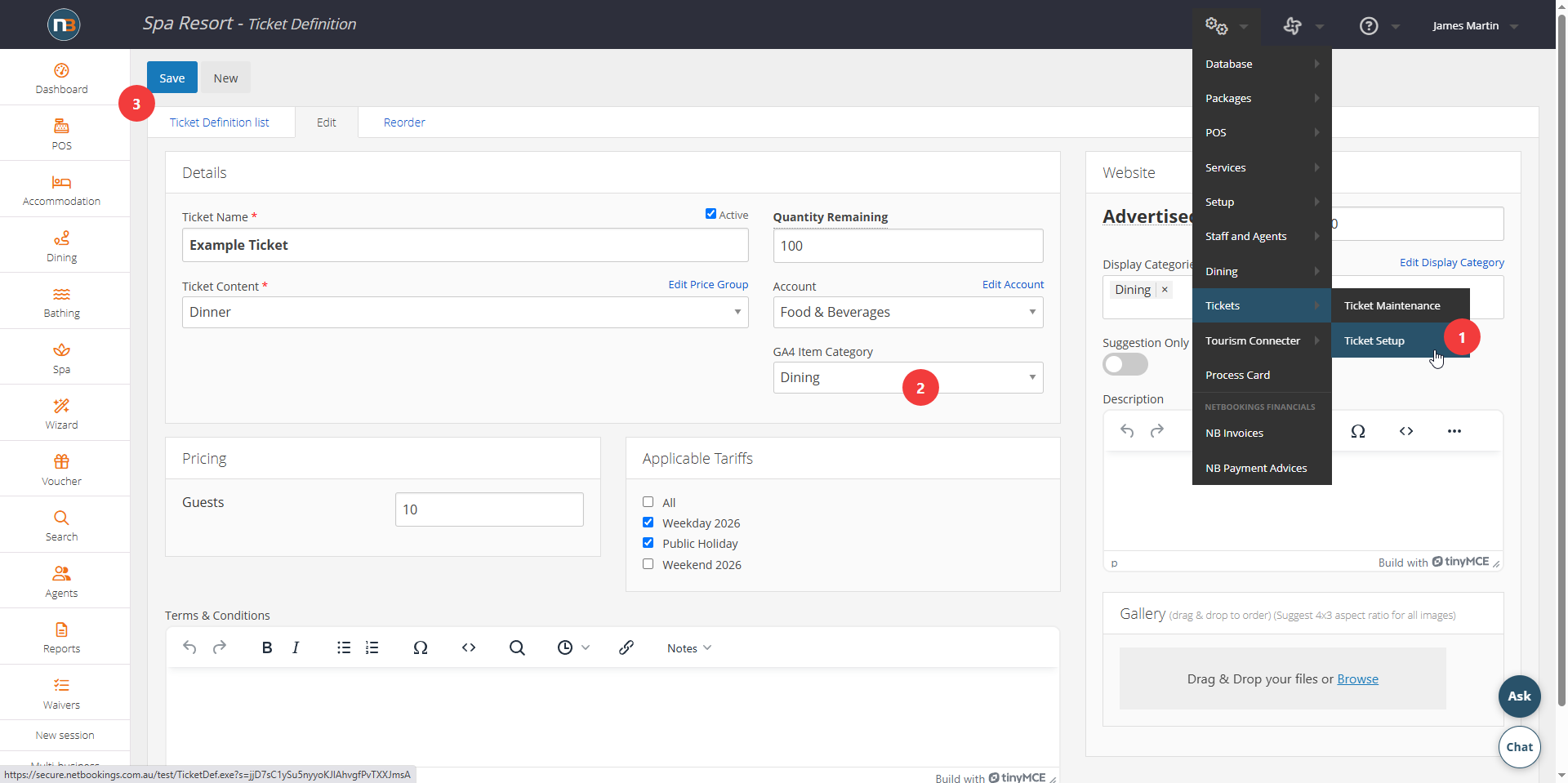
Go to System>Tickets>Tickets Setup and choose a ticket to add category for.
Membership Setup
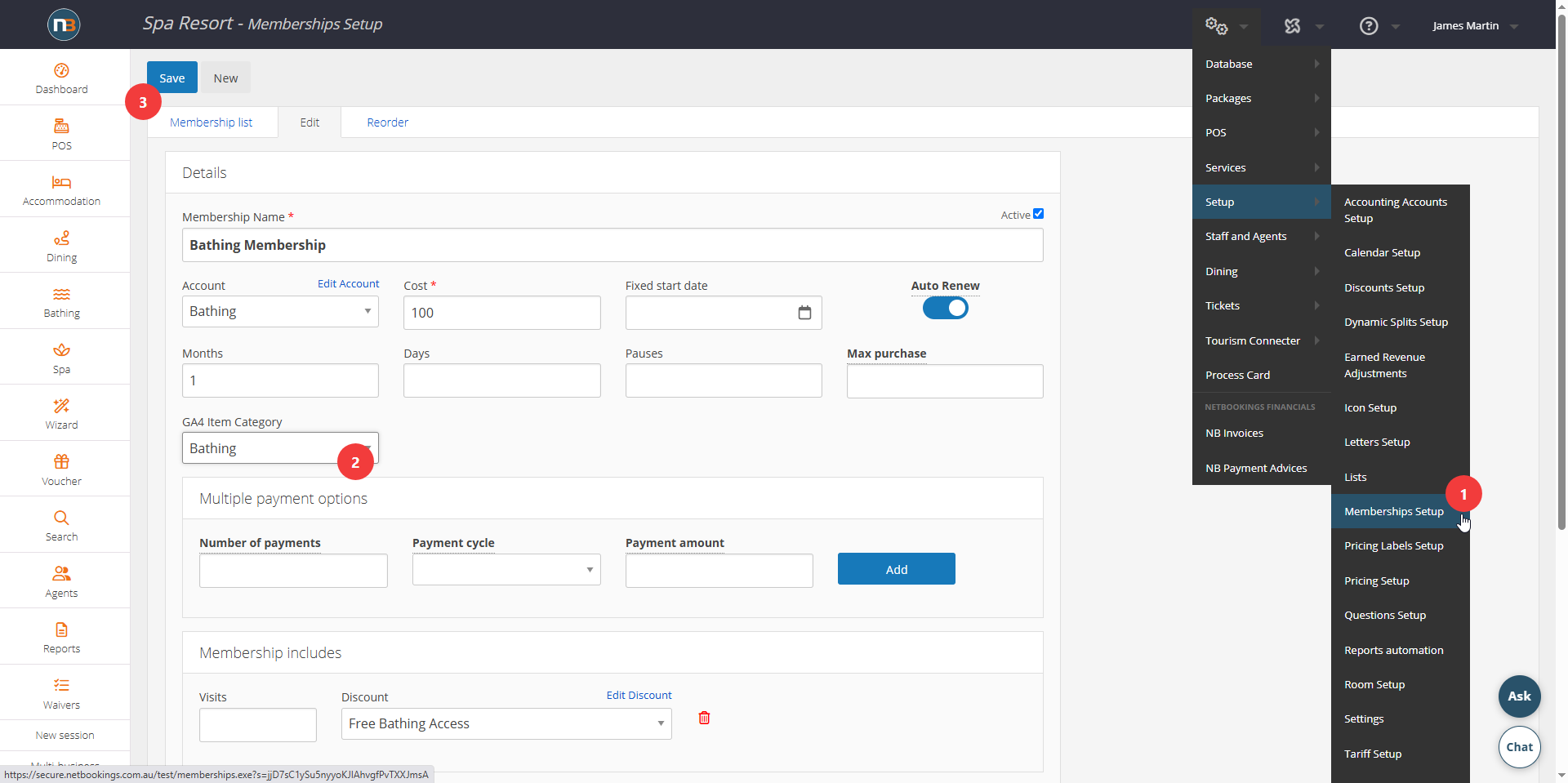
Go to System>Setup>Membership setup and choose a membership to add category for.
Packages Setup
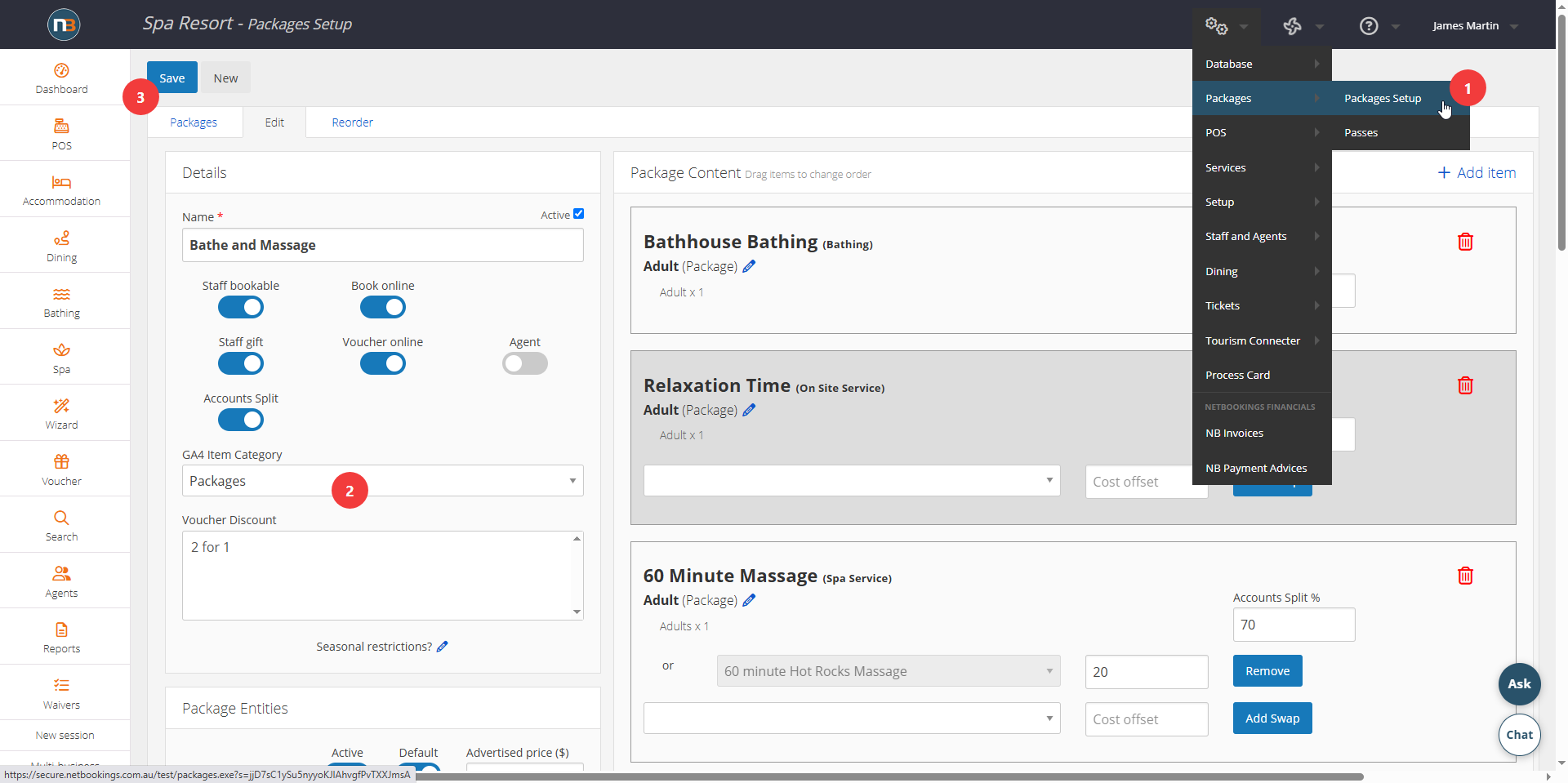
Go to System>Packages>Packages setup and choose a package to add category for.
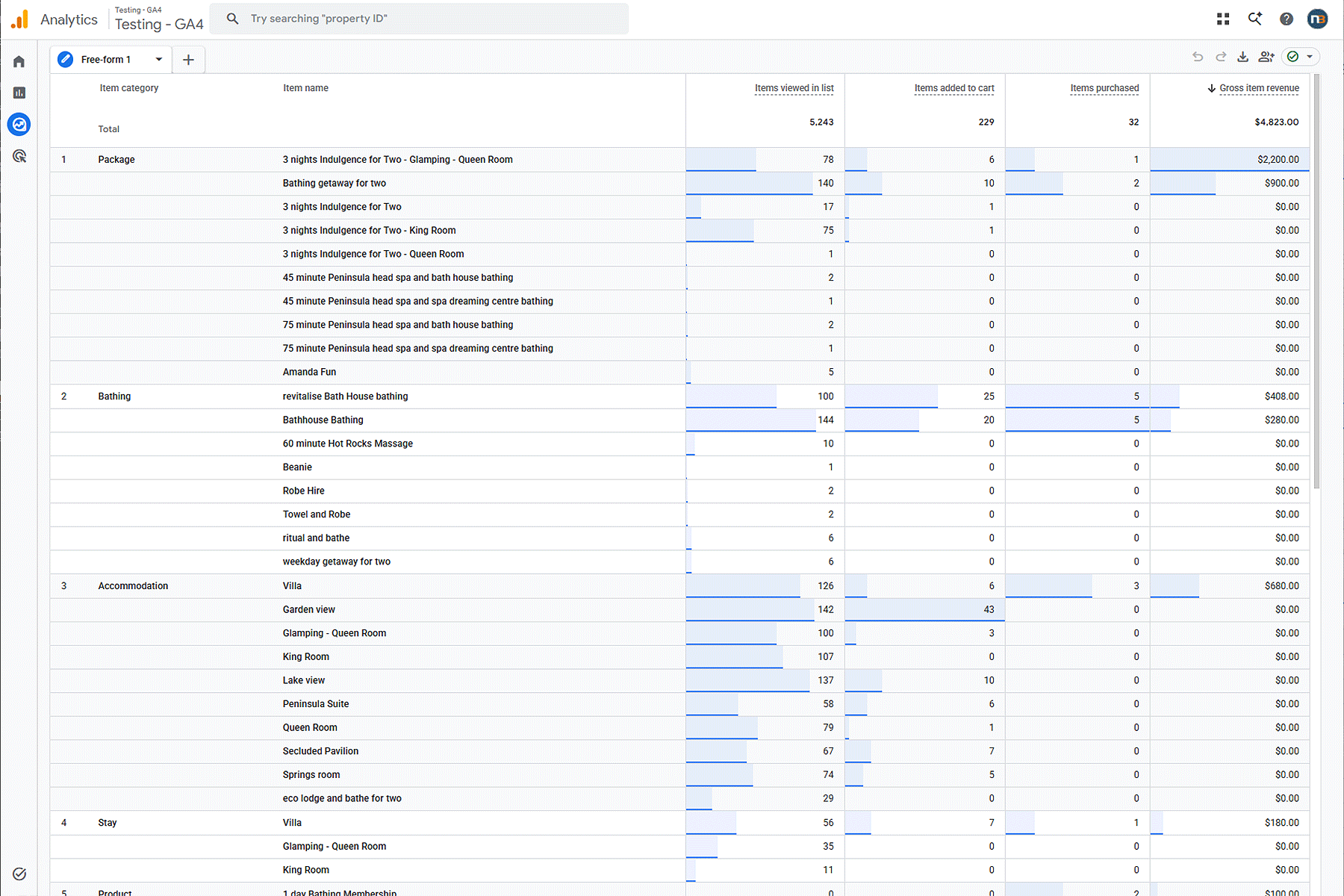
GA4 Customer Journey
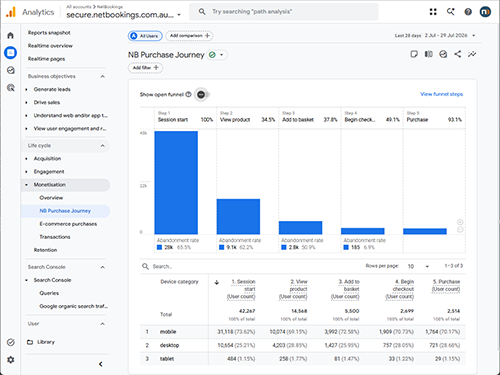
GTM Item Categories
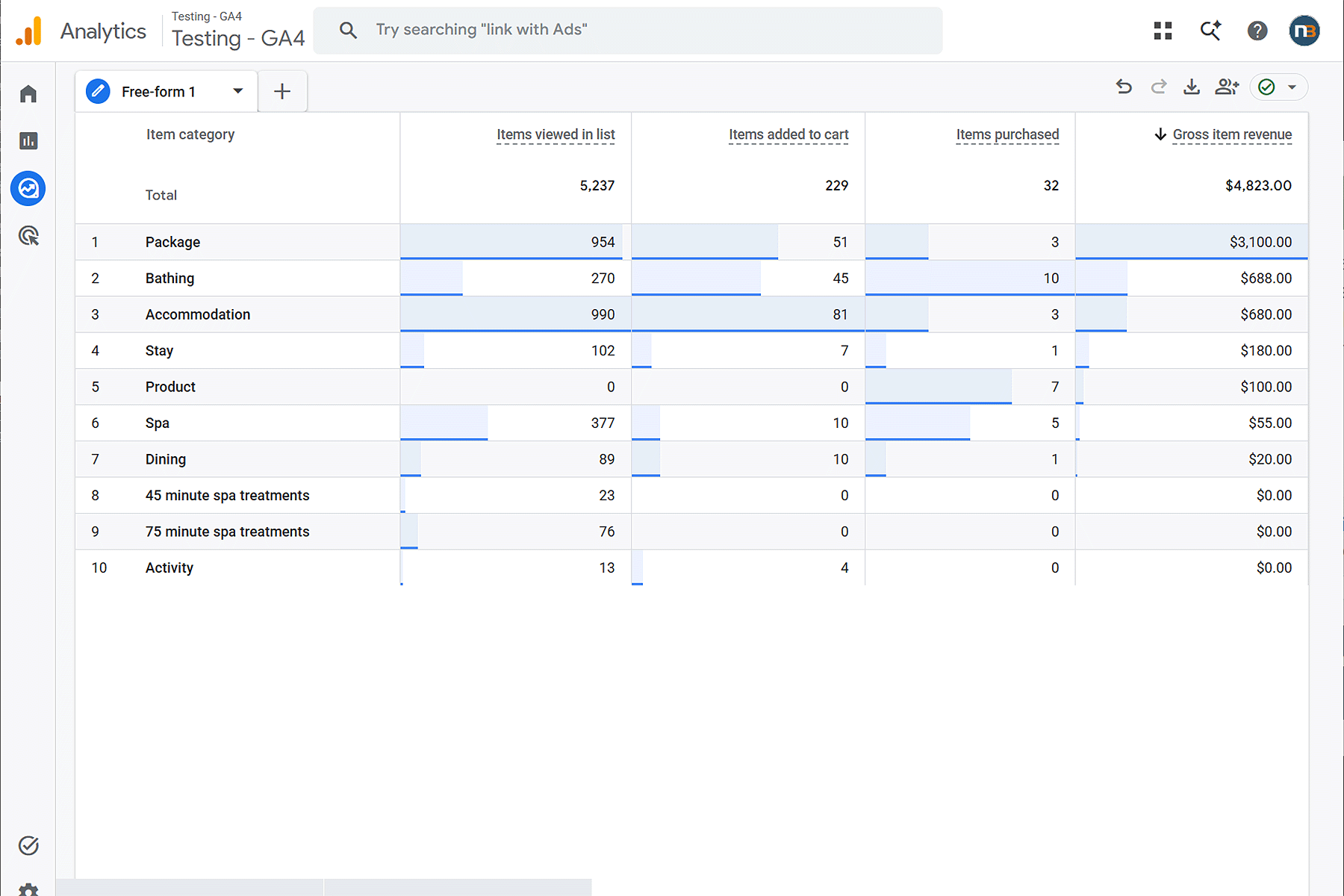
GTM Categories with Products