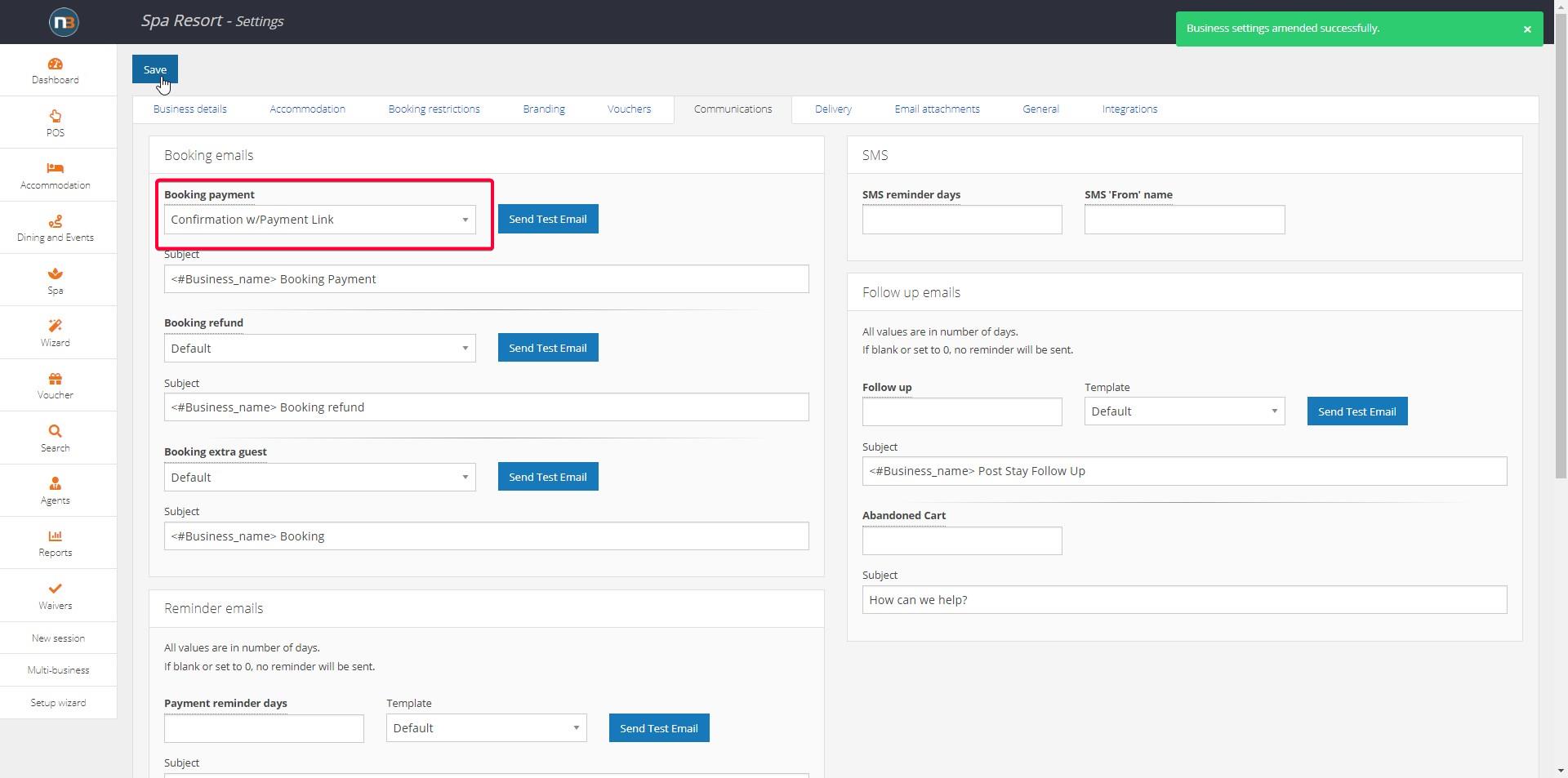
Communications and Reminders
This menu allows you to adjust the automatic custom or system emails sent to guests for various purposes. This includes booking confirmations and payments, email reminders, custom emails, Orders confirmations, Passes confirmations, Memberships communications, SMS reminders & follow ups, 3rd Party emails and Waiver emails.
Additionally, the various automatically generated emails can have their subjects customised in this menu. The tag seen in the subject fields ‘<#Business_name>’, will insert your business name into the subject.
What these emails do not do
These emails are triggered by a booking. They are not campaign emails sent to a selected group of guests, so a message aimed at everyone who has not visited since a certain date is not set up here.
Click ‘Settings’
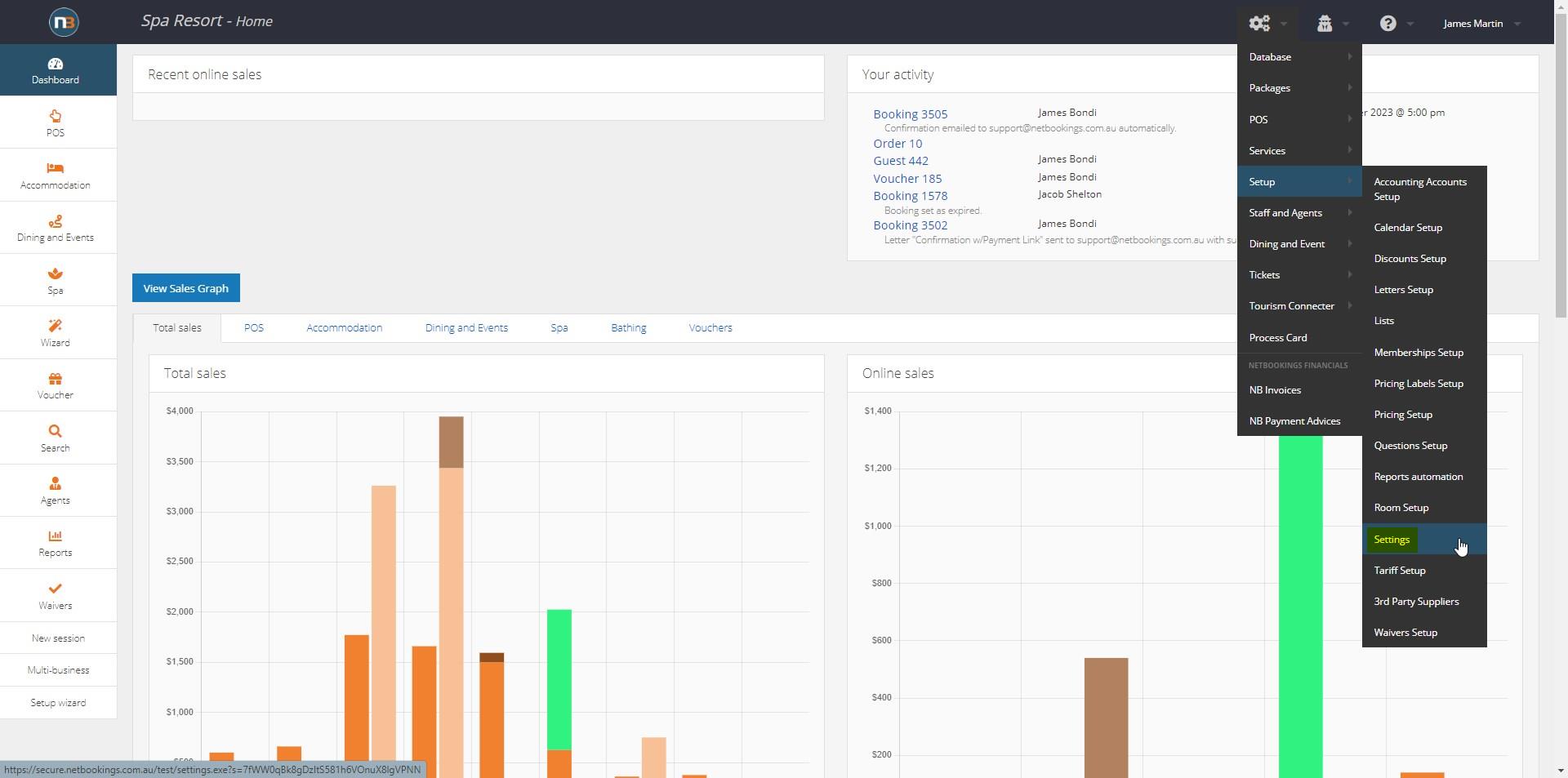
Navigate to System > Setup > Settings
Click ‘Communications’ Tab
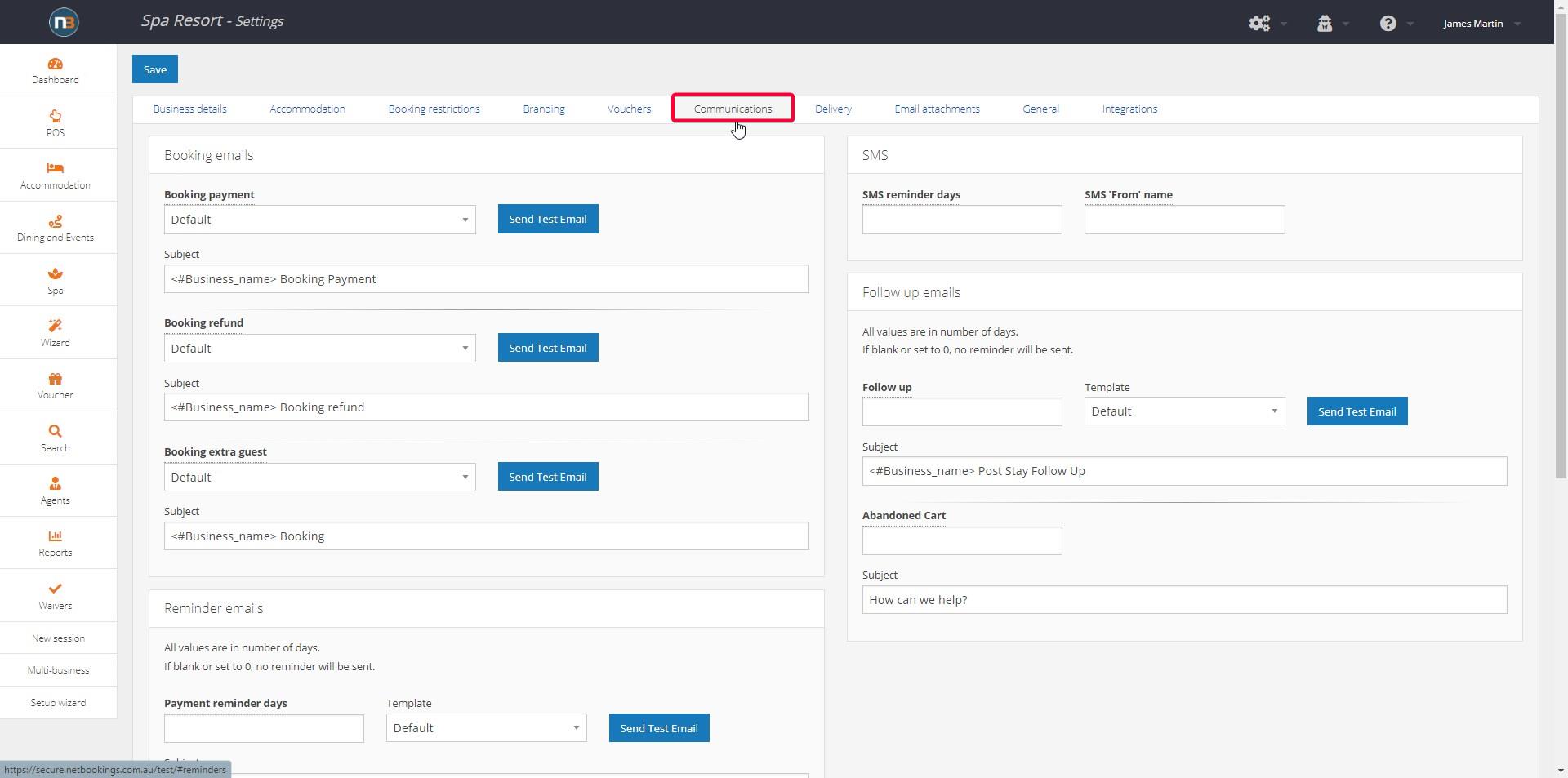
First see the bookings emails panel. These emails are responsible for booking confirmation emails after payment online and in backend. As noted, all the subjects of the emails can be customised also to suit your purposes.
Note: Use the ‘Send Test Email’ button to check progress as you make changes. Test emails will send to your business email set under ‘Business details’ tab in the settings menu.
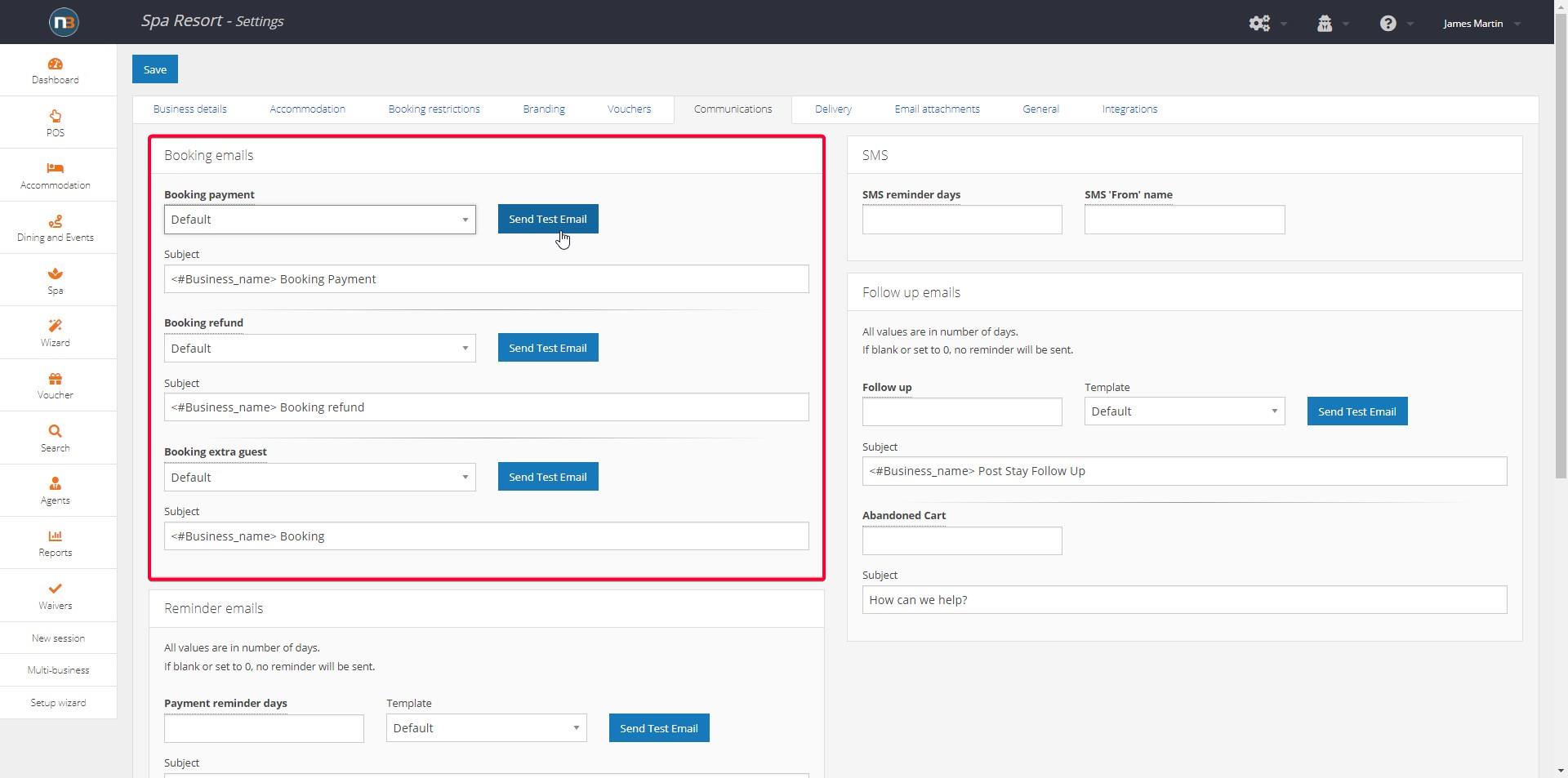
Reminders and Follow Up Emails
Netbookings sends automatic emails to guests around their booking, and you set how many days before or after each one goes. This covers reminders before arrival, a follow up after the visit, and a chase for guests who started a booking and did not finish it.
- Enter a number of days in the field for each email type.
- For reminders the number is days before the booking. For follow ups it is days after.
- Leave a field empty to turn that email off.
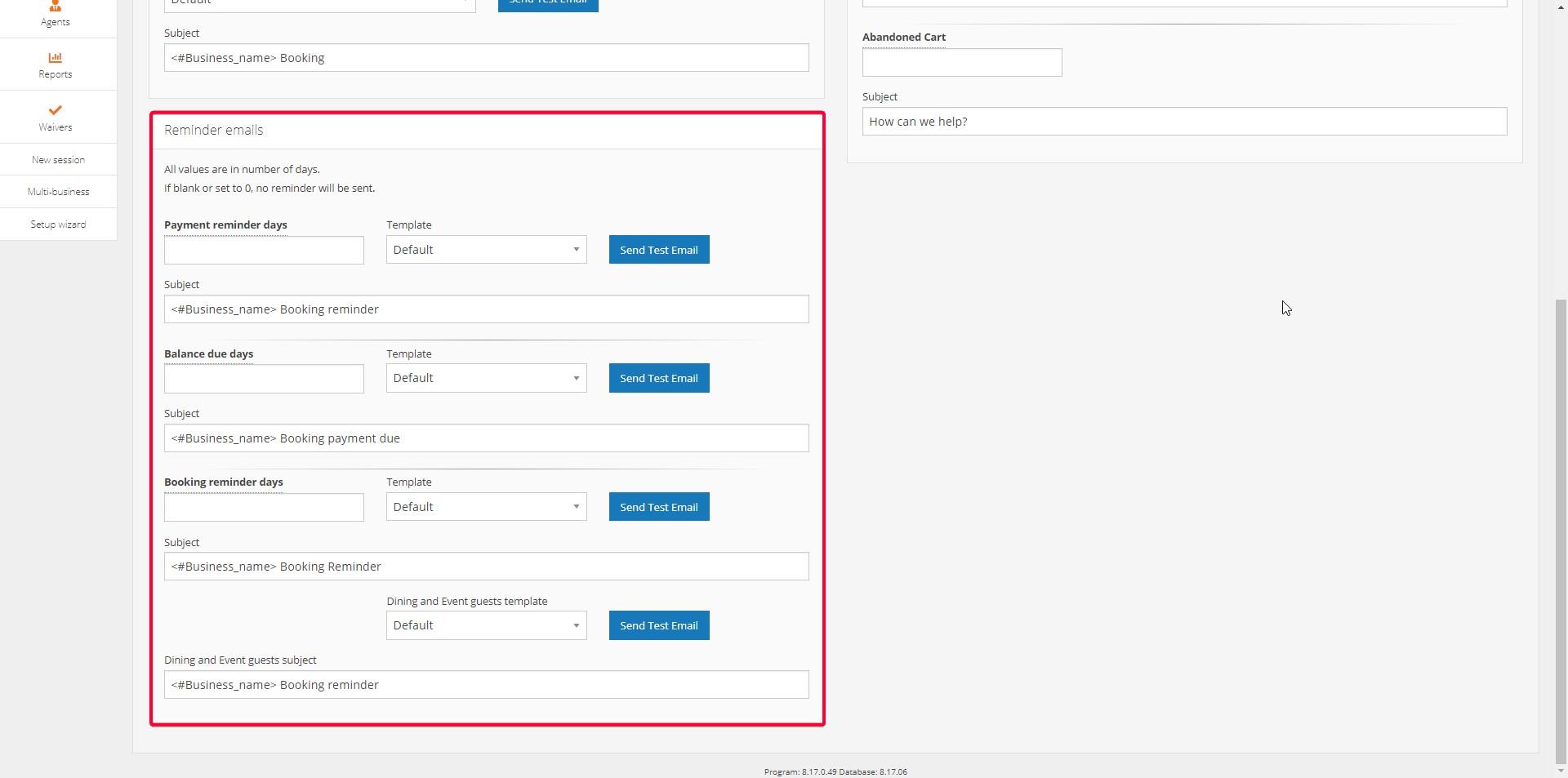
Before Arrival you have 4 options for reminder emails:
- Booking Reminder reminds a guest that they have a booking coming up. A separate tour guests template is available where the business type uses it.
- Payment Reminder goes to guests who have not yet paid in full.
- Balance Due tells a guest their balance is now due.
- SMS Reminder sends the reminder as a text message instead. SMS is charged, so it is billed to your business if you use it.
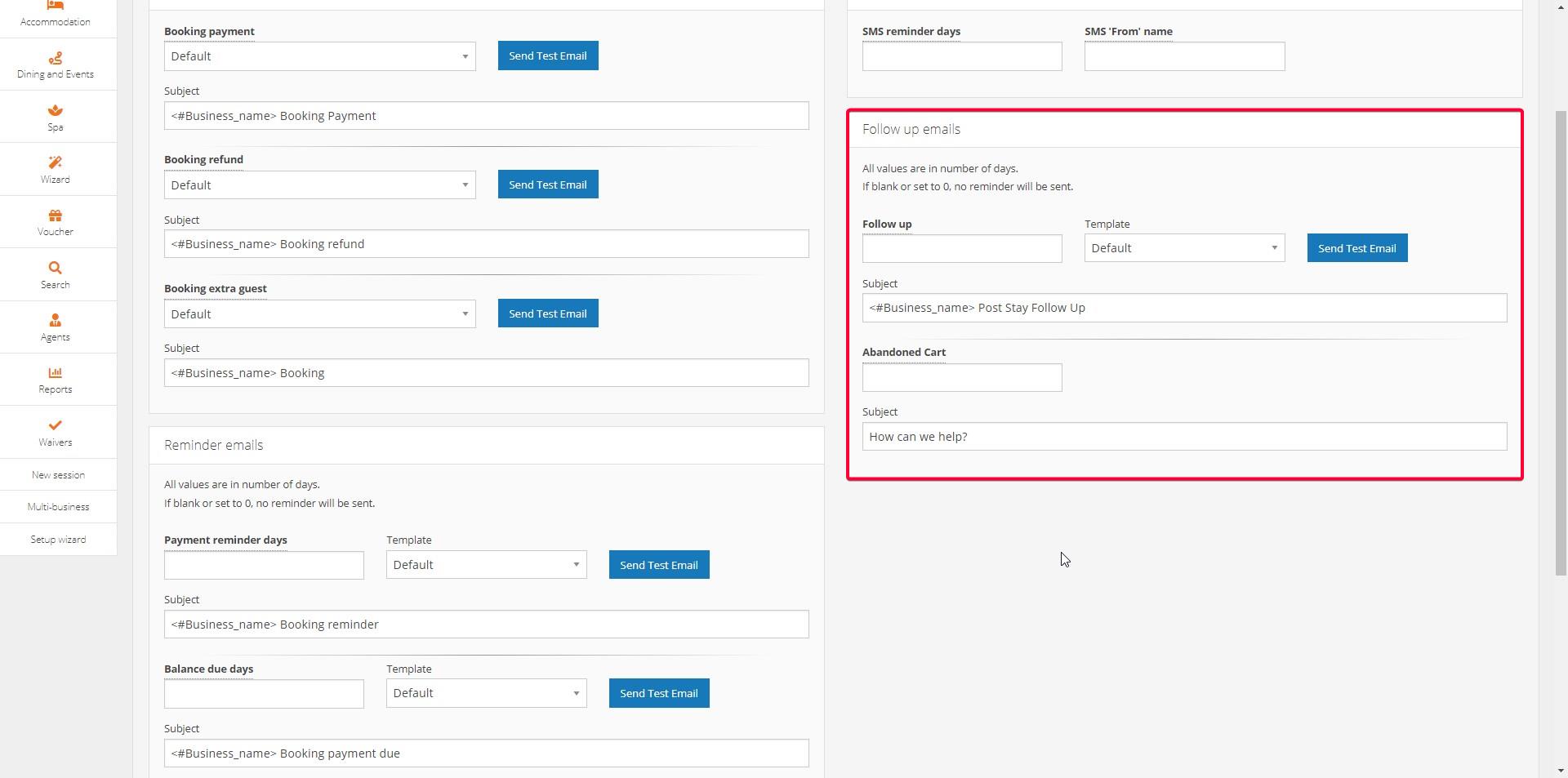
After Arrival there are 2 options for follow up emails:
- Follow Up – Used to send an email after the booking date of the guest.
- Abandoned Cart – Used to send an email to a guest who has entered their details and added items to the cart, but has not proceeded with payment
Selecting Templates
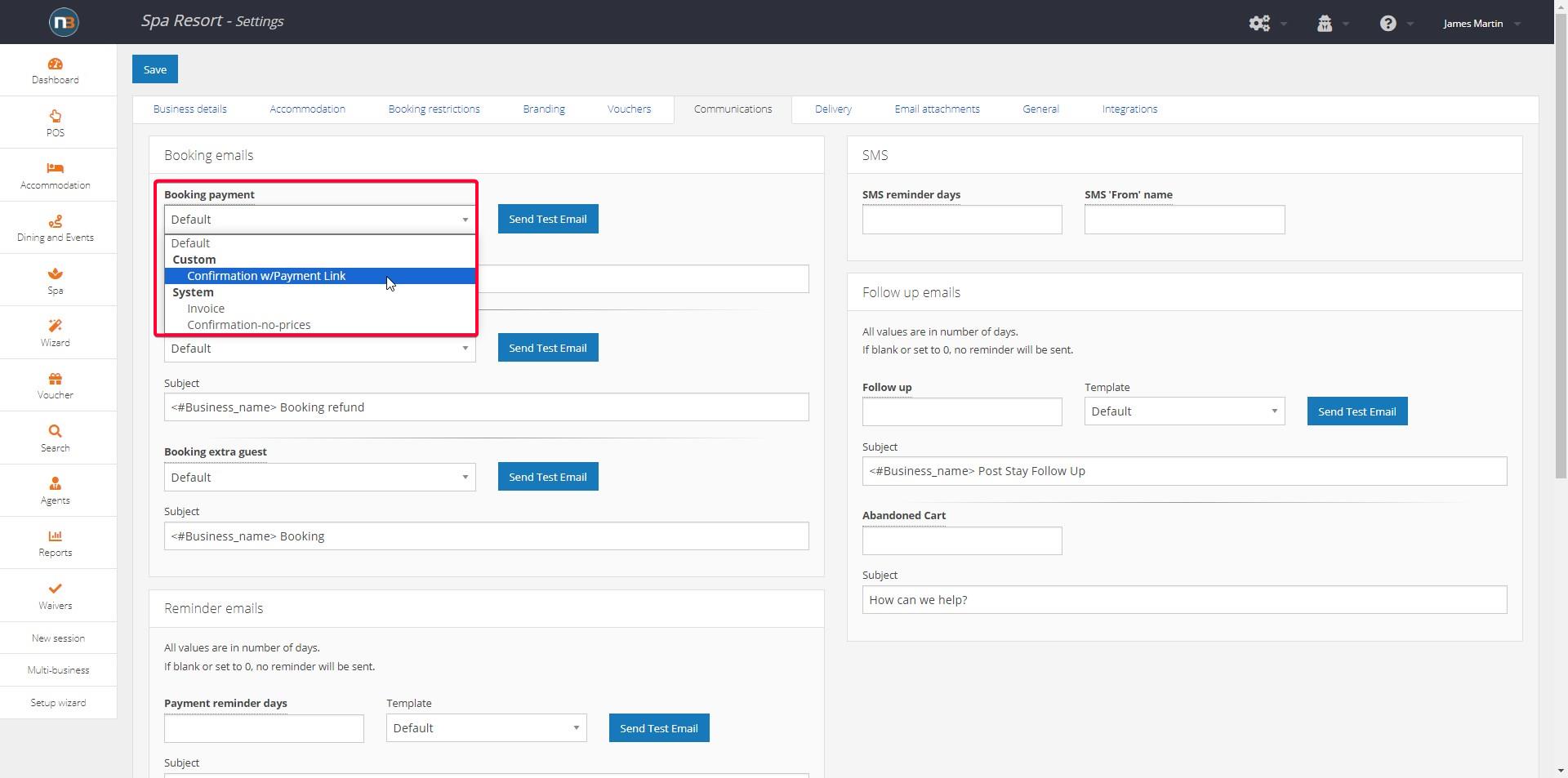
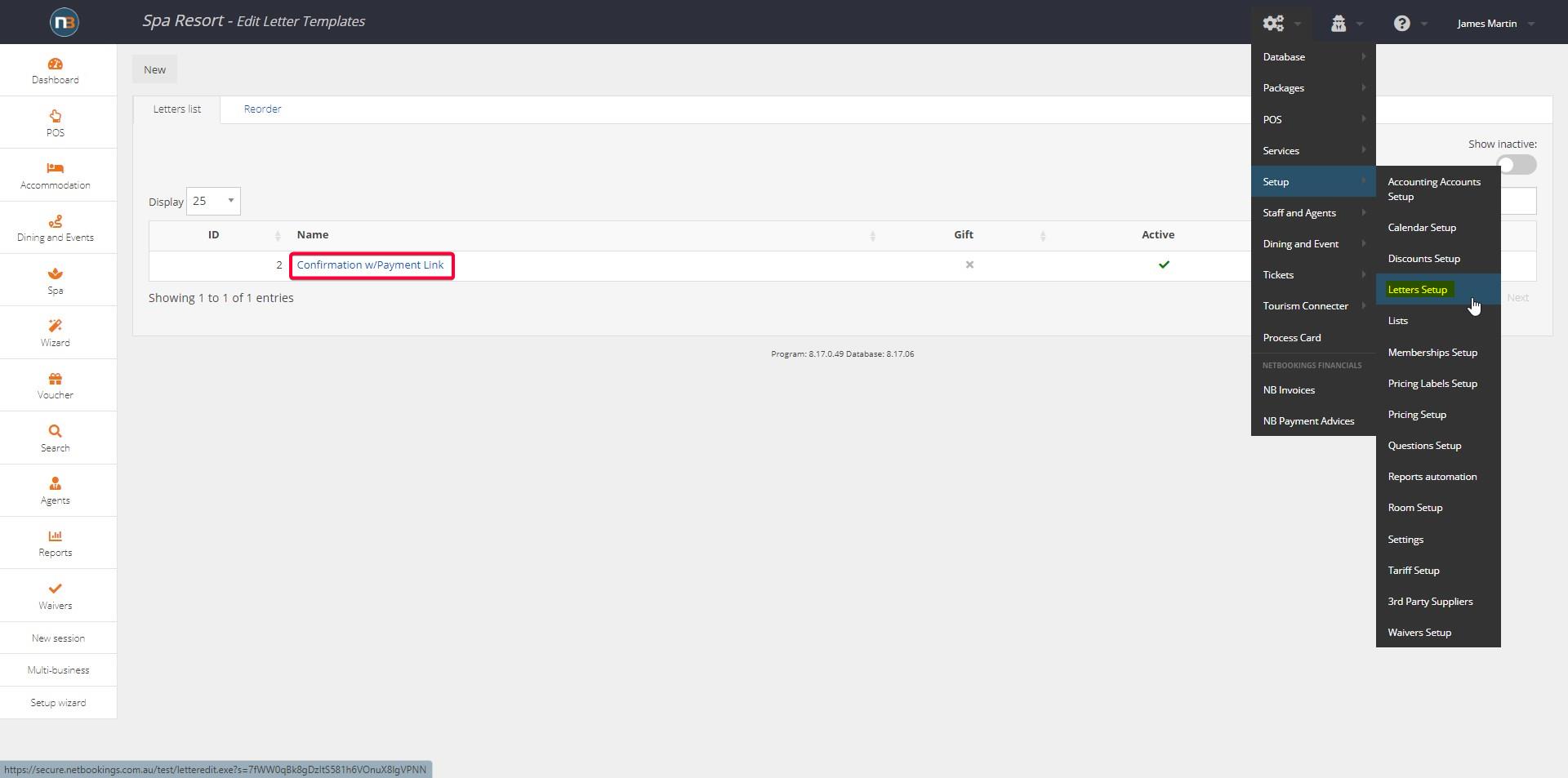
Select a template from the drop-down menu for each email. Letters are listed by categories custom or system. If you wish to create a custom template please see Letter Templates.
Use the tag <#Business_name> in a subject line to insert your business name.
Click ‘Save’