
POS Operations
There are some subtle functions in nbPOS application that require some knowledge. For instance, rather than editing retail products in the backend of Netbookings, which can be slower, you can modify the name of products and their button colour on nbPOS directly. If you have not installed nbPOS on your device yet, speak to Netbookings staff to arrange this.
Correct role functions must be enabled for your user profile to be able to make edits. For editing of products & buttons, enable ‘POS Maintain Buttons’ function. See Role Functions for more information about how to modify these. Split Payments does not require role function to utilise.
Go To POS
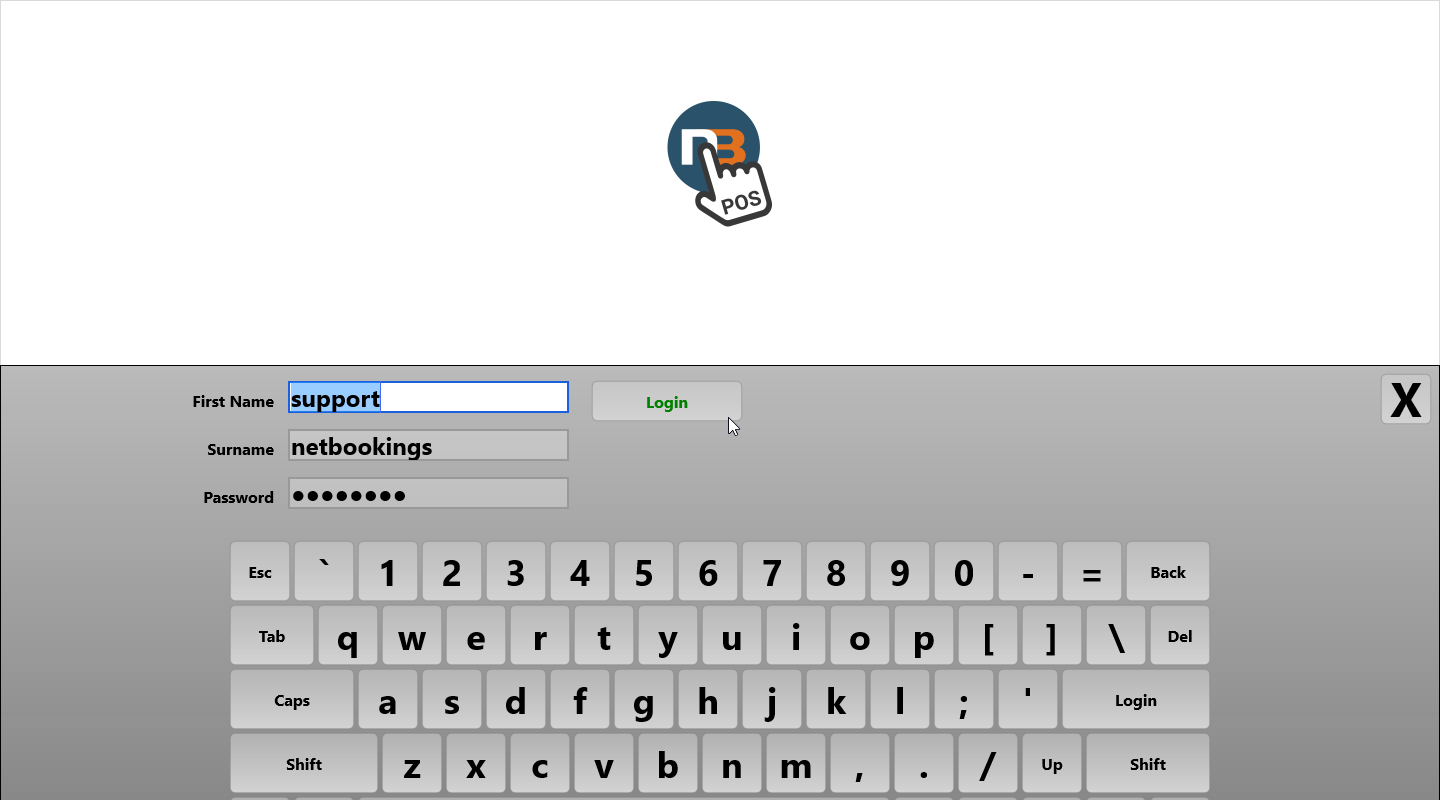
Login to nbPOS with valid login details.
Split Bills
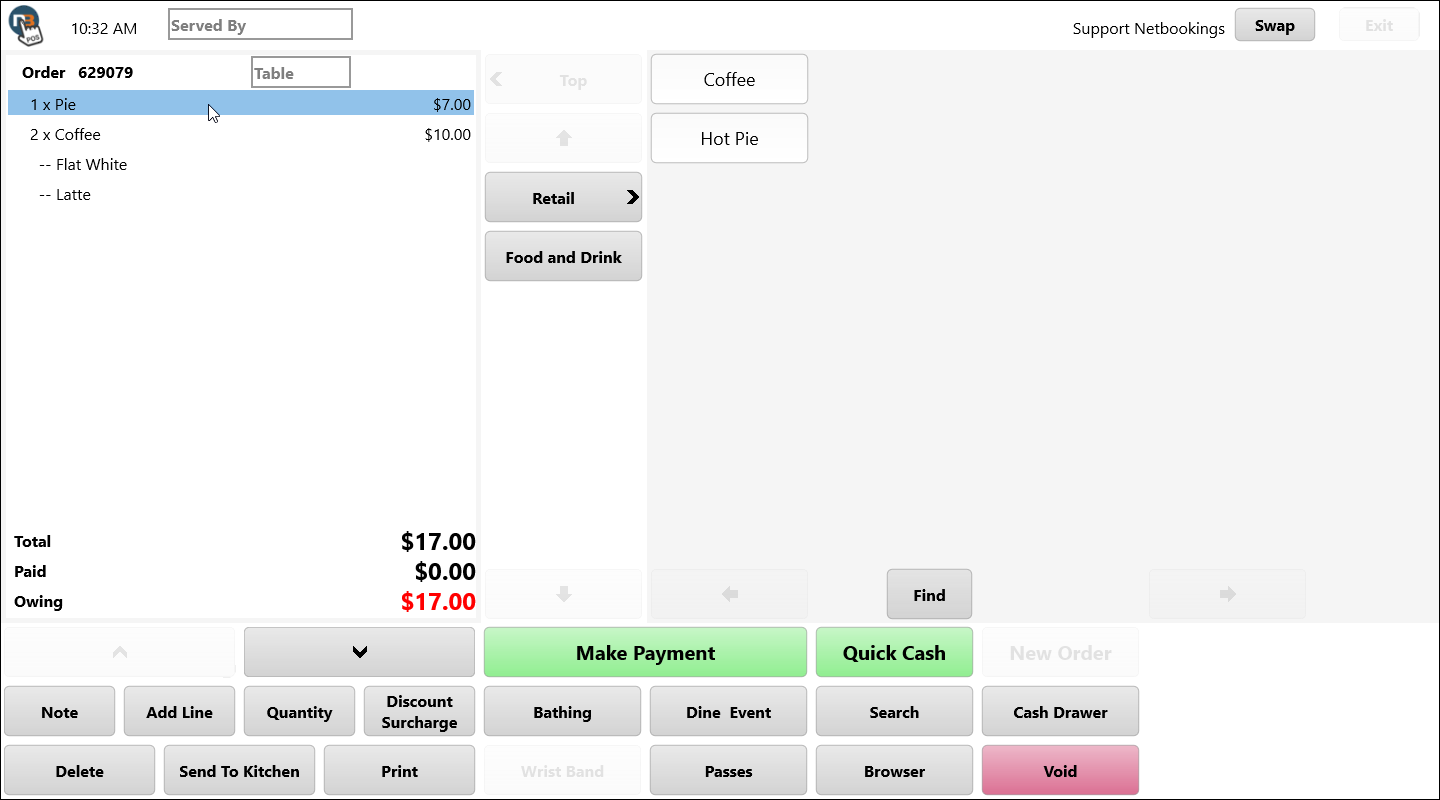
Commence by selecting a line. Then long press on line or use right-click with mouse.
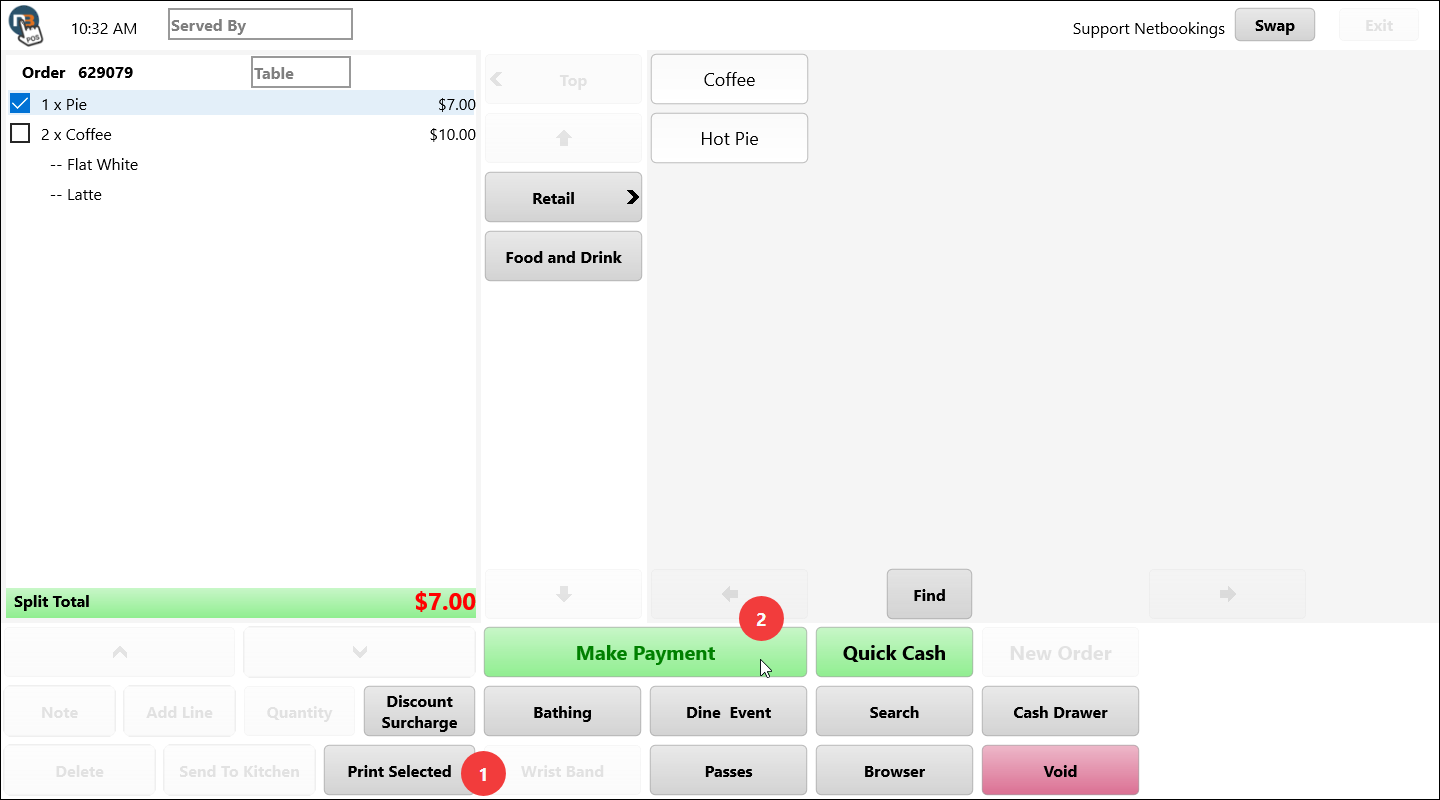
Now we can select the checkboxes for which items we want to include in this split bill. In this case first line. Now click on ‘Print Selected’ first if you wish to show copy to guest before using ‘Make Payment’ button; to finalise payment.
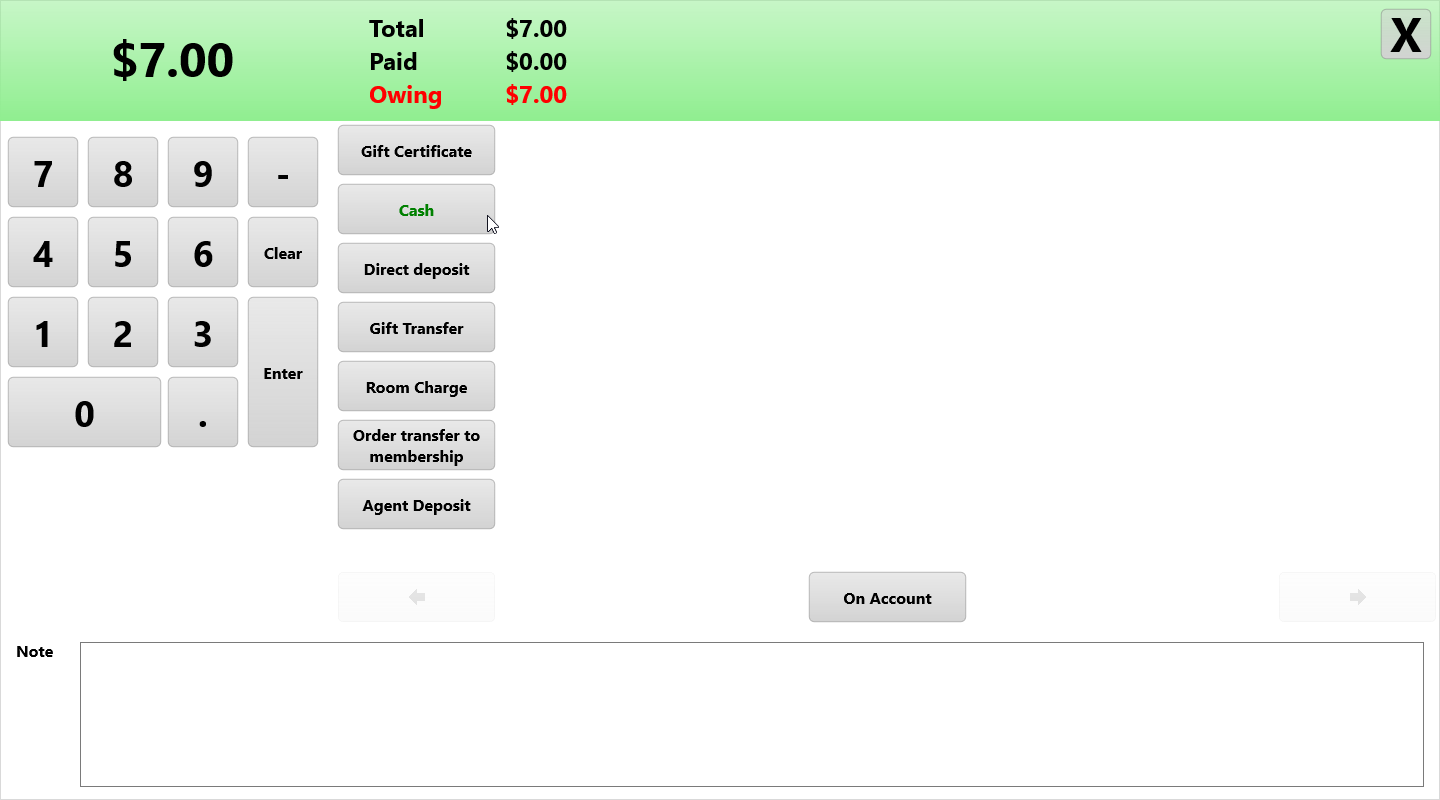
After showing the receipt of split guest is paying for, they can pay by method of choice.
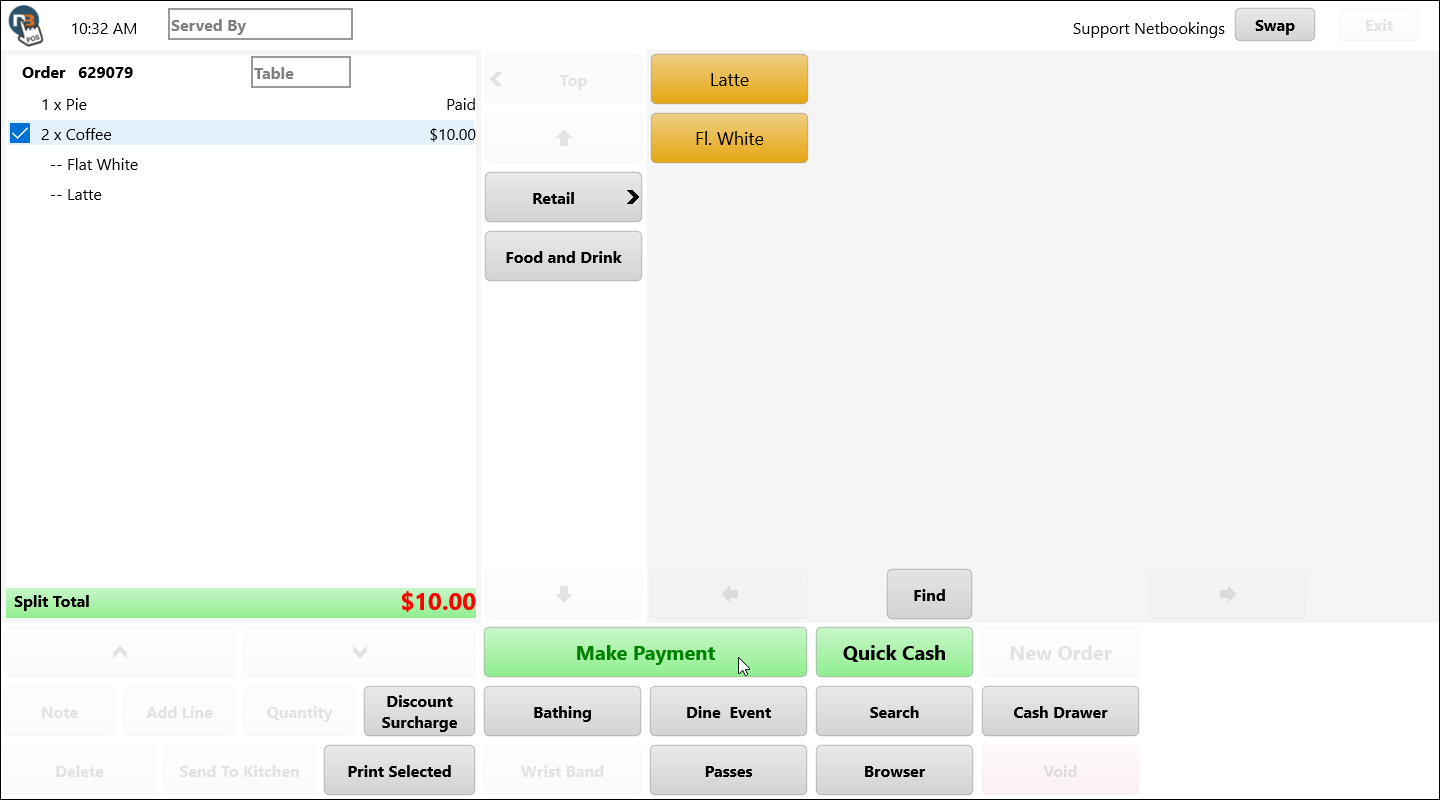
Repeat the process for last item to finalise payment of order. Receipt of all items can be printed before or after splitting the bill.
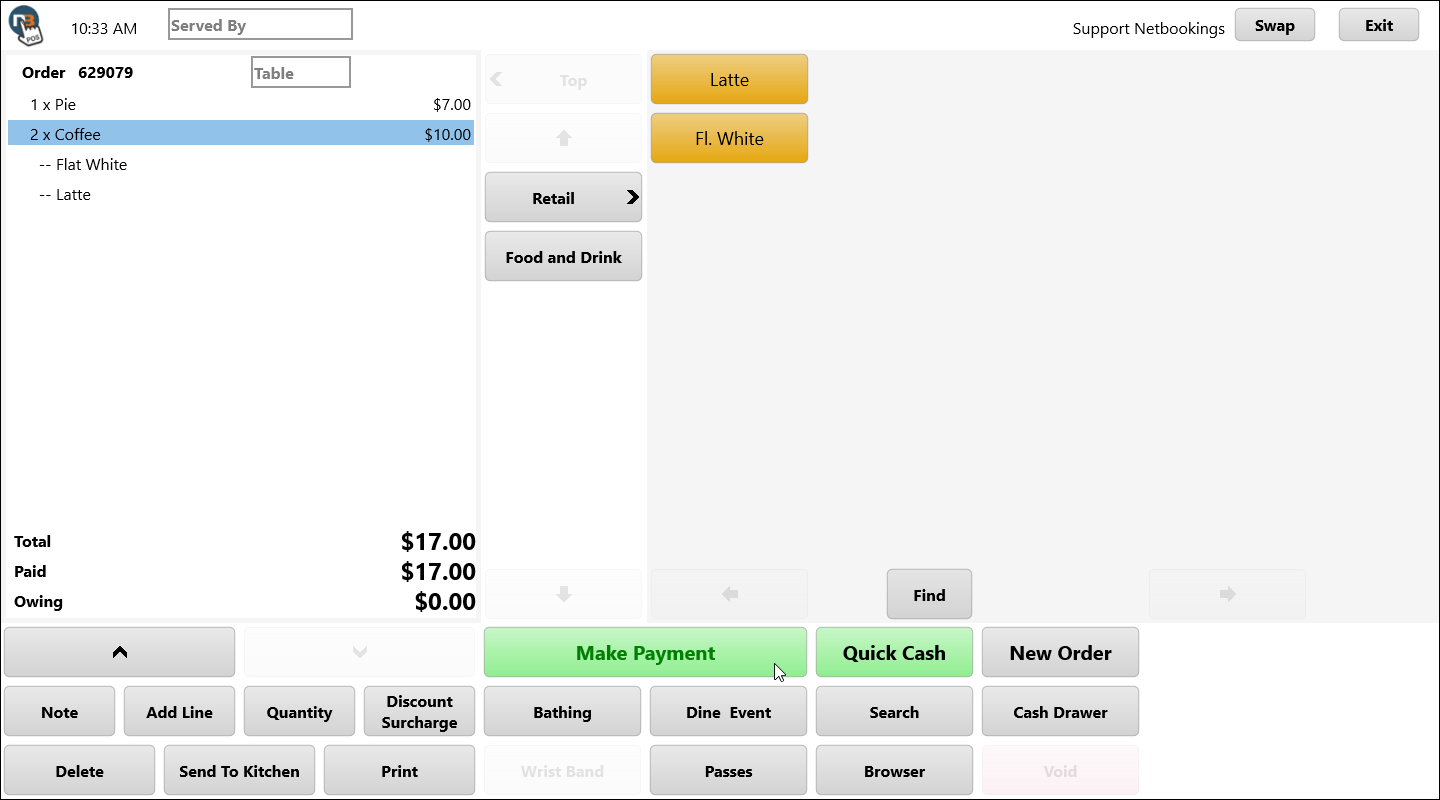
Now order is paid by two different guests. Full order receipt can be printed, the new order can begin (or more items can be added to order if guests persist).
Modifying Retail Products in POS
Drag and Drop Buttons
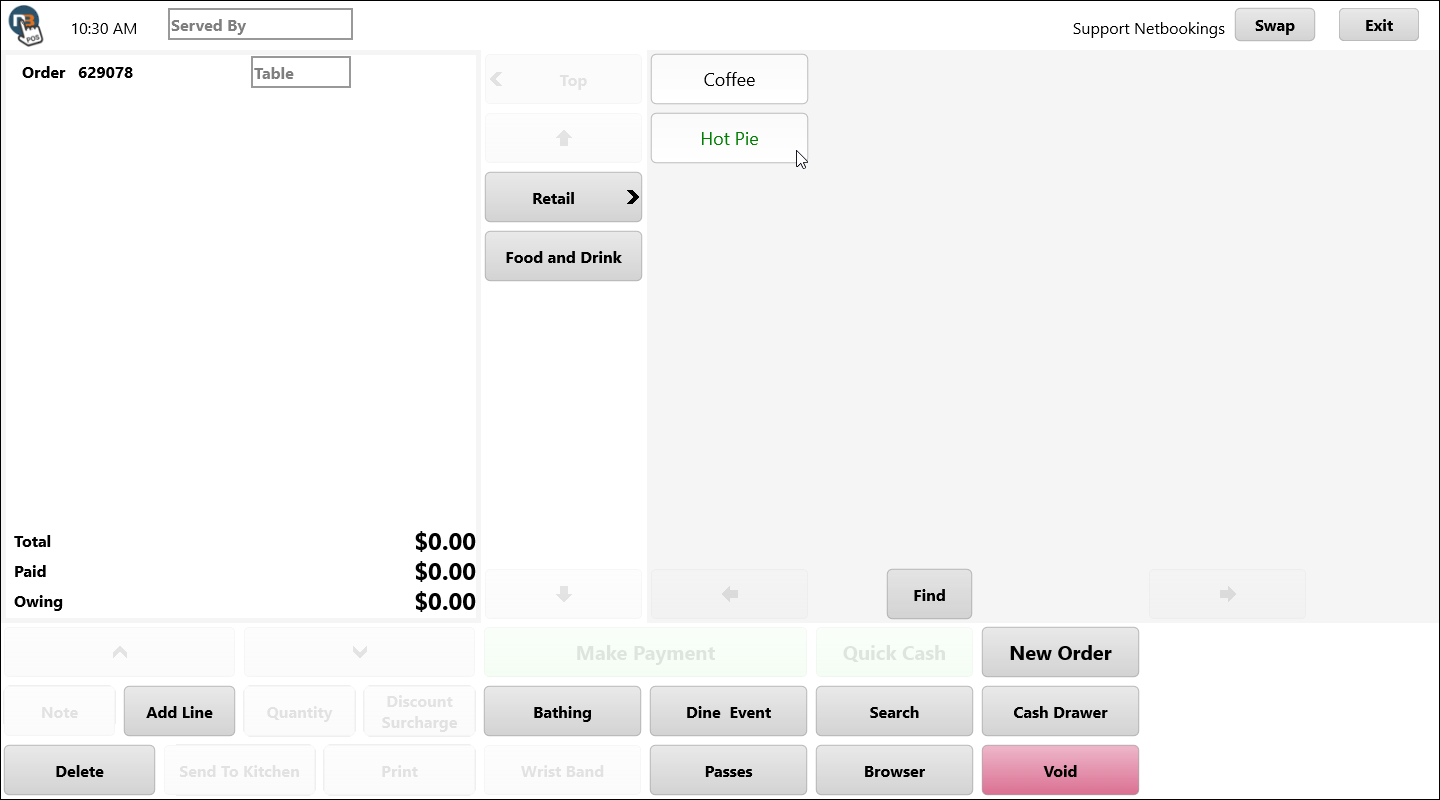
Right-click or long press hold on button you wish to move.
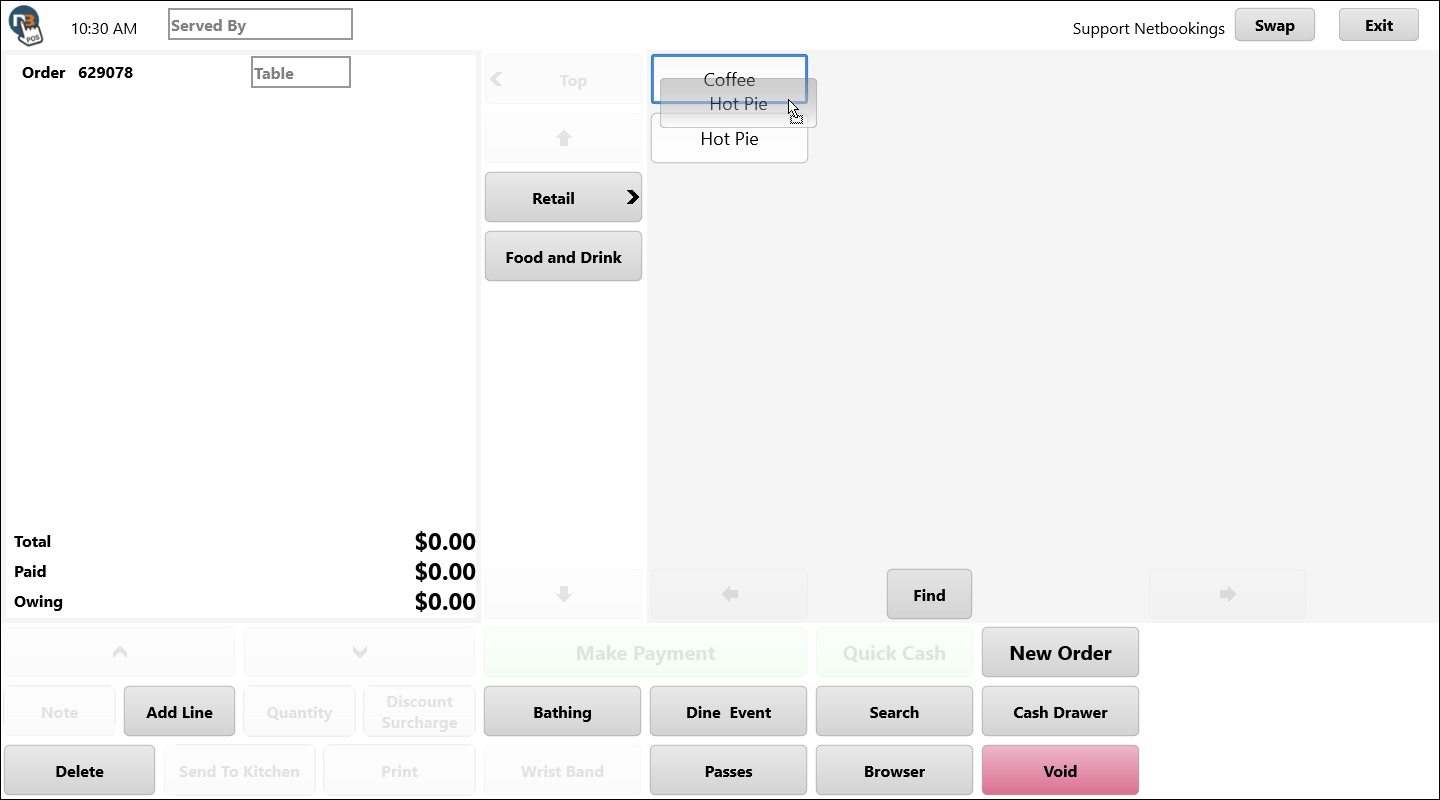
Then move it before another button by moving your button on top of it. Then release click or press to drop the button in new location.
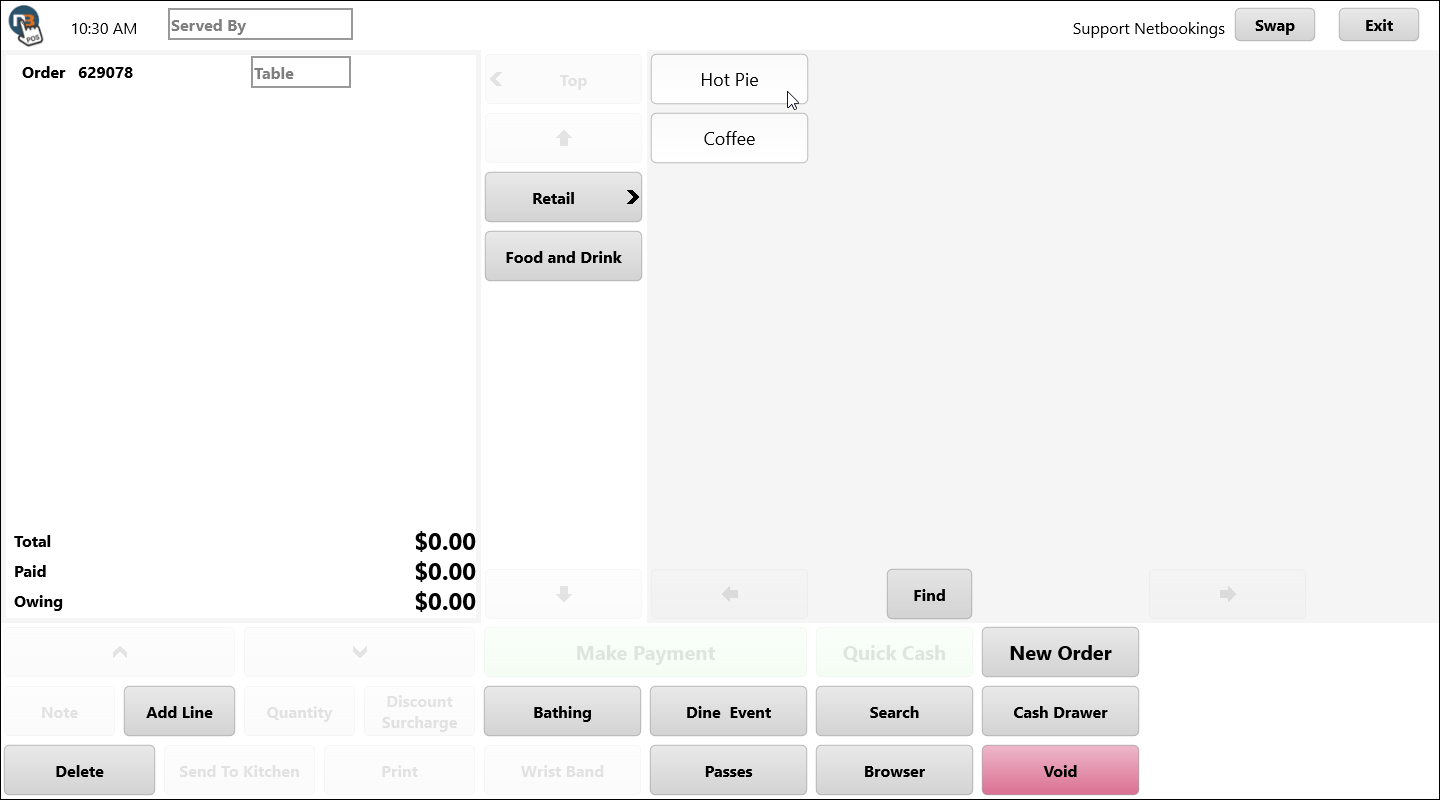
Button has now been moved.
Edit Name and Button Colour
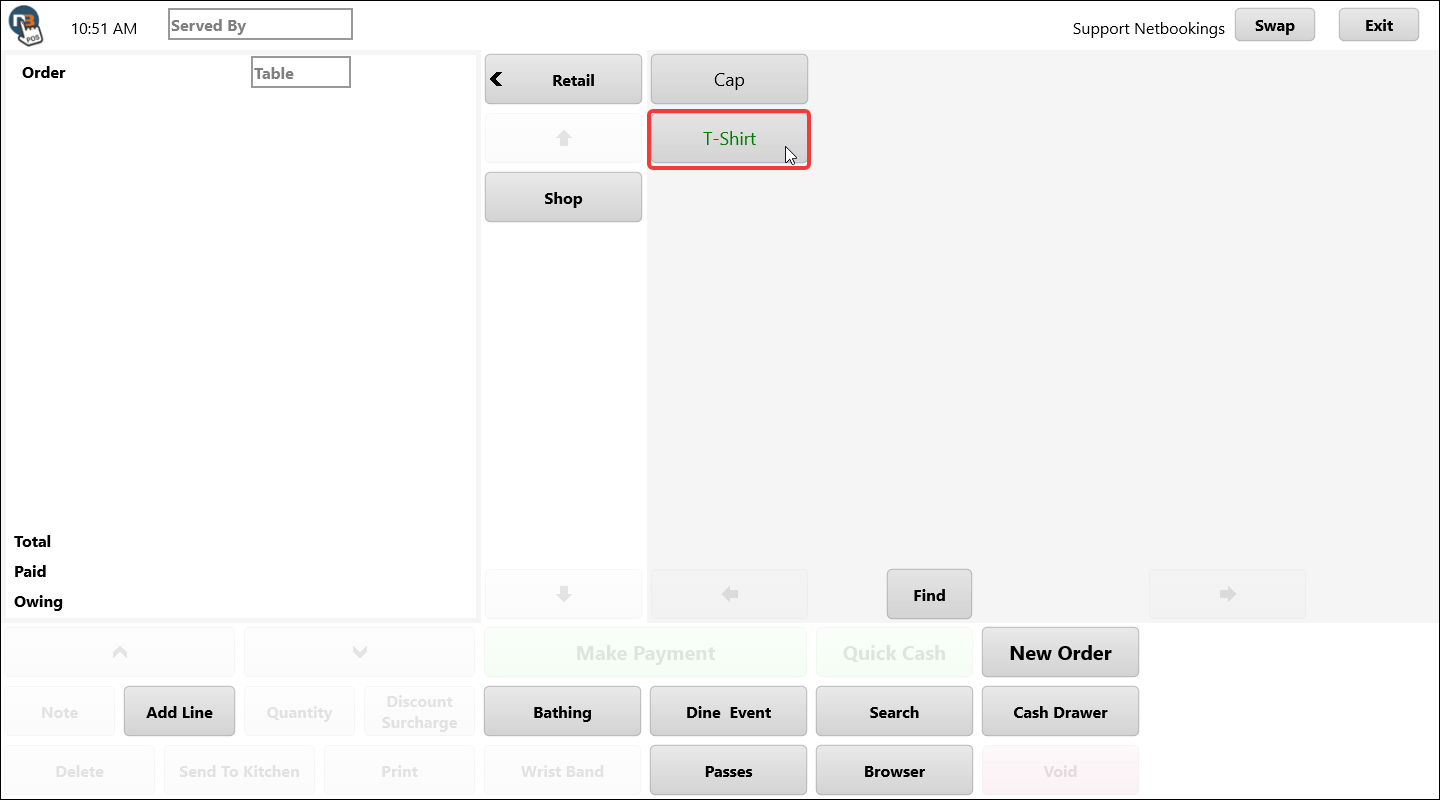
Right-click or long press hold on button you wish to edit.
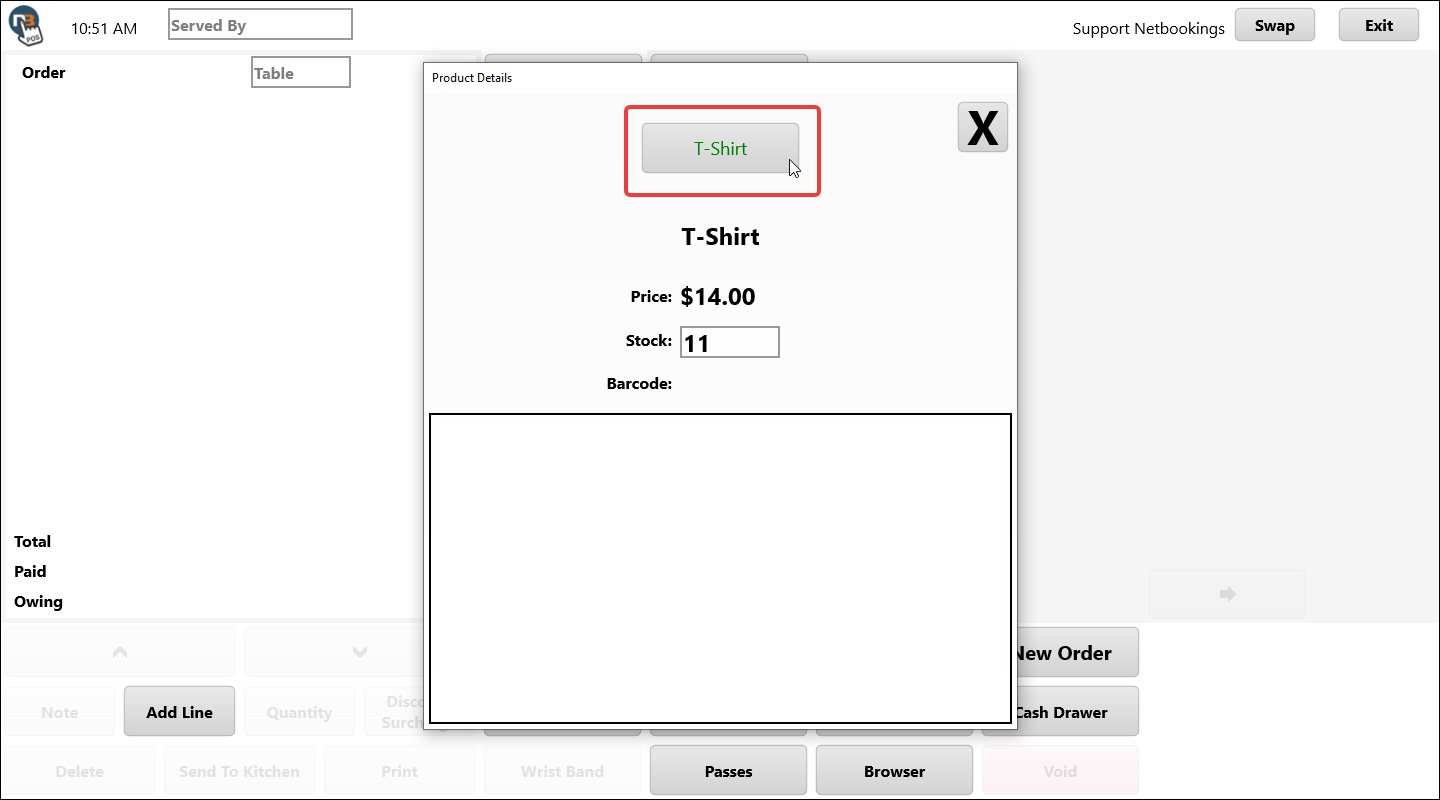
Right-click or long press hold on label button in top centre of modal pop-up.
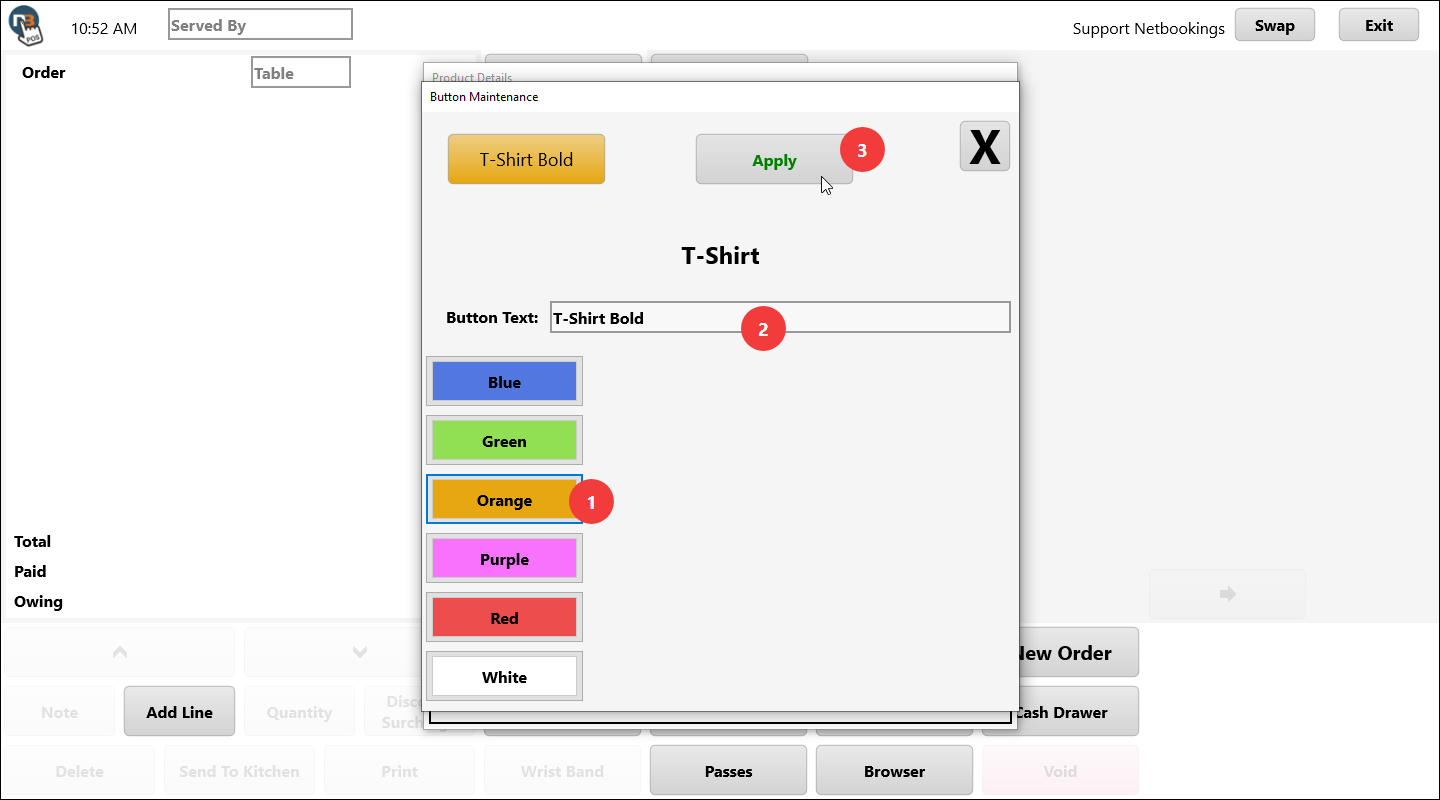
Here you can change the button colour or name of retail product. Then click ‘Apply’ to save.
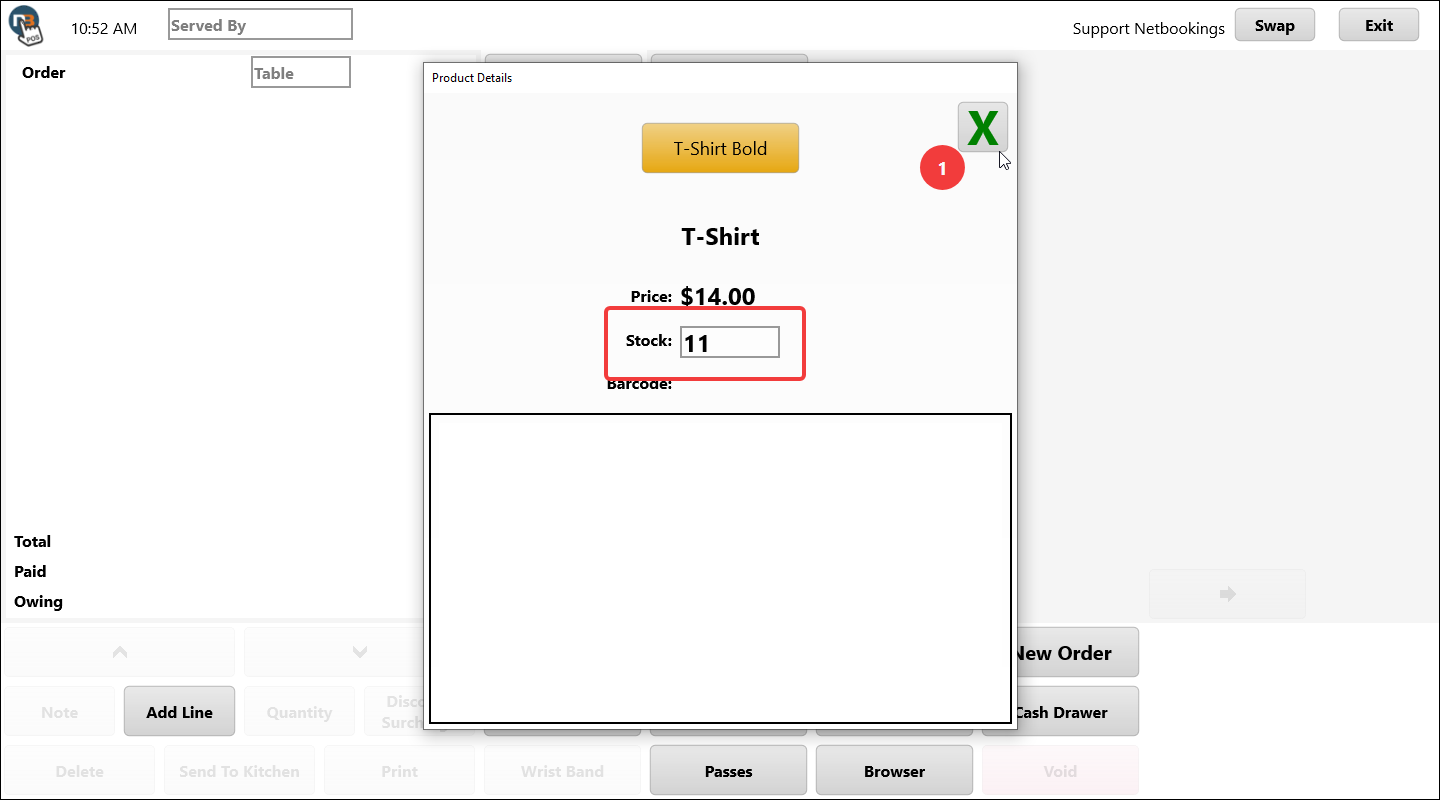
Click ‘X’ to close edit modal. Notice here you can also update the Stock Count of the retail product rather than in the backend. See Stock Countdown for more information.